Last updated on
Glossary
| Term | Definition |
|---|---|
| Frontierz | Workforce development platform built around AI Fellows and Learning Paths. |
| AI Fellow | A configurable conversational AI that holds live, voice-led conversations. See AI Fellows. |
| AI Simulation | A role-play AI Fellow created from a simulated persona, situation, and optional success criteria. After the session it can produce coaching feedback. See AI Simulations. |
| Learning Path | An ordered training programme that can combine AI-led sessions, simulations, reference material, and imported e-learning activities. See Learning Paths. |
| Live session | A real-time conversation with an AI Fellow. Voice-first, optionally with camera, screen, or text sharing. |
| Chat mode | Per-AI-Fellow option that lets users type instead of speaking. Configured with Allow text chat on Capabilities. Where it is on, Voice and Text sit with Start live session. See Text chat mode. |
| Text session | A conversation held by typing. Text starts it; Voice during that conversation continues it as a call. |
| Chat | During a session, the panel or thread that shows the conversation in writing and the text, widgets, images, and documents the AI Fellow shares. |
| Whiteboard | On screen capability. A shared board on the call where the user and the AI Fellow can sketch and the AI Fellow draws diagrams. See Connectors. |
| File sent during a session | A file a user drags into an active AI Fellow conversation so the AI Fellow can use it as temporary context. See Files sent during sessions. |
| Info screen | Optional welcome window shown whenever a user opens an AI Fellow or a Learning Path session. Configured per AI Fellow and per session. See Info screen. |
| Connector | A Custom Connector (HTTP or MCP) attached to an AI Fellow or a Learning Path so the AI Fellow can call one of the customer's systems during a conversation. See Connectors. |
| Connectors Library | Area in Studio where Custom Connectors are defined and managed. Open to Full Admins, Owners, and Creators. See Create a Connector. |
| Capabilities | Built-in session options for an AI Fellow or Learning Path, grouped as Presence, On screen, and Session flow. Managers can toggle them on assigned resources. See Connectors. |
| Tags | Optional Studio labels on AI Fellows and Learning Paths (up to 20 per resource). Used to filter Studio lists. Learners do not see them. See Edit a Learning Path. |
| Knowledge Base | The set of documents an AI Fellow uses as reference material. Up to 20 files per AI Fellow. See Knowledge Base. |
| Learning Path knowledge | Reference files uploaded to a Learning Path. The Fellow sees a catalog (filename and description) and reads a file on demand. Up to 20 files for the whole path and 2 per session. See Learning Path knowledge. |
| Frontierz Studio | The administration hub where administrators create and manage AI Fellows and Learning Paths. The Connectors Library is open to Full Admins, Owners, and Creators. |
| Objective | A specific, observable outcome a user must demonstrate within a Learning Path session. The AI Fellow checks it off during the conversation. |
| Session | One step in a Learning Path. A Fellow Session has objectives that the participant must meet before the next step becomes available. |
| Standalone AI Fellow | An AI Fellow deployed on its own through a standalone link or an embedded widget. No user account is required when the AI Fellow is Public. |
| Standalone link | The unique URL assigned to an AI Fellow. Public AI Fellow links can be opened without authentication; Private AI Fellow links require authentication and explicit access. |
| HTTP Connector | A Custom Connector that calls a regular HTTP endpoint on one of the customer's systems. |
| MCP Connector | A Custom Connector that connects over the Model Context Protocol to an AI-aware data source. |
| Screen share | Built-in Presence capability that lets the user share a screen, window, or tab during a live session. |
| Schedule next session | Built-in Session flow capability on Learning Paths. After every objective in the current Fellow Session is complete, and when a later Fellow Session exists, the AI Fellow can book the next slot and email a calendar invitation. |
| Visibility | One of three states each AI Fellow always has: Public (anyone with the link), Private (only granted users), Disabled (nobody). Knowledge processing briefly shows Training, then restores that previous visibility. See Visibility. |
| Execution log | The audit trail of every time a Connector is invoked in a conversation. Shows the data sent, the response received, and the status. |
| Activity Log | Company Settings page for Owners and Full Admins. Lists who changed Learning Paths, AI Fellows, roles, access, and company settings, and when. See Activity Log. |
| User | The end-user role. Users talk to AI Fellows, advance through Learning Paths, and edit their own profile. Conversations on Public AI Fellows are anonymous; Private AI Fellows and Learning Paths attribute conversations to the user. |
| Admin user | Owners, Full Admins, and Managers. Creators sit on the same Admins tab but are a separate authoring role. See Roles and permissions. |
| Owner | Role with the same product access as a Full Admin, plus permission to manage other Full Admins and Owners, grant the Owner role, and clone supported resources to another owned workspace. |
| Full Admin | Privileged role with full access to every Learning Path, AI Fellow, Connector, transcript, analytics dashboard, and team-management screen in the company. Can invite Creators and Managers. Cannot change or remove another Full Admin or Owner. |
| Creator | Authoring role for Learning Paths, AI Fellows, AI Simulations, and Connectors. Cannot enroll users, open progress or conversation dashboards, or open Company Settings. See Roles and permissions. |
| Manager | Role with management access to the Learning Paths and AI Fellows explicitly assigned to them, including the access list of assigned Private AI Fellows. Creates new Learning Paths, AI Fellows, and Assessments only when Can build new content is on. Cannot open the Connectors Library or the Fellows library, or manage company settings. |
| Fellows library | Ready-made AI Fellows curated by Frontierz. Full Admins, Owners, and Creators add a Disabled copy to the workspace. See Fellows library. |
| Frontierz Learning Path file | A .frontierz.json export of an authored Learning Path. Import it to recreate sessions, objectives, and notes. See Import a Frontierz Learning Path. |
| LMS | A learning management system: the platform your organisation uses to organise and assign training. Connect it through Access Management → LMS integration so employees can open Frontierz activities from their courses. See LMS. |
| LTI 1.3 | A standard for connecting learning platforms. Frontierz uses it to open training from an LMS. Most supported LMSs also provide a content selector (Deep Linking); Cornerstone uses course imports. |
| Light logo / Dark logo | Company Profile logo files for light surfaces and for dark or login surfaces. See Company Profile. |
| Default profile image | Company Profile You picture shown on AI Fellow sessions. See Company Profile. |
| Custom Appearances | Studio AI Fellows tab and page heading for AI Fellow Identities when that feature is enabled. See AI Fellow Identities. |
| AI Fellow Identity | A company-owned Fellow appearance generated from a portrait and motion clips, then deployed for use in AI Fellows, AI Simulations, and learner experiences. Open Custom Appearances. See AI Fellow Identities. |
| User detail | Access Management page for one person, combining Account info, Workspace permissions, and activity. Actions: Generate Report, Edit Info, Edit Access, Show Onboarding Again, Remove User. See User detail. |
| Global progress | Users-tab column: completed Fellow sessions across the Learning Paths shown on that page. See Access Management. |
| User Report | AI-written report for one person from Access Management User detail. Actions → Generate Report stays disabled until that person has completed Fellow sessions, conversations, or messages. The report page has Go Back, previous/next completed reports, and Contents on a wide screen. See User detail. |
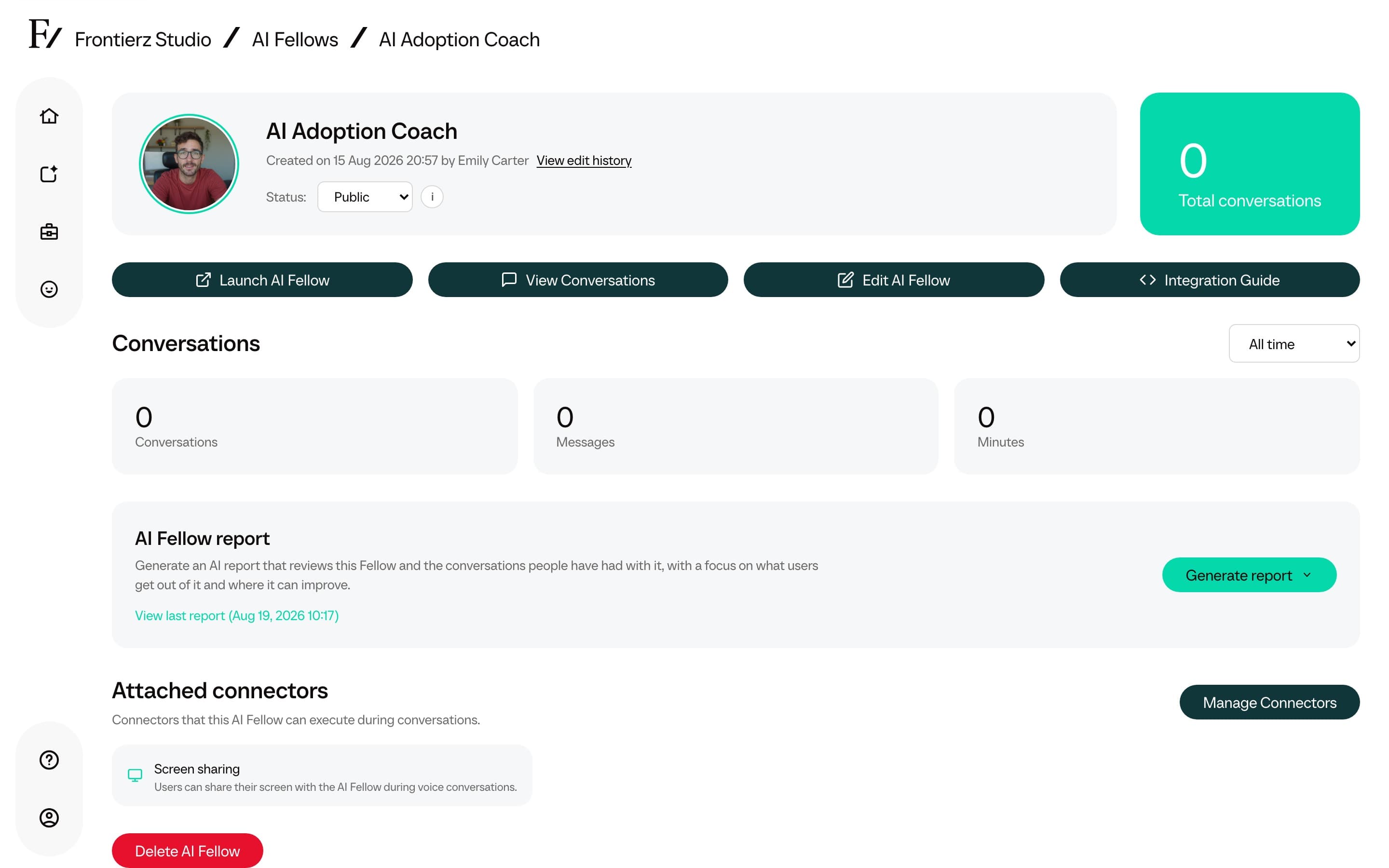
| Edit history | Timeline on an AI Fellow monitor page that shows creation and recorded configuration changes, including the admin who made them. See Edit history. |
| AI Fellow report | An AI-written report about a single AI Fellow, generated from its conversations. Completed reports include Key themes and Recommended actions. The report page has Go Back, previous/next completed reports, and Contents on a wide screen. See AI Fellow report. |
| Session badge | An optional Frontierz reward attached to a Learning Path session. Admins can set a name of up to 25 characters and choose an icon. Learners see it on Your Journey. It is separate from a Microsoft badge. |
| Internal notes | Admin-only notes on a user detail page. They are shared as context with the user's AI Fellows, My Fellow, and Learning Paths, but are not shown to the user. |
| Sign-in & Security | Company Settings page for Owners and Full Admins. Lists the sign-in methods Frontierz has enabled, sets whether single sign-on can create an account, and can restrict access to IP ranges. See Sign-in & Security. |
| New accounts from single sign-on | Sign-in & Security choice for an email that has no account yet. Only existing accounts requires Access Management first. Create an account automatically creates an account with no content access until you grant it. |
| SCORM package | A self-contained e-learning module (SCORM 1.2 or 2004) that can be imported as a Learning Path or added as a session. See Import a SCORM package. |
| Certificate | A completion certificate issued to a user when they finish every step in a Learning Path. Generated automatically. The owner Actions menu is Print, Download as PDF, and Export to LinkedIn. Company branding is used when set. Can include a Microsoft badge when one is configured for the path. |
| Passkey | Optional sign-in method using fingerprint, face, or device PIN. Users manage passkeys on Profile under Security. Each passkey works on the company Frontierz address where it was created. On the two-factor screen it can appear as Use passkey. |
| Two-factor authentication | Optional extra sign-in step that asks for a code from an authenticator app. Users set it up on Profile under Security. Required accounts cannot turn it off. A registered passkey can complete this step with Use passkey. |
| View as User | Option in the bottom user menu for Owners, Full Admins, and Managers. Hides the administration interface and shows what a User sees, without changing the signed-in identity. Creators do not have this option. |
| Source material | Optional document uploaded on Build with AI. Used only to generate that draft, then discarded. |
| Remove User | Access Management action that removes a person from this workspace. If they have no other workspace, the account is deleted. See Remove a user from this workspace. |
| First-time tour | Home walkthrough on tablet and desktop for new accounts. Actions → Show Onboarding Again on user detail runs it on their next Home visit. See User experience. |
| Show Onboarding Again | User detail Actions item that resets the first-time tour for that person. |
| Learning Path communications | Settings block that turns learner follow-up emails and the Monday admin digest on or off, and sets Weekly or Intensive pace. See Learning Path communications. |
| Simulation feedback | Practice report after an AI Simulation. Settings chooses Users and admins or Admins only. Discuss Feedback starts a voice call with Your Fellow about a ready report. See Simulation feedback visibility. |
| Spoken accent or variety | How an AI Fellow, AI Simulation, or Learning Path pronounces a language that has regional options. It does not change the interface language. See Create an AI Fellow. |
| Your Progress | Learner page opened from Your Journey (View your Progress Report). Heading Your Progress. Lists assigned Learning Paths, badges, certificates, and saved practice feedback. |
| Previous Feedback | Top-bar list of earlier practice reports on a standalone AI Simulation. |
| Help | Sidebar control. A card opens with Admin Manual or User Manual, then that manual in a full-screen panel. Search and Ask a question stay in the open manual. See Navigation. |
| Ask a question | Docs control that answers from the pages of the open Admin Manual or User Manual. Also available in the sidebar Help panel. |
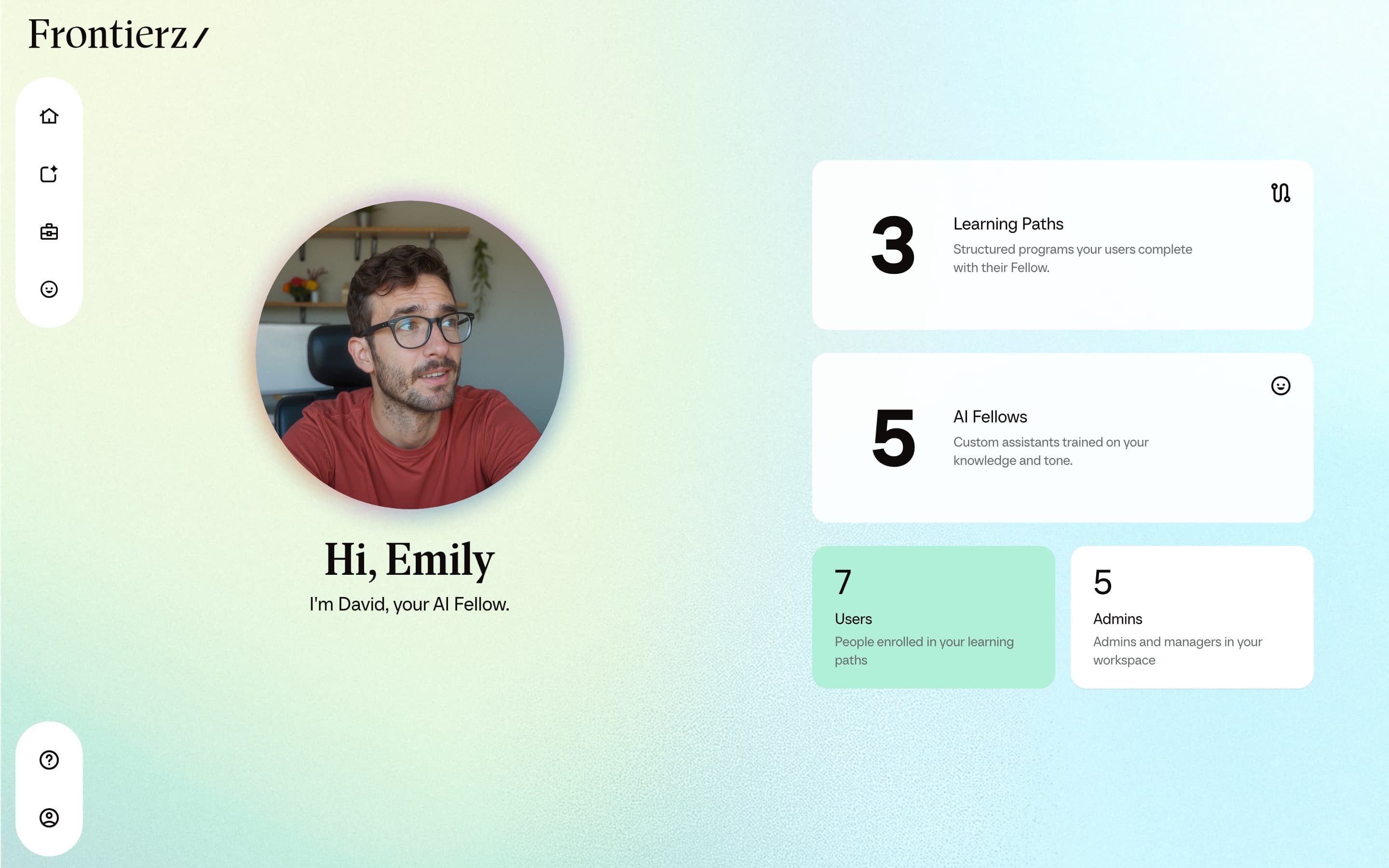
The home screen surfaces the user-facing terms: Home, Your Journey, Your Progress, and Your Fellow.
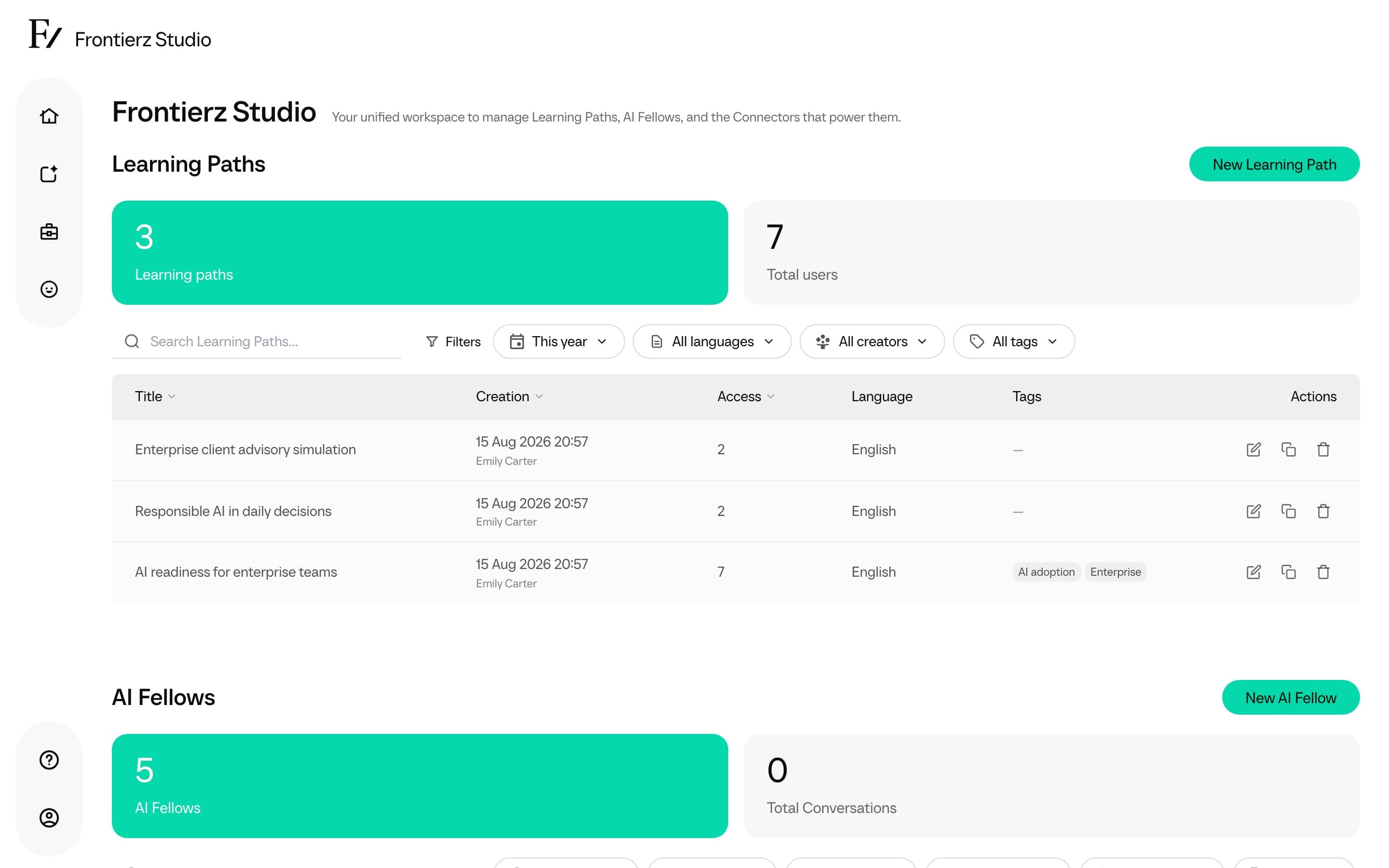
Frontierz Studio is the administration workspace behind terms such as Learning Paths, AI Fellows, Connectors, Full Admins, and Managers.
The AI Fellow monitor page consolidates visibility, status, conversation history, and available actions for an individual AI Fellow.