

Last updated on
Sign-in & Security
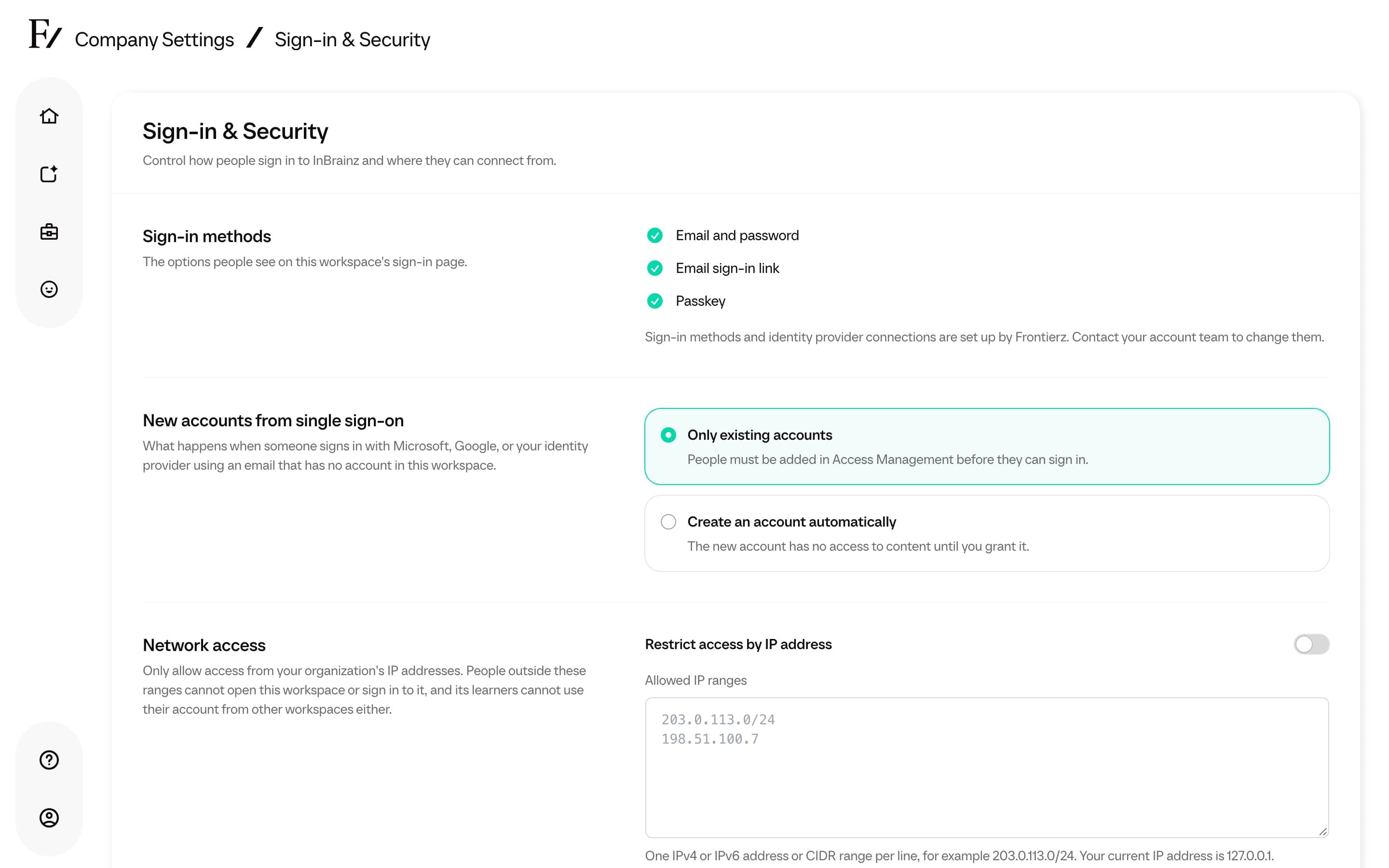
Sign-in & Security shows Owners and Full Admins how people sign in to the workspace, and lets them limit access to the organization's network. Frontierz sets up the sign-in methods. You choose what happens to a new single sign-on email, and which IP addresses can connect.
Open Sign-in & Security
Sign-in methods
Sign-in methods lists the options on this workspace's sign-in page. A method appears only when it is available. The list can include Email sign-in link, Email and password, Passkey, Google, Microsoft, Microsoft, limited to your organization's directory, Single sign-on (Keycloak), and Single sign-on (SAML 2.0).
The list is read-only. To add, remove, or change a method, or to connect an identity provider, contact your Frontierz account team.
New accounts from single sign-on
New accounts from single sign-on applies when someone signs in with Microsoft, Google, or your identity provider using an email that has no account in this workspace.
| Choice | Result |
|---|---|
| Only existing accounts | The person must already be in Access Management before they can sign in. New workspaces start here. |
| Create an account automatically | Frontierz creates the account. It has no Learning Paths or AI Fellows until you grant access. |
Select Save changes. The page confirms Sign-in settings updated. Changes are listed in the Activity Log.
Launches from an LMS follow that connection's Unknown users setting, not this one. See LMS.
Network access
Network access is off until you turn it on. Use it when people should open Frontierz only from your organization's addresses.
Under Allowed IP ranges, enter one IPv4 or IPv6 address or CIDR range per line, for example 203.0.113.0/24. You can add up to 200 ranges. The page shows your current IP address, and whether it is inside the ranges once the restriction is on.
While the restriction is on, people outside the ranges cannot open this workspace or sign in to it. Learners of this workspace also cannot use their account on another Frontierz address while they are outside these ranges. Turning the restriction off keeps the list, so you can turn it on again later.
If your current IP address is outside the ranges you are saving, the page shows You will lose access and your address. Save anyway stores the restriction. Cancel leaves the saved settings unchanged. If you lock yourself out, contact your Frontierz account team to restore access.
Someone who is blocked sees Not Available From This Network, with the IP address Frontierz saw and Try Again.
Sign-in page appearance
The logo and background on the sign-in page are set in Company Profile. Select Edit in Company Profile.