

Roles and permissions
Frontierz includes five predefined roles, each with a fixed permission set. Custom permission profiles are not supported.
| Role | What they can do |
|---|---|
| Owner | Everything a Full Admin can do, plus changing or removing other Full Admins and Owners, granting the Owner role, and choosing another owned workspace when cloning Learning Paths, AI Fellows, or completed AI Fellow Identities. |
| Full Admin | Full access to every Learning Path, AI Fellow, the Connectors Library, Company Settings, Access Management, and analytics. They can invite Full Admins, Creators, and Managers, but cannot change or remove another Full Admin or Owner. |
| Creator | Tenant-wide authoring of Learning Paths, AI Fellows, AI Simulations, and Connectors. Creators can open the Fellows library. They cannot open Access Management, Company Settings, View as User, enroll users, or open progress, reports, or conversation dashboards. Your Journey appears only when the Creator is also enrolled as a user. |
| Manager | Same as a User, plus management of the specific Learning Paths and AI Fellows explicitly assigned to them. Managers can edit those Learning Paths and AI Fellows, create AI Fellows that are assigned to them, enroll users, manage access for assigned Private AI Fellows, and enable or disable built-in capabilities such as Screen Share or Schedule Next Session. The Connectors Library and Fellows library stay closed to Managers. Managers cannot manage company settings or invite Admin users. |
| User | Access to the Learning Paths they are enrolled in and the AI Fellows shared with them. They can talk to AI Fellows and edit their own profile. |
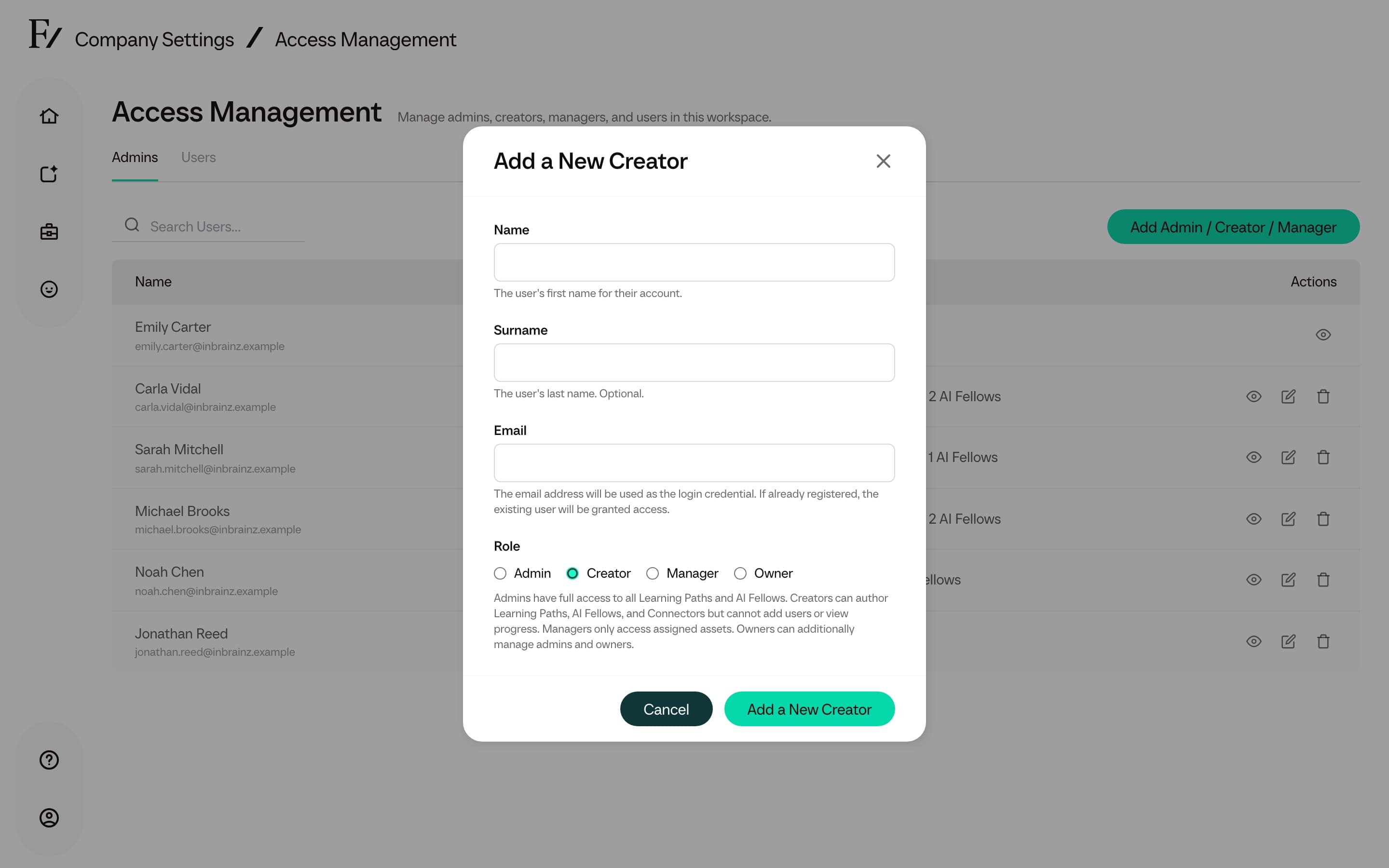
Creator permissions
Creators author content across the workspace. They do not manage people or read progress.
They can:
- Create, edit, clone, and delete Learning Paths, AI Fellows, and AI Simulations in this workspace.
- Open the Fellows library and add a ready-made Fellow.
- Create and edit custom Connectors in the Connectors Library, and attach them to assets they can edit.
- Toggle built-in capabilities on the assets they author.
- Open Your Journey only when they are also enrolled as a user.
They cannot:
- Open Company Settings, Access Management, or View as User.
- Enroll users, import a CSV of users, or change someone else's access.
- Open Learning Path dashboards, reports, CSV exports, or AI Fellow conversation and usage screens.
- Change or remove Full Admins or Owners.
After a Creator accepts or creates a Learning Path or AI Fellow, Frontierz opens the editor, not the dashboard or monitor.
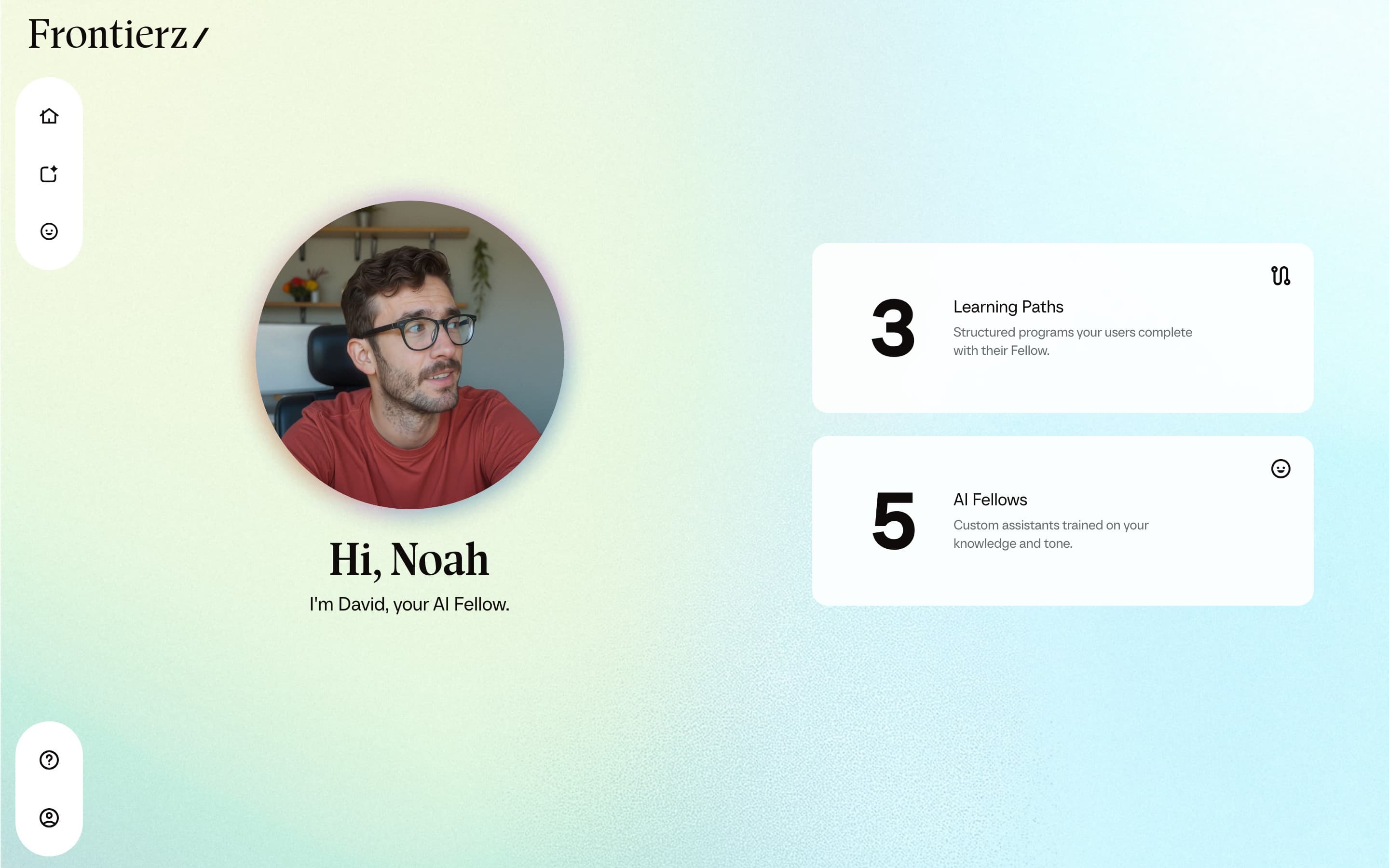
Manager permissions
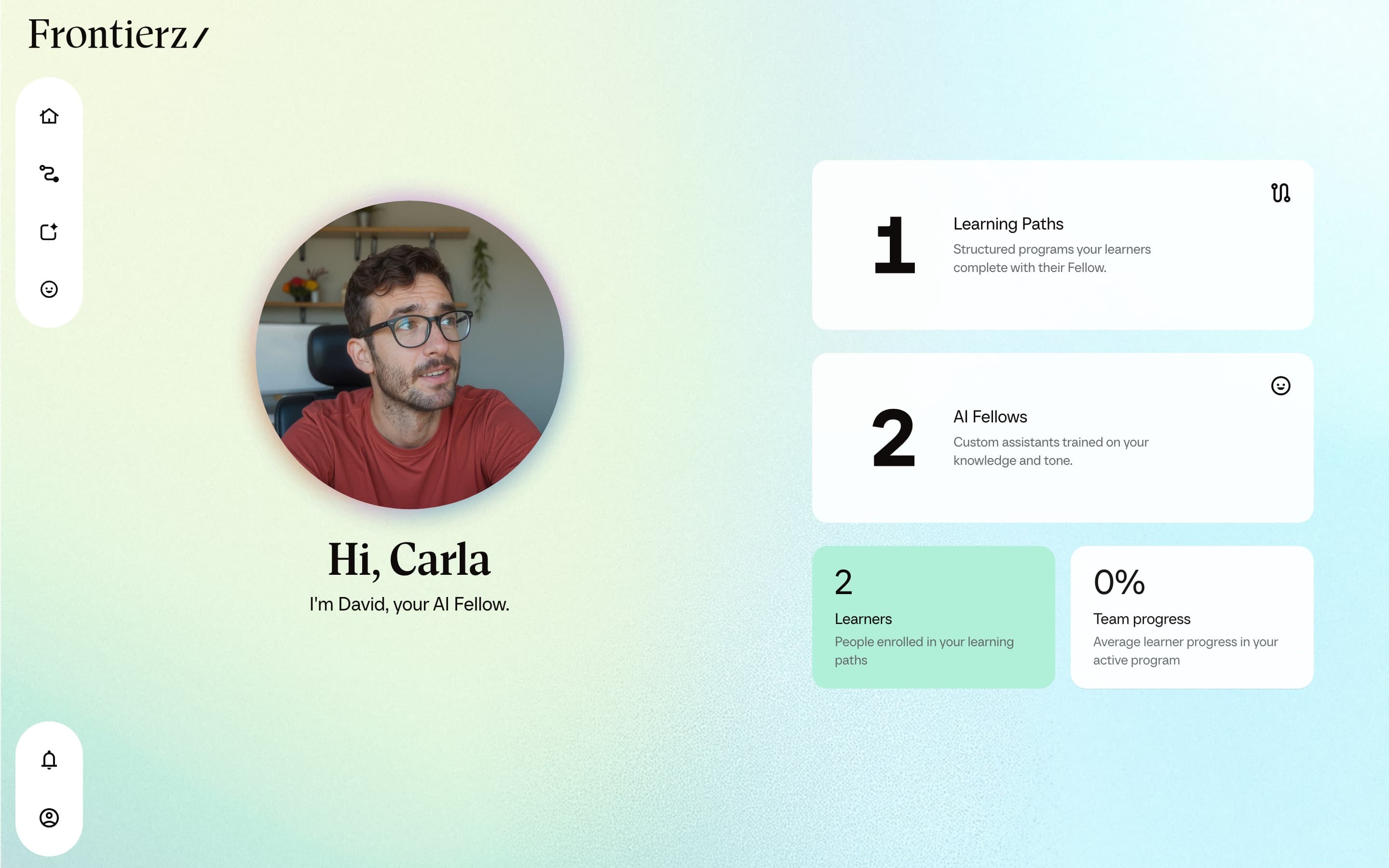
When assigning the Manager role, the scope of access must be defined explicitly.
They can:
- Edit the Learning Paths and AI Fellows that have been explicitly assigned to them: content, sessions, objectives, persona, purpose, and Knowledge Base.
- Create new AI Fellows. New AI Fellows created by a Manager are assigned to that Manager.
- Enroll, remove, and export users on their assigned Learning Paths.
- Enable or disable built-in capability toggles on their assigned Learning Paths and AI Fellows. These include Screen share, Camera, Text snippets, Diagrams, Interactive widgets, Image generation, Schedule next session where the asset supports it, and Celebrations.
- Manage the access list for their assigned Private AI Fellows from Manage Users, including adding or removing users and exporting the access list as CSV.
- Use View as User to see the platform from a user's perspective (see below).
They cannot:
- Open the Connectors Library, the Fellows library, or Company Settings. Those links do not appear for Managers, and visiting those URLs returns an access-denied page.
- Create, edit, attach, or detach custom Connectors. If a custom Connector has already been attached to one of their AI Fellows or Learning Paths by a Full Admin, the Manager will see it as a read-only Active label. Built-in Connectors remain configurable where applicable.
- Add, edit, or remove other Admin users.
- Open Company Settings or the company profile.
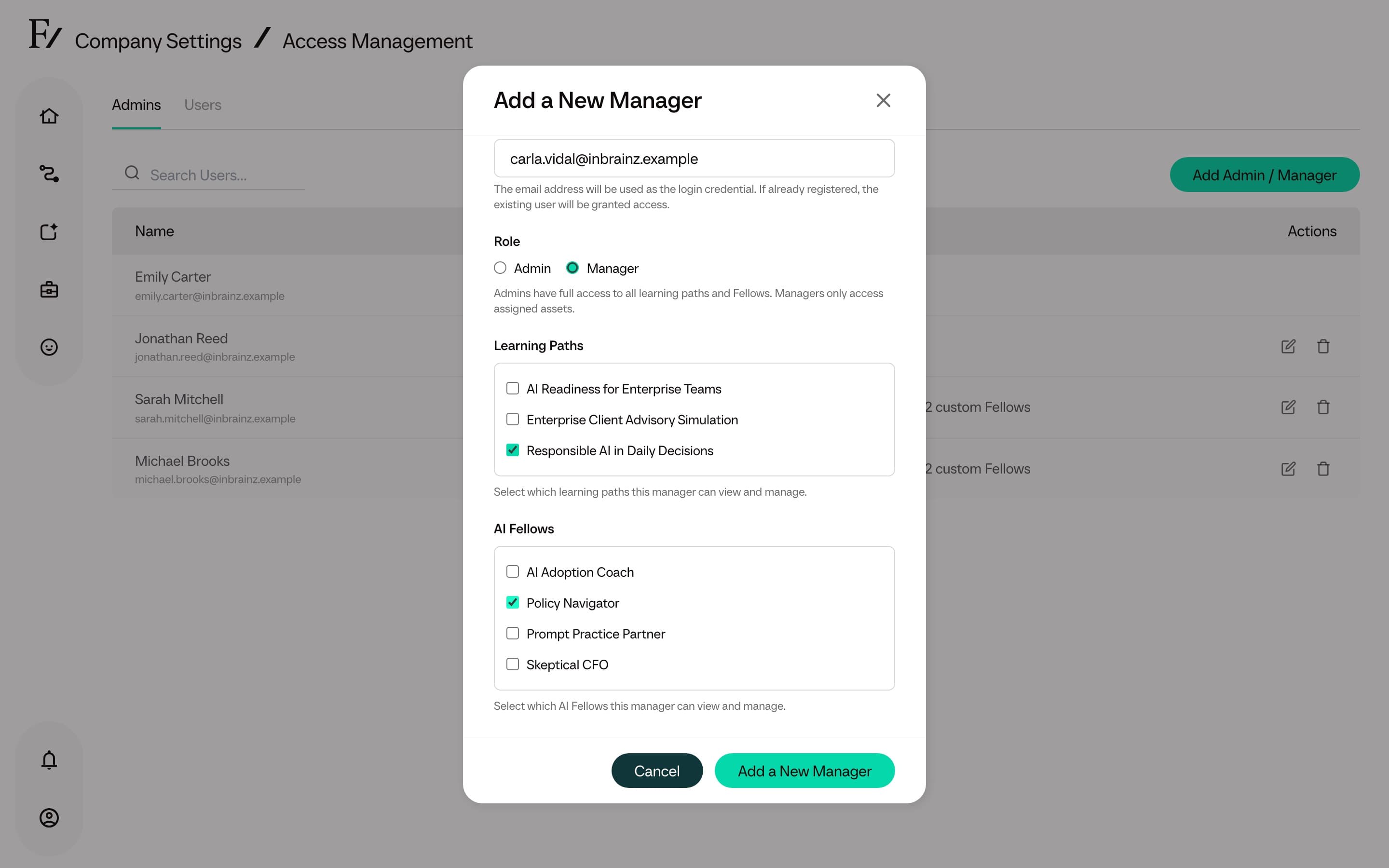
View as User
Owners, Full Admins, and Managers have a View as User option in the bottom user menu. Creators do not. Enabling this option re-renders the sidebar and top menu as displayed to a User: Studio, Company Settings, and the Learning Path Admin dropdown are hidden, leaving only Home, Your Journey, and Your Fellow. The session, identity, and company context remain the same. The administration UI is hidden. Disabling the option (the button reads Back to Admin View while it is on) restores the full view.
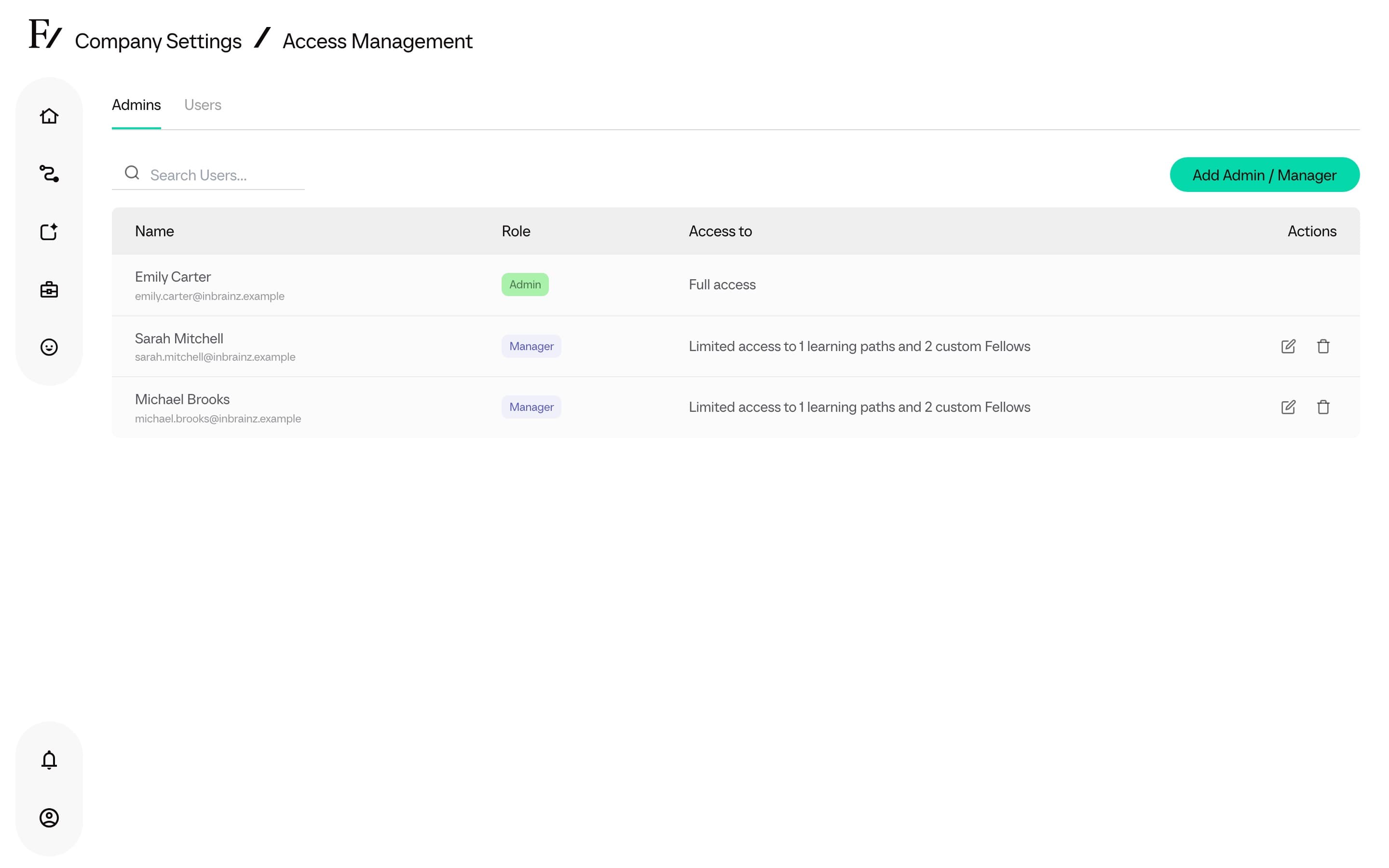
Use View as User to verify the user experience before sending an invitation, or to assist a user during a screen-sharing support session.
Owner permissions
Owners have the same product access as Full Admins, with additional workspace administration rights. Only an Owner can grant the Owner role or change and remove other Full Admins and Owners.
When an Owner has more than one workspace, clone dialogs for Learning Paths and AI Fellows include a destination workspace. A completed AI Fellow Identity also shows Copy to another workspace.
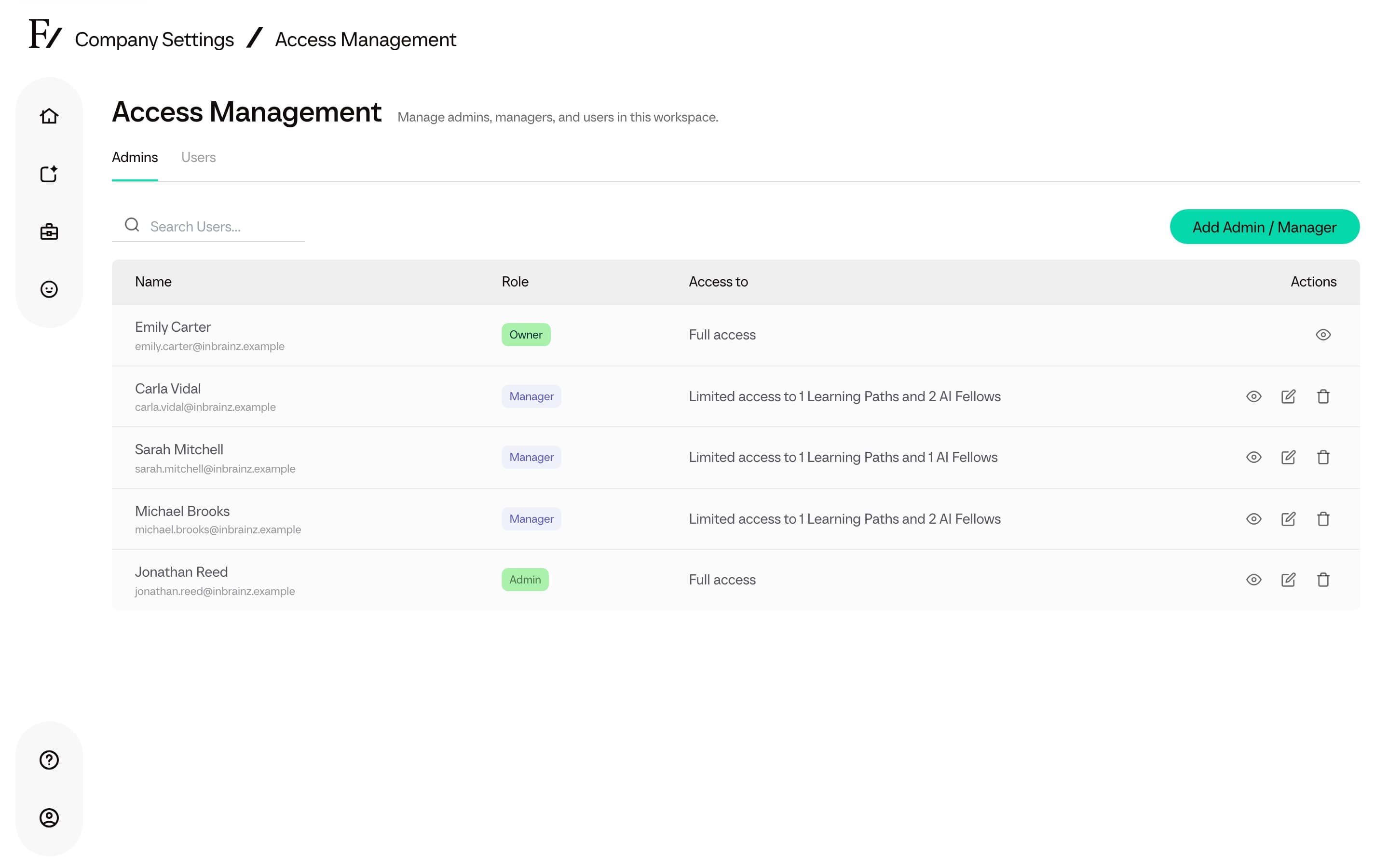
When an Owner clones an AI Fellow into another workspace, the clone does not include Connector attachments or Manager assignments. Configure those relationships again in the destination workspace.
Add an Admin, Creator, or Manager
For a Manager, select the Learning Paths and AI Fellows they should be able to manage. Full Admins and Creators see the authoring areas they already have, so this step can be skipped.
Full Admins can access every conversation transcript and every analytics dashboard in the organization. The Full Admin role should be assigned only to users who require this level of access.