

Manage Users
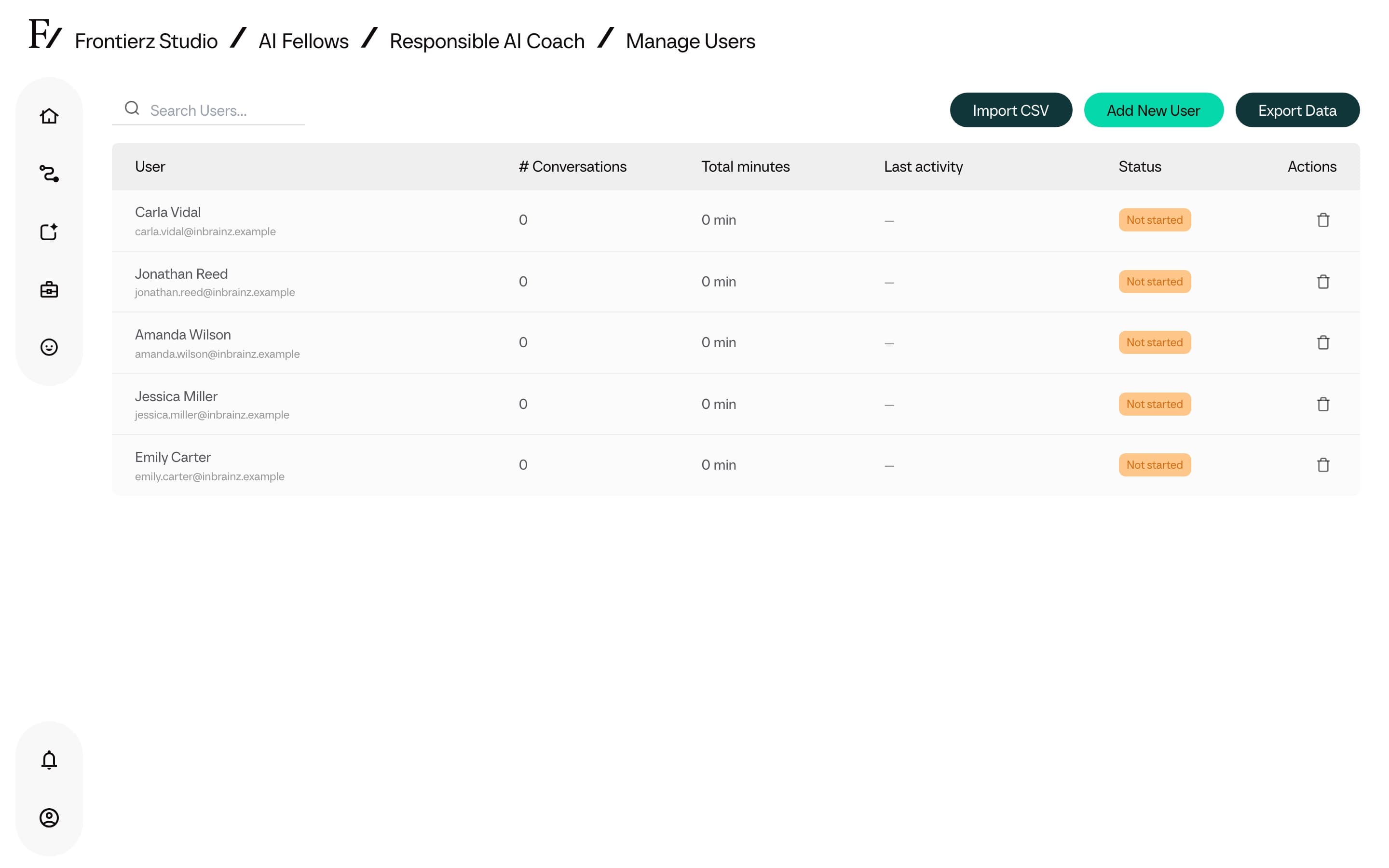
The Manage Users page is the access list for a Private AI Fellow. It is used to grant or revoke user access. Users not included in this list receive an access-denied page when opening the AI Fellow link.
The page only exists for Private AI Fellows. On Public or Disabled AI Fellows, the Manage Users action is not shown.
Open the access list
Open the AI Fellow monitor page from AI Fellows.
Click Manage Users. If the button is not shown, the AI Fellow is Public or Disabled. Switch its visibility to Private first.
Information shown
- The user list with name, email, and recent conversation activity for this AI Fellow.
- Search. Filter the list by name or email.
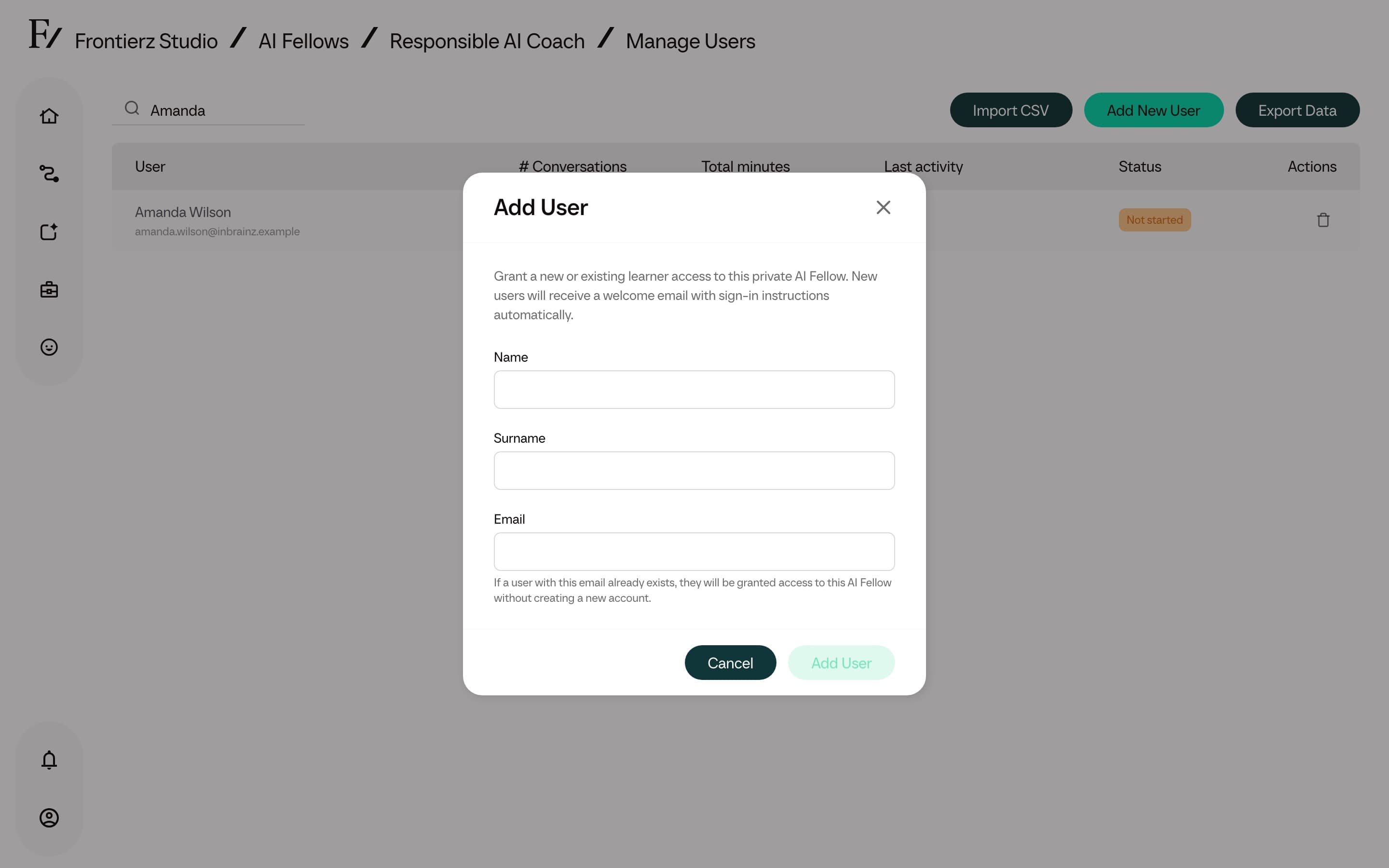
- Add user. Add an existing user or invite a new user by email. New users receive an invite link to the platform.
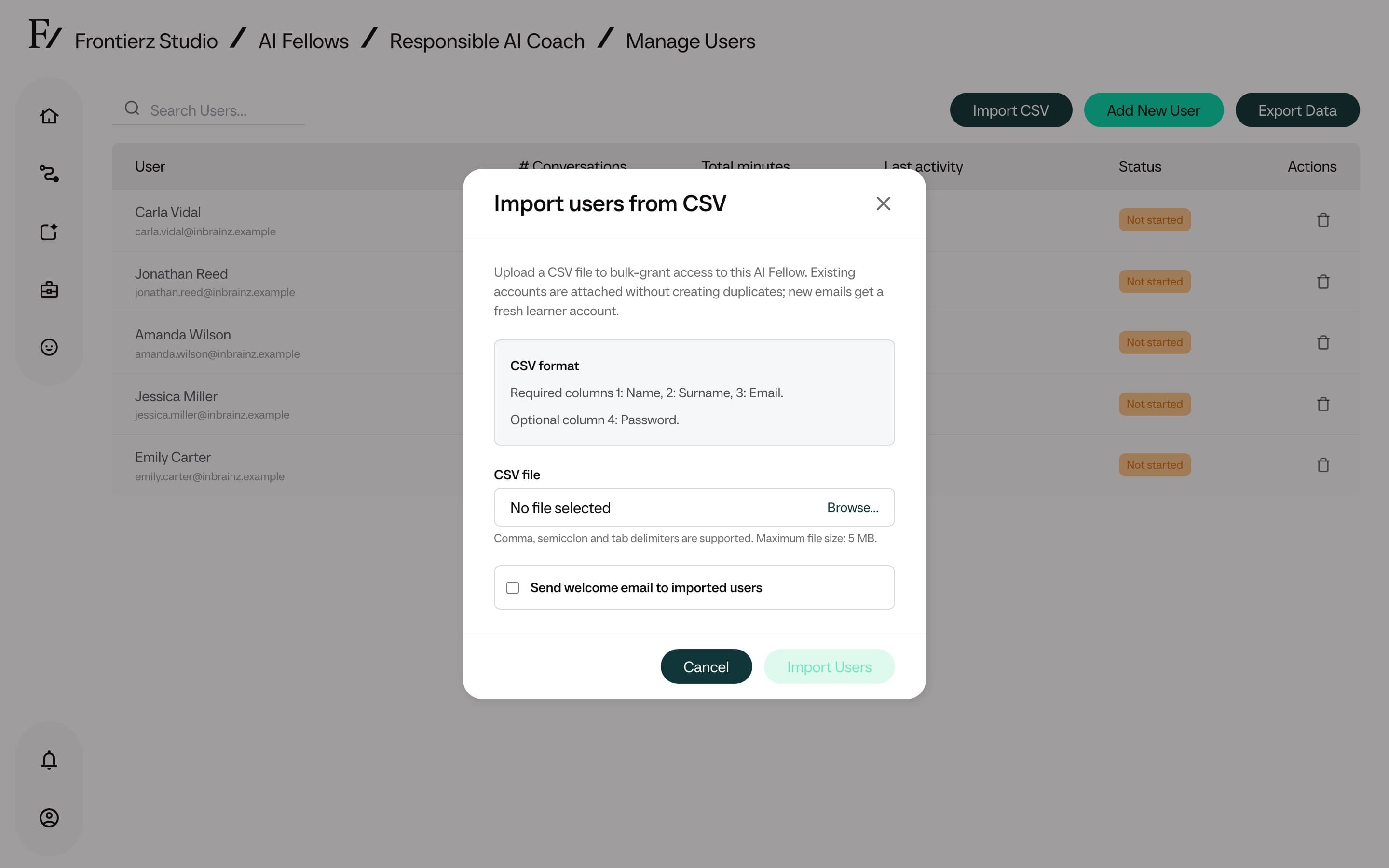
- Import users from CSV. Add a group of users in a single operation (the same CSV format as Import users from CSV). All imported users get access to this AI Fellow at once.
- Remove user. Revokes access. The user keeps their account in the company but can no longer open this AI Fellow.
- Export CSV. Downloads the access list with the activity columns, for reporting or audit purposes.
Removing a user takes effect immediately. Active conversations remain in progress until closed by the user. New conversations cannot be started after access has been revoked.