

Import users from CSV
The CSV importer is used to onboard large user groups. It is available from three locations:
- Company Settings → Access Management → Users to create or attach users and grant access to selected Learning Paths or AI Fellows.
- A Learning Path Manage Users page to add everyone in the file to that Learning Path.
- A Private AI Fellow Manage Users page to grant everyone in the file access to that AI Fellow.
Import a CSV
Open Company Settings → Access Management.
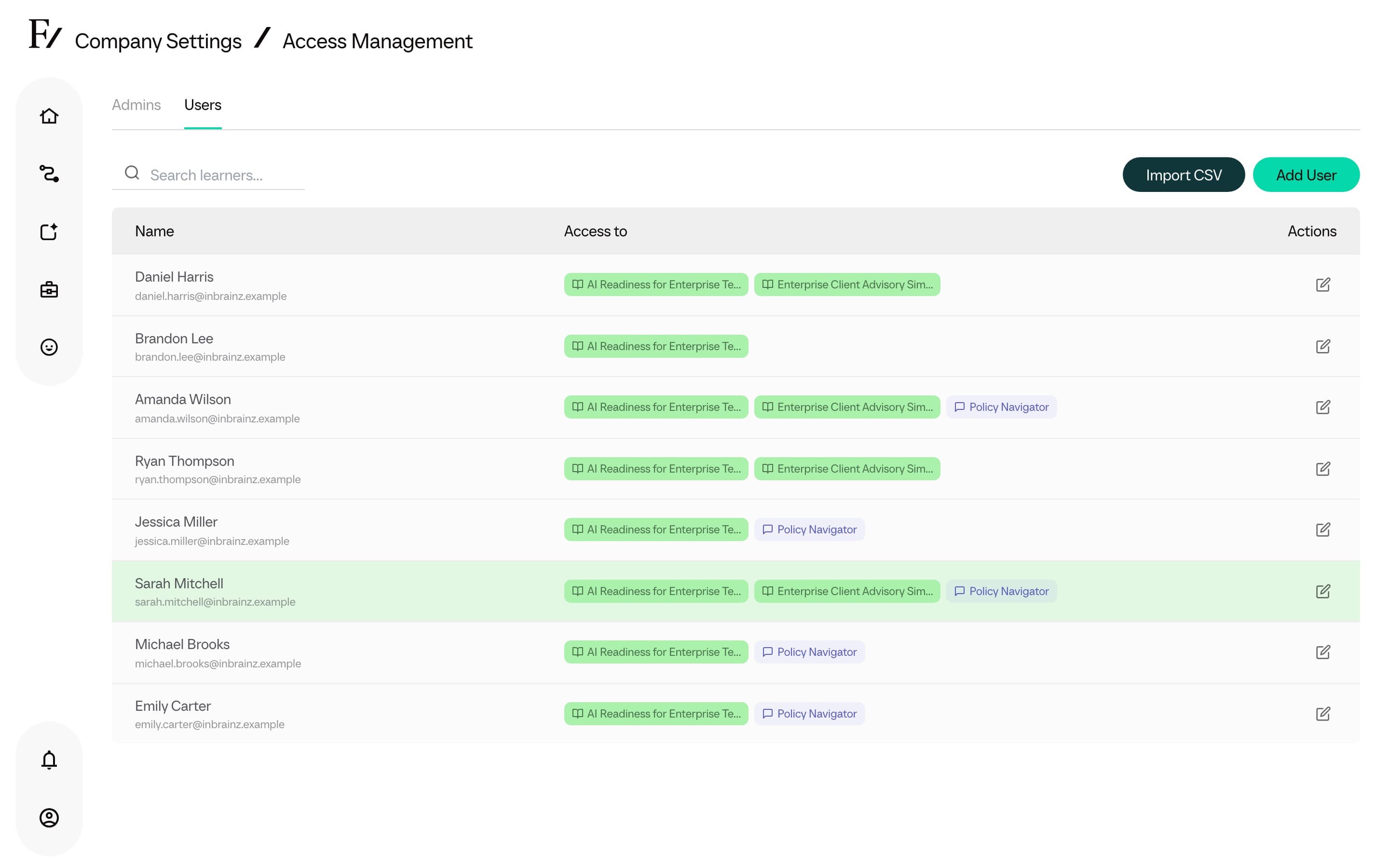
Switch to the Users tab and click Import CSV.
Select the CSV file from the computer. The import dialog opens.
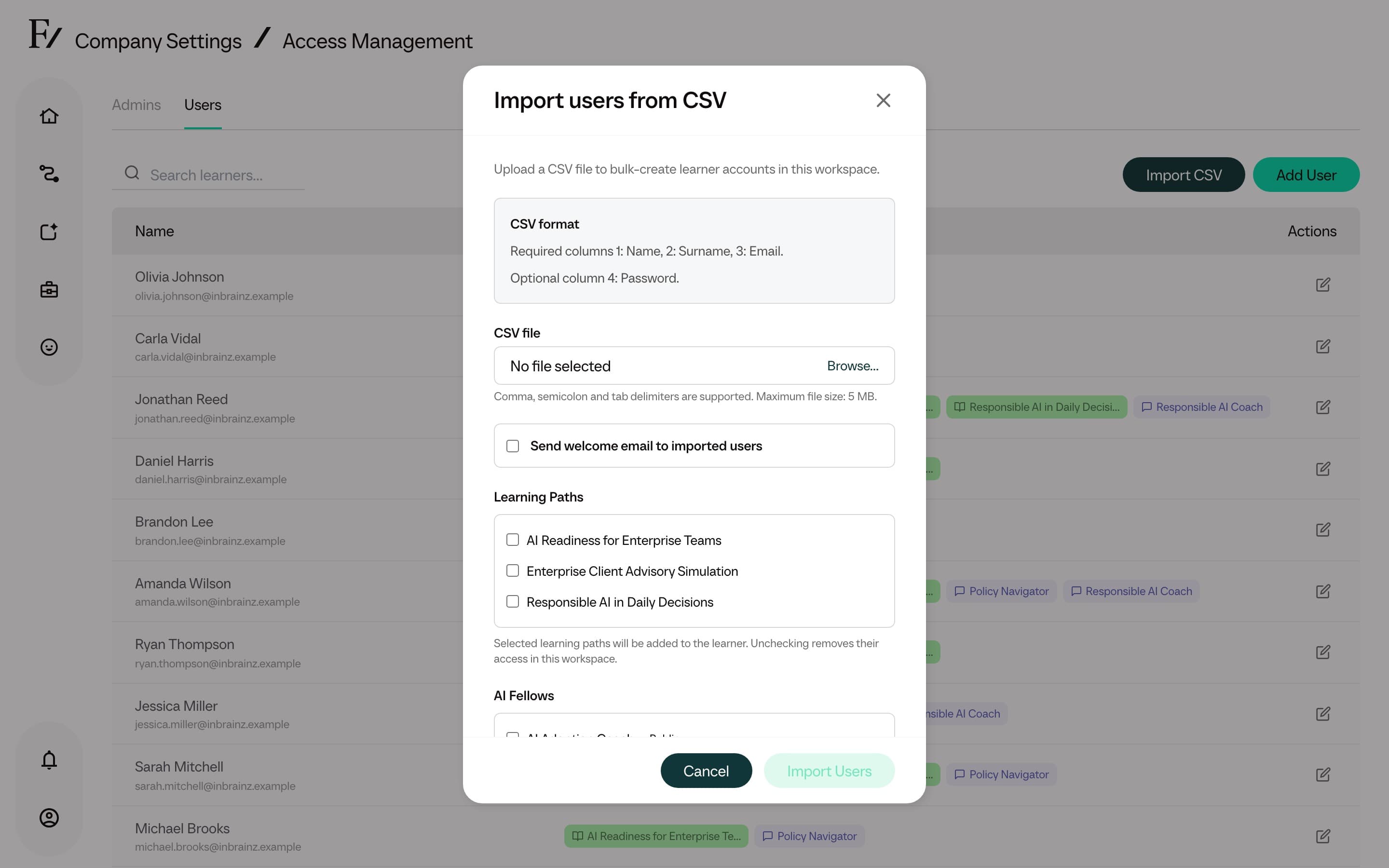
Select the AI Fellows or Learning Paths the imported users should have access to.
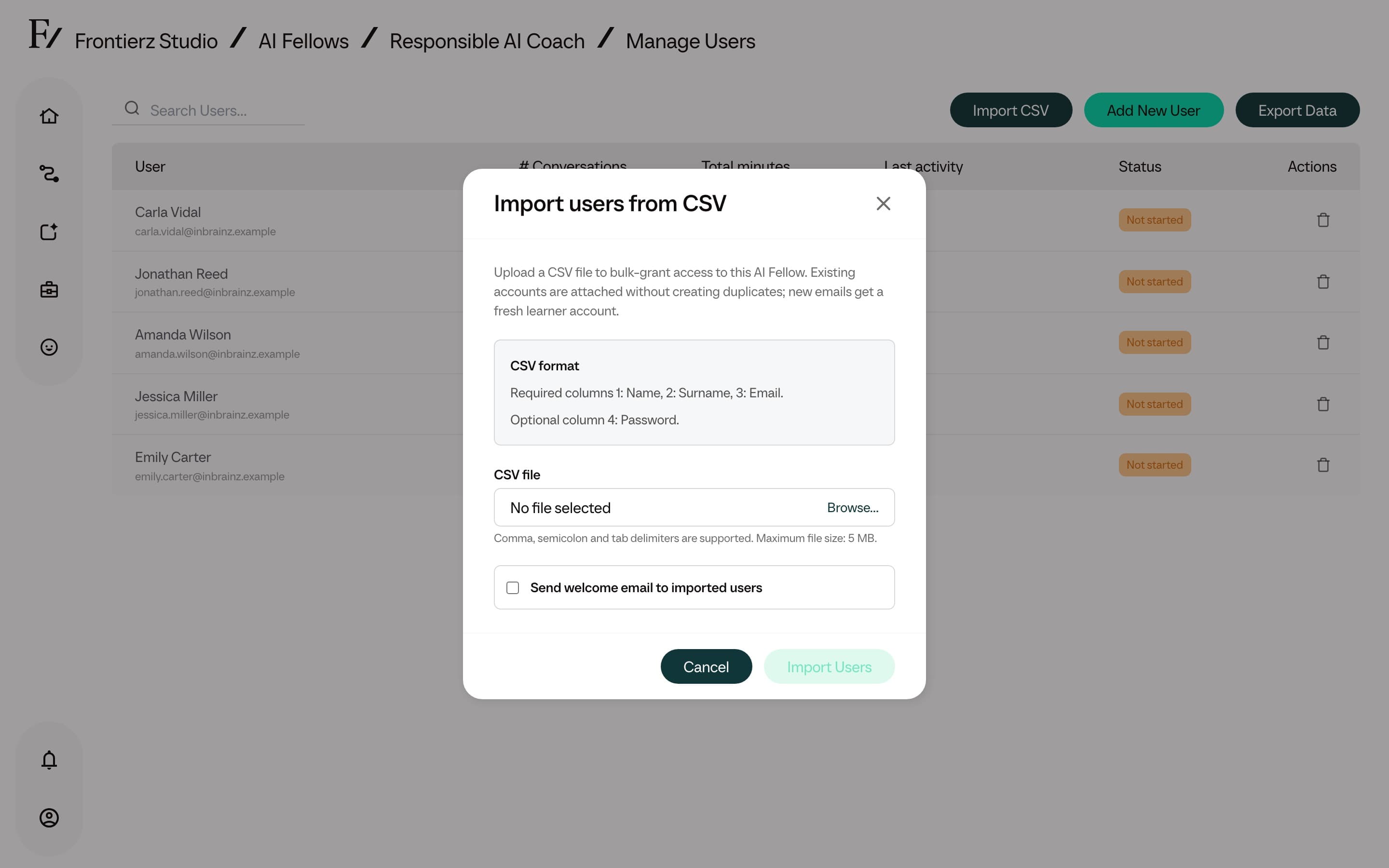
Select Send welcome email to imported users to send each imported user an invitation email containing a platform access link. New users authenticate via a passwordless magic link sent to their email, eliminating the need to share credentials. Leave the option unchecked to distribute access links manually or to stage users prior to a launch.
Click Import Users.
CSV format
Four columns. Three columns are required.
| Column | Required | Description |
|---|---|---|
| Name | Yes | First name. |
| Surname | Yes | Last name. |
| Yes | Used as the unique identifier. | |
| Password | No | Optional initial password. This field is typically left empty. Frontierz uses passwordless magic-link authentication by default, so the user enters their email and clicks the link they receive. Set a password only when explicitly required. |
Allowed delimiters are comma, semicolon, or tab. The maximum file size is 5 MB.
When importing a group that should start in the same Learning Path immediately, select that Learning Path during the import. Everyone in the file will be enrolled automatically, removing the need to enroll them one by one afterwards.