

Text chat mode
AI Fellows are voice-first by default. When Allow text chat is enabled, the same AI Fellow can also be used by typing. This option is useful when a user cannot speak out loud, when a short exchange is easier to read, or when text is more suitable for the audience or context.
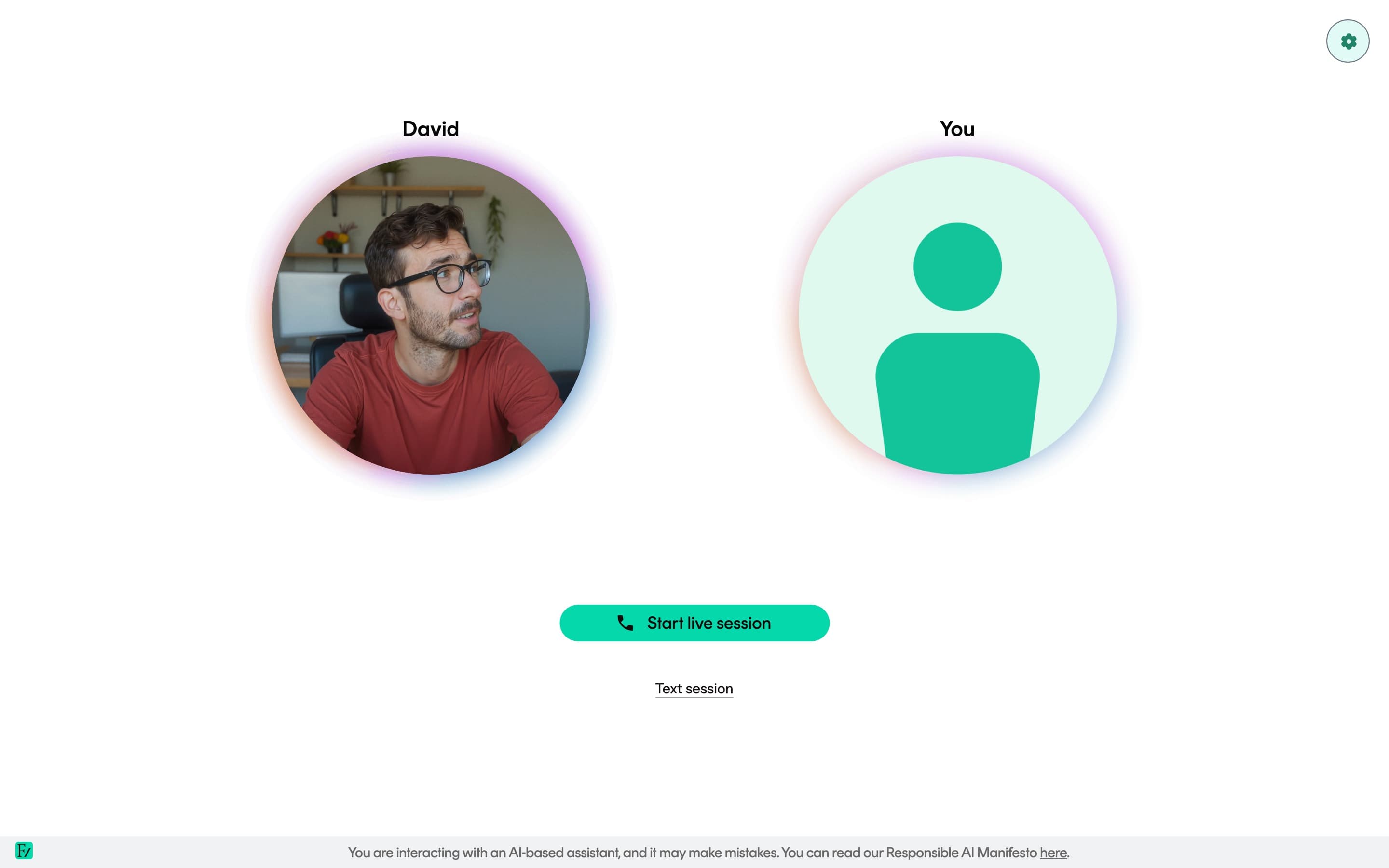
Where chat mode appears
| Surface | Chat mode | Notes |
|---|---|---|
| Standalone AI Fellow page | Per AI Fellow | Controlled by the Allow text chat toggle on Capabilities. |
| Your Fellow page inside the workspace | Always available | The user can choose a text session from the AI Fellow assigned to them. |
| Learning Path session | Not available | Sessions require voice so the AI Fellow can assess objectives reliably. |
Turn it on
Open Frontierz Studio → AI Fellows and edit the AI Fellow.
Go to Capabilities.
Switch Allow text chat on.
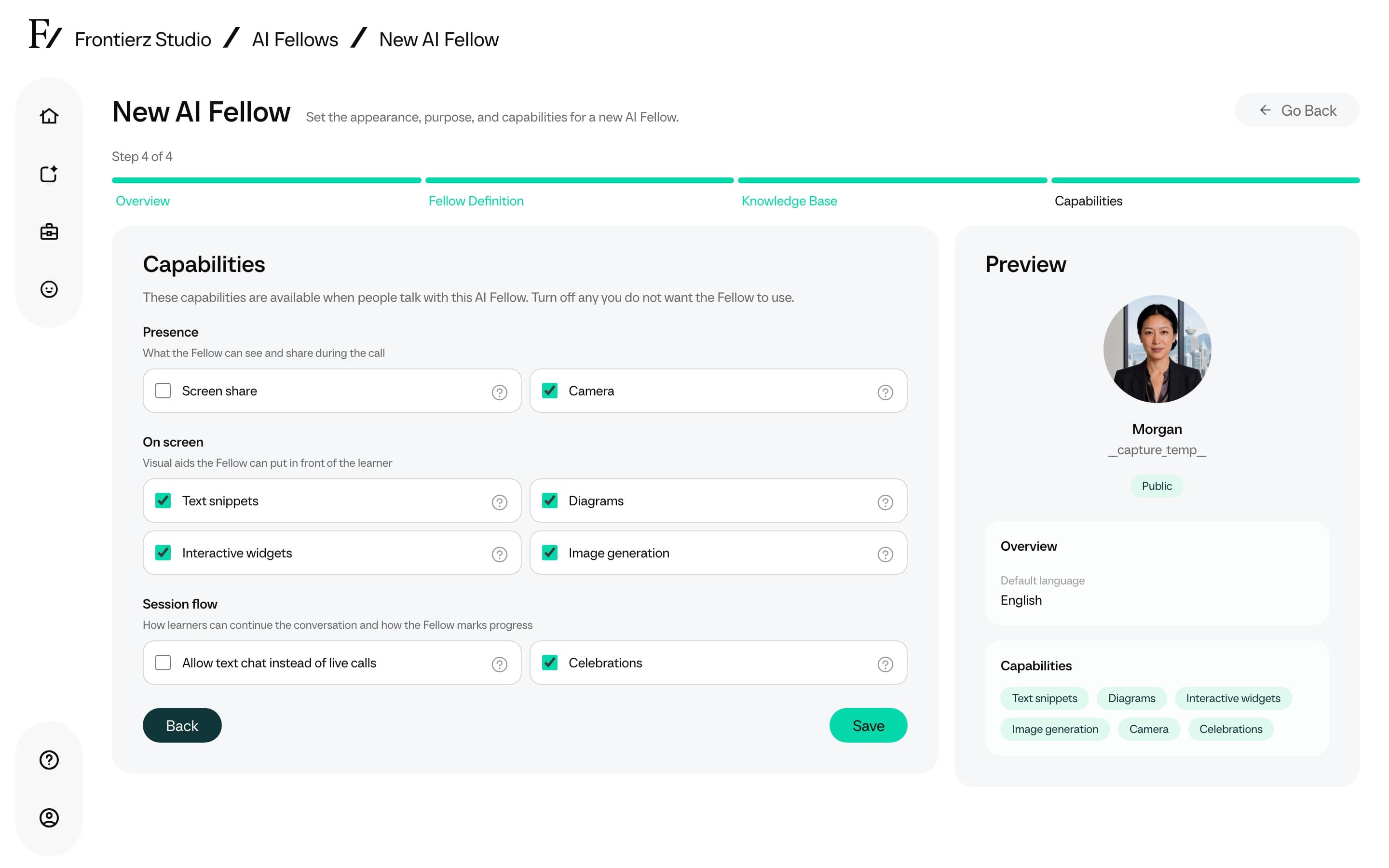
Save. The next time someone opens this AI Fellow, the Text session button appears next to Start session.
What happens during a text session
- The session opens in text mode. The user types instead of speaking, the AI Fellow replies in text, and both sides of the conversation are saved to the transcript in real time.
- Connectors run the same way as in voice mode. The AI Fellow can still call the systems it has been configured to use.
- Conversation history is shared with voice sessions. A user can start a chat, end it, and later resume it as a voice call, or move in the other direction.
Chat mode is best for conversations where written exchange is more appropriate than a voice call.