

AI Simulations
AI Simulations are AI Fellows built for role-play practice. Instead of writing a full purpose from scratch, the admin defines the simulated person, the situation, and the behaviors the user should demonstrate. Frontierz turns that into a Private AI Fellow.
Use this mode for sales practice, customer conversations, leadership rehearsal, feedback conversations, interviews, or any scenario where the user needs to practice out loud with a realistic counterpart.
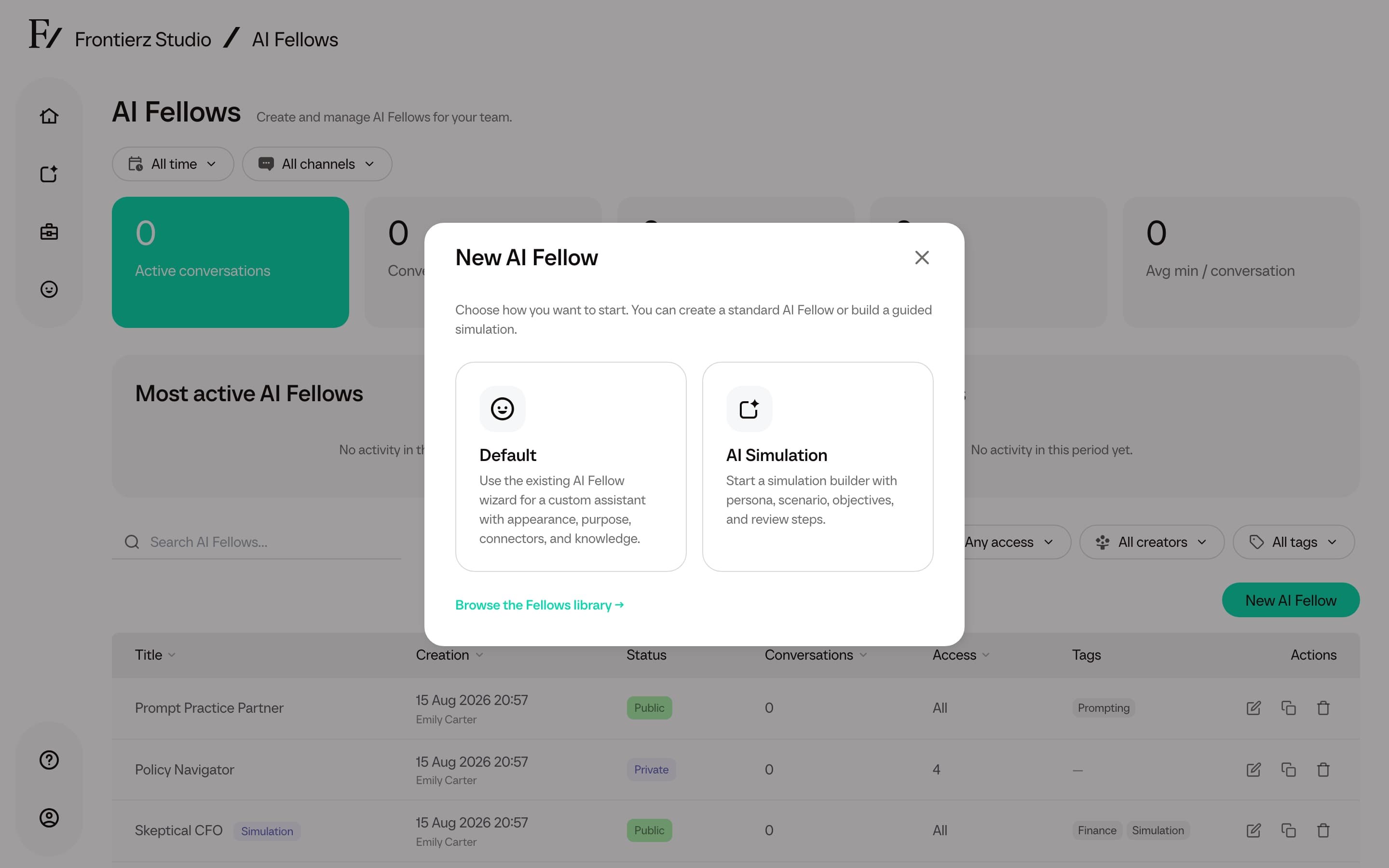
Create an AI Simulation
Overview
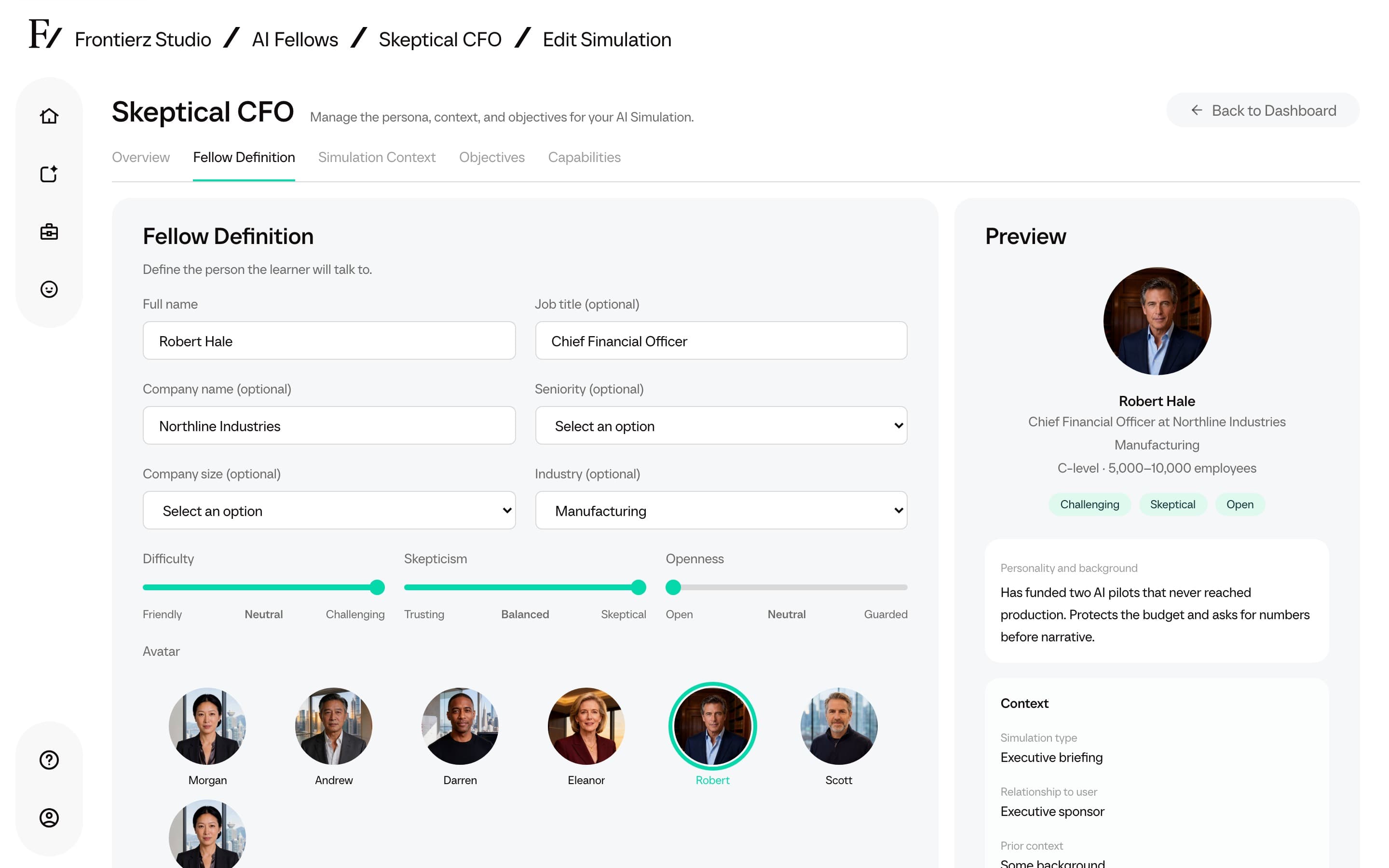
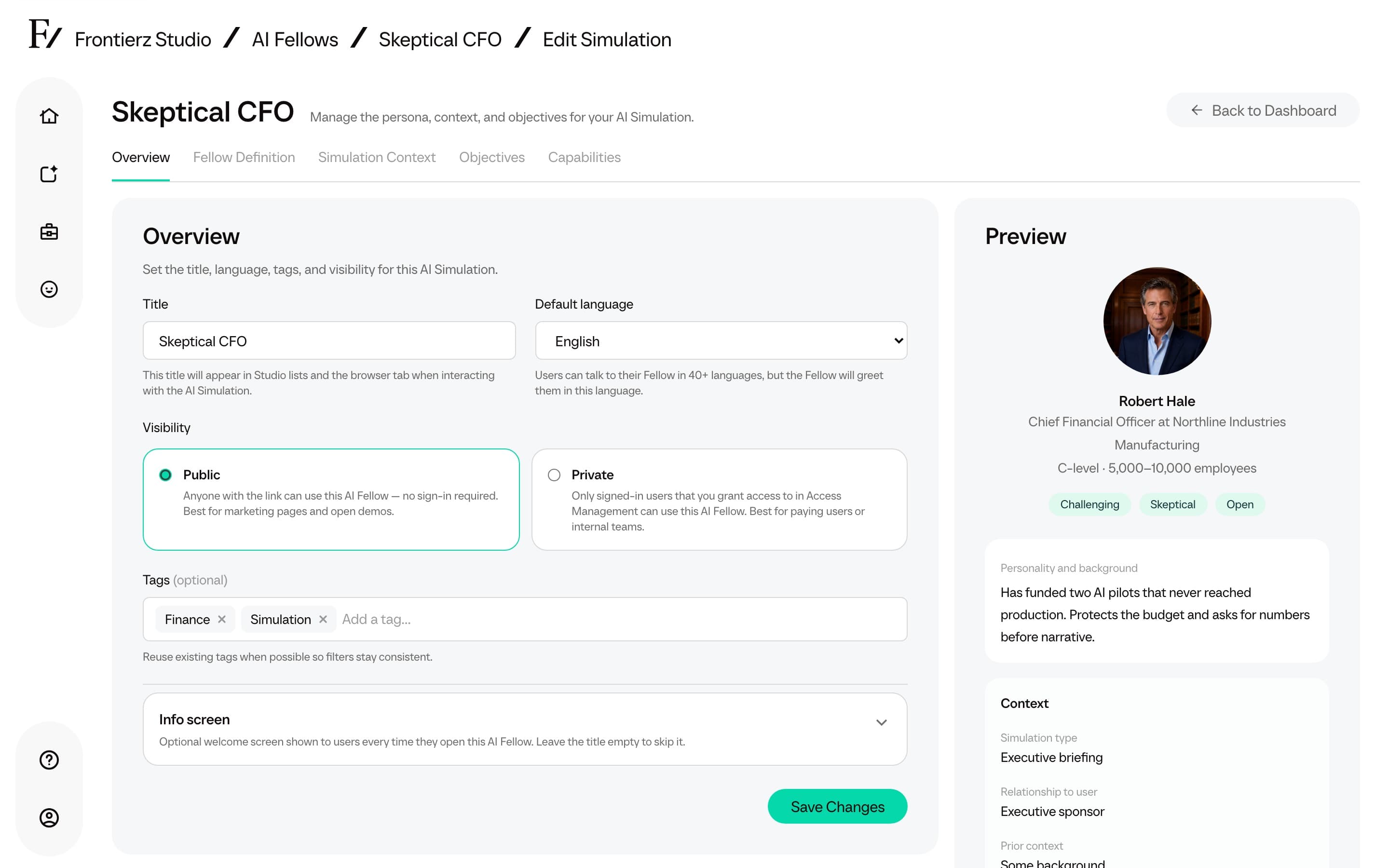
Overview sets the simulation Title, Default language, optional Tags, visibility, and Info screen. Leave the title blank to use the generated name. New simulations stay Private until you change visibility.
Fellow Definition
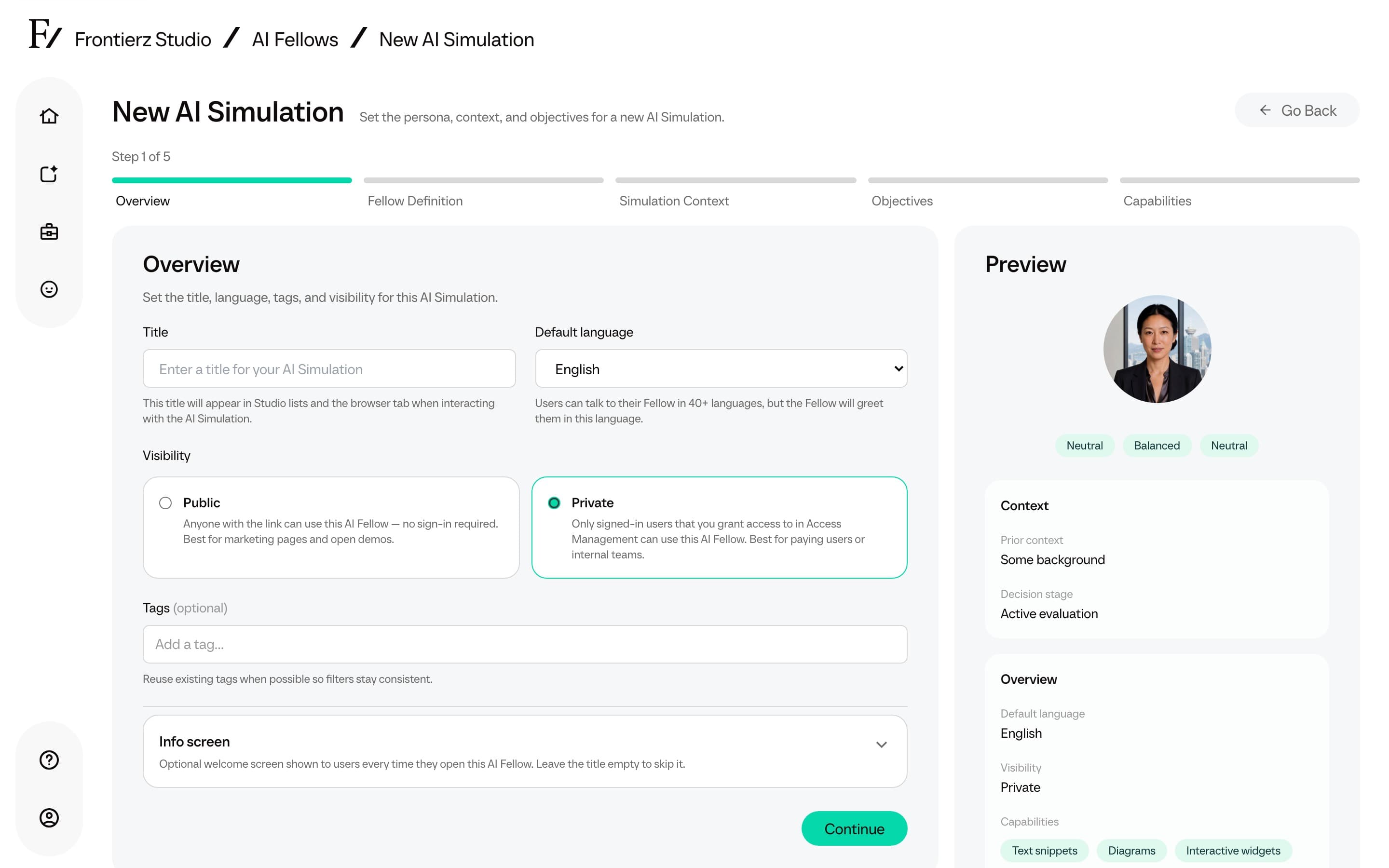
Fellow Definition defines who the AI Fellow plays in the role-play. Admins set the simulated person's name, job title, company, seniority, company size, industry, avatar, and conversational stance. The stance controls how friendly, skeptical, or guarded the simulated person should be. Optional personality notes also live on this step.
Simulation Context
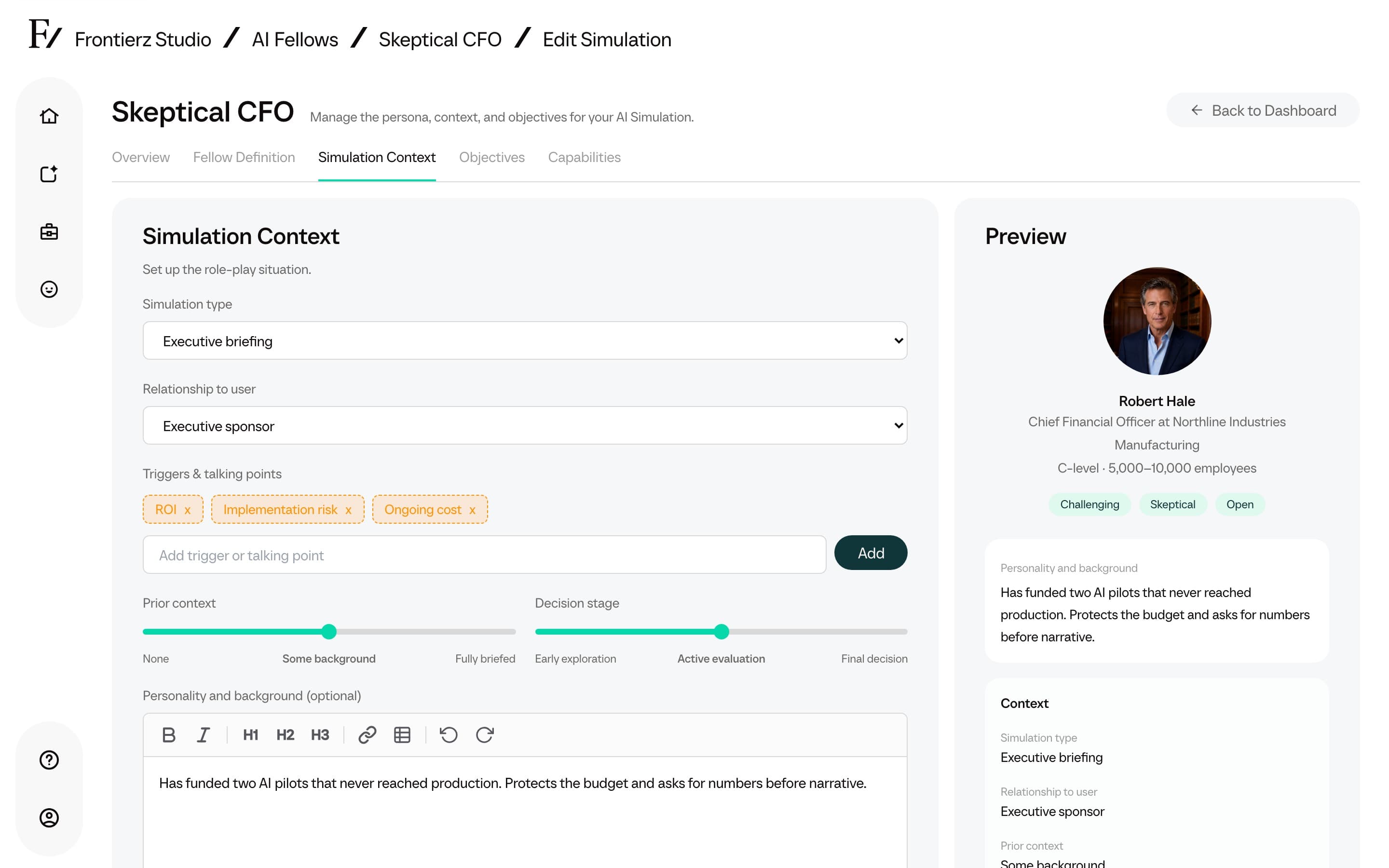
Simulation Context defines the situation. Admins choose the simulation type, relationship to the user, prior context, and decision stage. They can add talking points the simulated person should raise.
Examples include sales discovery, objection handling, negotiation, customer complaint, performance feedback, hiring interview, or executive briefing.
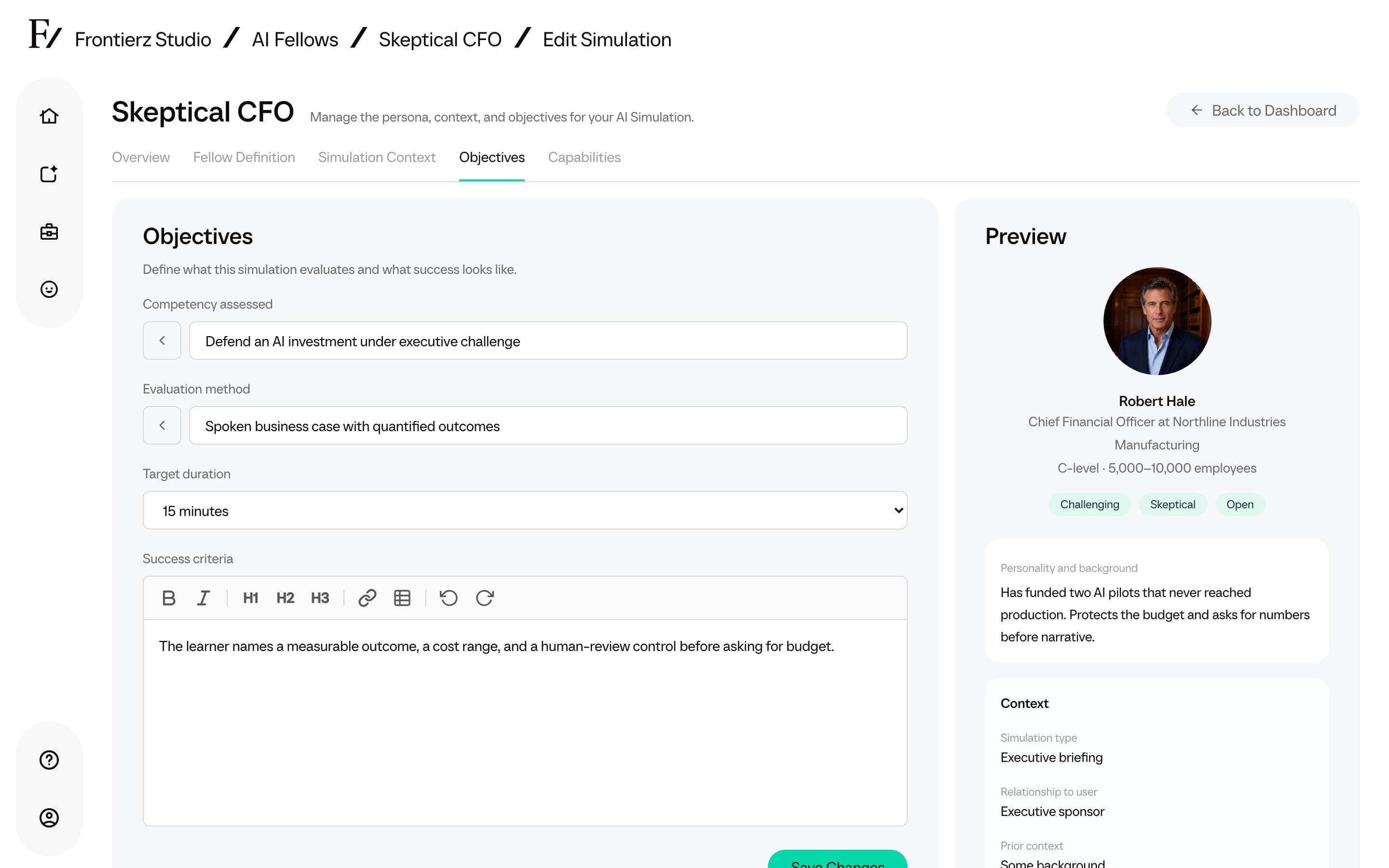
Objectives
Objectives define what the simulation is meant to assess. Admins choose the competency, evaluation method, and target duration. Success criteria are optional. When they are empty, feedback after the session generates criteria from the objective and context. A Generate feedback toggle is on by default. Turn it off when the role-play should not produce a coaching report.
Capabilities
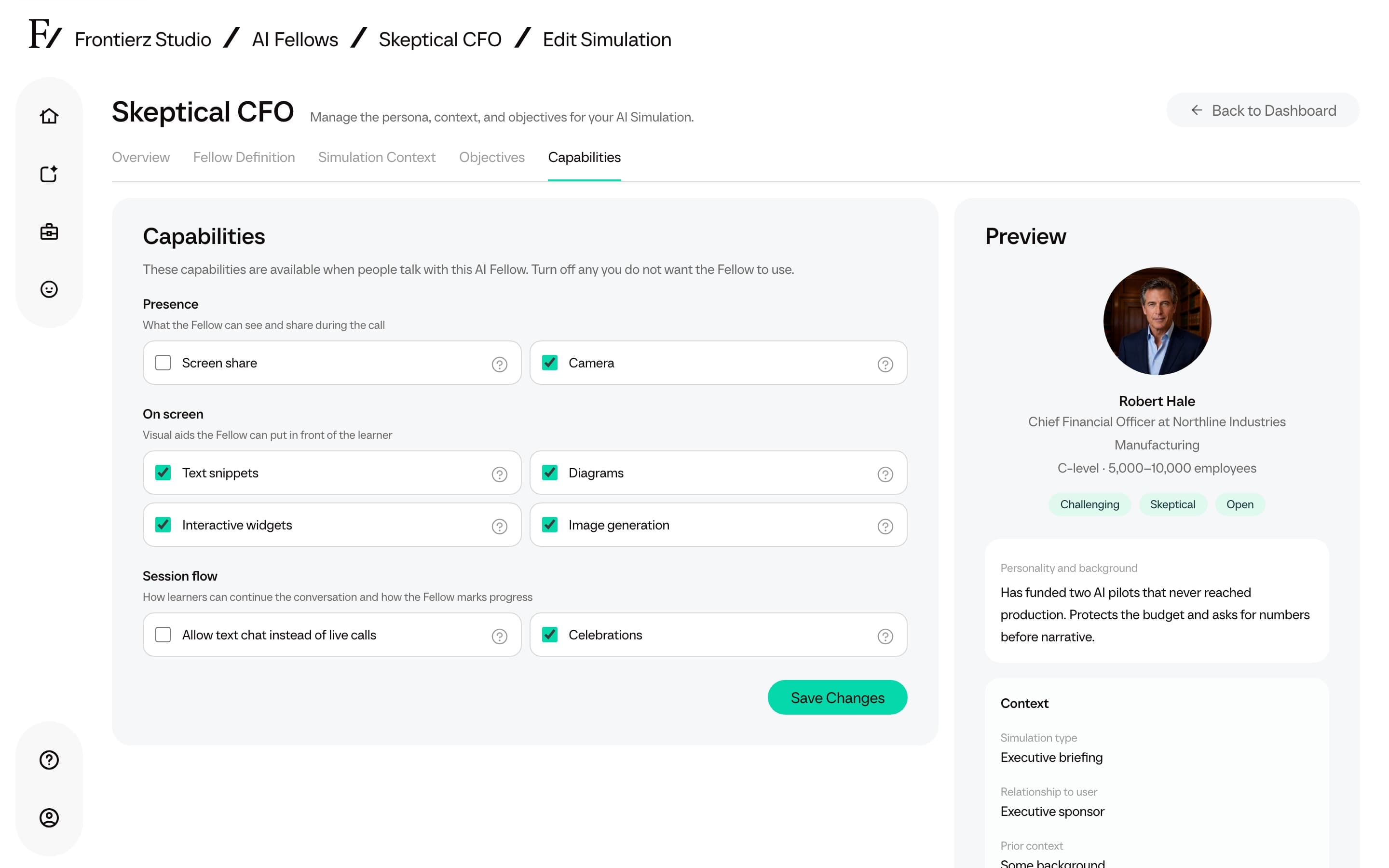
Capabilities set the tools available during the simulation.
| Group | Toggles |
|---|---|
| Presence | Screen share, Camera |
| On screen | Text snippets, Diagrams, Interactive widgets, Image generation |
| Session flow | Celebrations |
Turn on only the capabilities required for the simulation. Allow text chat remains a separate setting when the role-play needs typed practice. Full Admins can also attach Connectors from the company library.
Managers can change built-in capability toggles for AI Simulations assigned to them. Connectors already attached by a Full Admin appear as read-only.
After creation
New simulations are Private by default. Add users from the simulation's Manage Users page, or assign access from Access Management.
Once a simulation is Active, it can also be placed inside a Learning Path as a role-play step between sessions. See Add an AI Simulation between sessions.
The monitor page shows Edit Simulation instead of Edit AI Fellow. Create and edit use the same five steps and Preview column: Overview, Fellow Definition, Simulation Context, Objectives, and Capabilities. On create, Preview appears after Overview. On edit, click a field in Preview to jump to that section. Overview matches an AI Fellow: Title next to Default language, then visibility, tags, and Info screen. New simulations stay Private with an auto-generated title until you change those fields. Create uses the step bar and Continue (last step Finalize). Edit uses underline tabs and Save Changes. When the simulation configuration changes, the change appears in Edit history.
Finished simulation conversations produce practice feedback when feedback is on: summary, criteria with evidence, strengths, improvements, and next actions. The simulated character does not announce a score during the role-play. Learners see the report after the session unless Settings is set to Admins only. Learning Path reports are saved to the learner's Progress Reports automatically. Standalone reports stay with the AI Fellow until the learner clicks Keep in Progress Reports. Open the same report from the conversation detail and from a learner's Learning Path detail.
AI Simulations are practice tools. Use the assessment as coaching input, not as the sole basis for employment, certification, or compliance decisions.