

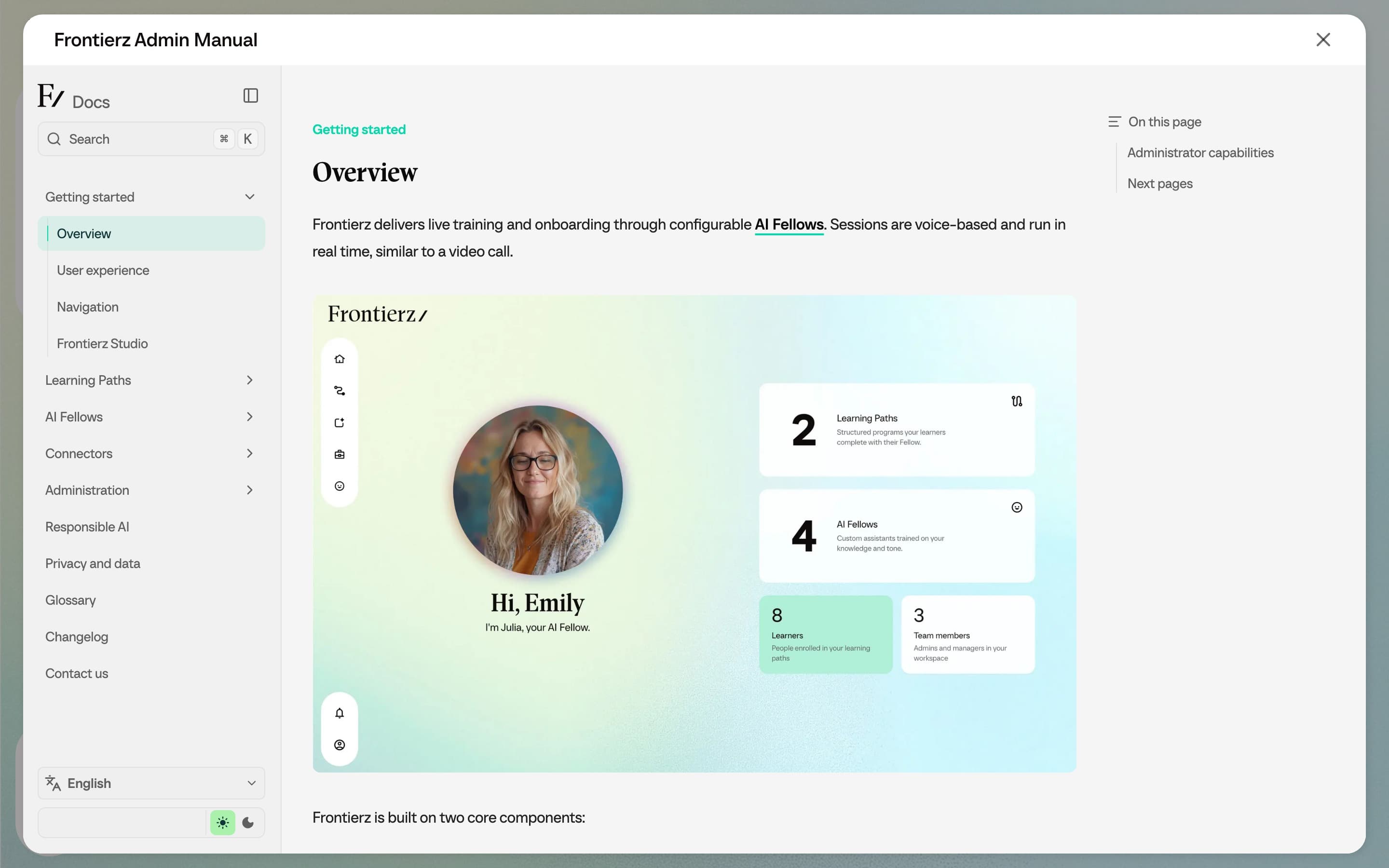
Navigation
A persistent sidebar is displayed on the left of every page, providing a consistent navigation surface.
Sidebar items
| Item | What it opens |
|---|---|
| Home | The home screen with the user greeting, the next session card, and (for Admin users) the Studio overview. |
| Your Journey | The user's AI Journey for the active Learning Path. Admin users see it when they have an active user view or a relevant assigned Learning Path. |
| Frontierz Studio | A dropdown that opens Learning Paths, AI Fellows, and (for Full Admins, Owners, and Creators) the Connectors Library. Hidden when the signed-in user does not have access to any of those. |
| Company Settings | Full Admins and Owners only. A dropdown that opens Company Profile, LMS, and Access Management. Creators and Managers do not see it. |
| Your Fellow | Opens a voice call with the user's AI Fellow, labeled with the AI Fellow's name. |
| Help | Opens the Frontierz Admin Manual for Owners, Full Admins, and Creators, or the Frontierz User Manual for Managers and users, in a full-screen panel. |
| User menu (bottom) | Profile information, the View as User option for Admin users (see Roles and permissions), and Log out. |
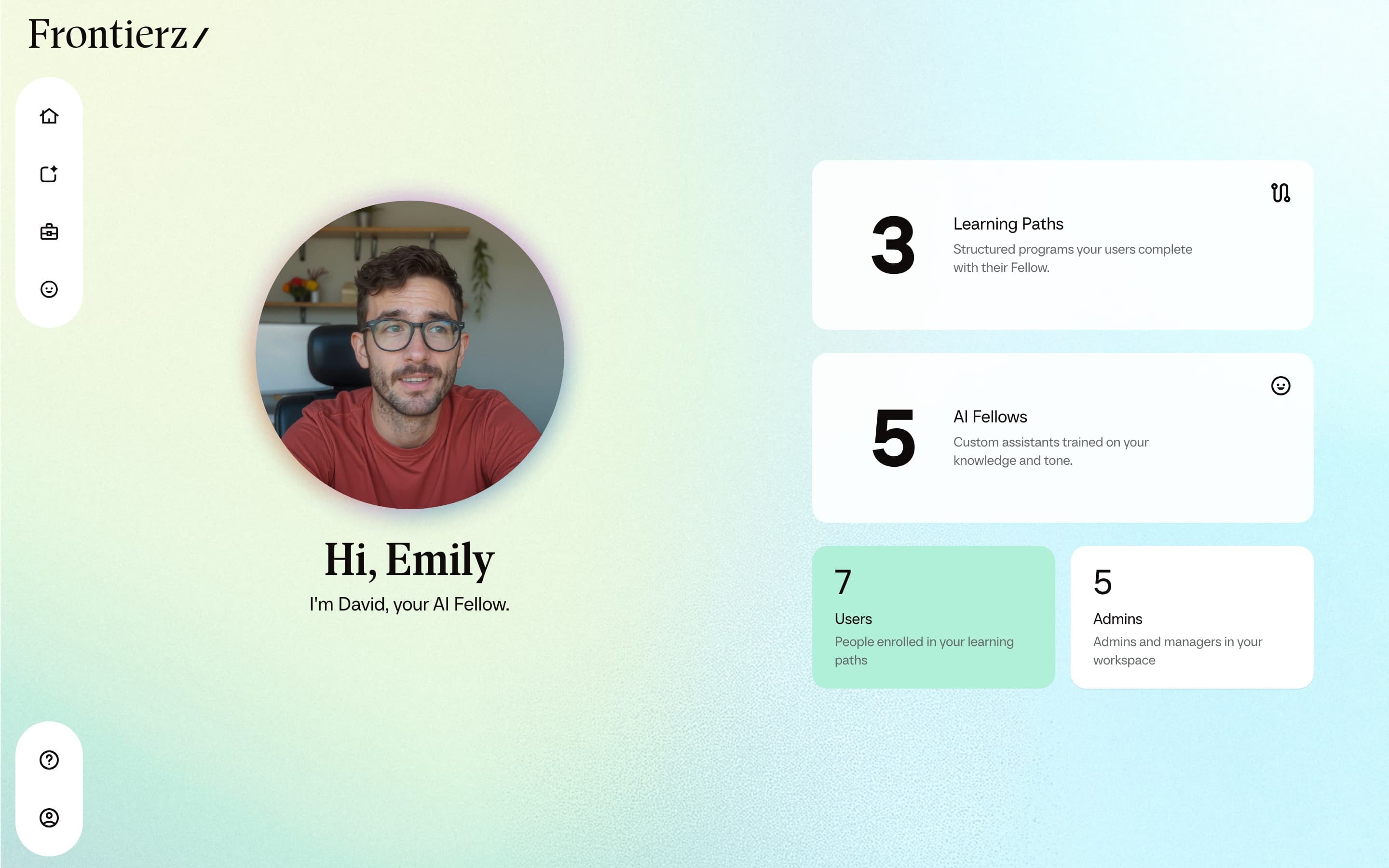
Full Admins and Owners see every item. Creators see Learning Paths, AI Fellows, and the Connectors Library, but not Company Settings. Managers see a smaller Studio menu: only the Learning Paths and AI Fellows assigned to them, and no Connectors Library entry. Users see Home, Your Journey, Your Fellow, Help, and the user menu.
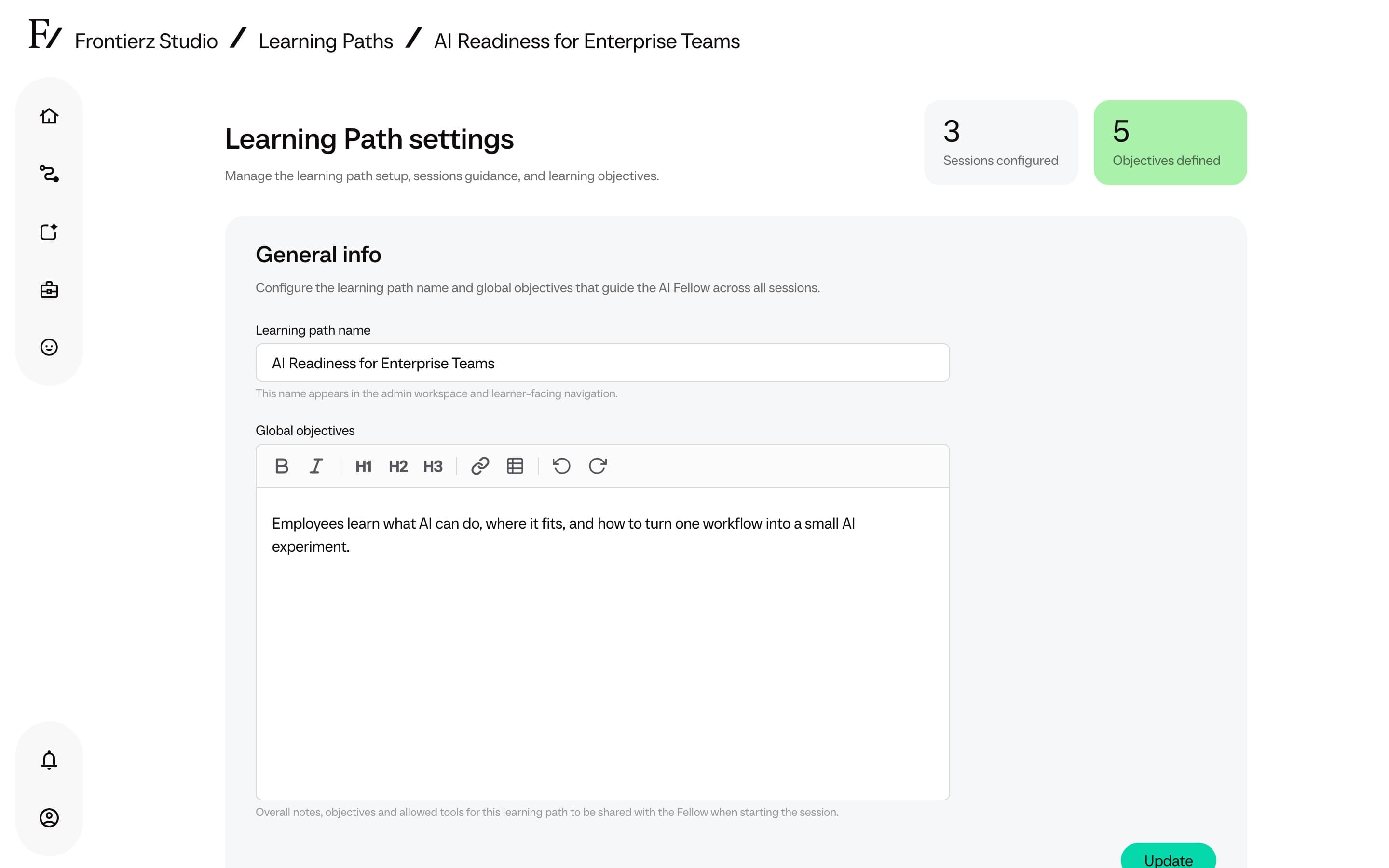
Top menu
Some pages display a top menu in the page header. From there, Admin users can open Frontierz Studio, switch to Learning Path Admin when a Learning Path is in scope, or open the user profile and log out.
User management locations
The sidebar does not include a dedicated Users item. Users belonging to the company are managed in two locations, depending on the scope of the action:
- Per Learning Path. Open the Learning Path and switch to its Manage Users view. This view is used to enroll or remove users for that specific Learning Path.
- Across the company. Open Company Settings → Access Management, then switch to the Users tab. This view lists every user in the company, allows changes to Learning Path or AI Fellow access, and supports CSV imports.
Owners, Full Admins, Creators, and Managers are listed in the Admins tab of the same Access Management page. Creators and Managers cannot open Access Management; a Full Admin or Owner manages those assignments on their behalf.