

Create a Connector
A Custom Connector is created once and can be reused across multiple AI Fellows and Learning Paths. Frontierz handles invocation during conversations. The Full Admin is responsible for defining the Connector's description and target endpoint.
This page is intended for Full Admins, typically working with internal IT or operations teams. Managers do not have access to the Connectors Library and cannot create Custom Connectors.
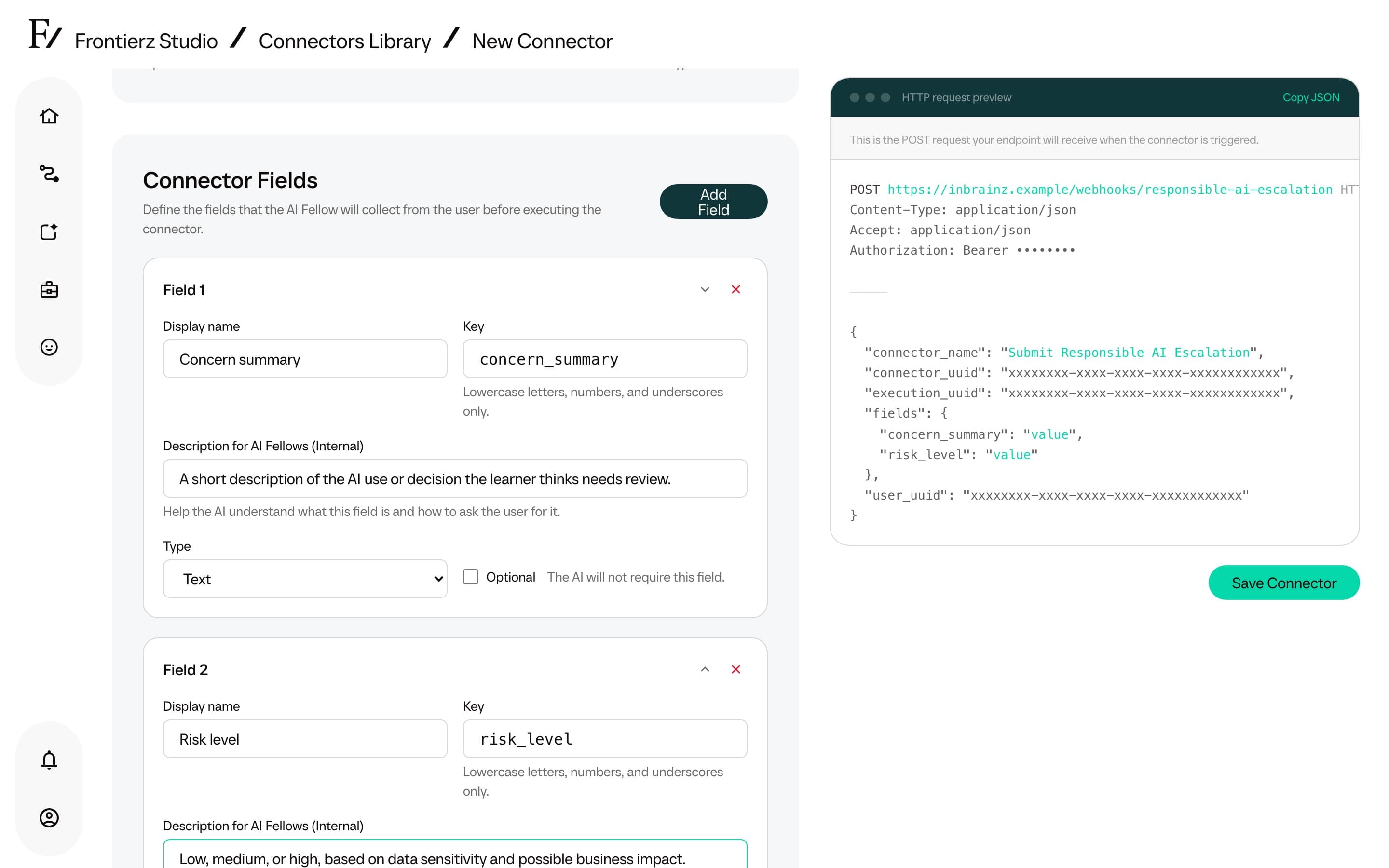
Click New Connector.
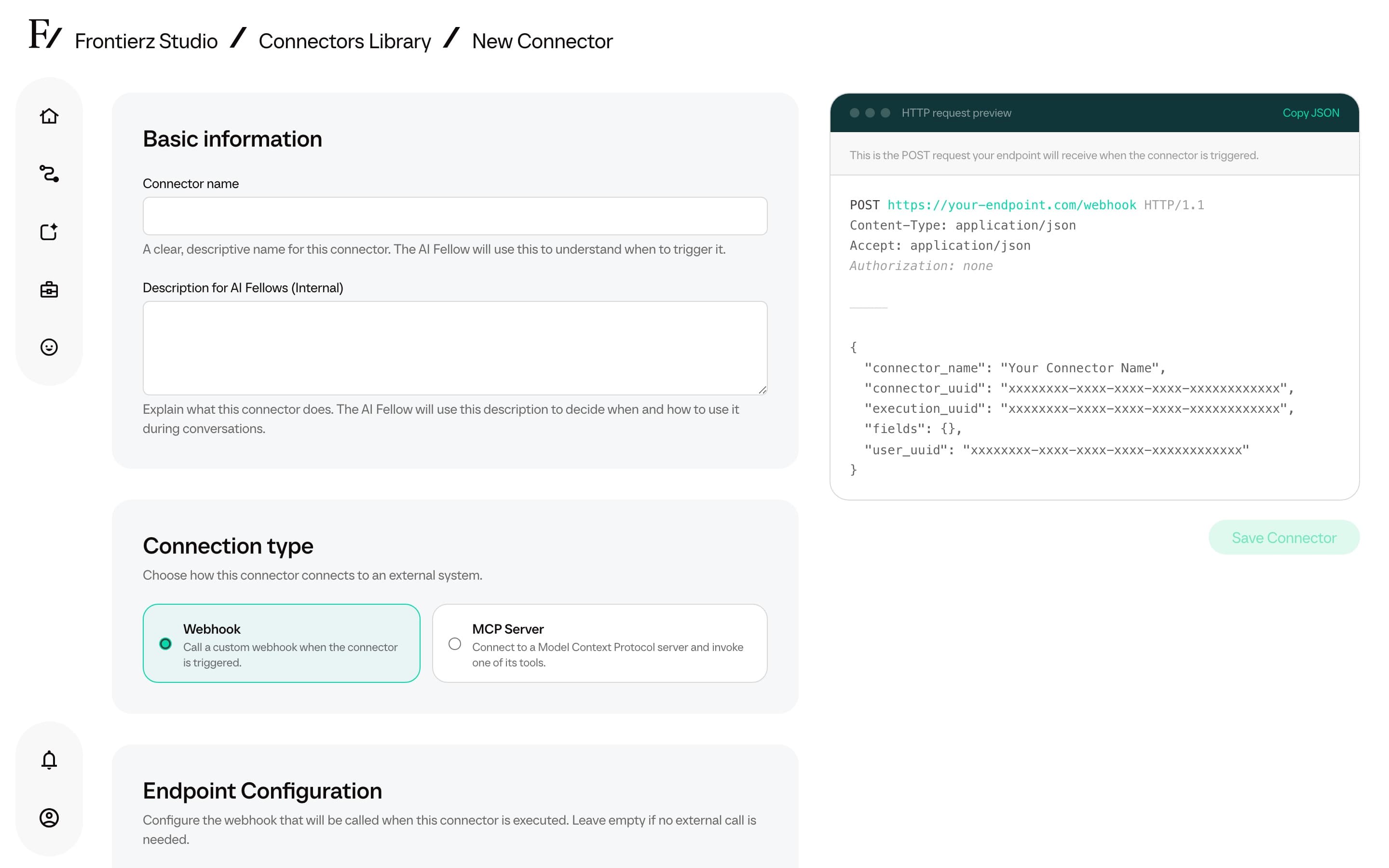
Provide a description. The AI Fellow uses this description to determine when to invoke the Connector during a conversation. The description must be specific and written in plain language.
Select the type:
- HTTP for a direct call to an endpoint controlled by the customer.
- MCP for a connection to an AI-compatible data source over the Model Context Protocol.
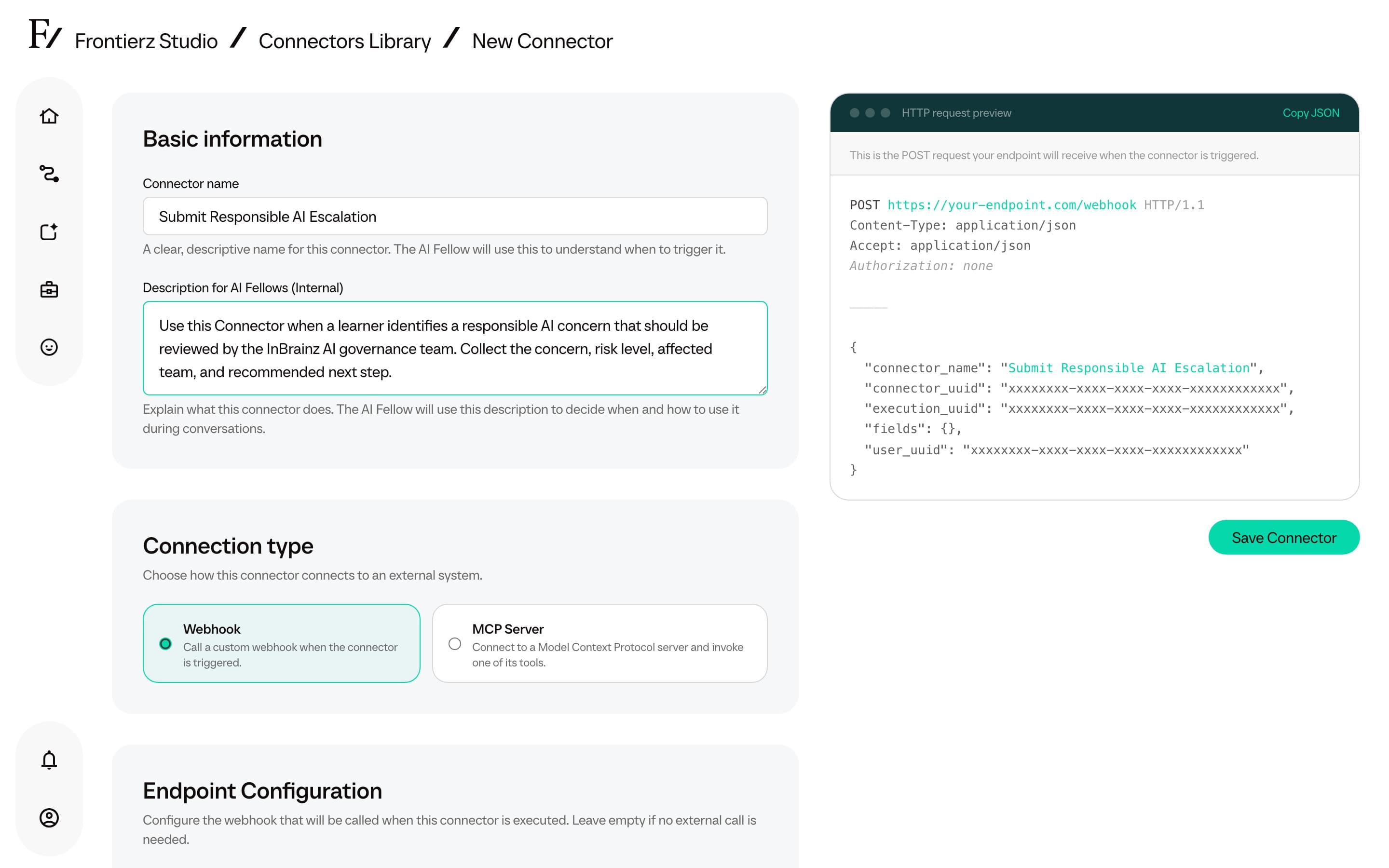
Provide the endpoint and the authentication token for the selected type.
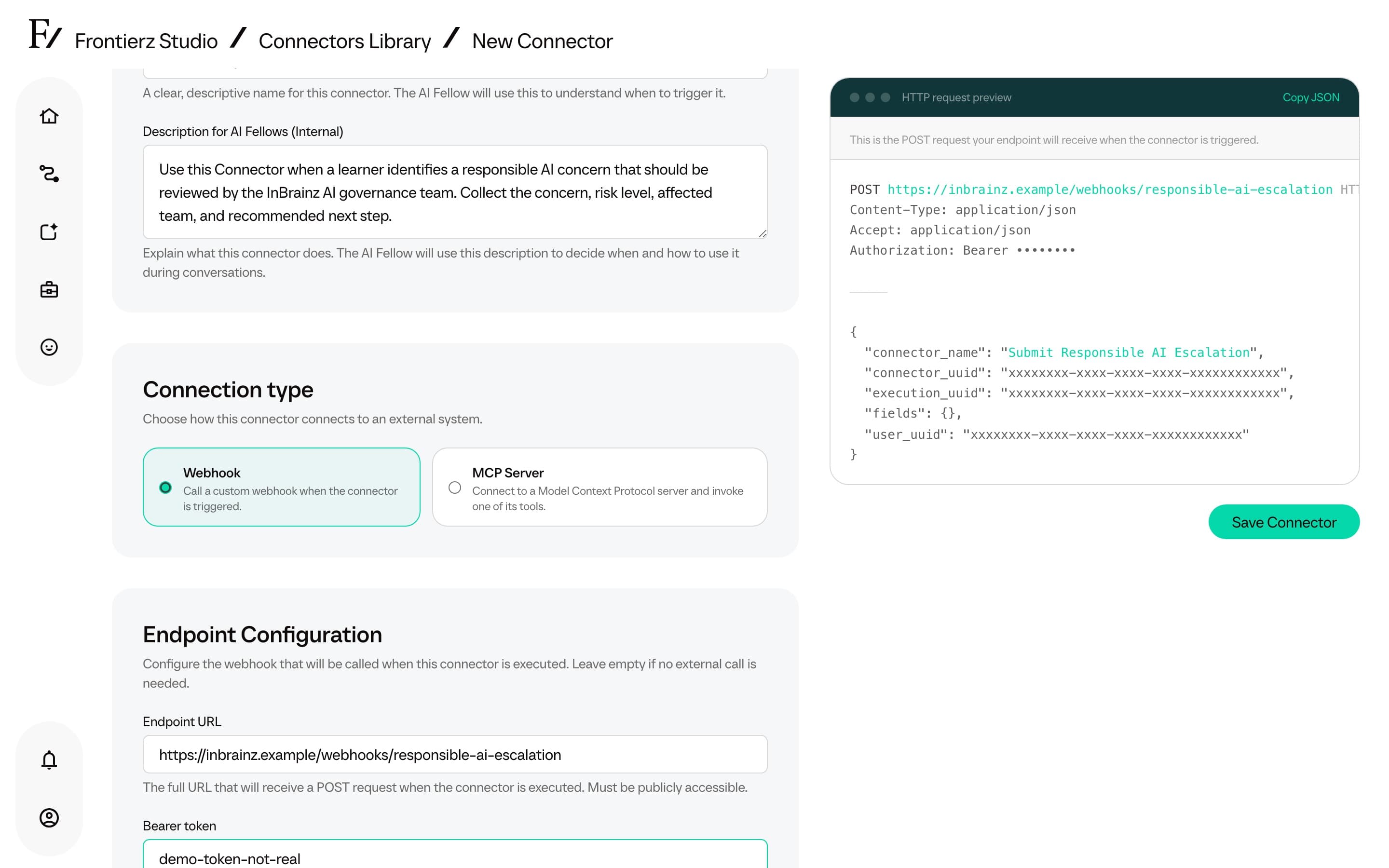
Optionally, define the input fields the AI Fellow needs to gather from the user before invoking the Connector (such as an account ID, a date range, or any other required data). Each field can also carry a fixed value that is sent on every call without the AI Fellow being involved.
The description directly determines the AI Fellow invocation behavior. Vague descriptions (for example, calls the CRM) result in unpredictable triggering. Specific descriptions (for example, returns the customer open tickets given their account ID) trigger reliably when the corresponding intent is expressed.
Fixed field values
Sometimes a field should always carry the same value rather than something the AI Fellow asks the user for, such as an account type, a region, or a setting that never changes for this Connector. Turn on Always send a fixed value on the field, then enter the value.
When a field has a fixed value:
- The AI Fellow never sees or asks for it. Frontierz adds the value to every call, and it cannot be changed during a conversation.
- The value is sent in the format that matches the field type, so a Yes/No field sends a yes/no value and a number field sends a number.
- The Optional setting no longer applies, since the field is always filled.
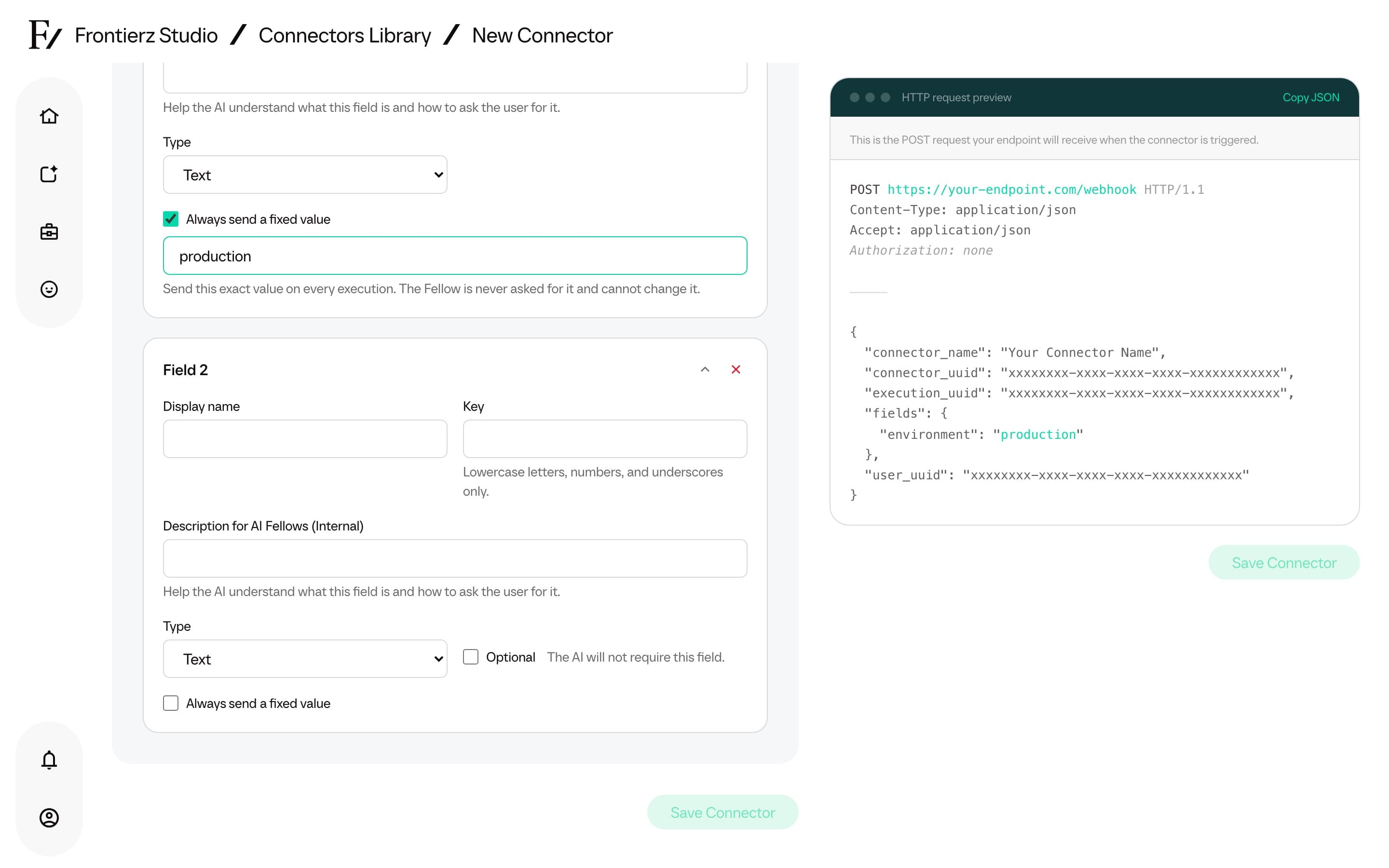
This is more dependable than asking for the value in the field description, which the AI Fellow may skip or send in the wrong format. Fixed values apply to fields you add yourself; fields that an MCP connection brought in automatically cannot be set this way.
What the endpoint should return
The endpoint should reply with JSON. An HTTP status in the 2xx range marks the call as succeeded; a 4xx or 5xx status marks it as failed. The AI Fellow uses the response to keep the conversation going, so the response has to include whatever the AI Fellow needs to say next or to pass into another Connector.
Put the result in a message field. The AI Fellow treats message as the
summary of the call and can read it back to the user. A data field works the
same way.
{ "message": "Ticket INC0203044 is open and assigned to the support team." }If the response has no message and no data field, the AI Fellow receives
the whole JSON body instead, so the individual fields are still available. This
matters when one Connector feeds another. A user lookup that returns this:
{ "userName": "Alex Rivera", "userEmail": "alex.rivera@example.com" }gives the AI Fellow the email, which it can then pass into a second Connector, such as one that lists that user's open tickets.
When a call fails, return an error field with a short reason. The AI Fellow
reads that back instead of a generic failure message.
{ "error": "No user found for that email address." }If a Connector result needs to be reused later in the conversation, make sure
those values are in the response. Wrapping them in message is the clearest
option, but any field in the JSON body is available to the AI Fellow when the
response has no message or data field.
Test the Connector before publication
Once the Connector is saved, a real call can be sent to the endpoint without starting a voice session.
Open the Connector detail page from the Connectors Library.
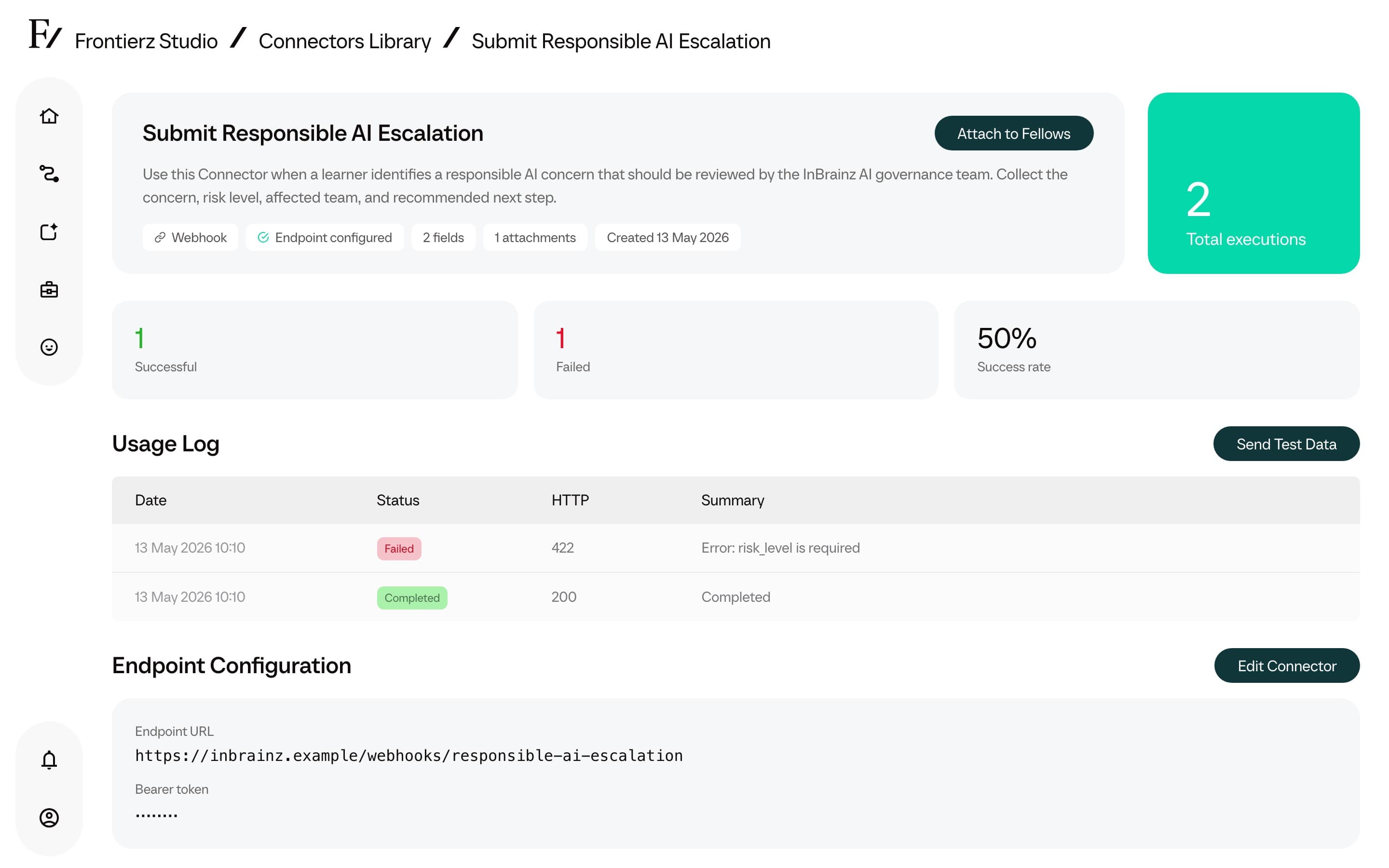
Click Send test execution.
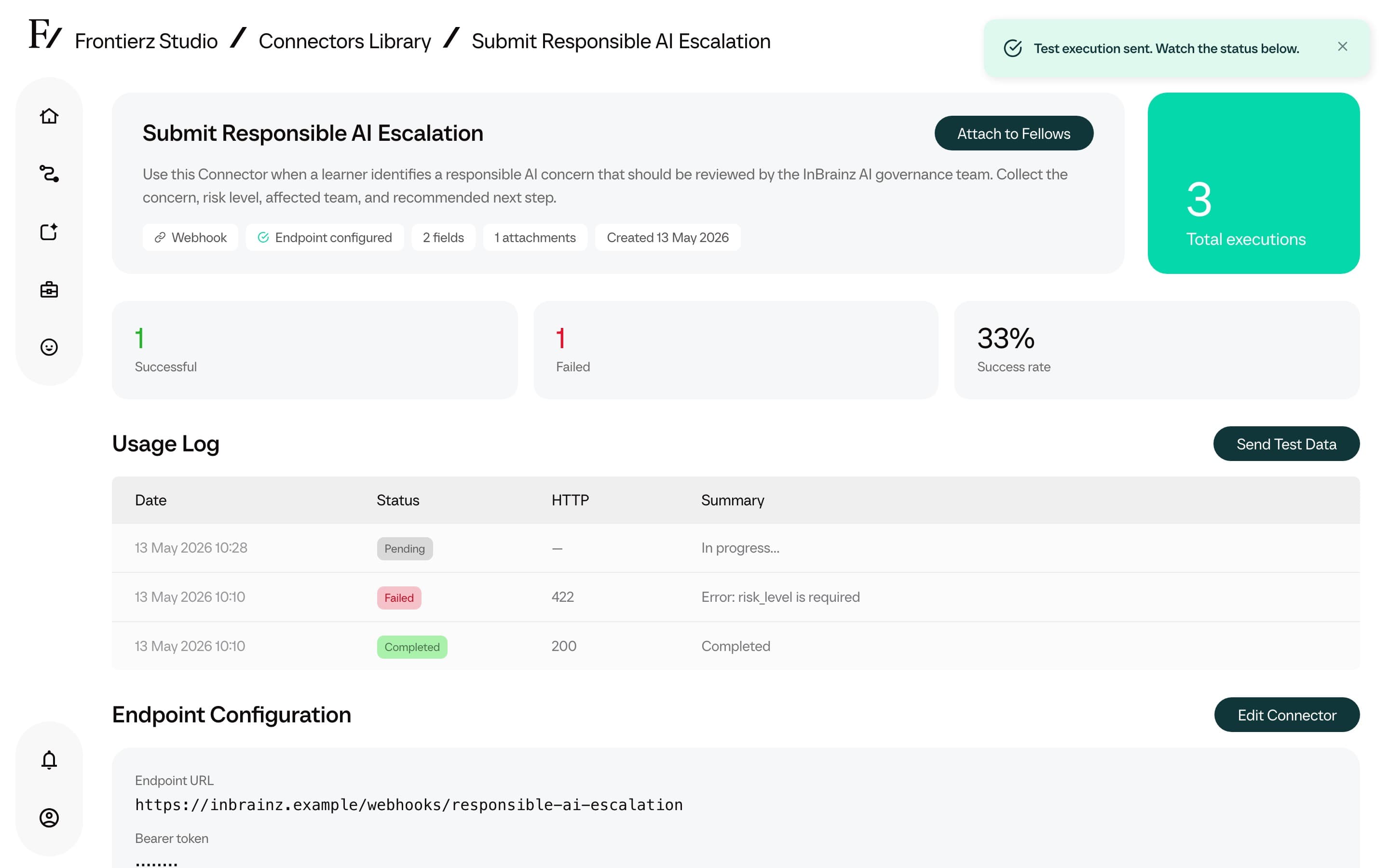
The result appears in the Executions log on the same page, with the same payload, response, and status flags as a live run.
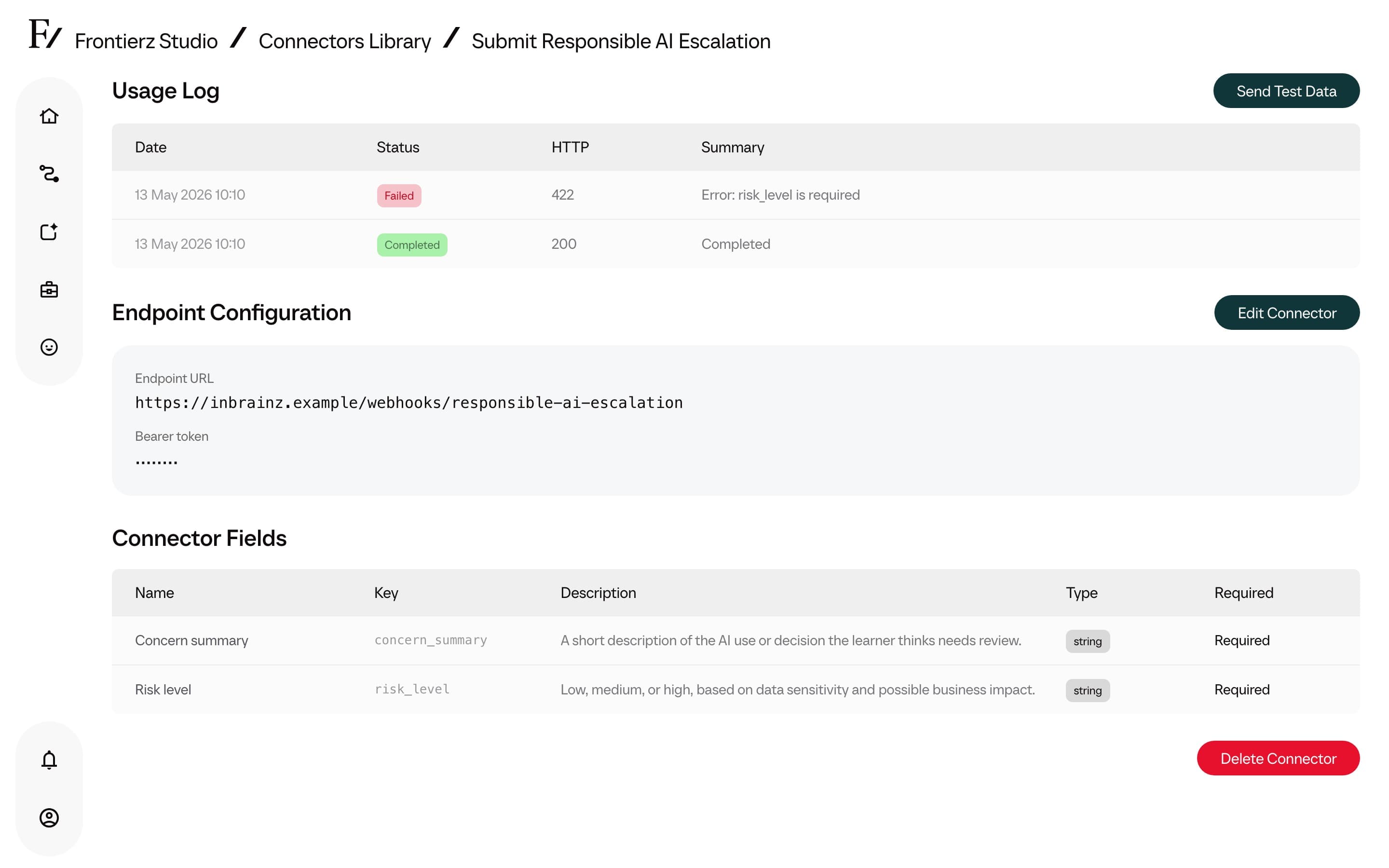
A failed test typically indicates a misconfigured endpoint URL, a missing or invalid authentication token, or a payload field not yet supported by the backend.
Use it in AI Fellows and Learning Paths
Once the Connector exists, attach it from either side:
- From an AI Fellow, to make it available to that AI Fellow conversations.
- From a Learning Path, to make it available across every session in the Learning Path.