

Connectors
Learning Path capabilities control what the assigned AI Fellow can use during every session. Custom Connectors from the Connectors Library can also be attached from the same editor section.
Configure capabilities and Connectors
Open the editor of the Learning Path.
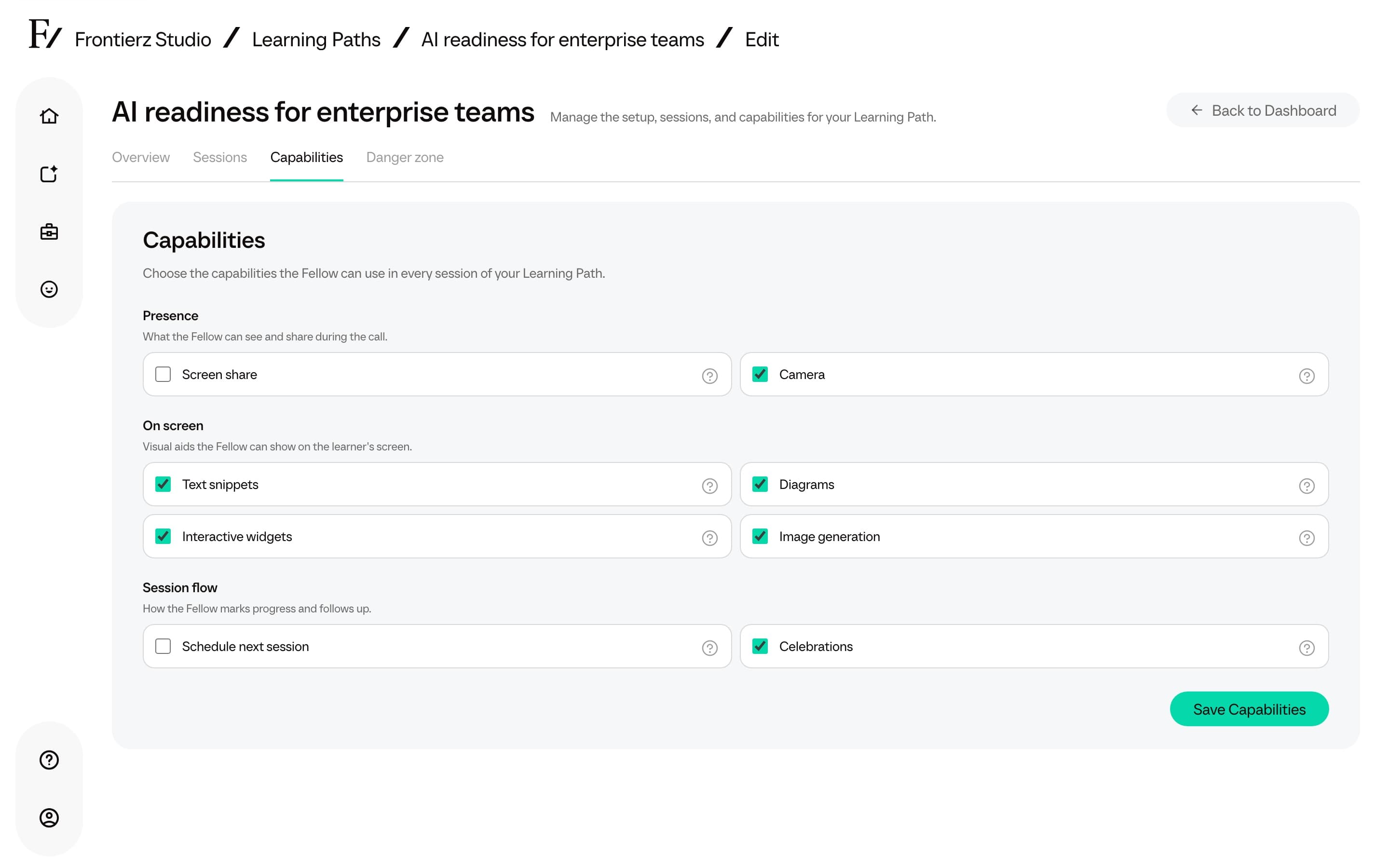
Enable or disable the capabilities required for this Learning Path.
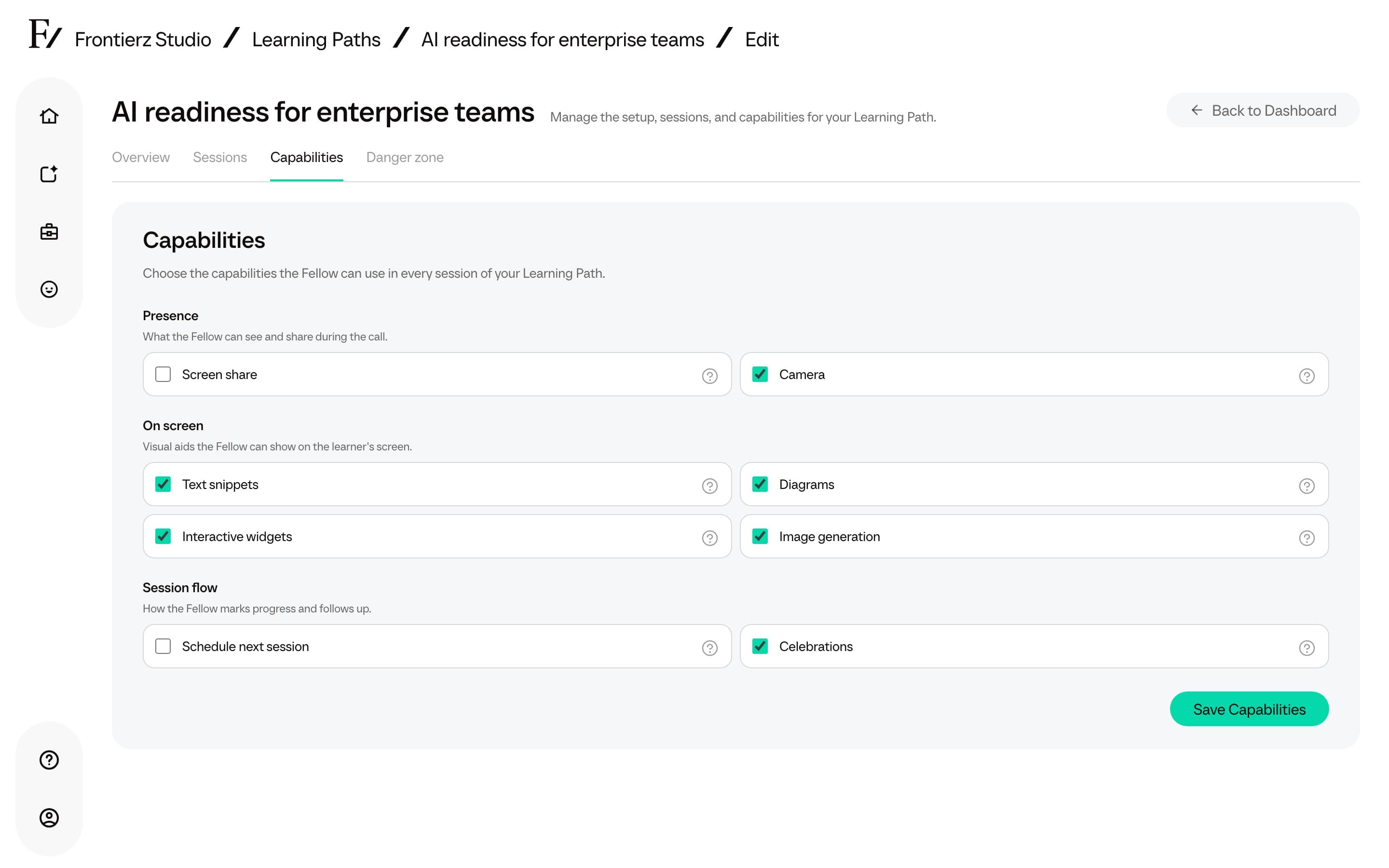
| Group | Capability | What it allows |
|---|---|---|
| Presence | Screen share | The learner can share a screen, window, or tab so the Fellow can comment on it. |
| Presence | Camera | With browser permission, the Fellow can see what the learner shows through camera snapshots. |
| On screen | Text snippets | The Fellow can place short text, links, code, or spellings on screen. |
| On screen | Diagrams | The Fellow can draw flowcharts, mind maps, and other diagrams. |
| On screen | Interactive widgets | The Fellow can create small calculators, comparisons, quizzes, and what-if tools. |
| On screen | Image generation | The Fellow can create illustrative images during a session. |
| Session flow | Schedule next session | After the objectives are complete, the Fellow can offer to schedule a later Fellow Session. |
| Session flow | Celebrations | The Fellow can show an on-screen celebration when the learner reaches a milestone. |
Full Admins can also assign custom Connectors to the Learning Path. Anything built in the Connectors Library over HTTP or MCP can be reused here, for example a CRM lookup or an LMS write-back.
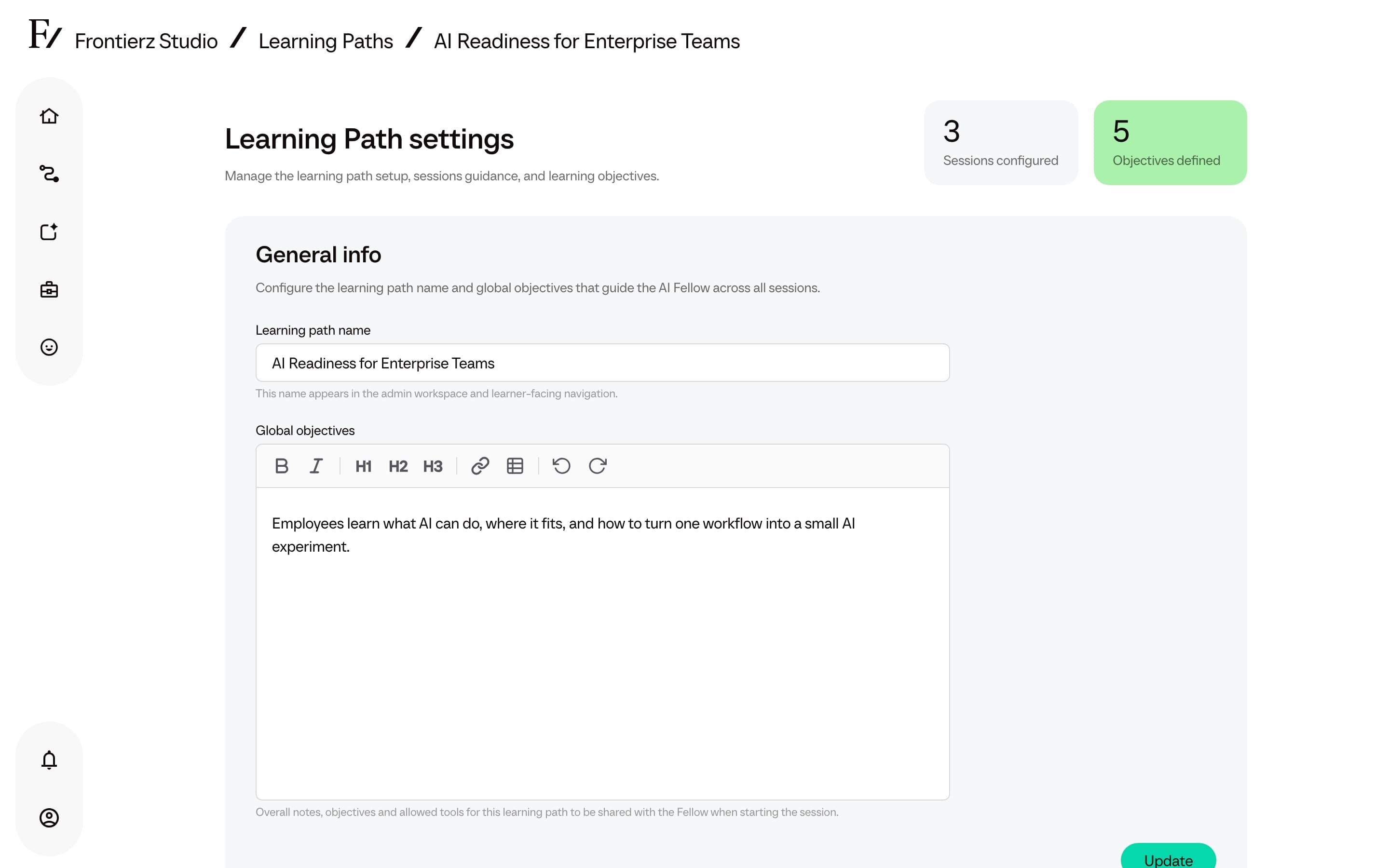
Managers can enable or disable built-in capability toggles for their assigned Learning Paths. Custom Connectors attached by a Full Admin appear as active but read-only for Managers.
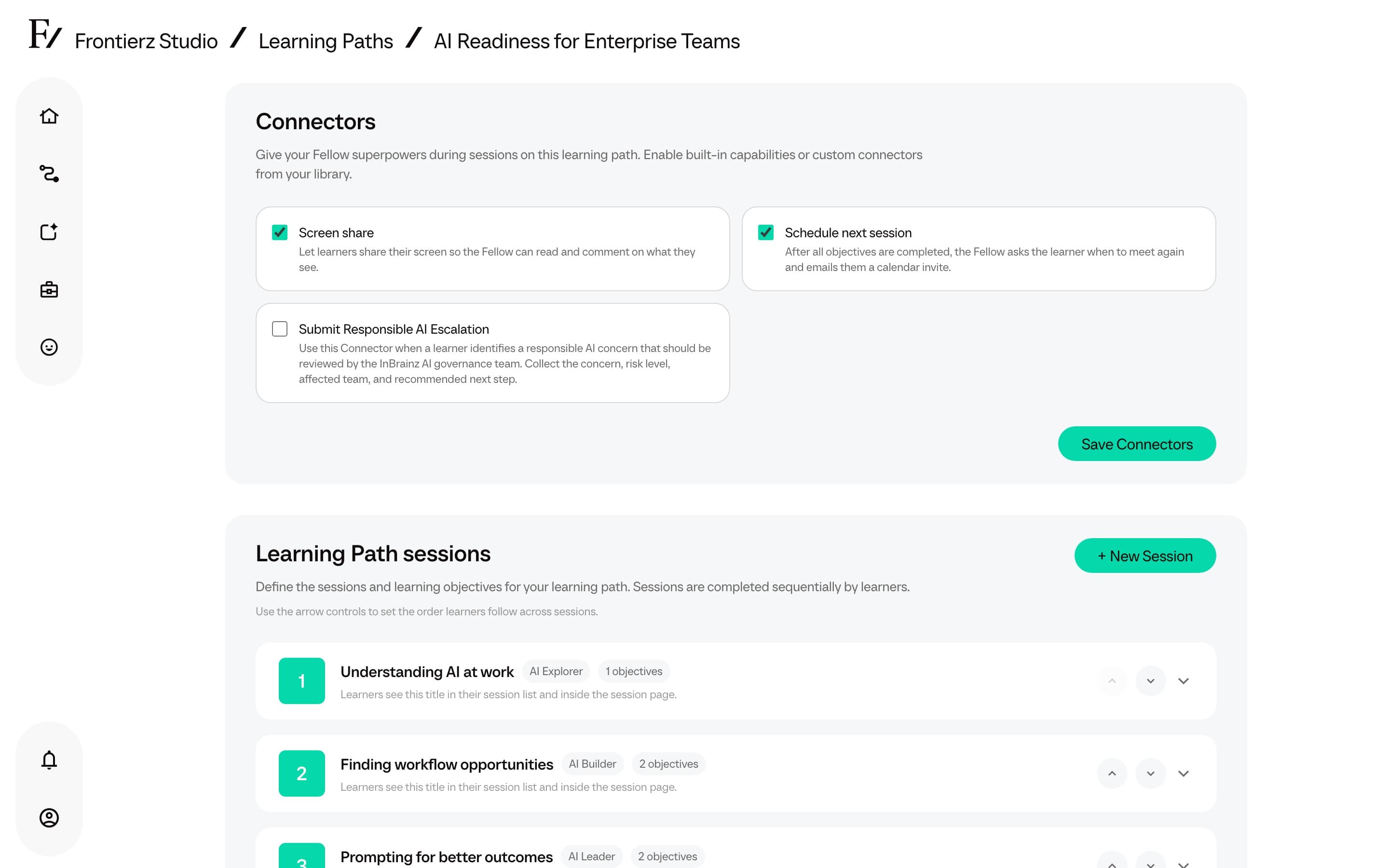
Schedule Next Session rules
Schedule next session is available only when the current item has a later Fellow Session in the same Learning Path.
The Fellow offers scheduling only after all objectives in the current Fellow Session are complete. It does not offer scheduling when:
- The current item is the final Fellow Session.
- The only later item is an AI Simulation.
- The only later item is a SCORM package.
The scheduling capability is omitted from the final Fellow Session's tools and instructions.
Schedule next session is useful for multi-session programs where a later Fellow Session still exists. The Fellow can email a calendar invitation for that follow-up.