

Last updated on
Overview
Frontierz helps organisations deliver training and onboarding through conversations with AI Fellows. This manual explains how to plan learning programmes, manage access, and review progress. It is written for learning and development teams and system administrators; no programming knowledge is needed for everyday administration.
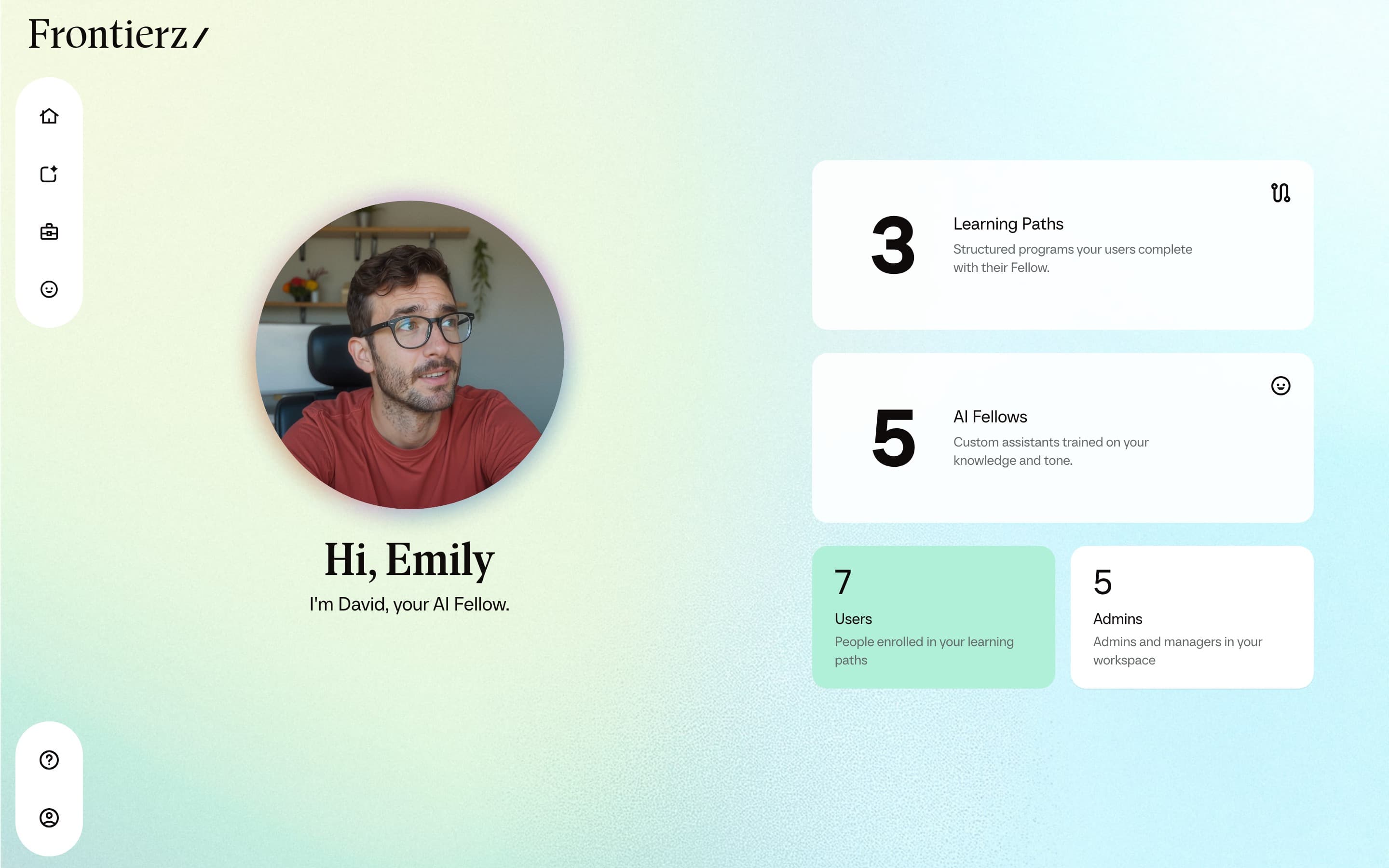
How training works
An AI Fellow is an AI conversation partner with a defined role, purpose, voice, and language. You provide instructions and a Knowledge Base so it can draw on your organisation’s material. During a conversation, it can search that material and consult the original document for specific details. Its Connectors determine which additional tools and systems it can use.
Use a Fellow on its own for focused support or practice. An AI Simulation gives the Fellow a specific role, such as a customer or colleague, for practice and assessment. For a programme that develops over several sessions, create a Learning Path. It sets out the sessions and objectives in order and provides progress tracking. In a Fellow Session, the Fellow checks that the participant has met the objectives before the next session becomes available.
Frontierz is intended for learning through conversation: onboarding, coaching, interview preparation, simulations, and competency assessment. Its focus is active participation, rather than simply presenting videos, documents, or multiple-choice tests. Fellows use voice by default; when you enable text chat mode, participants can also type. With the relevant capabilities enabled, Fellows can interpret a shared screen and use Connectors to interact with external systems.
Administrator capabilities
The tasks available to you depend on your role and permissions. Studio brings together the tools for preparing training, making it available, and reviewing its use.
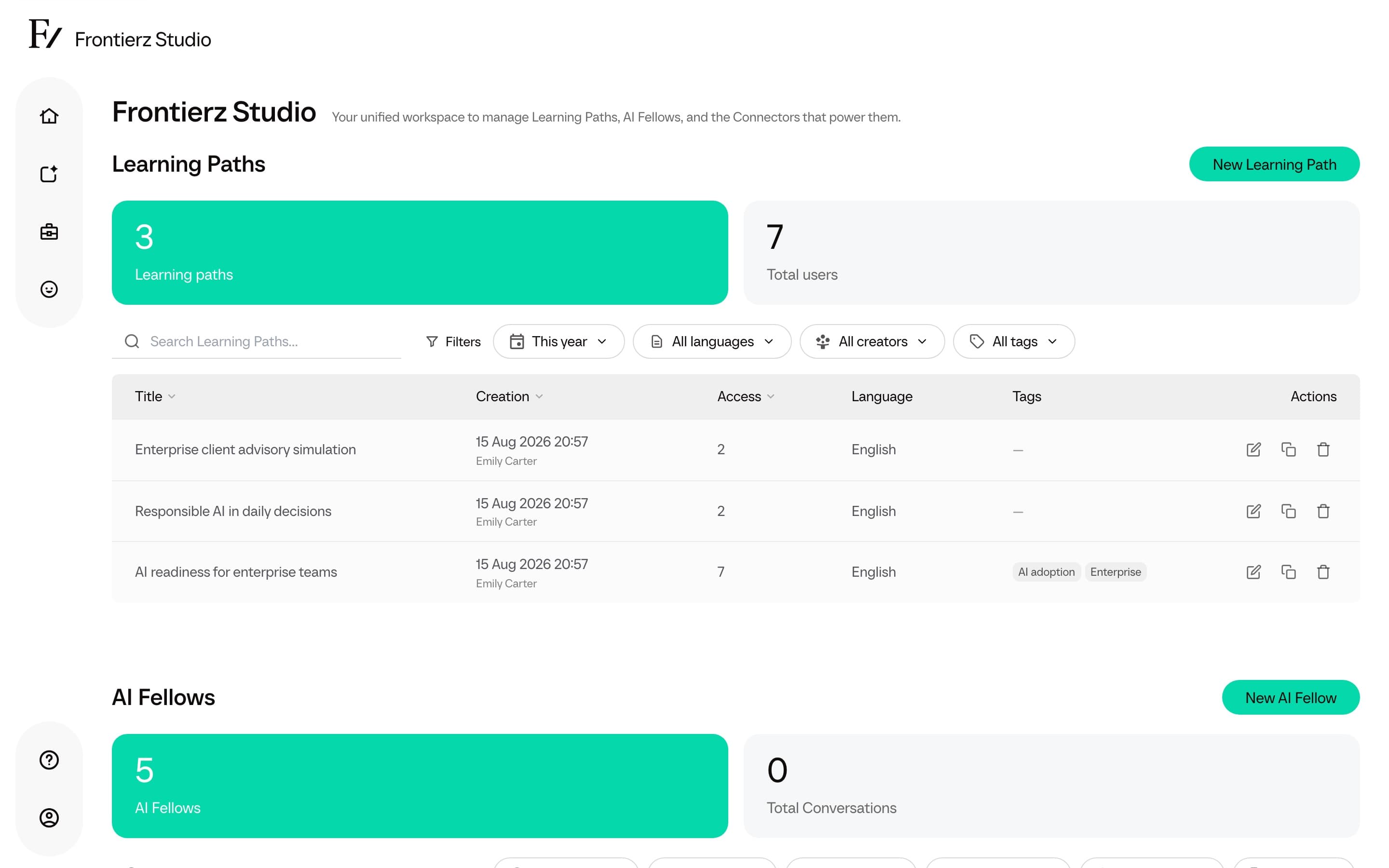
Prepare content and practice
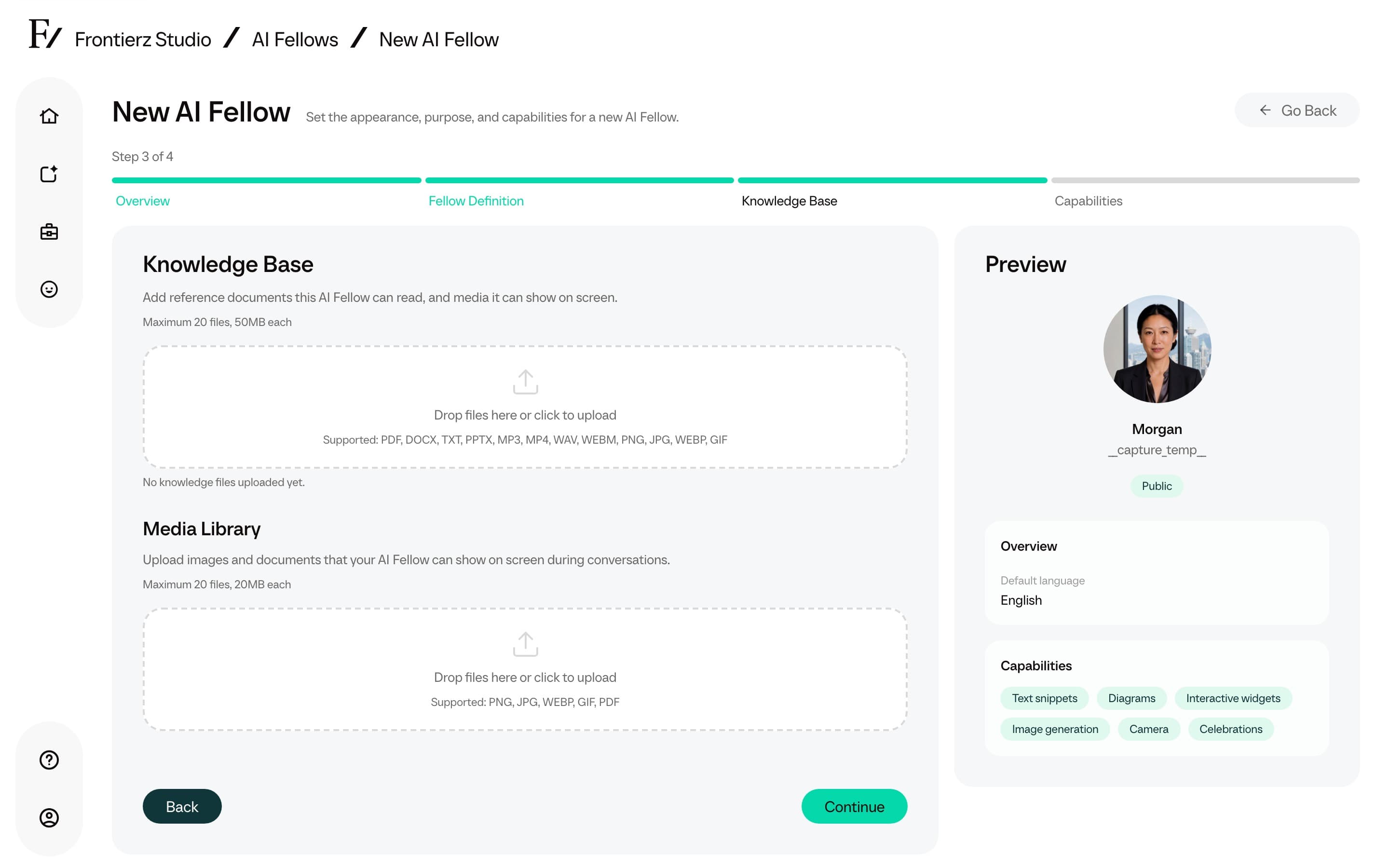
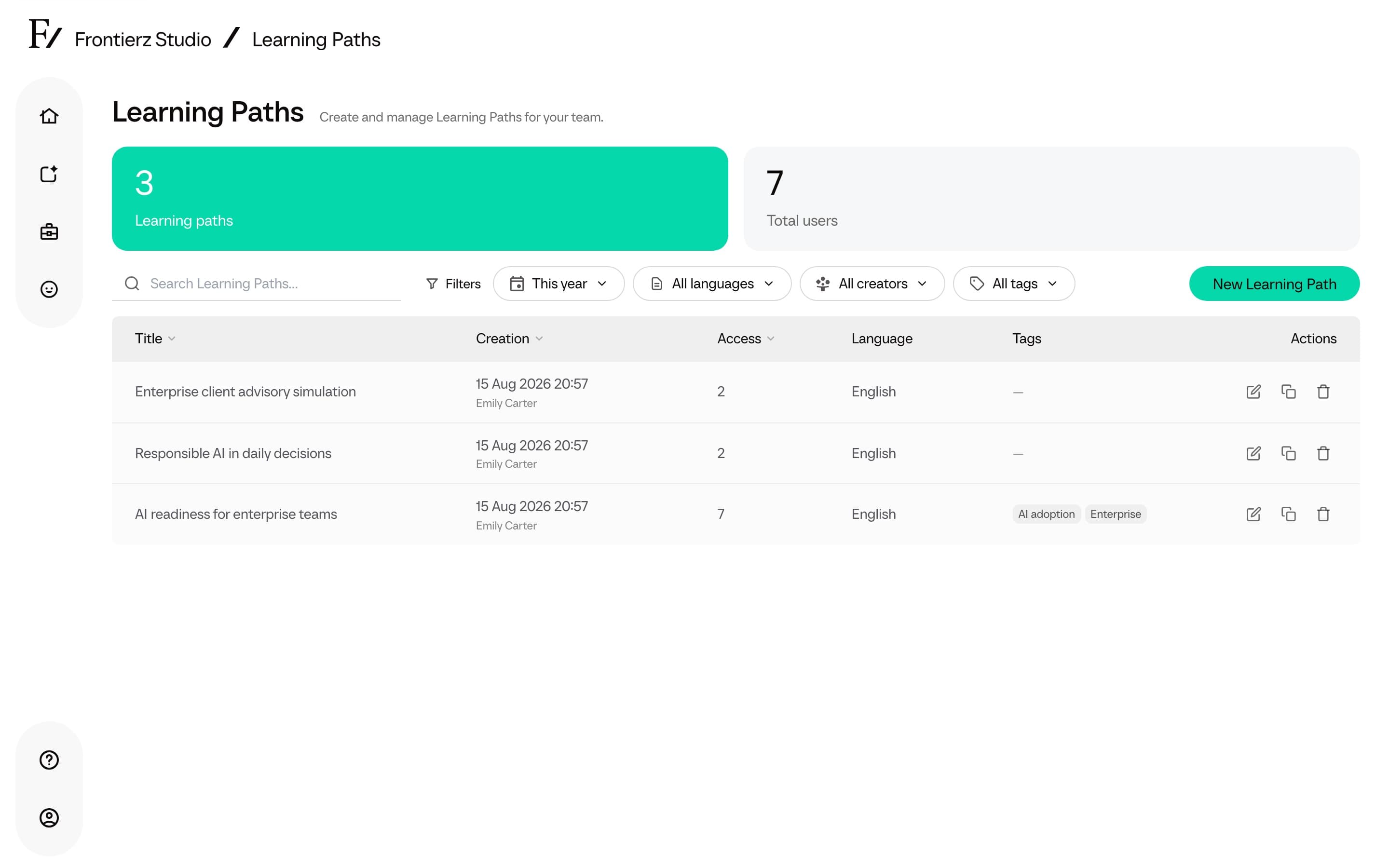
Build a Learning Path by defining sessions and objectives, adding reference material, and reviewing the participant experience. Build with AI creates a draft for you to review. You can also import a SCORM package as a new Learning Path or as a session in an existing one. To transfer sessions, objectives, and notes between workspaces, import or export a Frontierz Learning Path file.
For a Fellow, configure its personality, voice, language, instructions, knowledge, and available tools. The Fellows library provides ready-made starting points that you can copy and edit. If custom appearances are enabled for your workspace, create and activate an AI Fellow Identity in Studio → AI Fellows → Custom Appearances.
Capabilities are grouped under Presence (Screen share and Camera), On screen (Text snippets, Interactive widgets, Image generation, and Whiteboard), and Session flow (Schedule next session on Learning Paths, and Celebrations). Managers can change these built-in options on assigned resources. Custom Connectors can support actions such as sending calendar invitations or exchanging information with company systems.
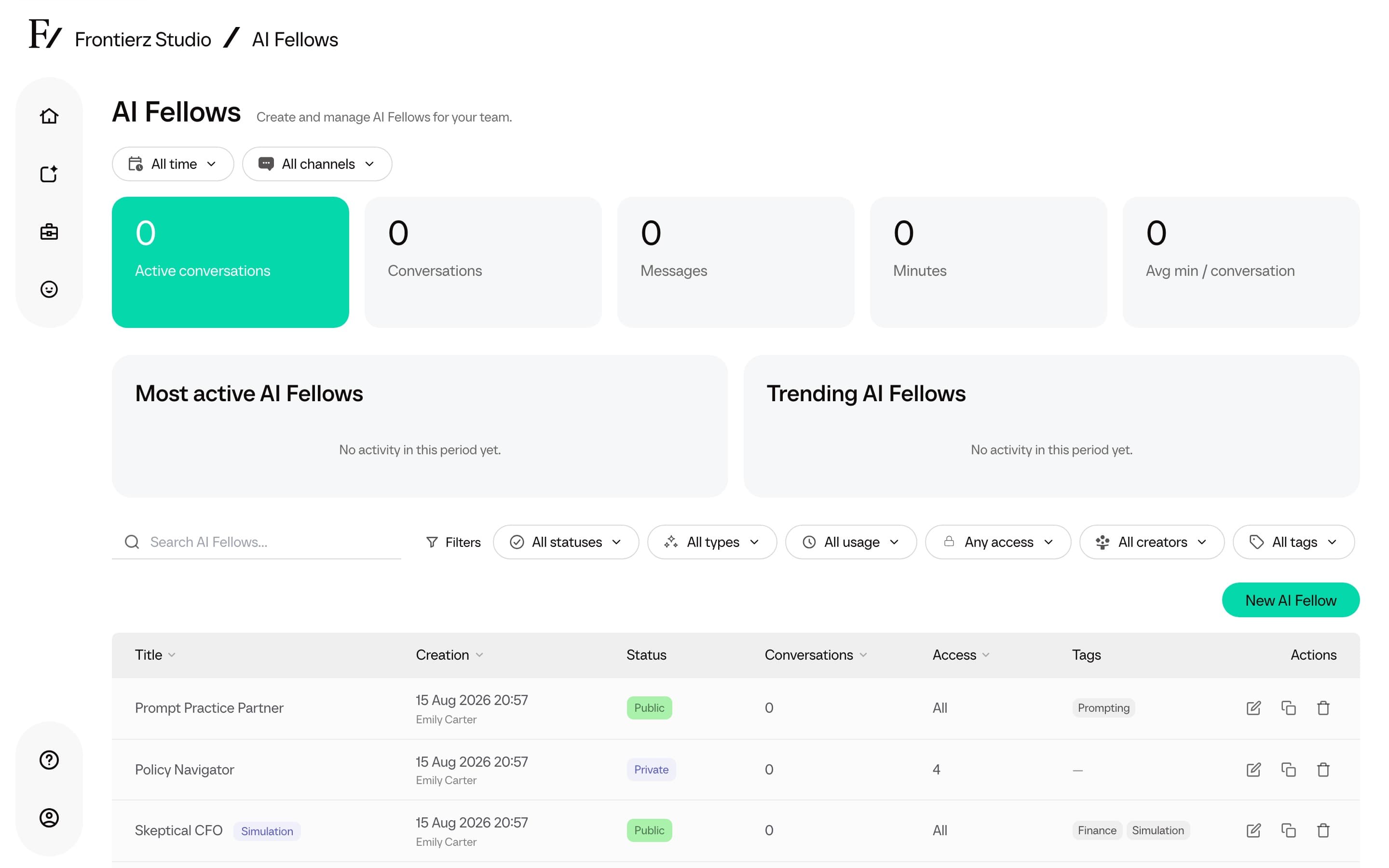
Give people access
Set a Fellow’s visibility to Public, Private, or Disabled, and manage the access list when it is Private. Enroll participants in Learning Paths, invite colleagues to help administer training, and assign the Learning Paths and Fellows each Manager oversees. Can build new content determines whether a Manager can also create new Learning Paths, Fellows, and Assessments.
Frontierz can work alongside your existing LMS. Connect Canvas, Blackboard Learn, Brightspace, Moodle, or Cornerstone through Access Management → LMS integration so employees can open Frontierz training from their courses. A Learning Path can also send completion data through a custom Connector.
Use View as User to check the participant experience while remaining signed in to your account. Configure Learning Path communications to send follow-up emails at a Weekly or Intensive pace. Once someone has started, administrators monitoring that Learning Path receive a Monday summary.
Review progress and maintain content
Review a person’s activity, access, and account details on the User detail page. For a wider view, generate a Learning Path report or an AI Fellow report, then print it or save it as PDF. Review conversations to understand how a Fellow is being used, Connector executions to investigate integration activity, and the edit history to see changes to a Fellow’s configuration.
Use Tags to organise and filter the Studio lists, with up to 20 tags per resource. The number of AI Fellows and Learning Paths per company is not capped. Each Fellow can hold up to 20 documents in its Knowledge Base.
Next pages
Navigation
The sidebar, quick-access shortcuts, and switching between Learning Paths.
User experience
What Users see: Home, Your Journey, live sessions, transcripts, and previous chats.
Frontierz Studio
The administration hub and its three creation areas.
Learning Paths
Programs with ordered sessions, objectives, user management, analytics, and Connectors.
AI Fellows
Standalone AI participants for coaching, simulations, public links, and embedded widgets.
AI Simulations
Create role-play AI Fellows from persona, context, and assessment objectives.
Fellows library
Add a ready-made AI Fellow to the workspace and edit the copy.
Connectors
Built-in capabilities and custom integrations for AI Fellows and Learning Paths.
Administration
Company Settings, Company Profile, Sign-in & Security, Activity Log, Access Management (including LMS integration), roles, and CSV imports.
LMS
Register Canvas, Blackboard Learn, Brightspace, Moodle, or Cornerstone from Access Management.
AI Fellow Identities
Generate and deploy a company-owned appearance from Studio AI Fellows → Custom Appearances.
Responsible AI
AI labeling, human review, reviewable evidence, and decision boundaries.
Privacy and data
Knowledge files, conversations, camera, screen sharing, Connector data, and retention questions.
Glossary
Definitions for Frontierz terms, roles, resources, and navigation labels.
Changelog
Product changes, fixes, and known issues.