Last updated on
AI Fellows
An AI Fellow is an AI assistant that your company configures for a particular audience or task. Users normally speak to it as they would during a call. You choose its appearance, voice, name, language, instructions, reference documents, and connections to other systems.
AI Fellows can be deployed standalone via a public link, or assigned to a Learning Path to guide users through structured sessions.
When to use
Use an AI Fellow for a focused conversation, such as coaching, practising a customer interaction, technical onboarding, a compliance walkthrough, leadership practice, or a public demonstration.
For ordered sessions, objectives, cohort analytics, and per-user progress, use a Learning Path instead.
Setup process
Start with Create an AI Fellow, or add a ready-made starting point from the Fellows library. The setup flow covers appearance, name, optional tags, language, starting point, and purpose. When the goal is a role-play exercise, start with AI Simulations instead. The purpose is the most important configuration field for standard AI Fellows, so review the Define the purpose guidelines.
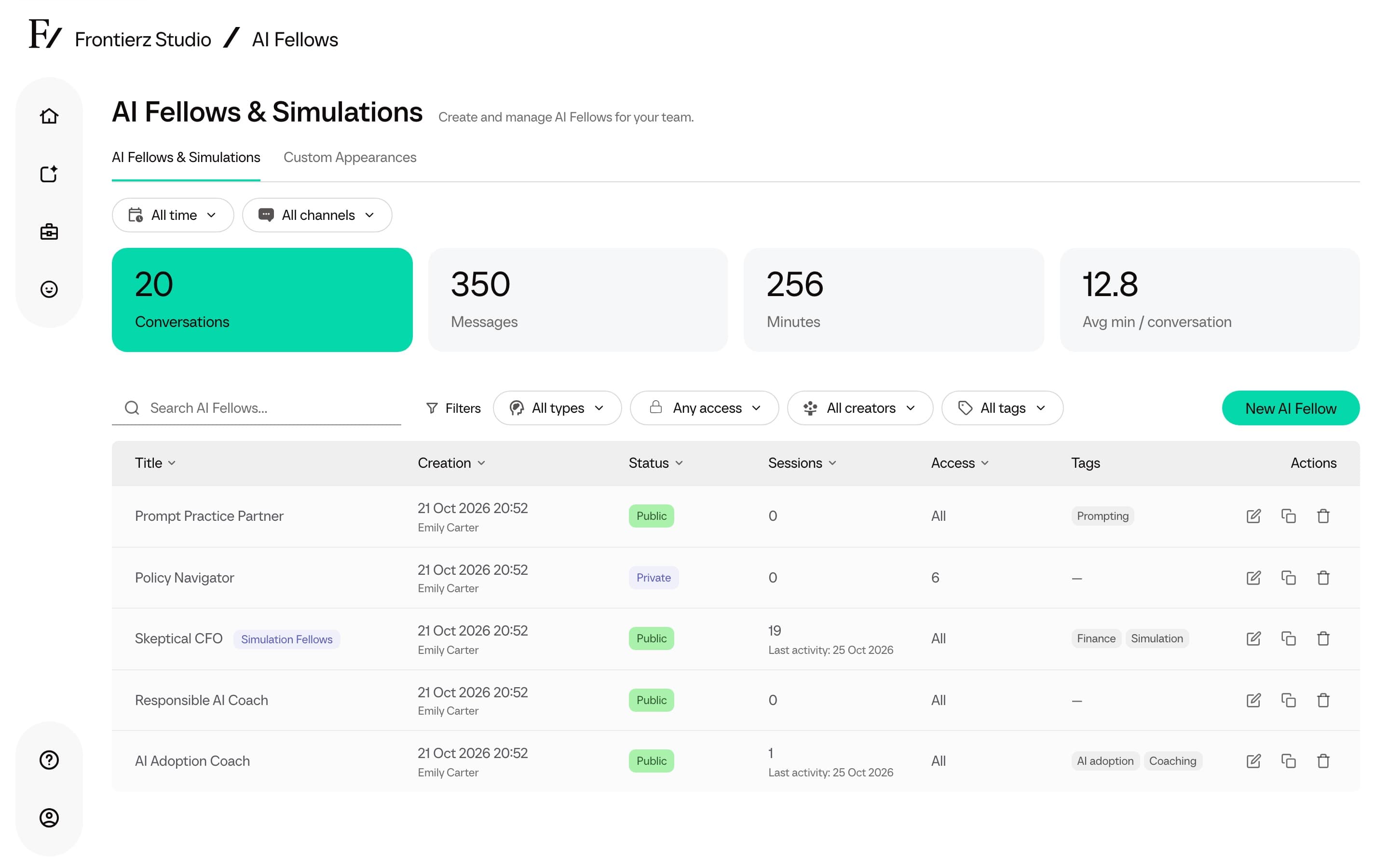
When identities are enabled, this list sits on the AI Fellows & Simulations tab. Custom Appearances is the other tab. See AI Fellow Identities.
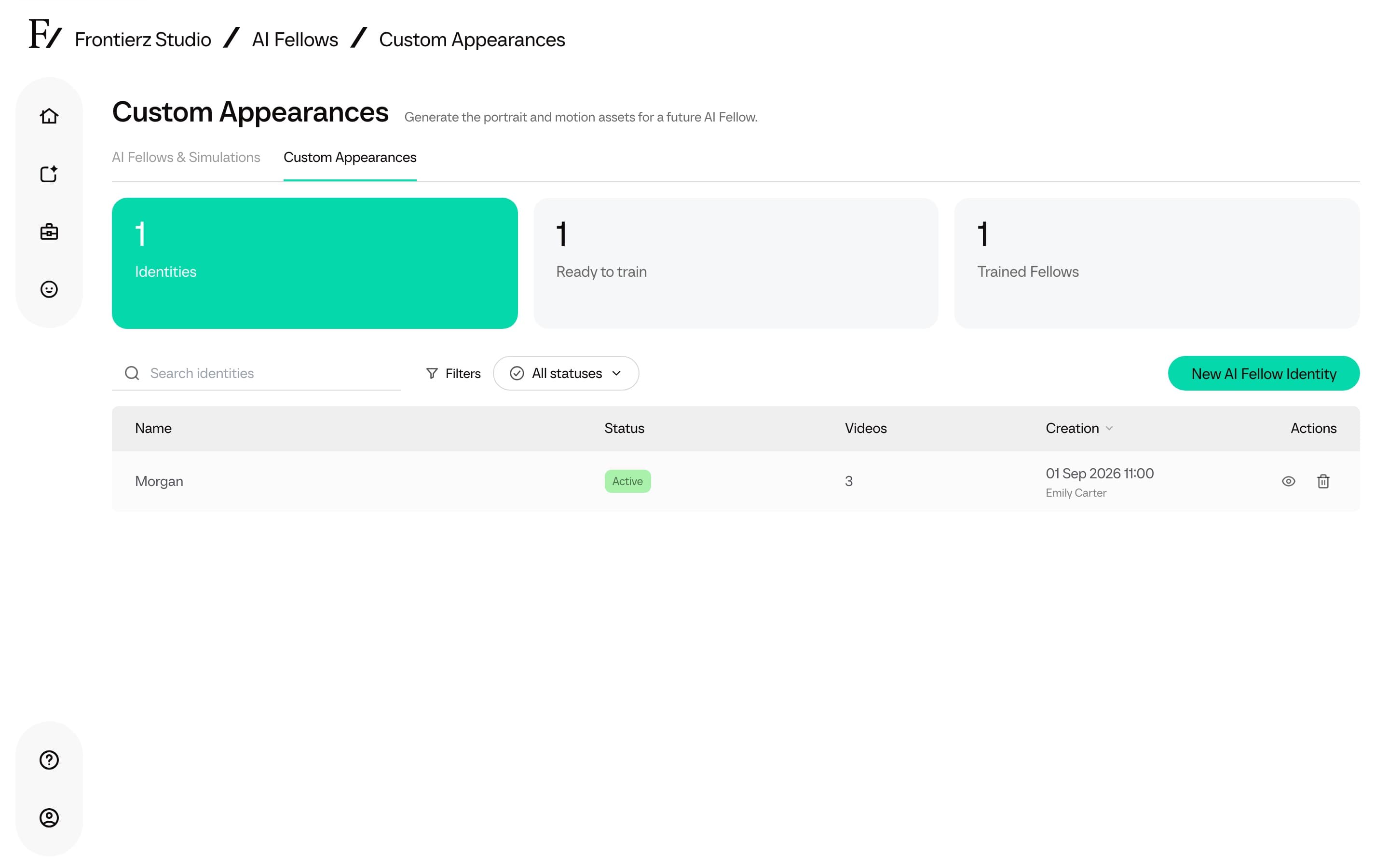
After the basics are set, add reference material in Knowledge Base, configure Capabilities and Connectors, and review the AI Fellow's Visibility. Private AI Fellows also expose a Manage Users page for granting access.
To distribute the AI Fellow, use Deployment options and the Integration Guide for the standalone link, embed code, language options, and external user tracking.
Configuration reference
| Field | What it shapes |
|---|---|
| Appearance and voice | The visual and auditory identity used during conversations. |
| Fellow name | Optional name shown above a standard AI Fellow's avatar. When blank, Frontierz shows the selected appearance name, such as Julia. |
| Simulation persona name | The character name shown during an AI Simulation. It comes from the simulation Persona step. |
| Purpose | The brief that drives behavior: role, tone, scope, and limits. |
| Knowledge Base | Up to 20 documents the AI Fellow uses as reference material. |
| Connectors | Built-in capabilities such as screen sharing, plus integrations into the customer's systems. |
| Default language | The conversation language the AI Fellow opens in. Multi-language conversations are supported. |
| Spoken accent or variety | How the Fellow pronounces that language, when the language has regional options. It does not change the interface language. |
| Deployment | Standalone link or embedded widget. Launch AI Fellow is where you review the Fellow and copy the link. See Deployment options. |
When you edit a generated AI Fellow Identity from Custom Appearances, the selected voice is marked as active. Click a voice card to select it. You can also test any available voice without selecting it; testing saves the latest Personality and current voice setting first, creates a short sample line from that personality, then plays it with the voice you tested.
Functional overview
An AI Fellow can:
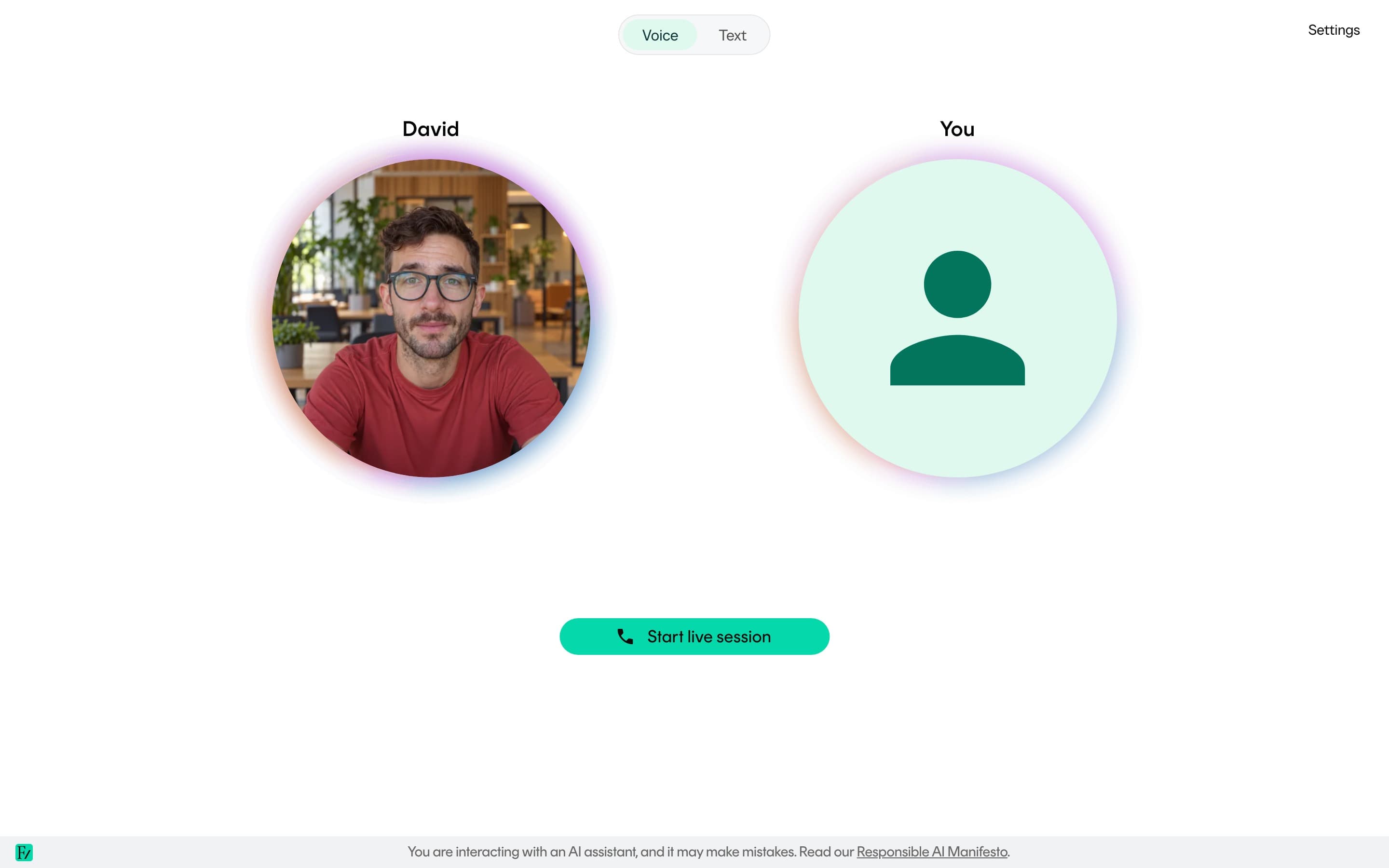
- Hold a live, voice-first conversation in real time.
- Run as a text conversation instead of voice when an admin has enabled chat mode. The user types, the AI Fellow replies in text, and the conversation is saved like a voice conversation.
- Search the documents uploaded to its Knowledge Base and consult the relevant source when a question depends on a specific detail, figure, date, or policy statement.
- Use a file that the user drags into the current session as temporary context for that conversation. See Files sent during sessions.
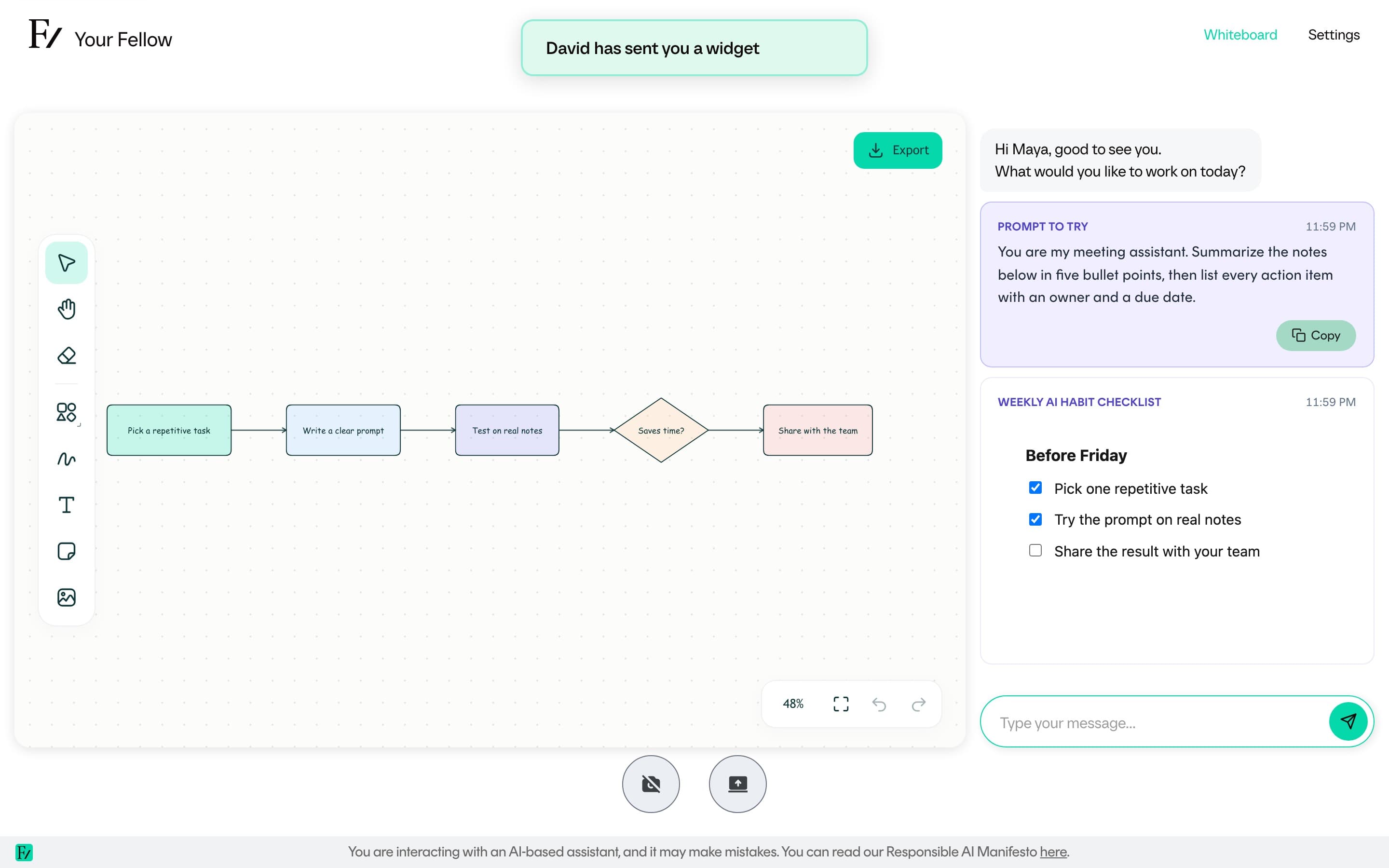
- Use enabled capabilities to share text snippets, interactive widgets, and illustrative images in the session's Chat, and draw diagrams with the user on a shared Whiteboard.
- Mark a genuine milestone, such as finishing a session, with a brief on-screen celebration when Celebrations is enabled.
- Run a realistic simulation, for example a skeptical CFO, a difficult customer, or a regulator asking pointed questions.
- Walk a user through a shared screen and comment on what is shown, or look through the user's camera when asked.
- Collect structured information during the conversation and submit it through a Connector to one of the customer's systems.
- Resume a previous conversation when the user chooses to continue one.
- Open with an optional Info screen shown whenever the user opens the AI Fellow page. This is useful when the user needs a short briefing before the conversation starts.
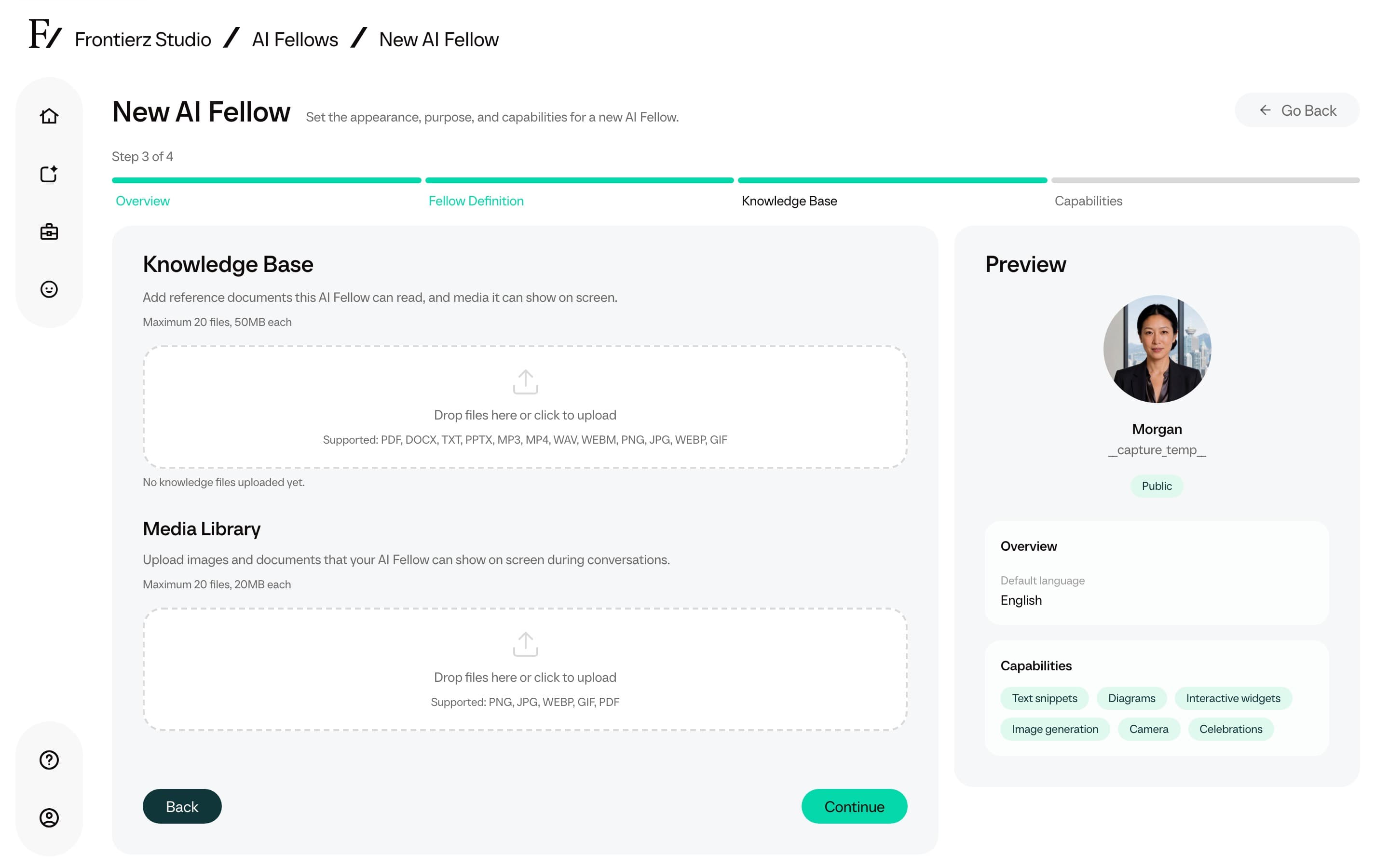
You control these capabilities in Studio for each AI Fellow or Learning Path. Camera and screen sharing also require the user's permission.
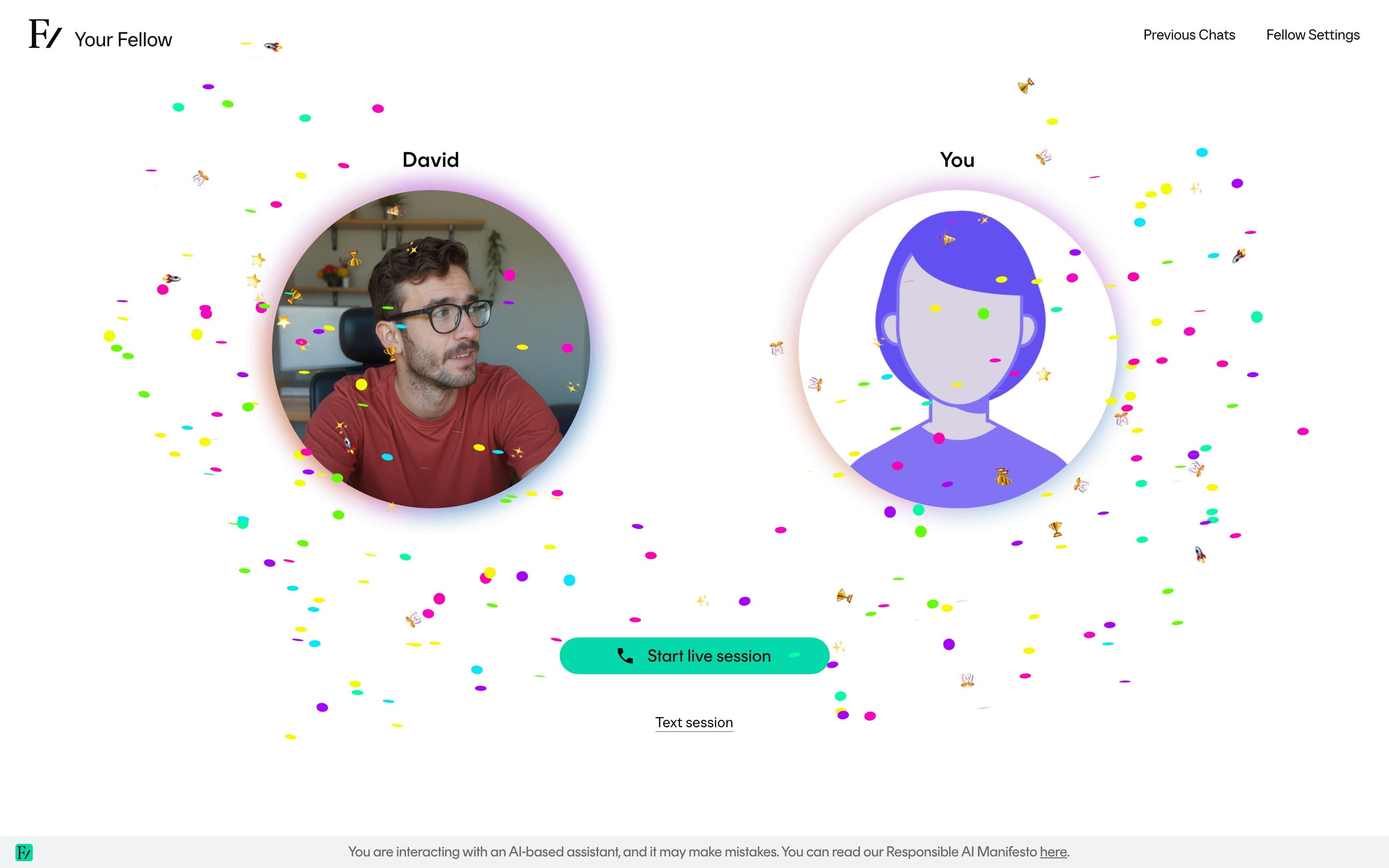
A live session ends automatically when it reaches the service limit. The exact limit depends on the workspace setup and where the user opened the AI Fellow. The user can start another session if they want to continue.
Image generation
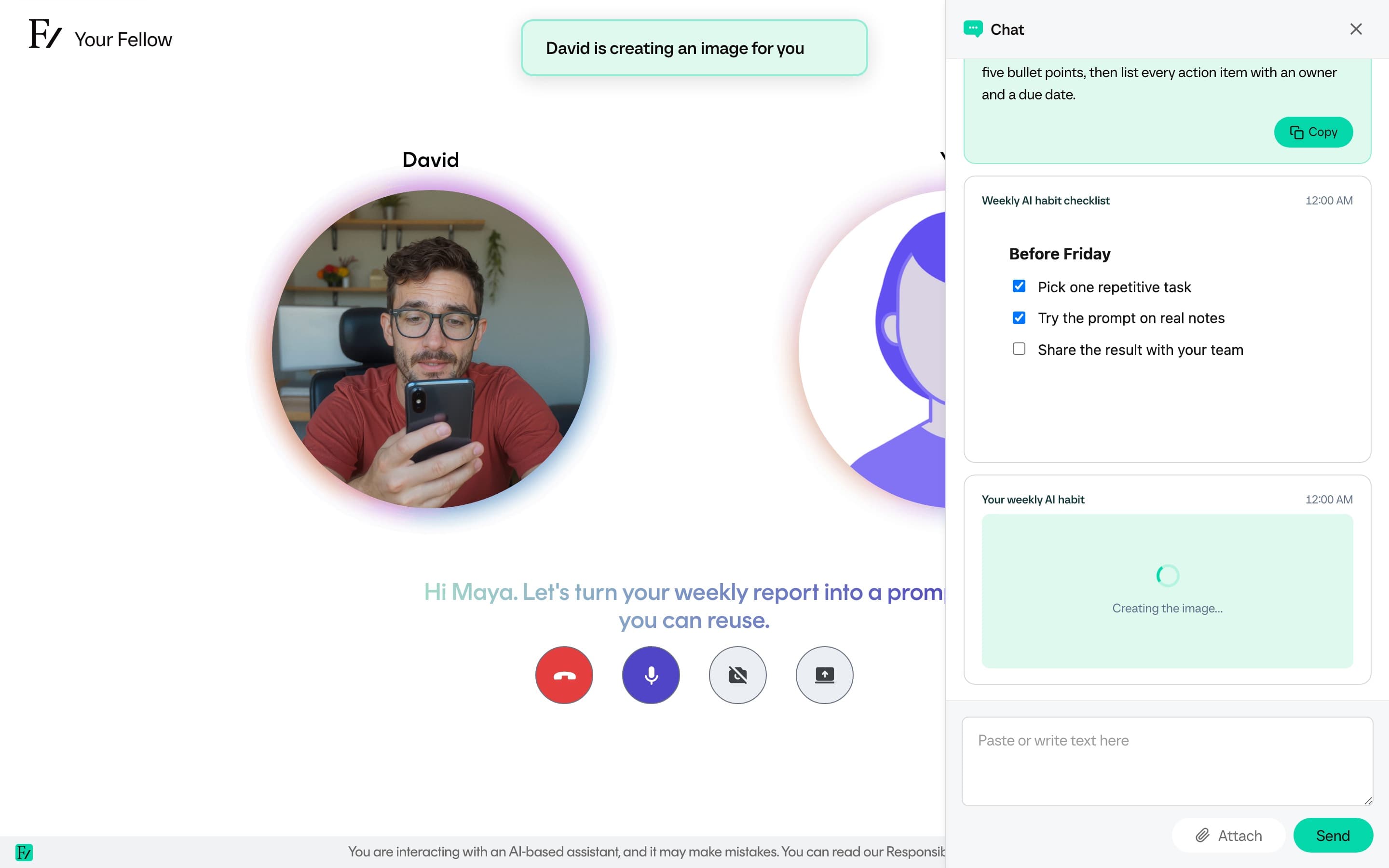
When Image generation is enabled, an AI Fellow can create an illustrative image to support an explanation.
The image appears as a card in the session's Chat. While it is being created, the card shows Creating the image…. It then displays the finished image, which the user can view larger or download, or a message explaining that the image could not be created.
Limitations and intended use
- AI Fellows are not general-purpose chatbots. Even when chat mode is enabled, they are designed for structured conversations that can trigger approved actions.
- AI Fellows are not a substitute for a human reviewer. Final judgment must remain with a person.
- AI Fellows are not autonomous decision-makers. Connector executions are scoped to the conversation.
- AI Fellows are not a guaranteed source of truth. As with any AI system, output may be incorrect; periodic transcript review is required.
- AI Fellows are not authorized to provide legal, medical, financial, or compliance advice.
Monitoring and optimization
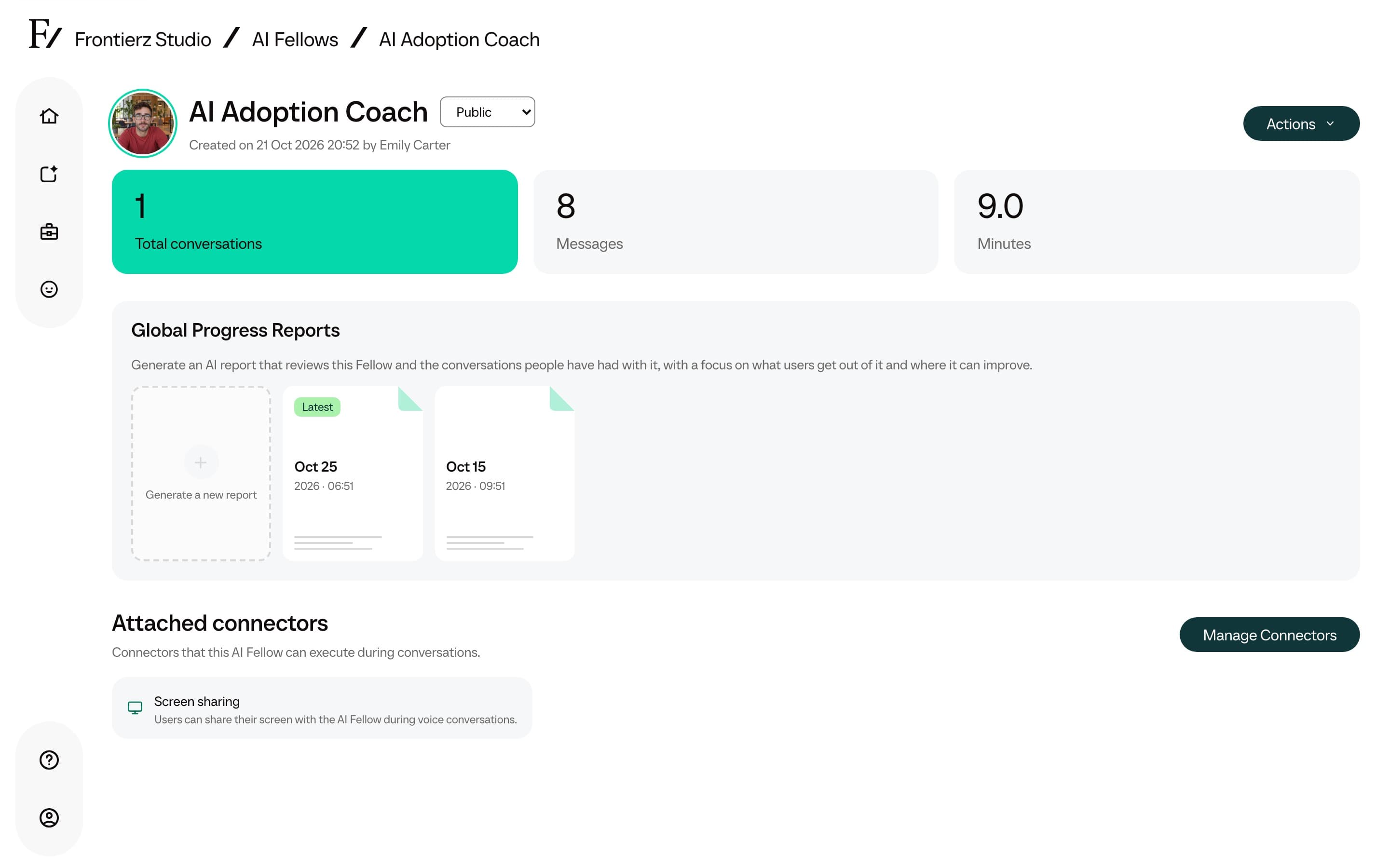
Use Available actions as the reference for operations available from the list and monitor views. Once users start interacting with the AI Fellow, review Conversations and analytics and Conversation management to review usage, read transcripts, and delete conversation contents when required. Use Edit history to see which admins changed the AI Fellow and what changed.
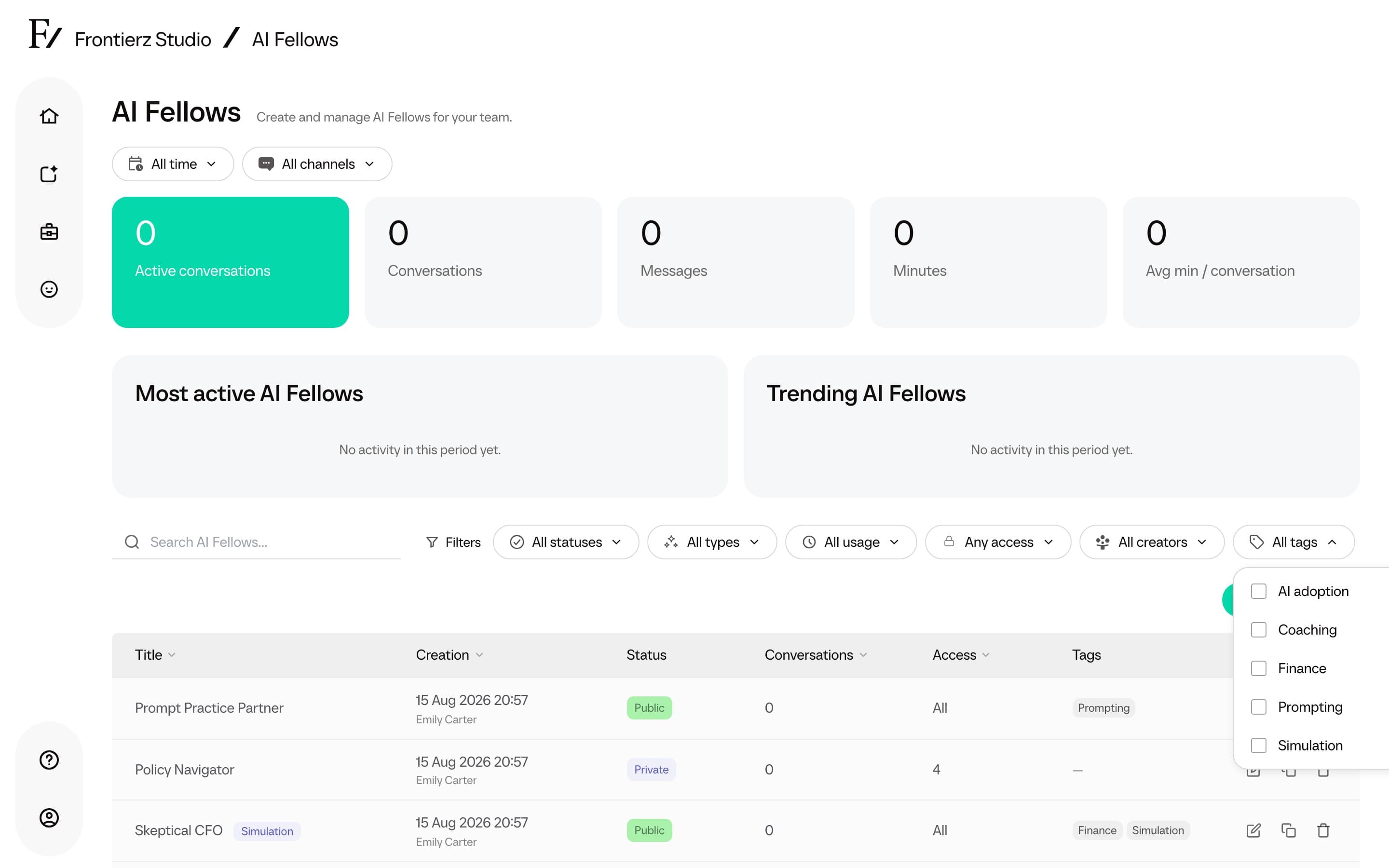
The dashboard above the list has Period and Channel filters. Period options include This year, Today, Yesterday, This month, Last month, and All time. Channel can be set to All channels, Real-time call, or Text chat. These filters update the summary cards, period comparisons, and the Most active and Trending lists.
The table can be filtered by status, type, usage in the selected period, access state, creator, and Tags. It can also be sorted by title, creation date, conversations, or access count. The Channel filter applies to the dashboard figures, not the table.