

Session controls
The controls available during a live session are visible at the bottom of the call screen. You always have a way to mute yourself, open the live transcript, and end the conversation.
Mute
The microphone button toggles your microphone on and off. Click it to mute, click it again to unmute. The AI Fellow continues the conversation while you are muted but does not hear what you say. Use mute to take a moment, deal with a side conversation, or check something quietly.
Interrupt the AI Fellow
You do not need a button to interrupt the AI Fellow. Just speak. The AI Fellow detects when you start speaking and pauses to listen. This is the same way a normal phone call works. If the AI Fellow goes long on an answer or takes the conversation in a direction you did not expect, speak up.
Live transcript
The transcript button opens a panel with a running transcript of the conversation. You can scroll back through what has been said, copy text from it, and keep it open while the call continues. The transcript stays in sync with the conversation in real time.
The transcript only shows text from the current call. Past conversations are available from Previous chats. See Previous chats.
End the call
The end-call button stops the conversation. The session is saved as a recorded transcript and any objectives that were marked complete remain complete. If you ended the call before the session was finished, the same session stays as your current one on Your Journey, ready to be resumed.
Talking versus typing
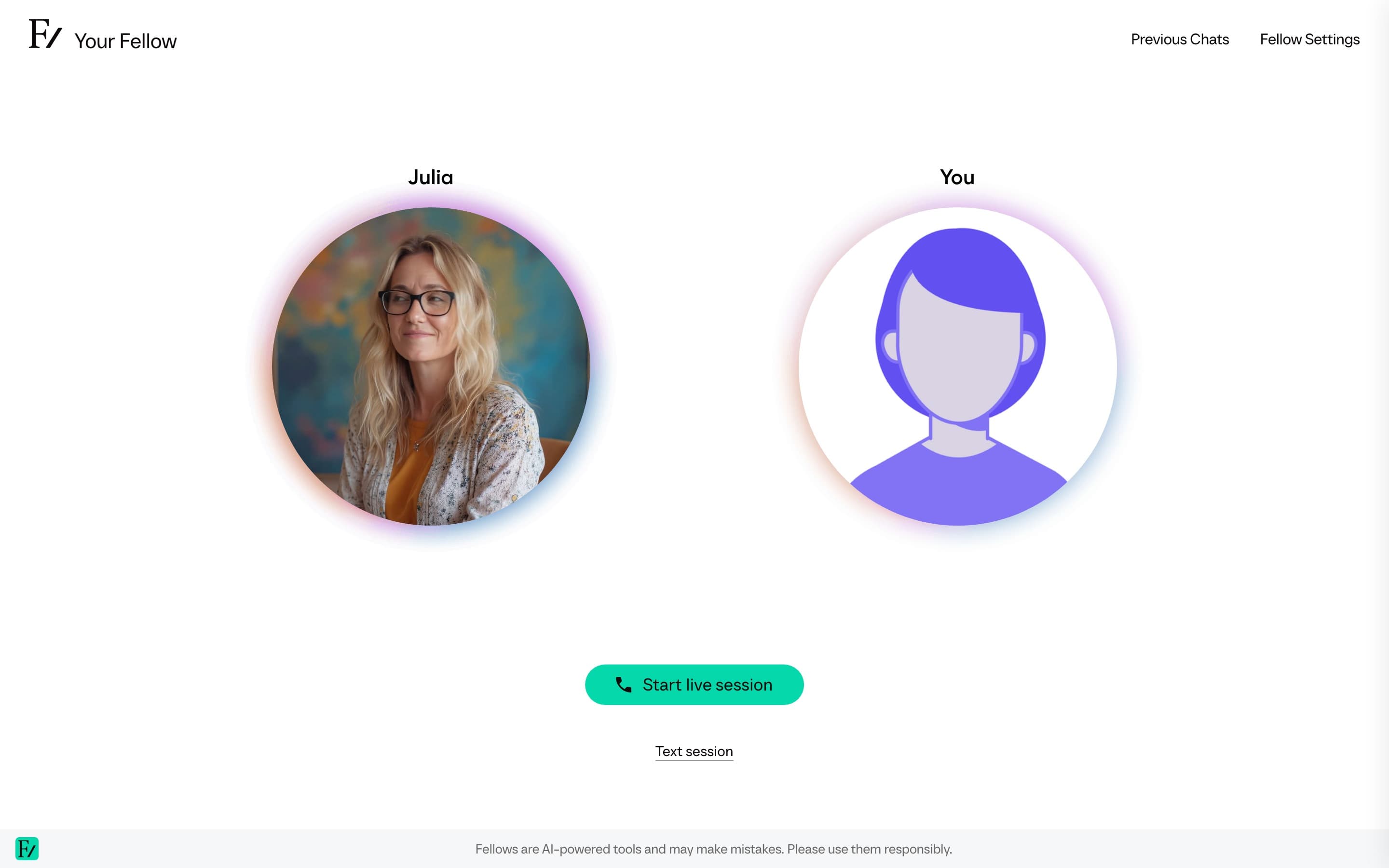
If your AI Fellow page shows a Text session button next to Start session, you can hold the same conversation by typing. See Type instead of talk.
There is no separate save action. Frontierz transcribes and stores the conversation automatically. As long as you do not close the tab abruptly mid-sentence, the transcript captures the conversation in full.