

Previous chats
Past conversations stay available. Select one to open its messages as a text thread. You can type a follow-up in that thread or choose Continue in a call to resume the conversation by voice when continuity is enabled.
Open the previous chats panel
The previous chats panel is reachable from the call screen and from the AI Fellow page outside any active session. Click the previous chats entry to open the list. Each entry shows:
- The date and time of the conversation.
- A short title or summary.
- The duration.
- The status of the session if the conversation belonged to a Learning Path.
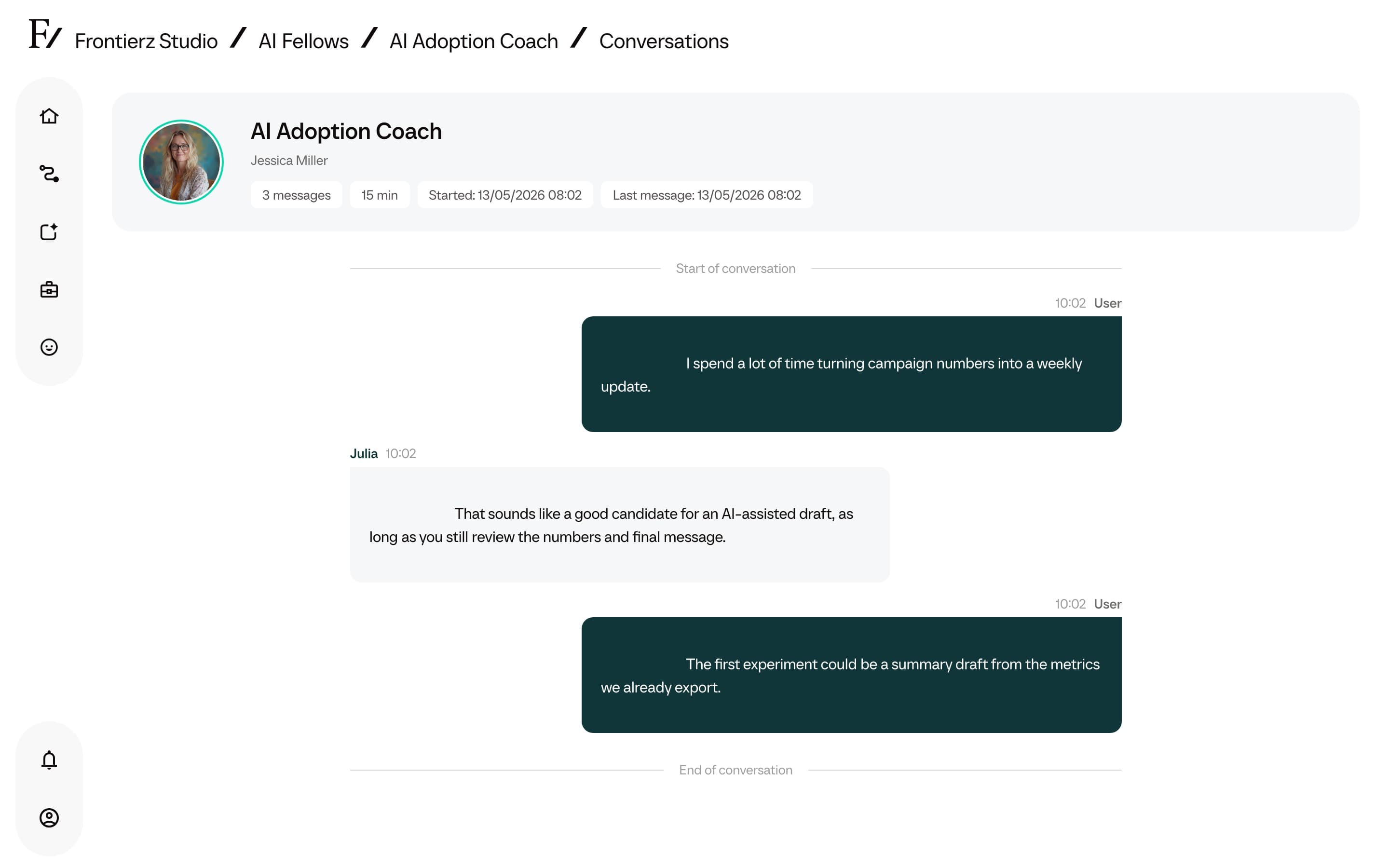
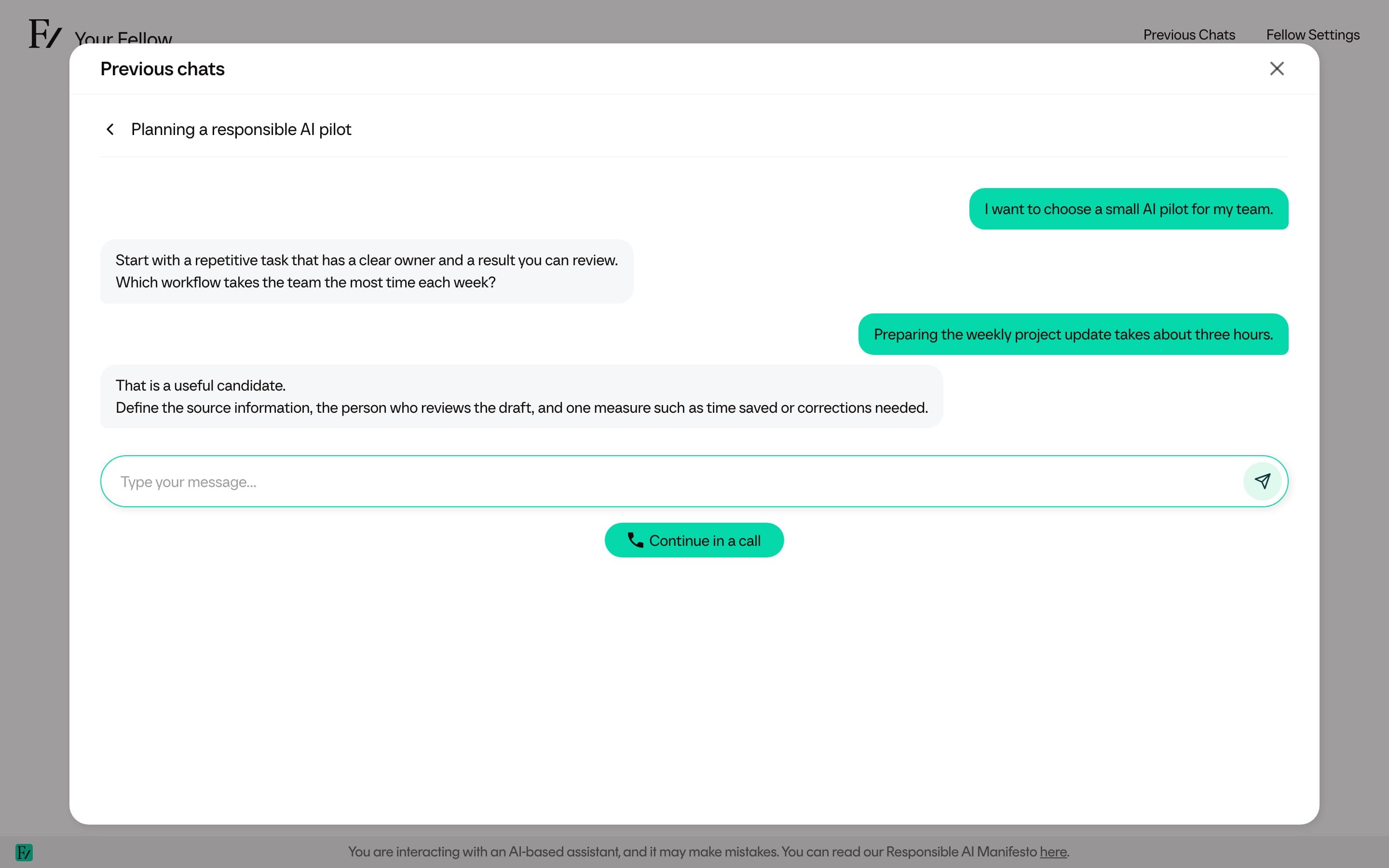
Click an entry to open the conversation. The message thread includes what you and the AI Fellow said. You can read or copy it, send a new text message, or continue by voice.
Read a transcript
A transcript is the full text of a past conversation. Both your side and the AI Fellow's side are included, in order, with the content of any text the AI Fellow shared during the call. Earlier messages cannot be edited, but you can add a new text message at the end of the thread.
Continue a past conversation
If the AI Fellow has continuity enabled, the open thread gives you two ways to continue:
- Type a message and use Send message to continue in text.
- Select Continue in a call to start a voice session with the previous context loaded.
Starting a fresh call without selecting a previous conversation does not automatically continue from one. The AI Fellow opens the call with no prior context. If you want continuity, start the call from a specific past conversation.
Some AI Fellows are set up without continuity, especially public demos and external pilots. In those cases, every call starts fresh and you cannot resume a previous one.