

Type instead of talk
Some AI Fellows let you type instead of speaking. When this option is available, the AI Fellow page shows a Text session button next to Start session.
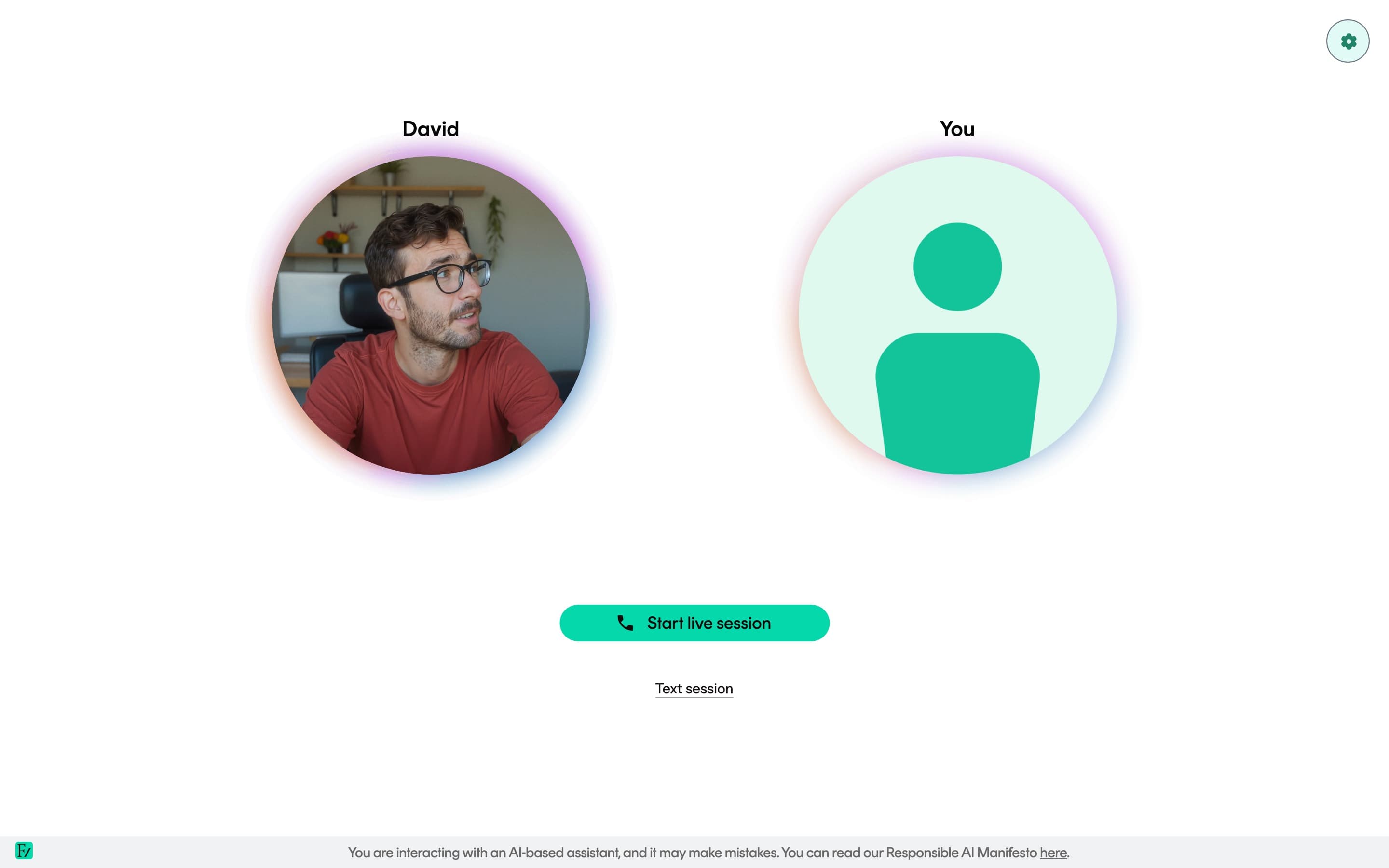
A text session is the same conversation as a voice session, with the same AI Fellow, purpose, and transcript. The difference is that you exchange messages with the AI Fellow by text.
When you will see the button
| Where you are | Text session button |
|---|---|
| Your Fellow in the sidebar | Always. You can choose voice or text. |
| A standalone AI Fellow link | Only when the AI Fellow has text mode turned on. |
| Inside a Learning Path session | Not shown. Sessions need voice so the AI Fellow can check objectives as you talk. |
If you only see Start session with no text option, the AI Fellow has not been set up for typing. You can still hold a voice conversation, or ask the person who shared the link to enable text.
Starting a text session
Open the AI Fellow.
Click Text session instead of Start session.
The session opens in text mode and a chat panel appears on the page.
Type your message and press Enter. The AI Fellow replies in text.
During a text session
- You type in a single line. Enter sends the message, and Shift+Enter inserts a line break.
- While the AI Fellow thinks, three dots appear in the chat. The reply appears as soon as it is ready.
- Everything you and the AI Fellow type is added to the transcript, the same way as a voice conversation.
- Any link the AI Fellow sends is clickable and opens in a new tab.
- You can leave the session and return to it from Previous chats.
Use Start session when you want to speak. Use Text session when you want to type.