

Text panel
The AI Fellow can share text, diagrams, interactive widgets, and illustrative images alongside the live conversation when those capabilities are enabled for the AI Fellow or Learning Path you are in. A side panel opens on the call screen and displays content that is easier to read or see than to dictate, such as URLs, code snippets, diagrams, or small interactive forms.
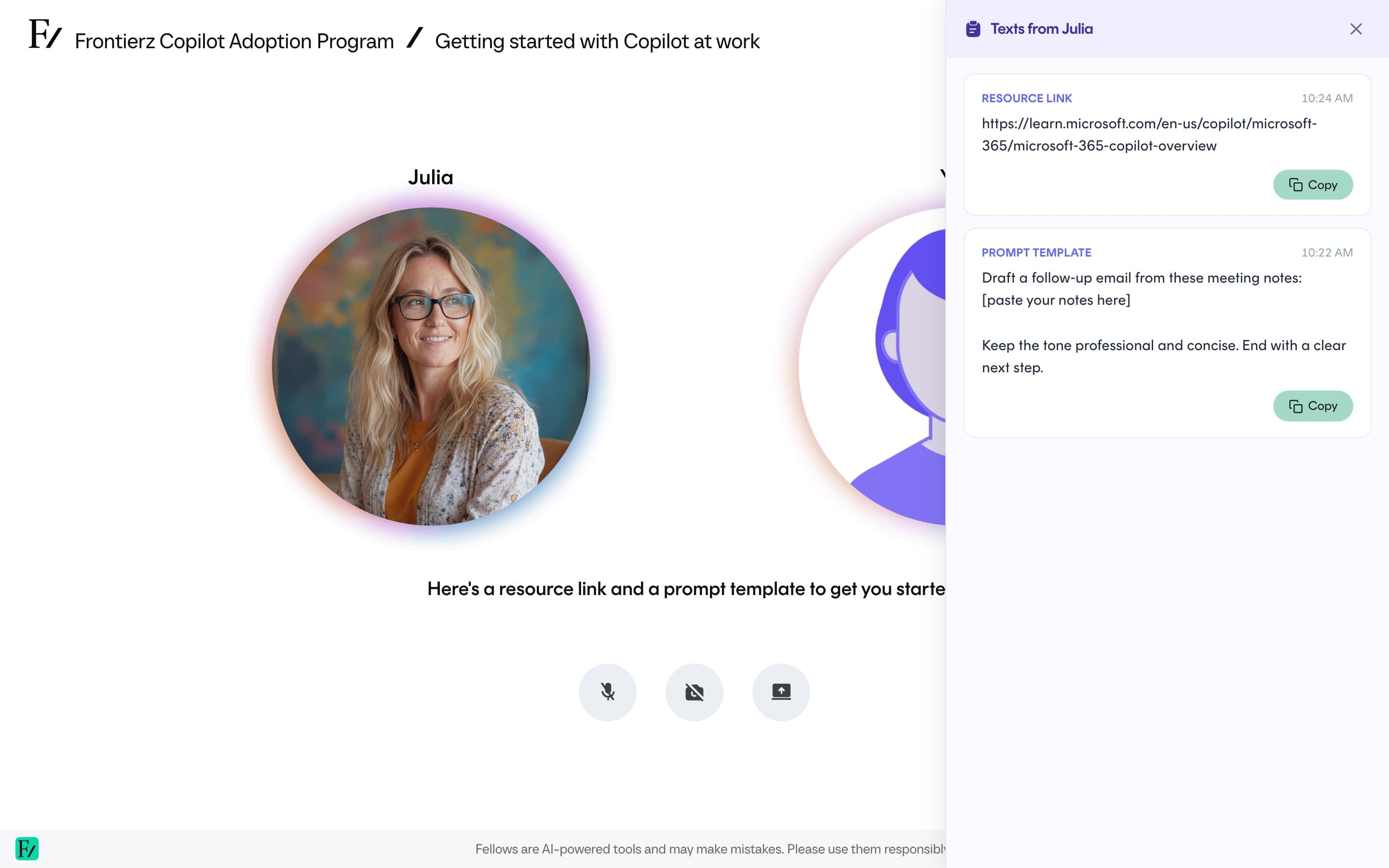
What appears in the panel
The panel content depends on the AI Fellow, the capabilities your organization turned on, and the conversation. It might include:
- A link to a document, page, or external resource.
- A snippet of code or a configuration example.
- A template or worksheet for you to fill in or copy.
- A prompt the AI Fellow recommends you save for later.
- A diagram the AI Fellow draws to illustrate a process, structure, or flow.
- A small interactive widget, such as a form or a checklist, that you can fill in during the conversation.
- An illustrative image the AI Fellow creates during the conversation. While the image is being created, the panel may show Creating the image... until the finished image appears.
Diagrams, widgets, and generated images are visual aids for that session. They are not saved to your files, and any information you enter into a widget is not stored beyond the conversation. If a tool never appears for a given AI Fellow, it was left off in Studio.
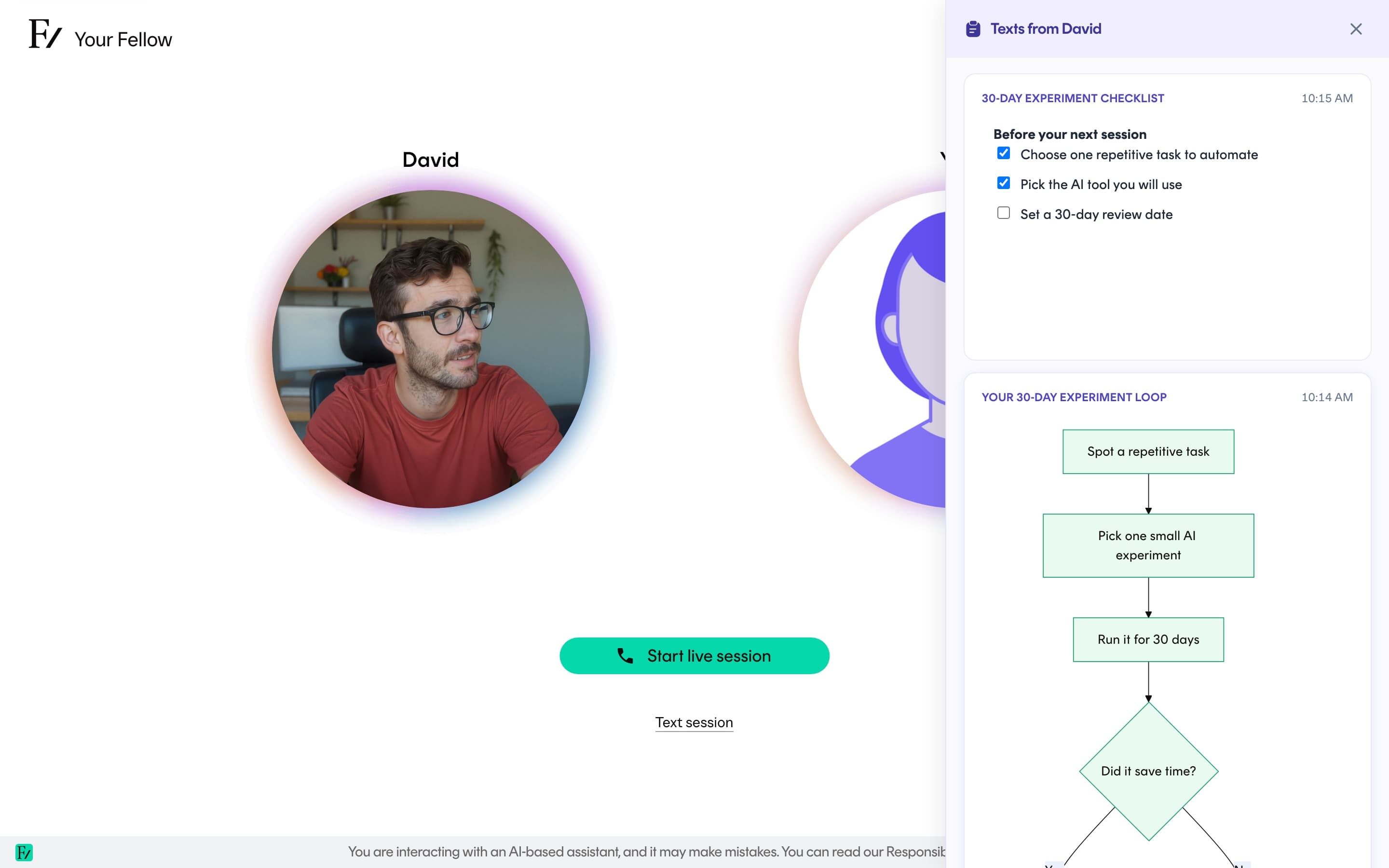
The panel updates as the conversation moves on. New content can replace older content, so copy what you need before the conversation shifts.
Working with the panel
You can scroll the panel independently of the live audio. The conversation continues while you read or copy what was shared. Use the standard browser shortcuts to copy text. Links open in a new tab.
If the panel covers part of the conversation interface, resize or collapse it from its top-right control. The panel returns to its default state the next time the AI Fellow shares something new.
Text shared by the AI Fellow stays in the conversation transcript. You can review what was shared from Previous chats after the call ends.