

Last updated on
Whiteboard
The whiteboard is a shared board on a live session. Use it when a sketch, flowchart, or list is easier to follow than a spoken description. You and the AI Fellow can both draw, and the AI Fellow can look at what you drew.
Whiteboard appears at the top of the call once the conversation has started. It stays hidden before you start. If you do not see it, this AI Fellow or Learning Path does not have the whiteboard turned on.
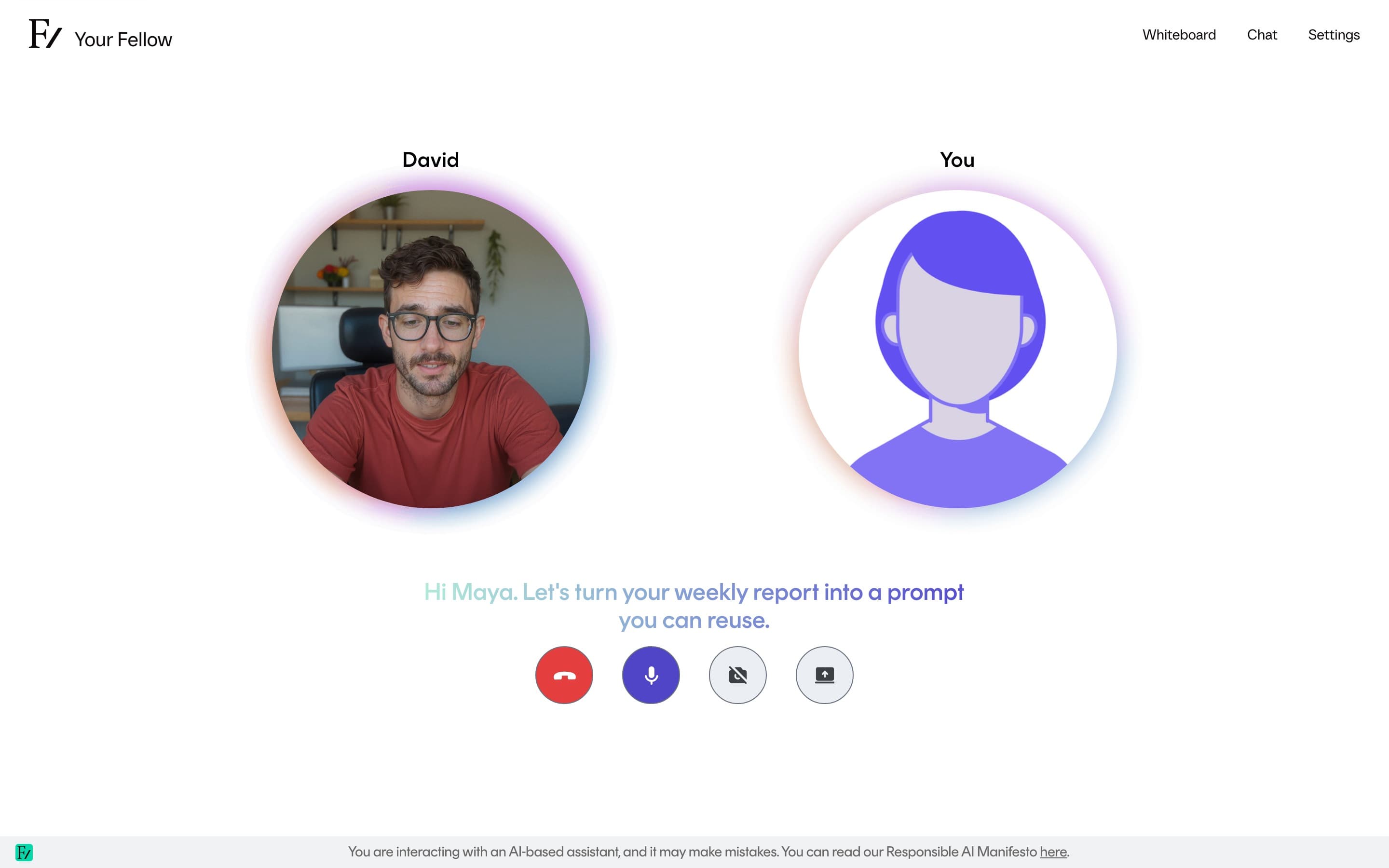
Open the board
Select Whiteboard. In a voice session, the board fills the call and the AI Fellow's face stays on screen as a small circle over the board's top corner, so you can still see it speak. Your own tile hides. You can keep talking while the board is open. The AI Fellow can also open or hide the board when you ask.
Select Whiteboard again to hide the board and bring the usual call screen back. The drawing stays while you remain on this page, including if you hang up and start another call without leaving. Reloading the page, or opening the session again later, starts an empty board.
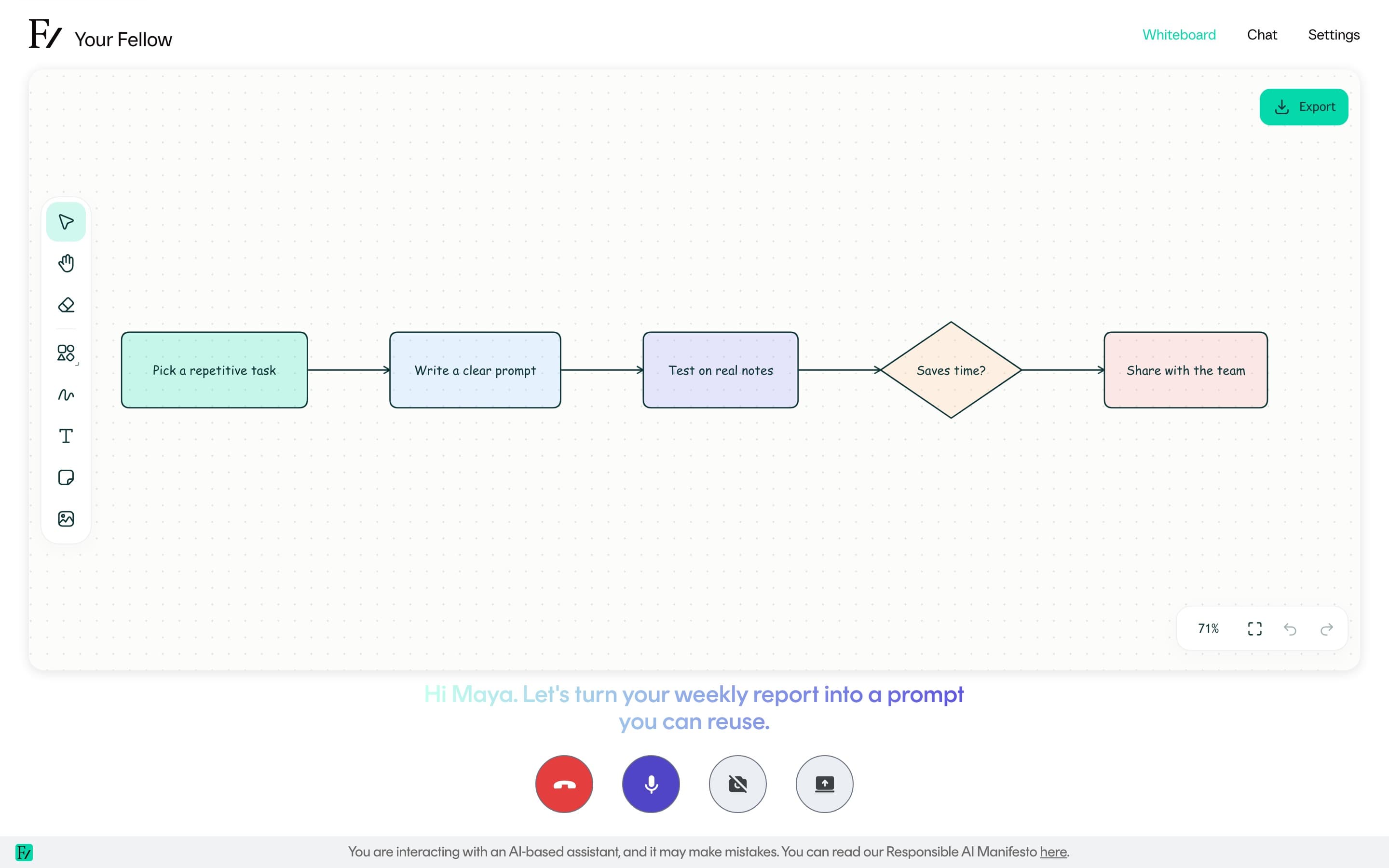
In a text session, the board takes most of the screen and the conversation stays beside it, so you can read and type while you look at the drawing. On a narrow screen, the board sits above the conversation.
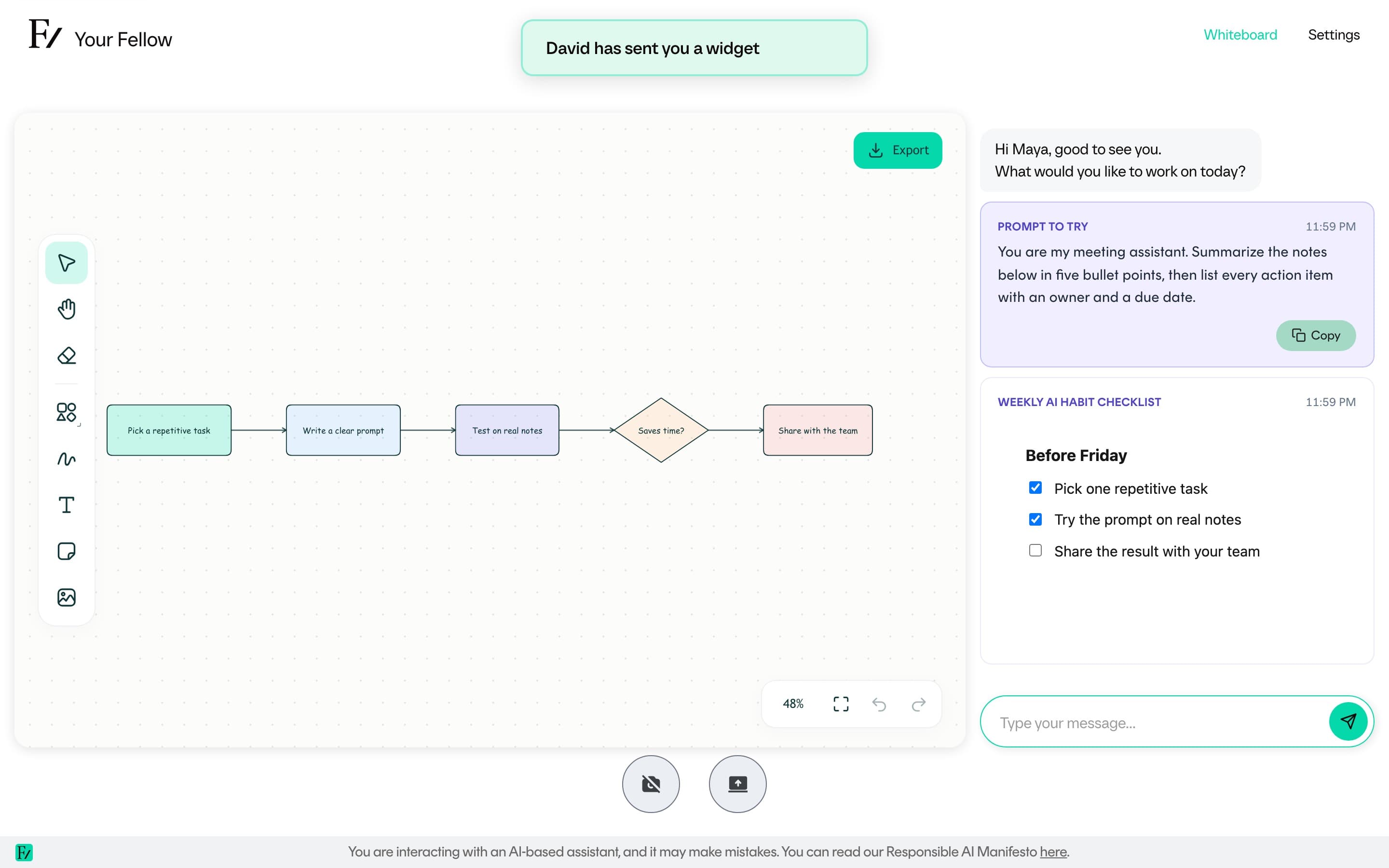
What you can do
- Sketch with the tools along the left side of the board.
- Ask the AI Fellow to draw a flowchart, mind map, timeline, or diagram, and to change it as you talk. It draws labeled shapes and arrows that you can move and edit.
- Point at or select something you drew so the AI Fellow can talk about that part.
- Select Export to save a PNG or an SVG.
A drawing on the board is for this visit. It is not added to your progress report, and Frontierz does not keep it unless you download it.