Last updated on
Edit a Learning Path
You can edit a Learning Path at any time. Most fields require Save or Save and Close to keep your changes. Reordering or deleting a session takes effect immediately and updates the numbering of the remaining sessions.
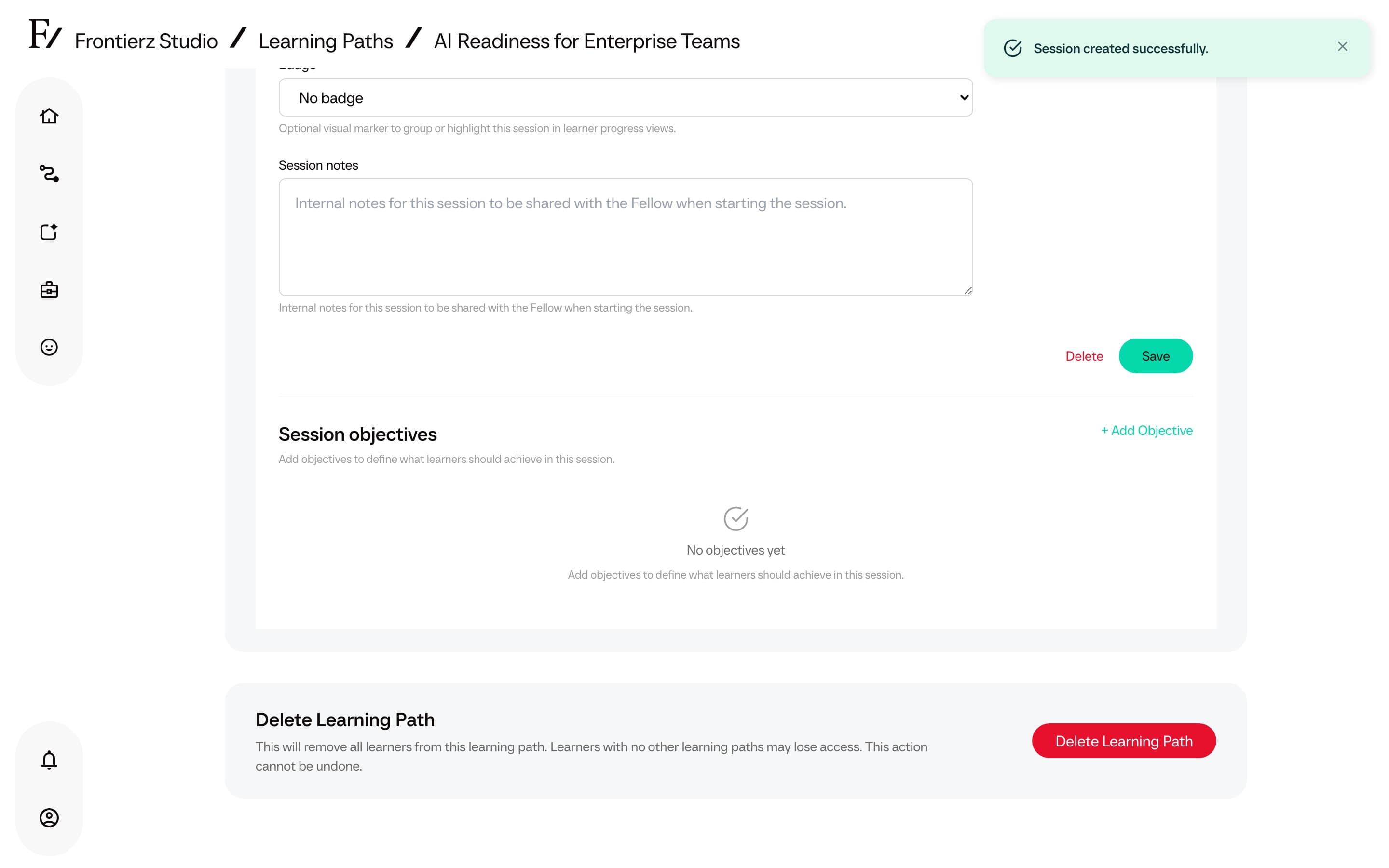
Save the changes when the field or section provides a Save action. Use Save and Close to save pending changes and return to the Learning Path dashboard.
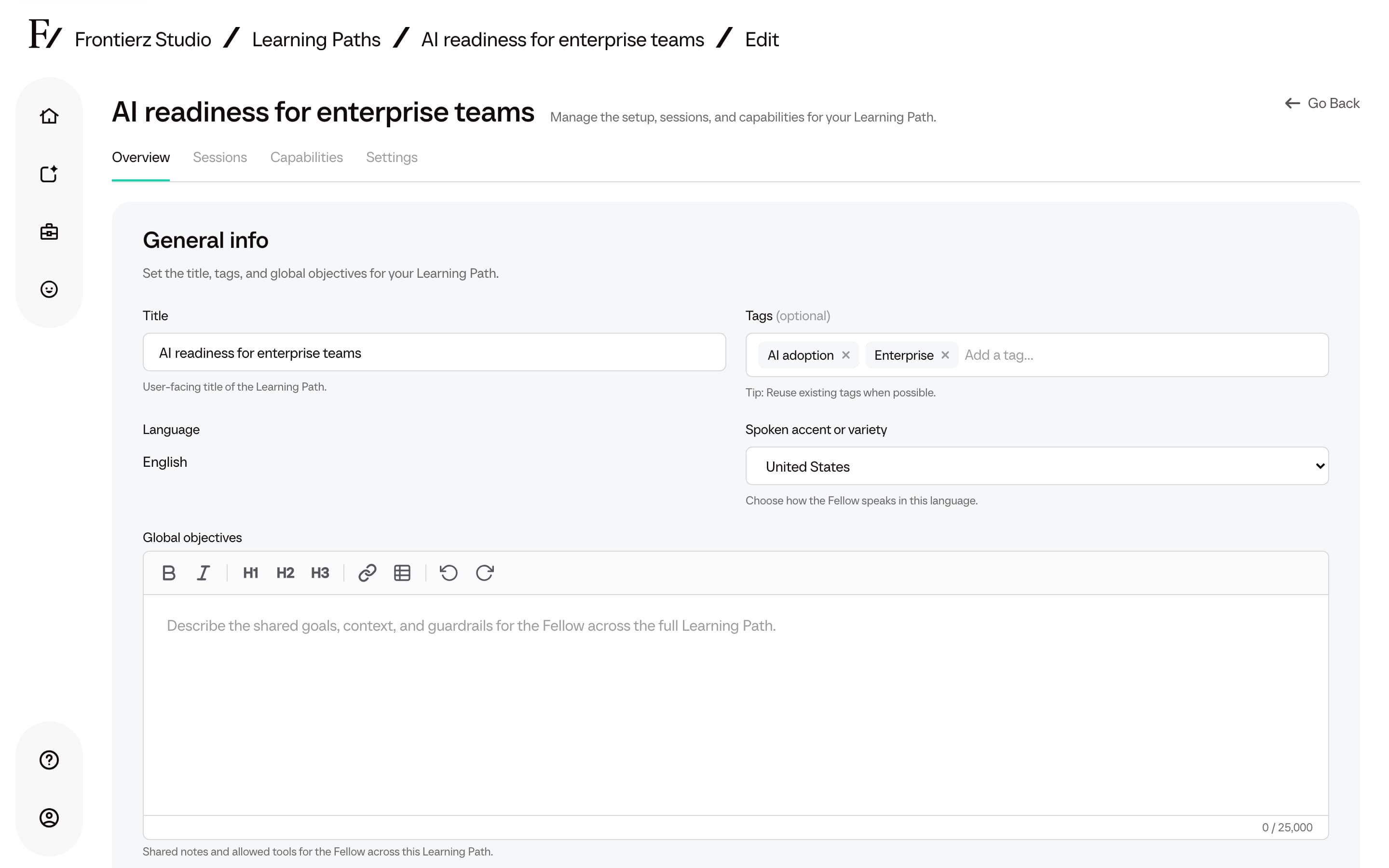
The editor opens on Overview, so that the Title, optional Tags, global objectives, and path knowledge can be confirmed before changing sessions or capabilities. Title and Tags share the first row. Language is shown beside Spoken accent or variety when that language has regional options. Changing the accent saves with the path. Fellow sessions on the path use it, unless the AI Fellow or AI Simulation already has its own accent for that language. The heading is the Learning Path name. Use Back to Dashboard to return to the dashboard.
Change the language of a Learning Path
Choose another Language to turn a Learning Path into a version for a different audience, for example after you clone it. Anyone who can edit the Learning Path can do this. The change saves at once, after saving any unsaved session changes, and the editor reloads in the new language.
- Text you have not yet written in the new language, such as global objectives, session titles and notes, and objectives, stays in the previous language until you rewrite it. Frontierz does not translate it for you.
- Text you already wrote in the new language is kept. Switching back restores the earlier text.
- A spoken accent that the new language does not offer is cleared. Choose one again if the new language has options.
- Knowledge files and learner progress do not change.
When a learner has set their own Language, that setting still decides the language their AI Fellow speaks; otherwise the AI Fellow follows the Learning Path. Invitations sent for the Learning Path from now on use its new language; emails already sent do not change.
Tags
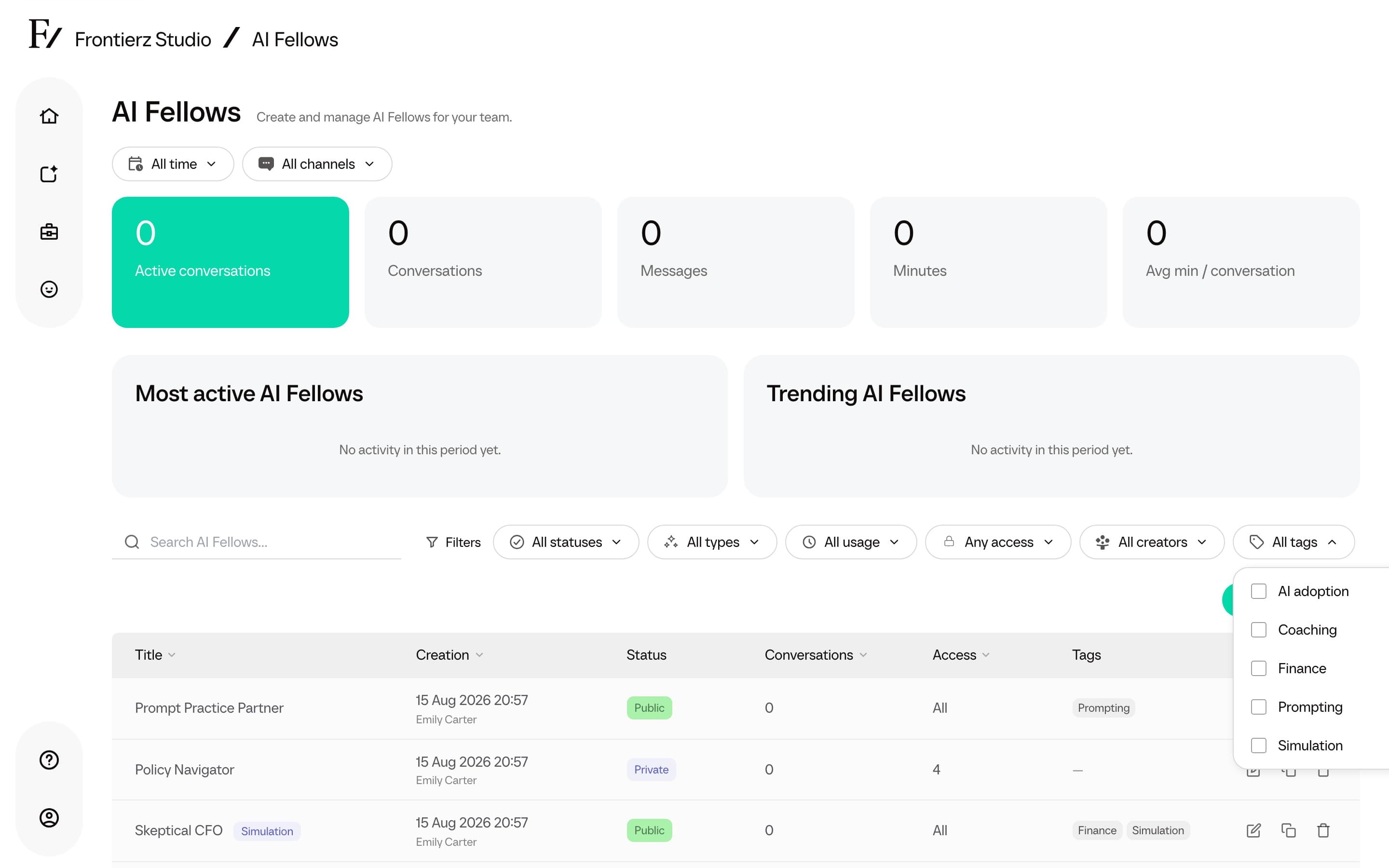
Tags are optional shared labels for Learning Paths and AI Fellows in Studio. Use them to group related resources and filter the Studio lists.
- Up to 20 tags per Learning Path or AI Fellow.
- Type in Add a tag…, then choose an existing tag or Create a new one. Prefer reusing existing tags so filters stay consistent.
- The Learning Paths and AI Fellows lists include a Tags filter (All tags, selected count, Clear tags).
Tags are Studio organization only. Learners do not see them.
Sessions and reference material
Sessions are configured on the Sessions tab. Open a session to adjust the user-facing title, description, or admin notes. The same tab has Add content to create a session, import an AI Simulation, or import SCORM. See Add an AI Simulation between sessions.
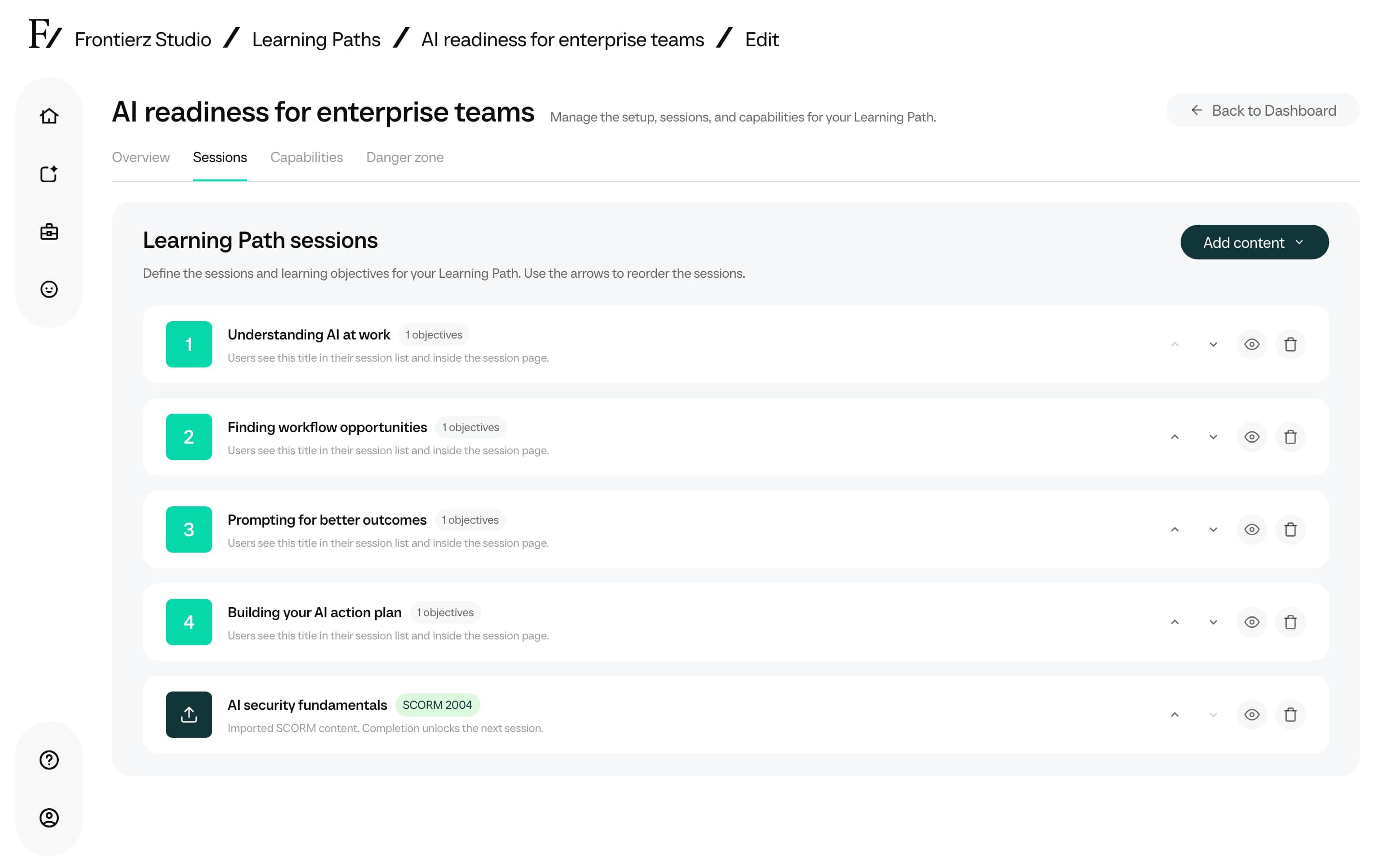
The session panel contains the configuration that guides the AI Fellow during the corresponding session.
A SCORM session has its own card instead. Its Name and AI Fellow fields save as soon as you change them, without Save. See Rename a SCORM session and Add an AI Fellow to the course.
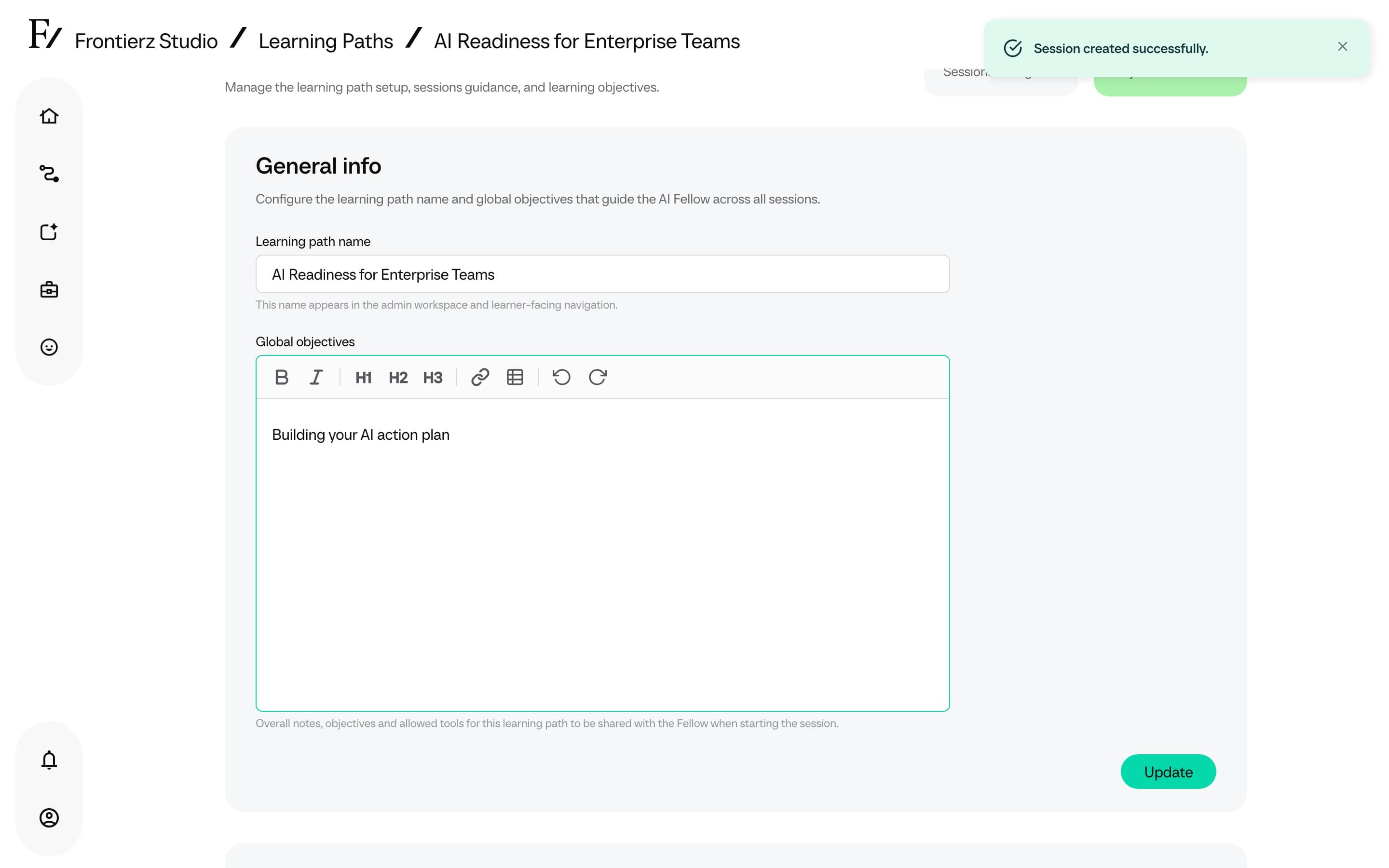
The editor also has a knowledge area for uploading reference material the AI Fellow can read during the sessions, both for the whole path and per session. Files are listed to the Fellow as a catalog. The Fellow reads a file when it needs the contents. See Learning Path knowledge.
Actions on a Learning Path
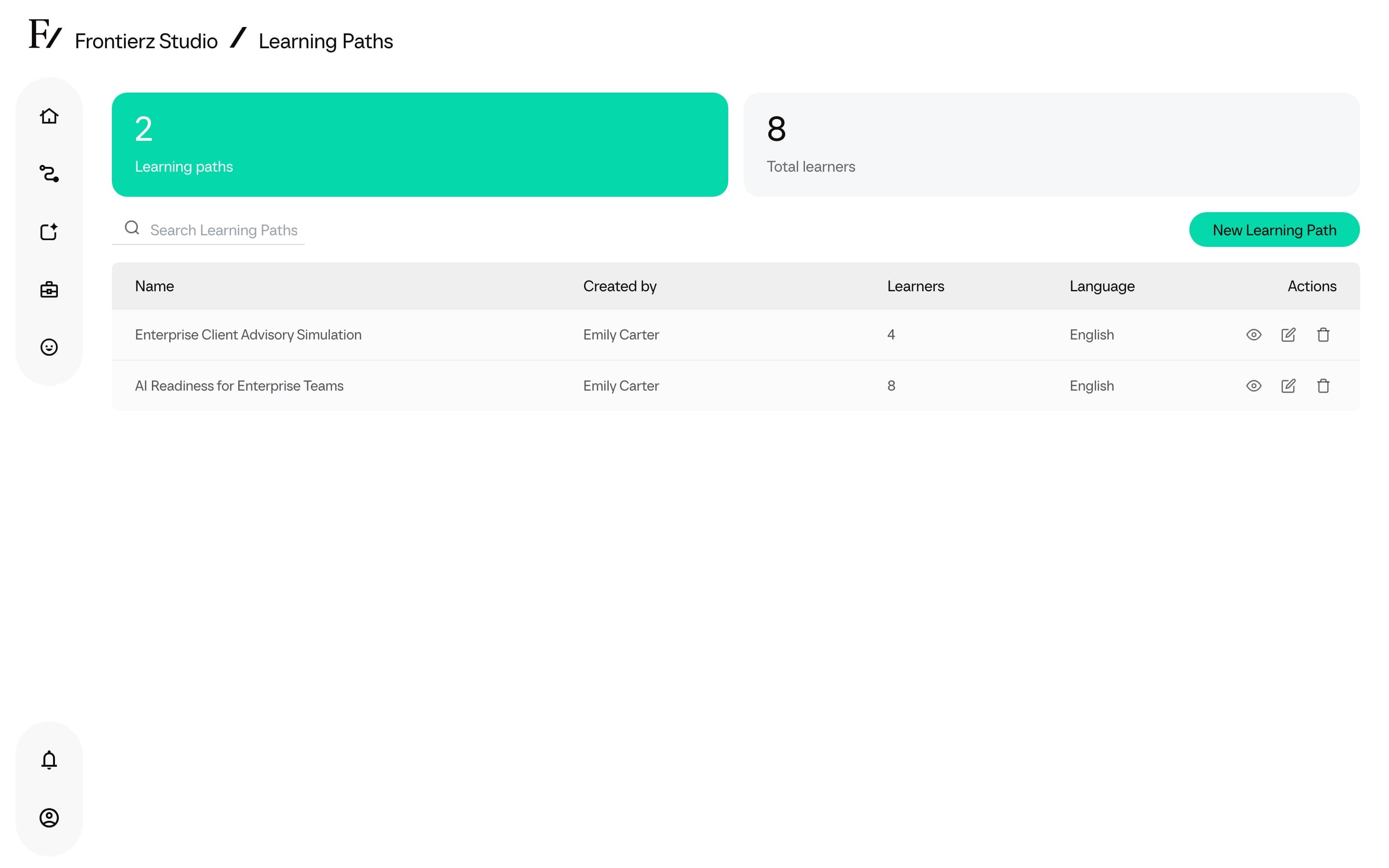
From the list view, every Learning Path provides these actions:
| Action | What it does |
|---|---|
| Global progress | Opens the live analytics dashboard for the Learning Path: enrolled and active users, per-session progress, voice minutes, and conversation counts. |
| Manage Users | The user table. Used to enroll users, import a CSV, export progress, clear progress, unenroll one or several people, or join the Learning Path as a user to test it. |
| Edit | Opens the editor for sessions, objectives, Connectors, and general info. |
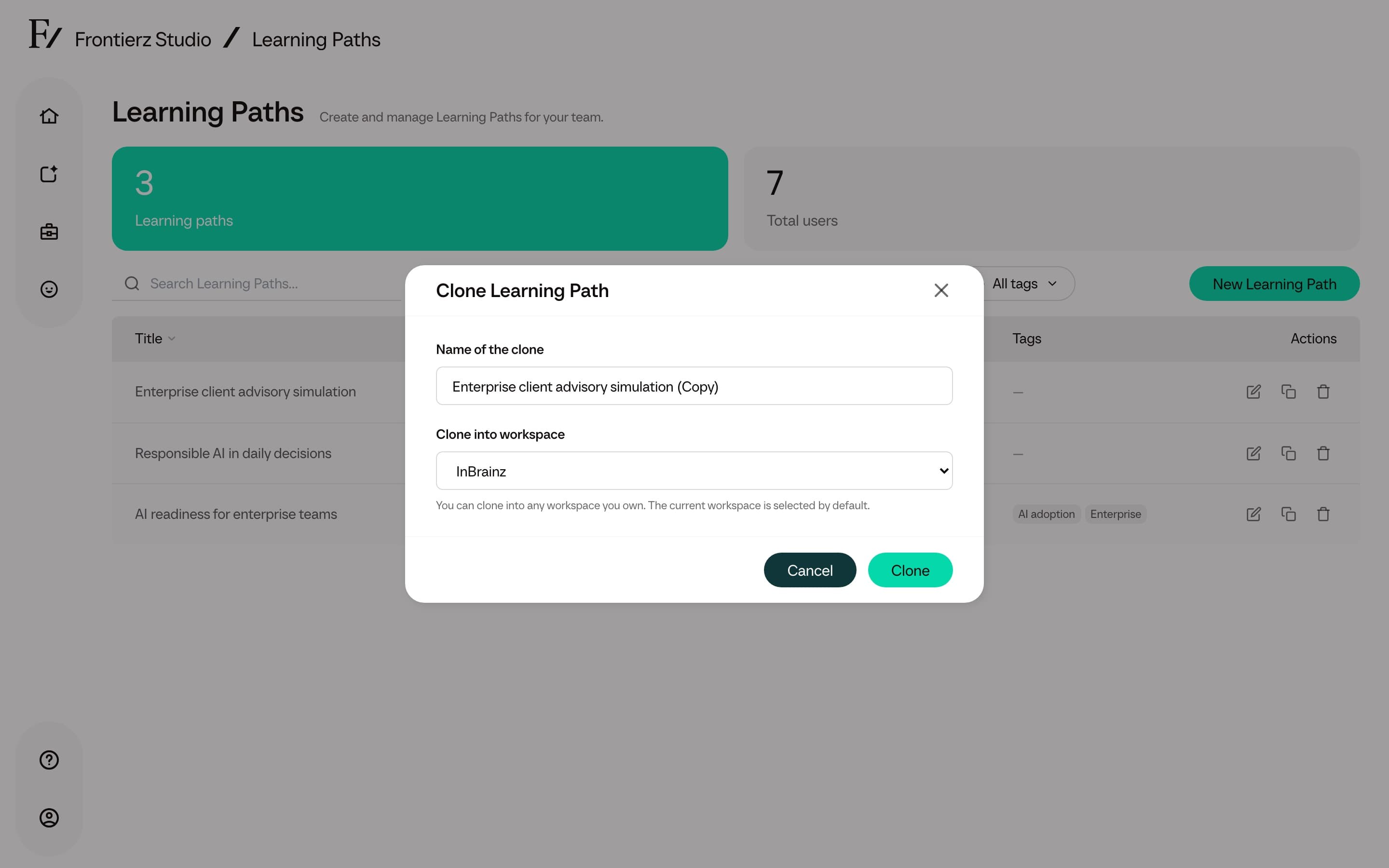
| Clone | Creates a copy without enrolled users. Owners with more than one workspace can choose a destination workspace; other administrators clone into the current workspace. |
| Export | On the Learning Path dashboard Actions menu, downloads a Frontierz Learning Path file. Learner progress is a separate Export Data action on Manage Users. |
| Delete | Remove the Learning Path and all of its content. There is no undo. |
Deleting a Learning Path also deletes the progress data of every enrolled user. If anyone is still actively using the Learning Path, export the data first.
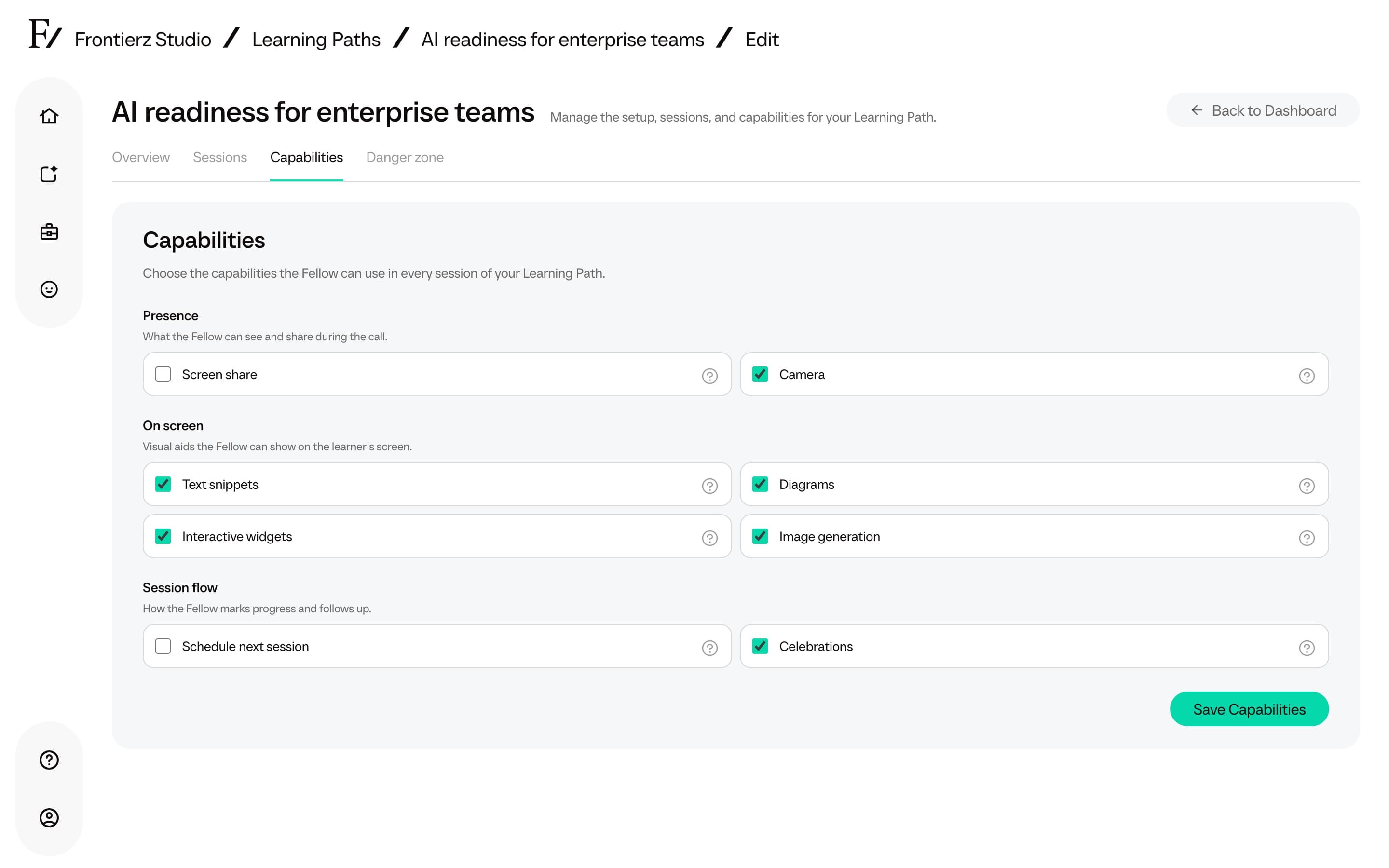
Connectors and built-in capabilities are edited on the Capabilities tab. Its Conversation group has Text chat, which lets users hold Fellow Sessions by typing as well as by voice; see Text chat mode. Settings holds Learning Path communications, who can see simulation feedback, Move to Tenant when that action is available, and Delete.
Simulation feedback visibility
Settings also has a Simulation feedback choice:
- Users and admins (default): users see the practice feedback after the session.
- Admins only: the session still completes and authorized admins and managers can open the report. Learners see a confirmation without scores.
Clone and Frontierz Learning Path files keep this setting.
Certificate logos
By default, the right-hand panel of a Learning Path certificate shows the logos set in Certificate branding. The Certificate Logos section of Settings lets one Learning Path show its own logos instead, for example the partner that delivers only that path. It applies when the Learning Path gives learners a certificate.
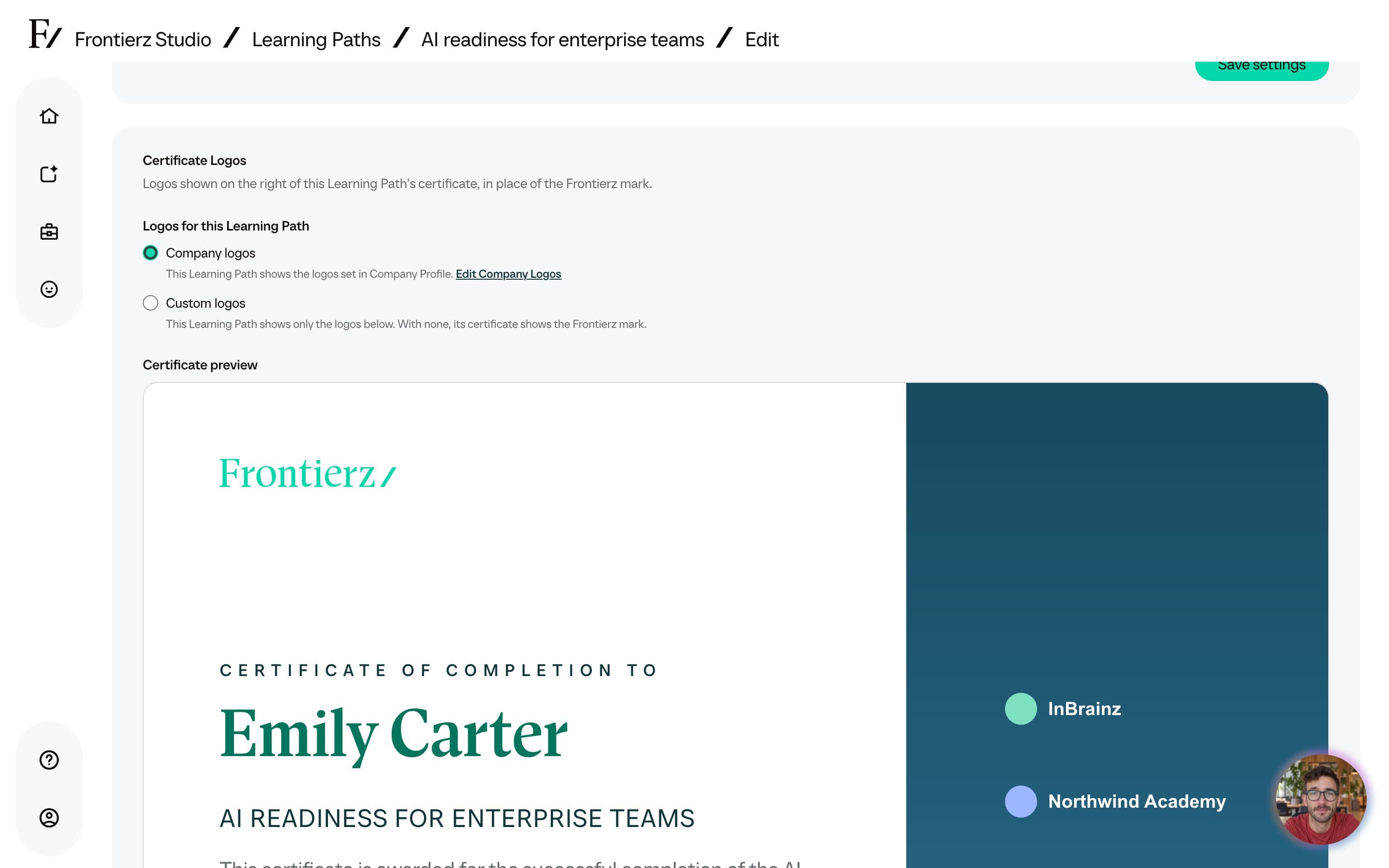
Under Logos for this Learning Path, choose one of these. The choice saves as soon as you select it.
- Company logos. The certificate shows the logos from Company Profile. Edit Company Logos opens them for people who can edit Company Profile.
- Custom logos. The certificate shows only the logos you add here. They use the same Logo file, Name, Show in white, and Add Logo controls, and the same limit of three, as Certificate branding. With none added, the certificate shows the Frontierz mark instead of the company logos.
Anyone who can edit the Learning Path can set its logos, including a Manager assigned to it. The background image comes from Company Profile and applies to every certificate.
Cloning a Learning Path into the same workspace copies its custom logos. Cloning it into another workspace drops them, and the copy uses the destination's company logos. A Frontierz Learning Path file does not carry logos.
Learning Path communications
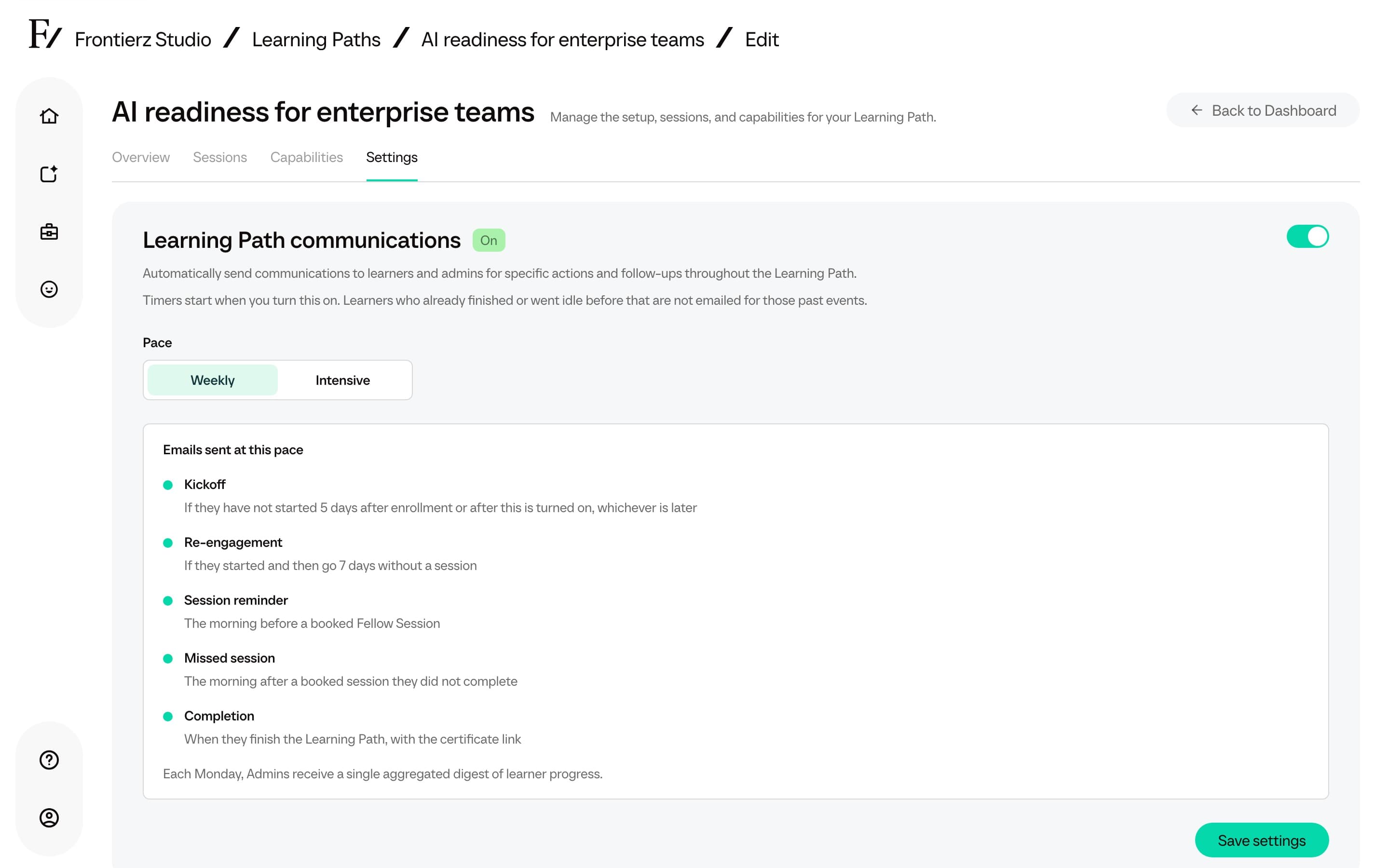
Settings opens with a Learning Path communications block. The switch turns emails On or Off. Pace is Weekly or Intensive. When emails are off, Pace shows None and the timeline is covered.
Automatic emails are enabled by default for new Learning Paths. Paths created before this feature was introduced keep them disabled until you enable them. The schedule starts when you turn emails on, so users are not sent messages for earlier completion or inactivity.
Cloning copies the email setting and starts a new schedule if emails are enabled. A Frontierz Learning Path file keeps both the email setting and pace; importing it starts a new schedule.
Welcome emails and calendar invitations from Schedule Next Session are not controlled here.
Under Emails sent at this pace, the timeline shows when each message is sent. Both paces use the same five email types. Weekly allows longer intervals; Intensive uses 2 days for the shorter waits, as shown below.
| When it sends | |
|---|---|
| Kickoff | The learner has not started. Weekly: 5 days after enrollment or after you turn emails on, whichever is later. Intensive: 2 days. |
| Re-engagement | The learner started, then had no session. Weekly: 7 days. Intensive: 2 days. |
| Session reminder | The morning before a booked Fellow Session. |
| Missed session | The morning after a booked session they did not complete. |
| Completion | When they finish the Learning Path, with the certificate link. |
People who monitor the Learning Path receive a Monday progress summary once at least one enrolled user has started. The summary names the Studio role the person follows the path through, lists only the groups that apply (finished, making progress, no session recently, not started), suggests a next step, and links to Open Global Progress. It names no individual. Owners, Full Admins, and assigned Managers with monitoring access receive it; Creators do not. The footer explains why the email arrived and links to the Settings panel, where you can turn it off.
Click Save settings after you change the switch or the pace.