

Last updated on
Start a session
Start your next Learning Path session from Home or Your Journey. This page explains how to begin a guided conversation with the Fellow assigned to your path. If the next step is a practice simulation or an e-learning module, see Your Journey for what to expect.
From Home
From Your Journey
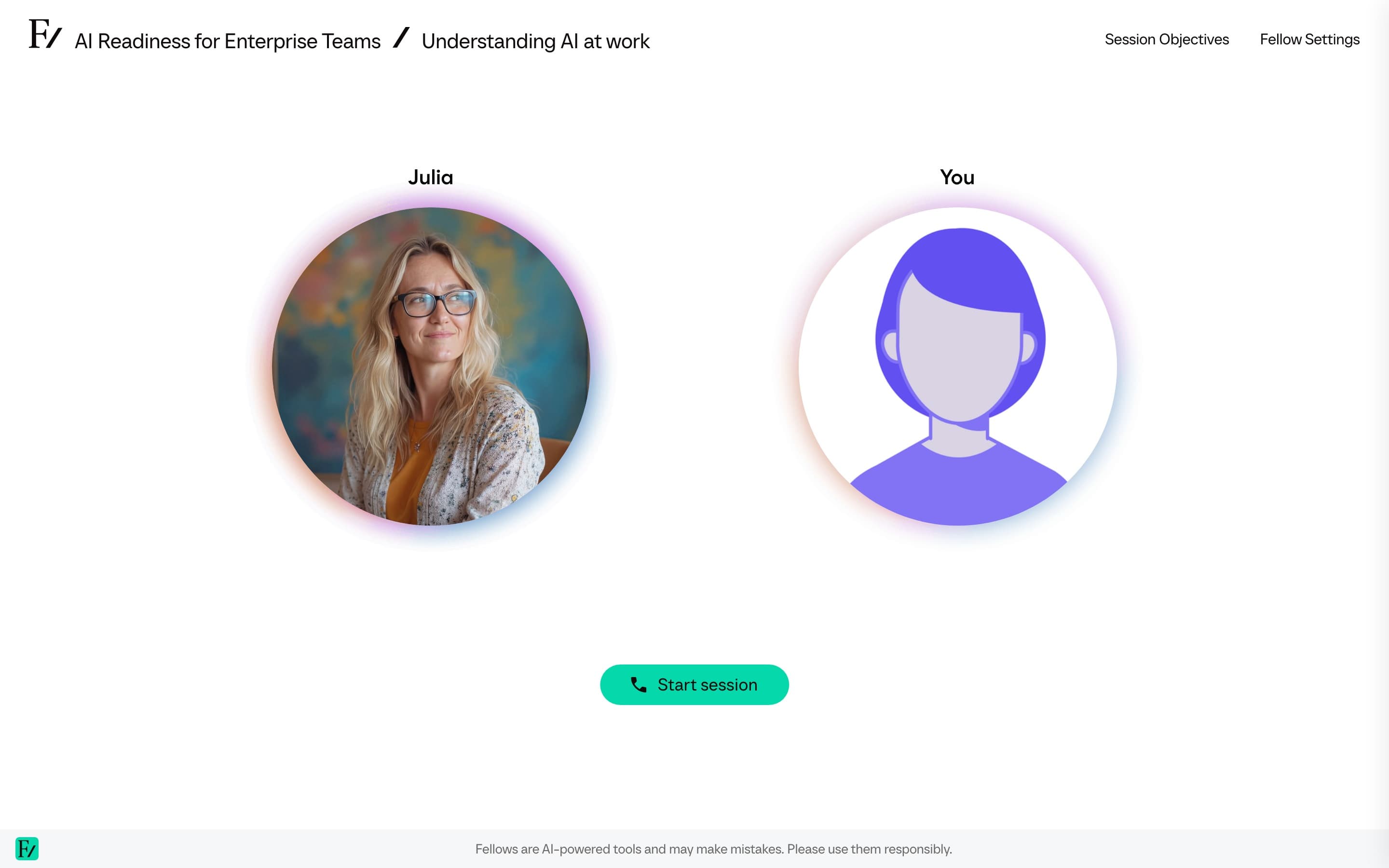
What happens next
When you open a session, the live call opens in the same screen. After you start it, the screen shows Calling followed by the AI Fellow's name, with a ring around its face and a ringing tone, until the AI Fellow picks up. It then greets you and starts the conversation.
The first time you start a session, your browser asks for permission to use the microphone. Allow it. The microphone is required for the voice conversation. If you accidentally block it, see Troubleshooting for how to re-enable it.
If your organization allows typing in this Learning Path, Voice and Text appear with Start live session. Select Text to hold the session by typing; you do not need a microphone for that. You can switch between voice and text during the session without losing the conversation or the objectives you have completed. See Type instead of talk.
A panel on the side of the call shows the session's objectives. The AI Fellow guides the conversation toward them. You do not need to read the objectives in advance, but you can refer to the panel during the call to track what has been completed.
If a session has data fields
Some sessions are configured to collect short pieces of information during the conversation, such as your role, the tools you use, or a goal you are working toward. The AI Fellow asks the questions, you answer naturally, and your answers are recorded alongside your progress.
You will know this is happening because the AI Fellow asks specific questions early in the session. Answer them in your own words. There is no form to fill out.