

Your workspace
The learner workspace is small on purpose. The main surfaces are reachable from the sidebar on the left.
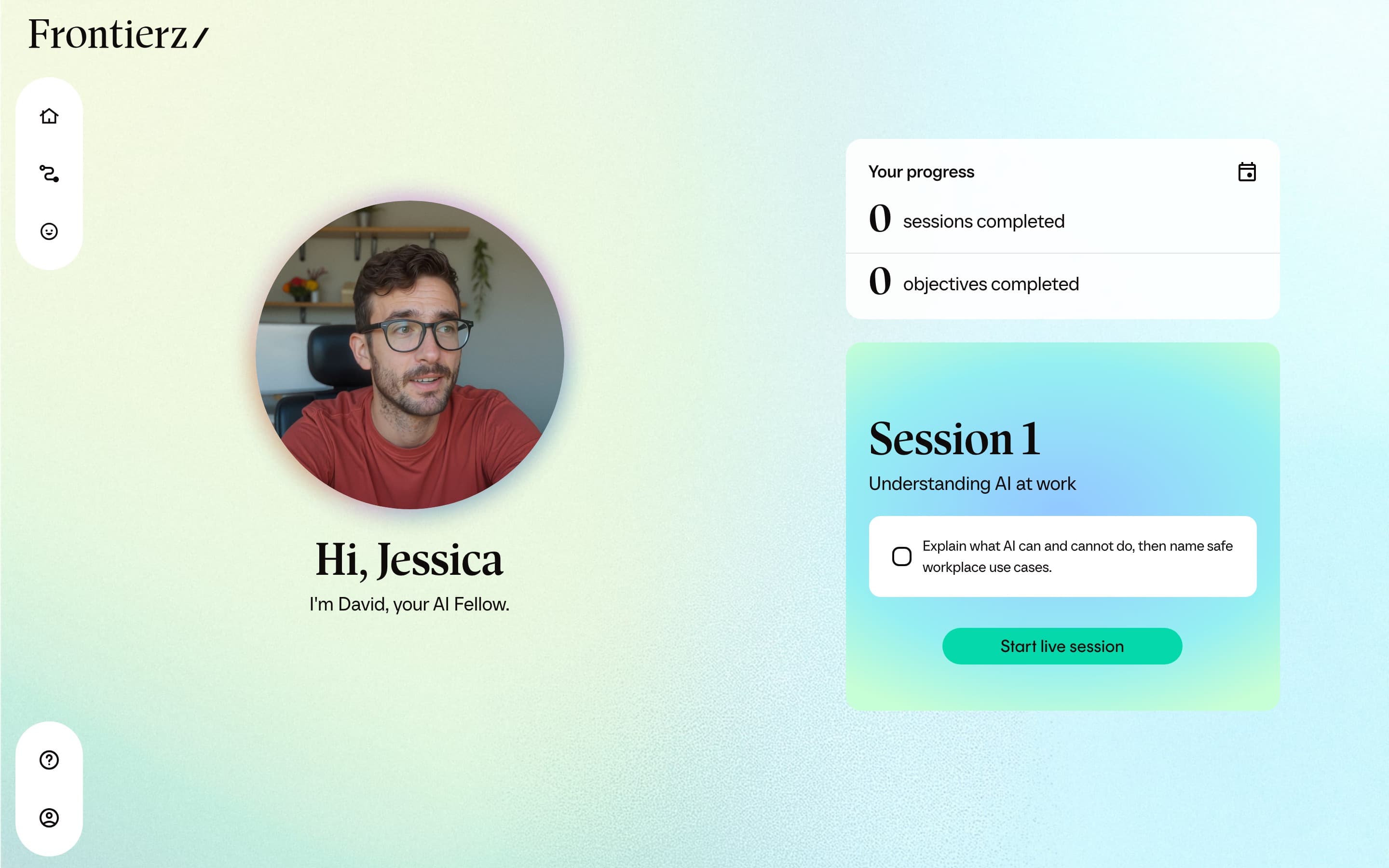
The main surfaces
| Surface | What you do there |
|---|---|
| Home | Land here after sign-in. Shows your greeting, the next session card if you are in a Learning Path, and your AI Fellow. Clicking the Fellow face opens the next session when you have an active path, otherwise your AI Fellow. |
| Your Journey | Hover to continue the active Learning Path or open View your Progress Reports (Your Learning Paths, badges with the path and date you earned them, and practice feedback). Lists the sessions in order, marks which ones are complete, and opens the next session you can start. |
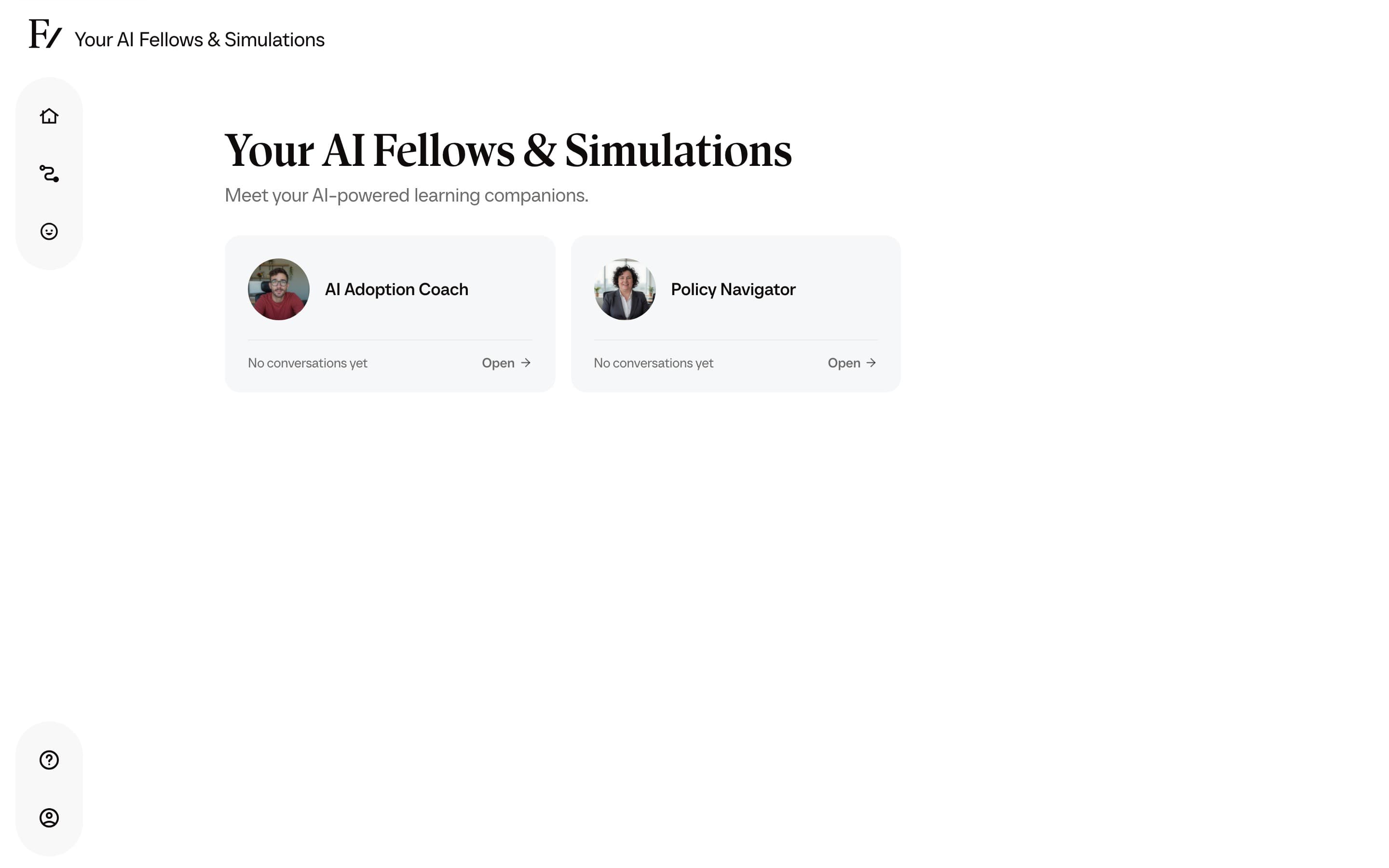
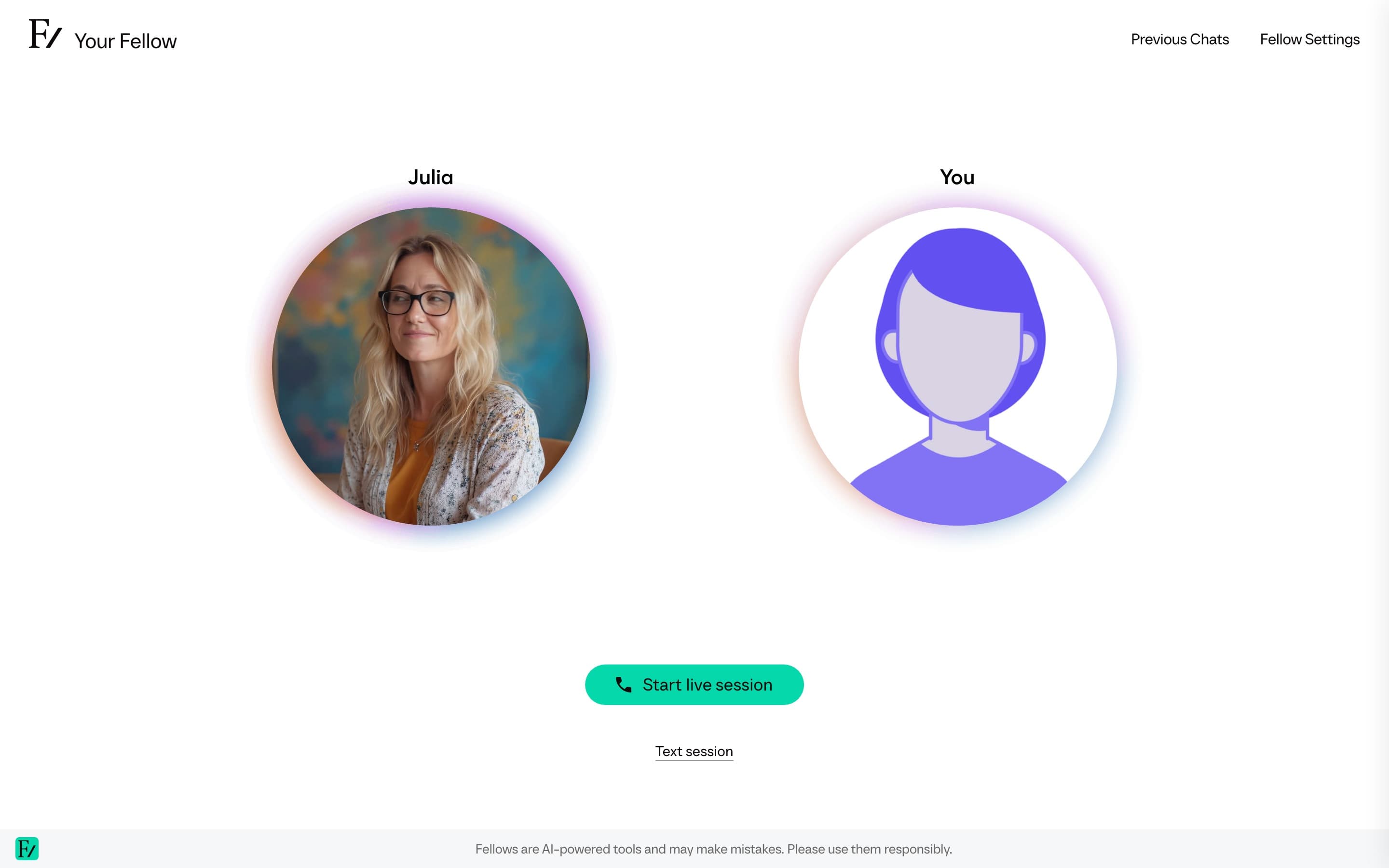
| Your Fellow / AI Fellows | Opens the AI Fellow assigned to you, outside any specific session. If your organization has given you access to specific AI Fellows, this entry instead reads AI Fellows and opens a list to choose from. |
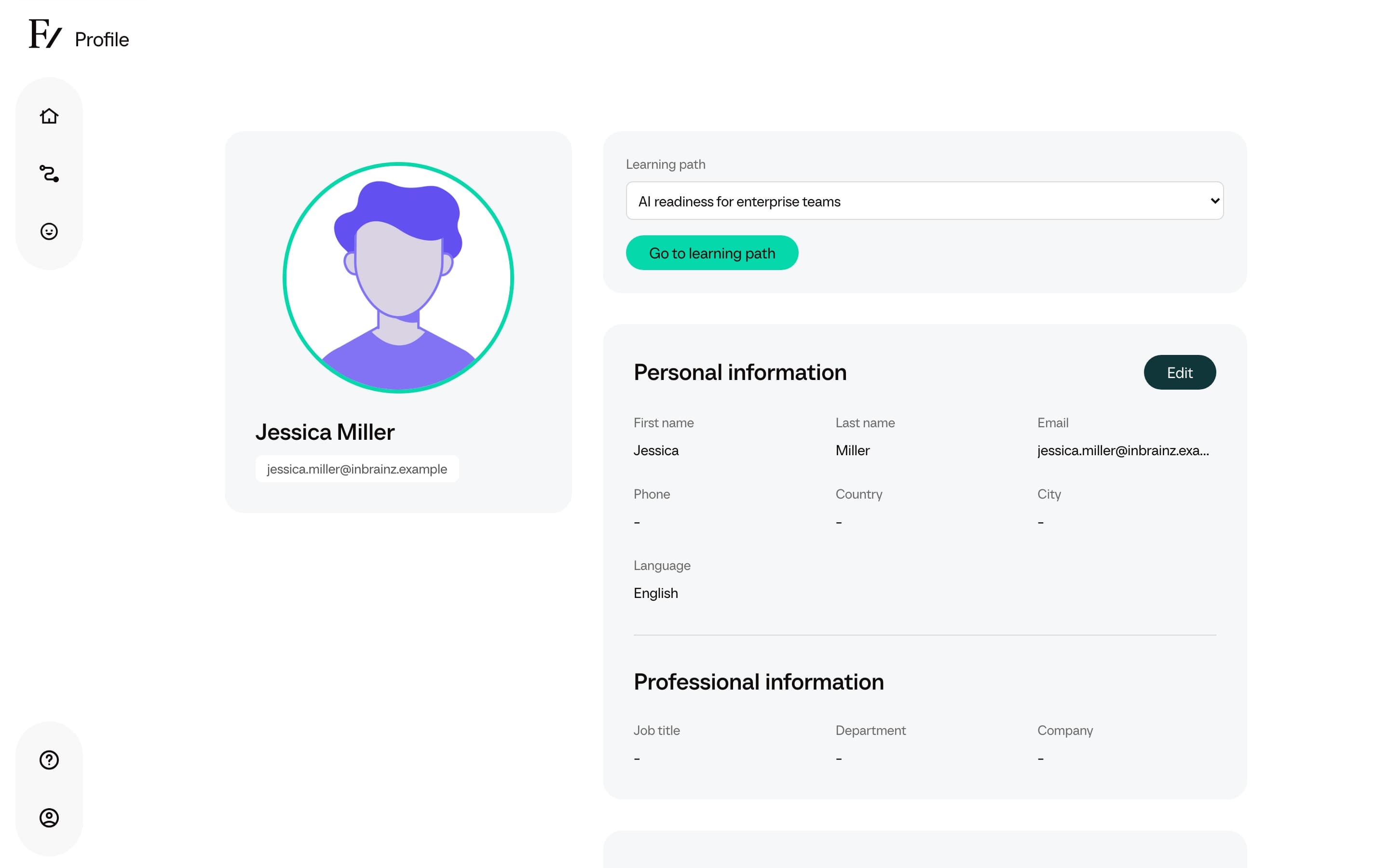
| Profile | Your personal information, language preference, sign-in settings, and the active Learning Path selector if you are enrolled in more than one. |
The bottom of the sidebar also includes Help, which opens this user manual in a full-screen panel, and your profile and sign-out controls.
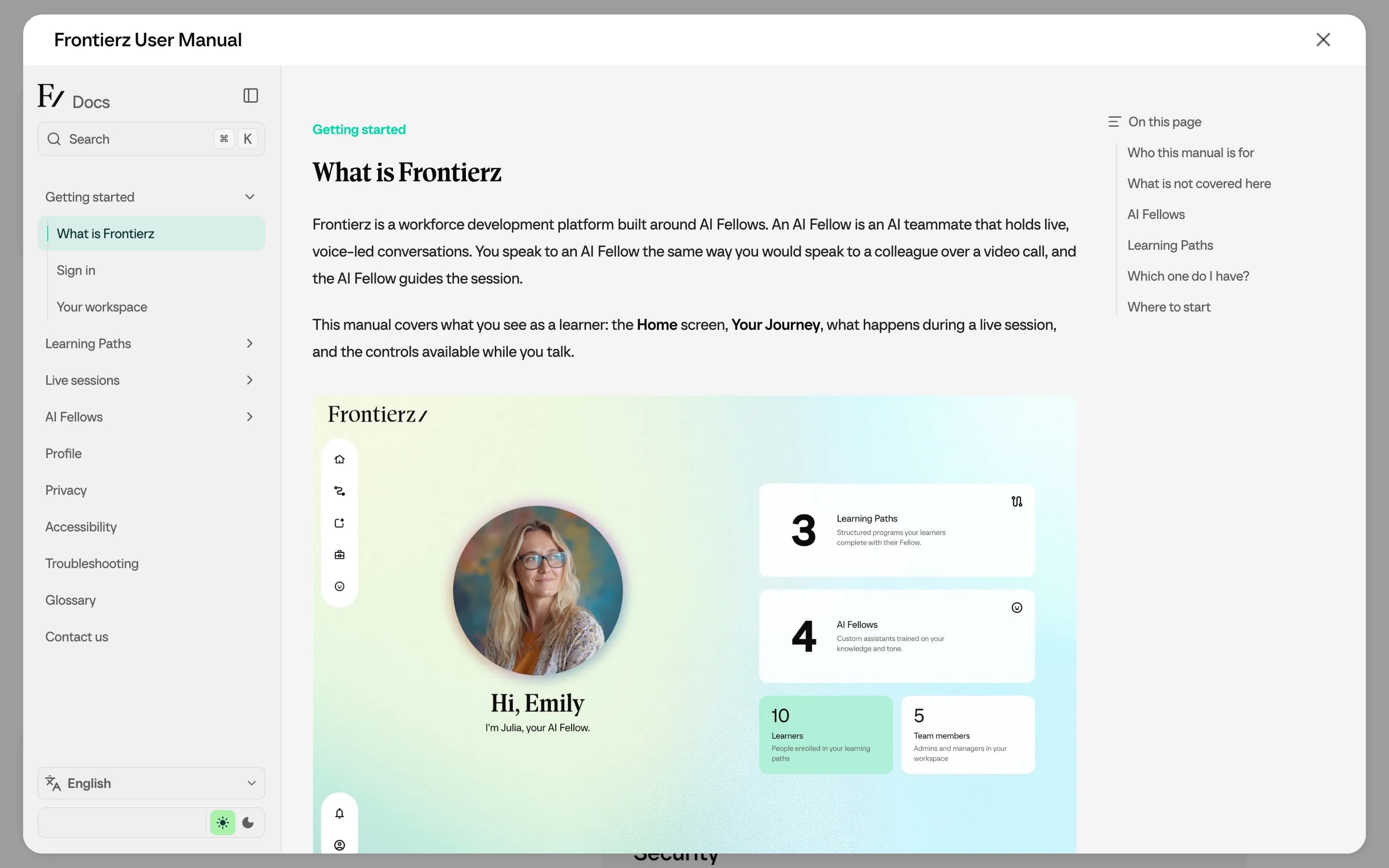
Home
Home is the starting point. The screen surfaces what is most likely to be your next action: continuing your active Learning Path, opening your AI Fellow, or returning to a recent conversation. If you have an active Learning Path with a next session, clicking the AI Fellow face opens that same session as the continue card. Otherwise it opens your AI Fellow.
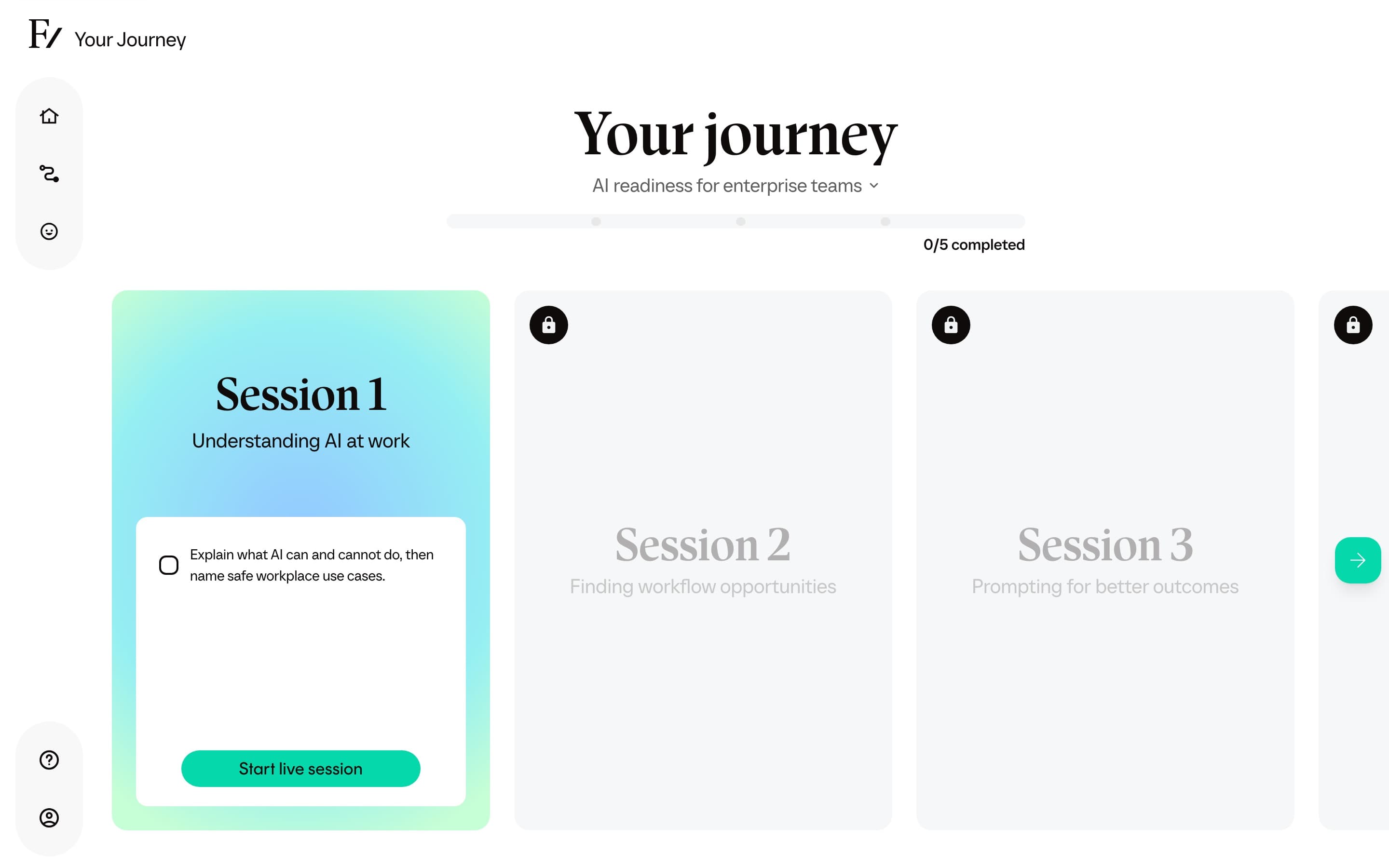
Your Journey
Your Journey shows the active Learning Path, the ordered sessions, and your progress. Sessions you have not unlocked yet are visible but greyed out, so you can see what is coming. The next session you can start is highlighted.
If your organization has enrolled you in more than one Learning Path, Your Journey shows the one currently set as active. Switch the active Learning Path from the Profile page. See Switching between Learning Paths.
Hover Your Journey and choose View your Progress Reports to open Progress Reports. That page lists every Learning Path you have, plus badges, certificates, and saved practice feedback.
Your Fellow
Your Fellow opens the AI Fellow assigned to you outside any specific Learning Path session. Use it for general questions, coaching practice, or any conversation that is not part of a structured session. Depending on the AI Fellow configuration, you can start a live voice session or a text session.
Your Fellow can also help you find a Learning Path or AI Fellow you already have access to. Ask to continue a path or open a Fellow. The AI Fellow may share a link in the side panel. It starts from your current Learning Path unless you ask about another one.
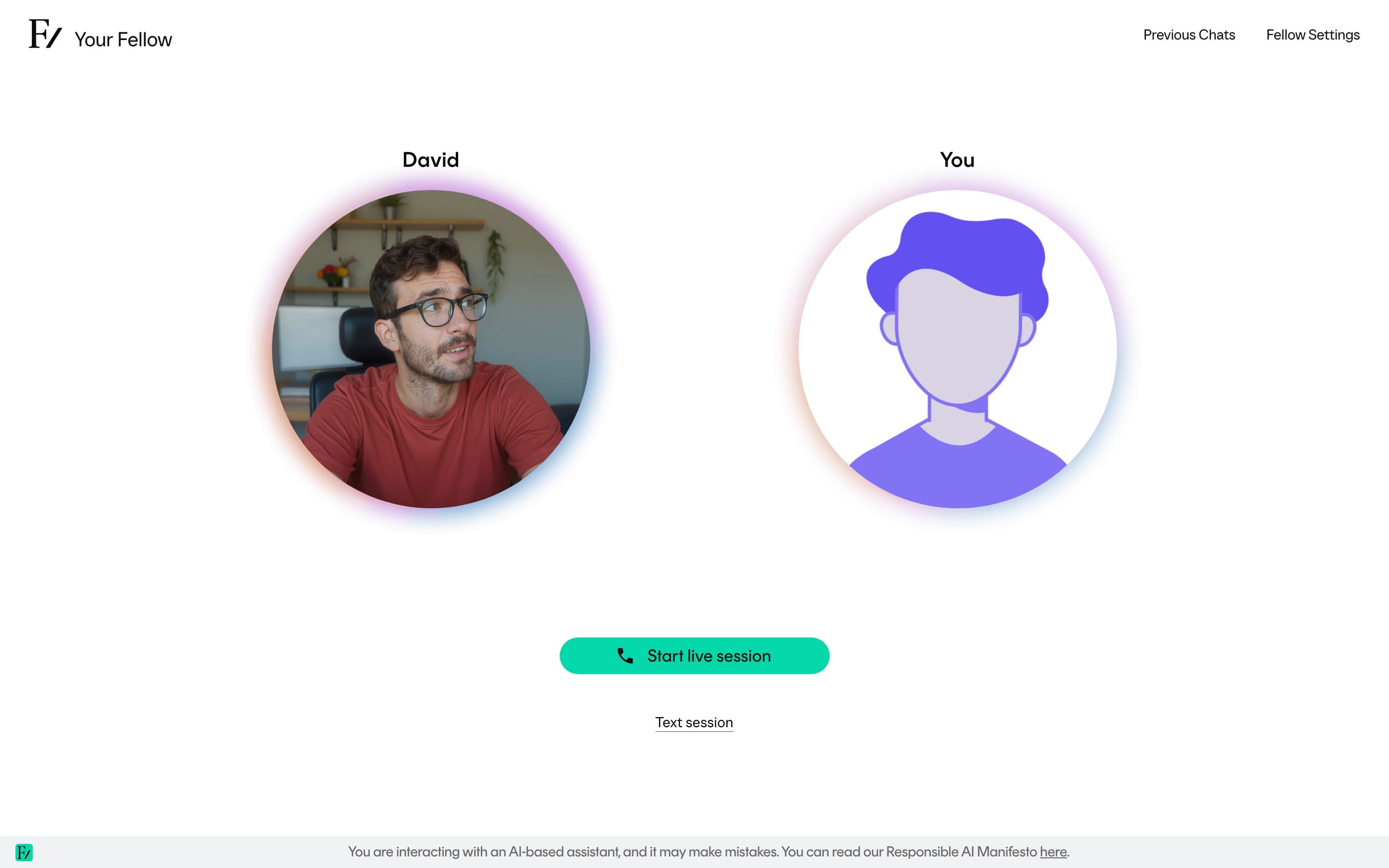
If your organization has given you access to specific AI Fellows, the sidebar entry reads AI Fellows and opens Your AI Fellows & Simulations, a page that lists each one you can open. Pick a card to start a conversation. A card marked as a simulation is a role-play practice partner, and each card shows how many conversations you have had with it.
Profile
Profile is where you update your name, your preferred language for the interface, how you sign in, and the active Learning Path when several are available. See Profile for the details.
What you will not see
The sidebar of an administrator includes Frontierz Studio and Company Settings. Those entries do not appear for learners. Sessions, AI Fellows, and Learning Paths are configured by your organization's administrator. As a learner, you only consume the configuration that has been prepared for you.