

Switching between Learning Paths
You can be enrolled in more than one Learning Path at the same time. Your Journey and the home screen always show the active Learning Path: the one you are currently working through. The active Learning Path is set on your Profile page.
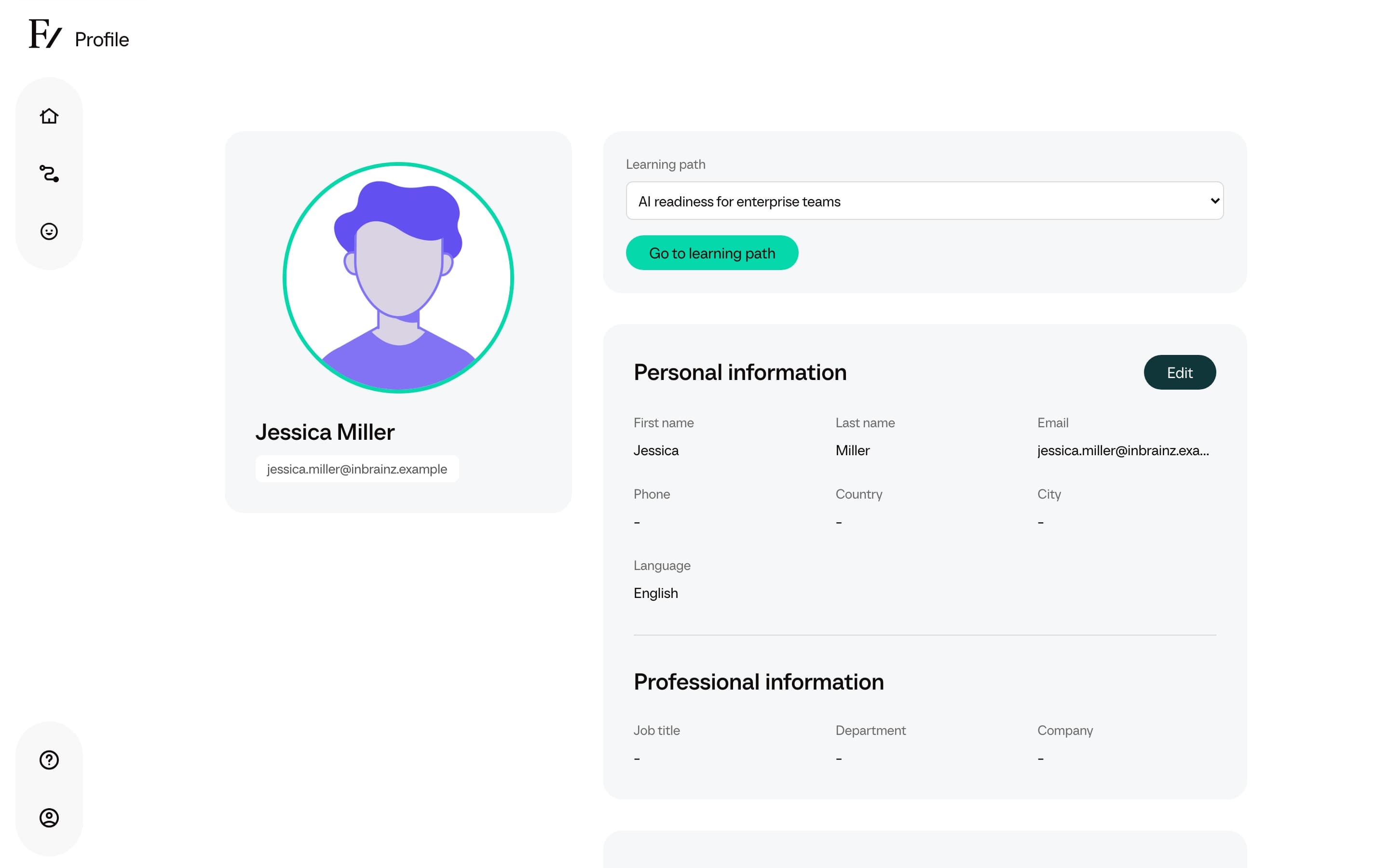
Switch the active Learning Path
Switching does not change your progress. Each Learning Path keeps its own session list, its own current session, and its own progress. Switching back returns you to the same point in that Learning Path.
When the selector does not appear
The active Learning Path selector only appears if you are enrolled in more than one Learning Path. If you only have one, Your Journey shows it directly and the selector is hidden.
If you expected to see another Learning Path and do not, ask your administrator to confirm that you are enrolled. Enrollment is managed at the Learning Path level by an administrator.