

Progress Reports
Progress Reports is where you review what you have finished across every Learning Path you have, not only the active one on Your Journey. Open it from the sidebar: hover Your Journey, then choose View your Progress Reports.
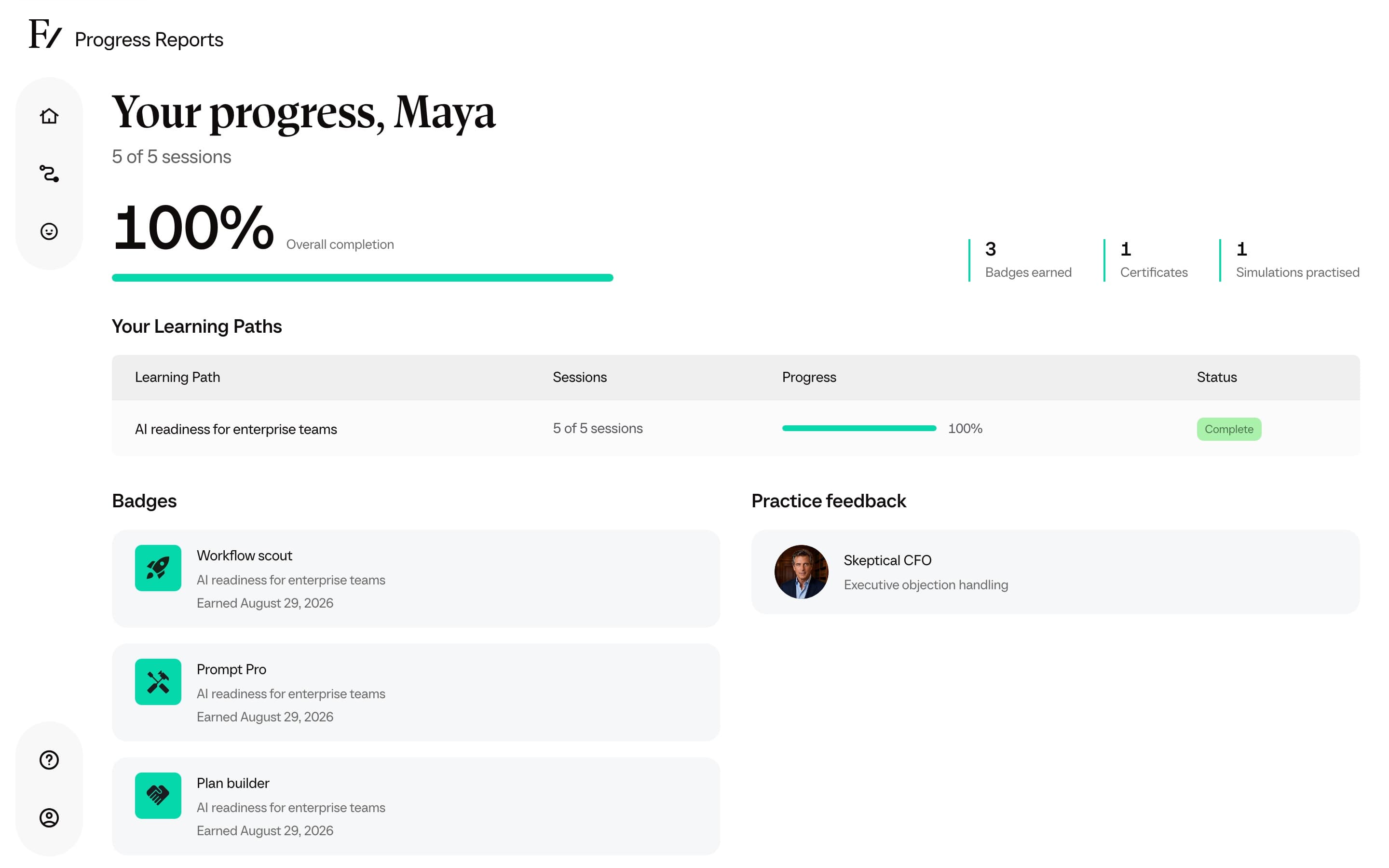
What the page shows
The heading greets you by name. Under it you see how many sessions you have completed, your overall completion, and three counts: Badges earned, Certificates, and Simulations practised.
When you have a session still open, Continue where you left off names that session and the Learning Path it belongs to. Continue opens it.
Your Learning Paths lists each path you can access. Each row shows how many sessions are done, a progress bar, and Complete or In progress. The path name opens Your Journey for that path.
Badges appear after you finish a session that awards one. Each badge shows the Learning Path and the date you earned it.
Practice feedback lists saved reports from AI Simulations. Open a card to read the full report. This list stays empty until a Learning Path simulation finishes, or until you click Keep in Progress Reports on a standalone report. See After an AI Simulation.
Certificates shows each certificate you have earned, with View, Download PDF, and Add to LinkedIn. If a path is still in progress, a locked card tells you how many sessions remain and offers Continue Path. See Your certificate.
If you have not earned a badge, a certificate, or a saved practice report yet, the lower half of the page shows Your first badge is one session away.
Practice feedback from a standalone AI Simulation stays off this page until you keep it. Unsaved reports are still available from Previous Feedback on that AI Fellow.