

Your certificate
When you complete every session in a Learning Path, Frontierz issues a completion certificate you can share or keep for your records.
When you get it
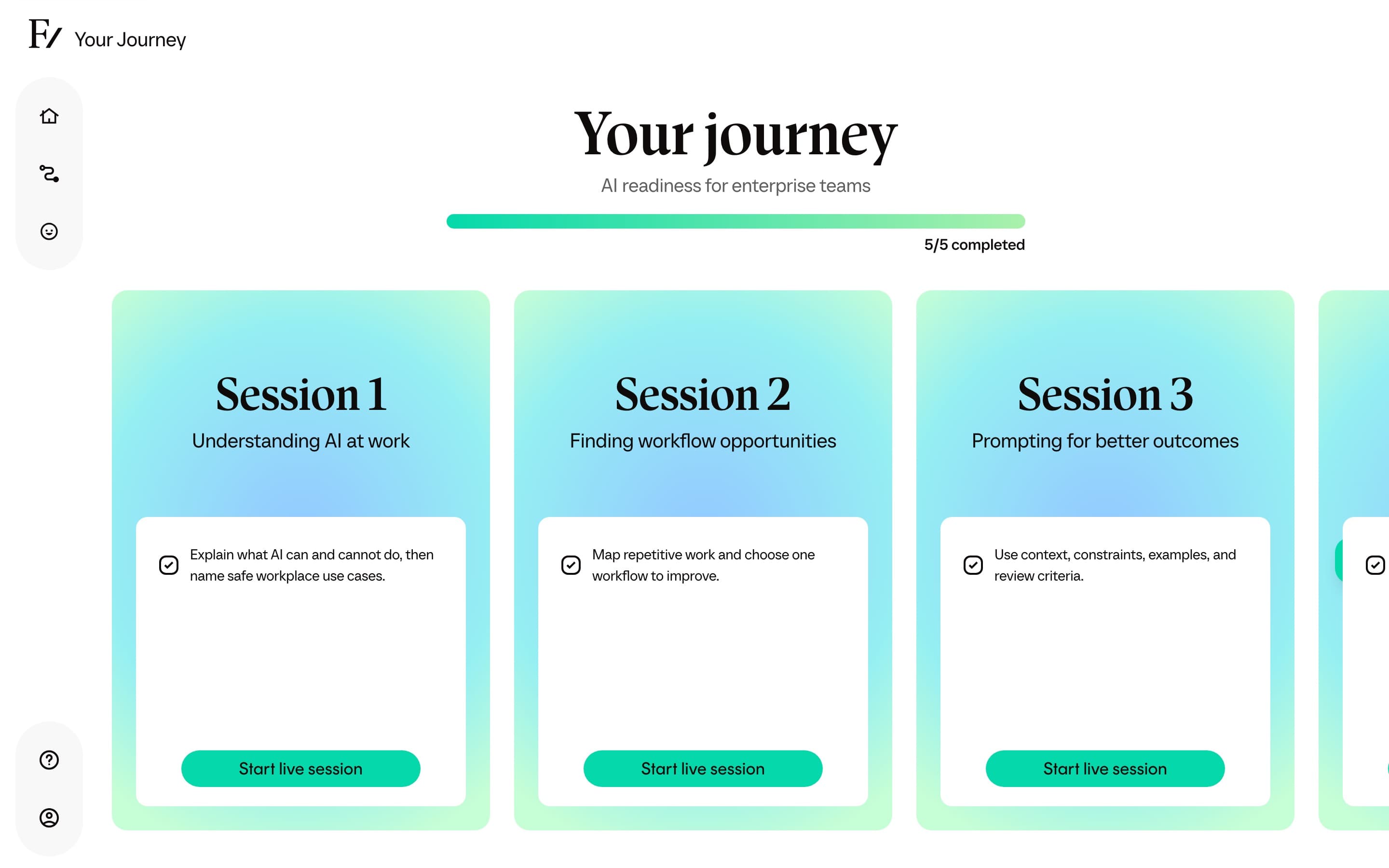
The certificate unlocks once every step on Your Journey is complete. Until then it stays locked. When you finish the last step, a Certificate card appears at the end of Your Journey with a View Certificate button. You may also receive an email with a link to the same certificate.
What the certificate shows
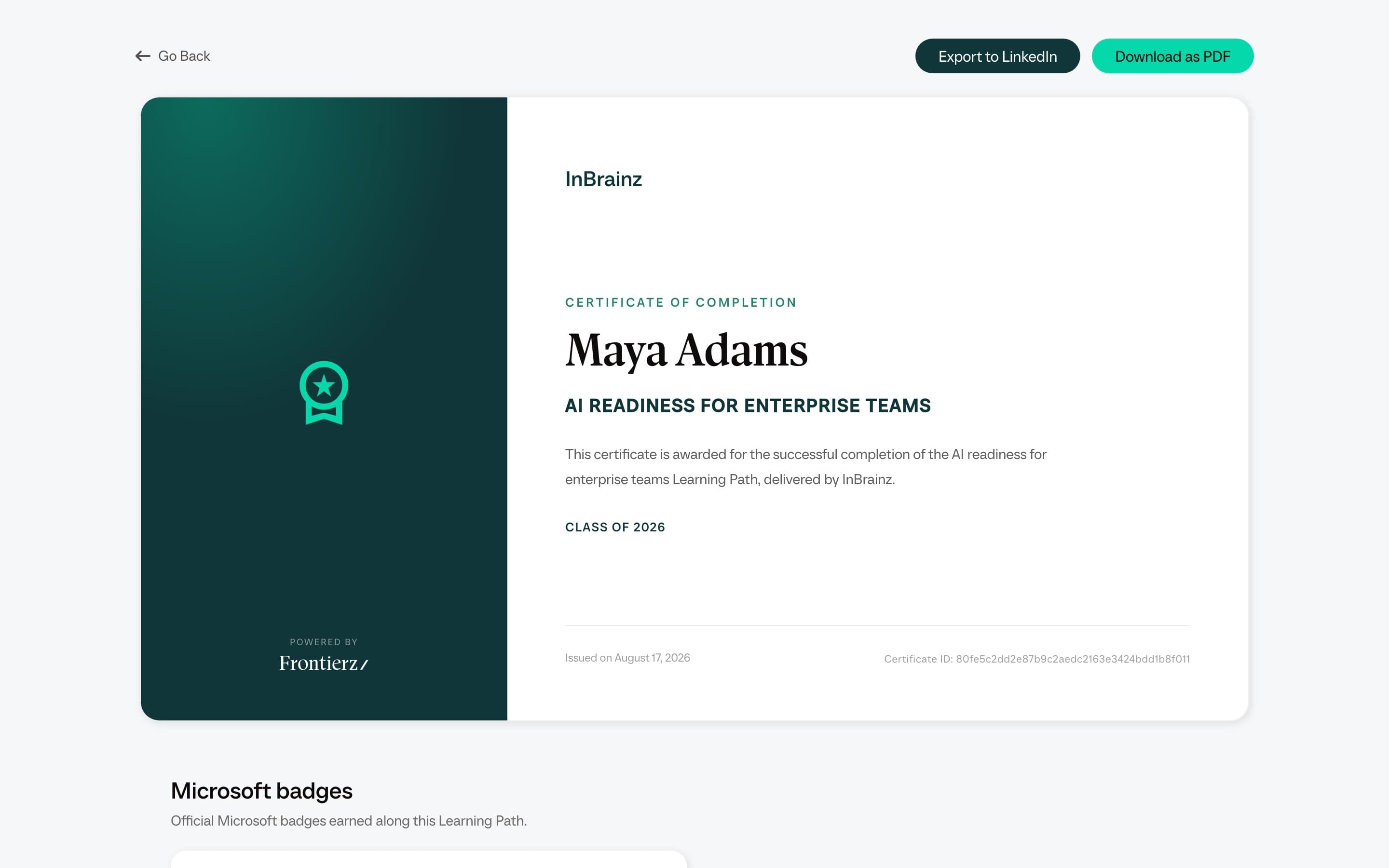
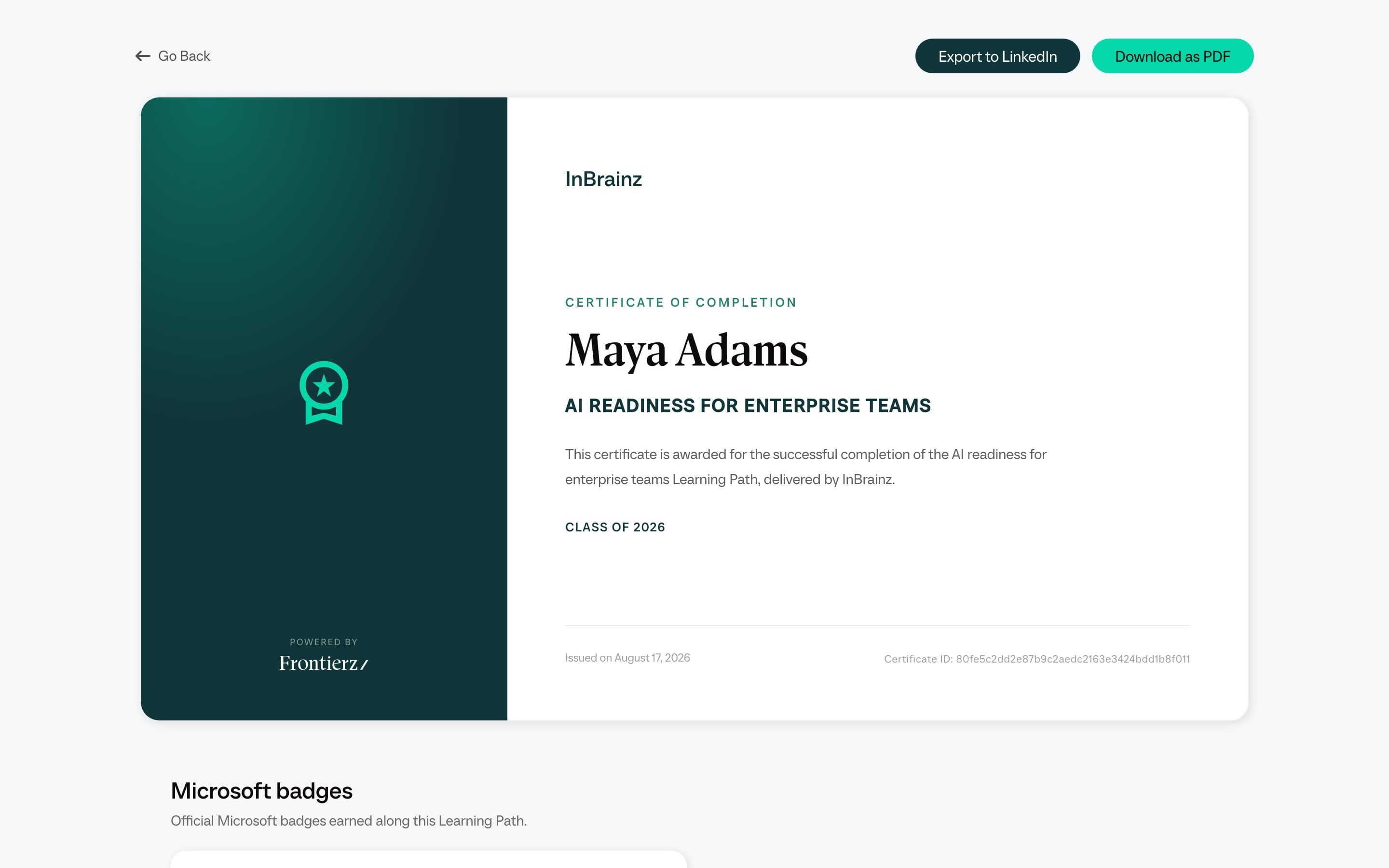
- Your name.
- The name of the Learning Path you completed.
- Your organization as the issuer, with its logo.
- The completion date.
- A certificate ID for reference.
Share or download it
The certificate screen has two options at the top:
- Export to LinkedIn adds the certificate to your LinkedIn profile.
- Download as PDF saves a copy to your computer.
Microsoft badges
Some Learning Paths are set up to award a Microsoft credential alongside the certificate. When that applies to the path you completed, the certificate page shows a Microsoft badges section with a Claim at Microsoft link that opens Microsoft Learn so you can redeem the credential.
Microsoft badges are not included in the downloaded PDF. To redeem one, view your certificate on the certificate page and use the Claim at Microsoft link there. Once redeemed on Microsoft Learn, you can add the credential to LinkedIn from there.
The certificate is read-only. If a detail looks wrong, such as your name or the Learning Path title, ask whoever manages Frontierz at your organization to correct it.