

Last updated on
Navigation
Use the sidebar on the left to move between your learning, AI Fellows, and administration areas. The options shown depend on your role and the resources assigned to you.
Sidebar items
| Item | What it opens |
|---|---|
| Home | The home screen with the user greeting, the next session card, and (for administrators) the Studio overview. |
| Your Journey | The user's AI Journey for the active Learning Path. Administrators see it when they have an active user view or a relevant assigned Learning Path. |
| Frontierz Studio | A dropdown that opens Learning Paths, AI Fellows, and (for Full Admins, Owners, and Creators) the Connectors Library. Hidden when the signed-in user does not have access to any of those. |
| Company Settings | Full Admins and Owners only. A dropdown that opens Access Management (Admins, Users, and LMS integration), Company Profile, Sign-in & Security, and Activity Log. Creators and Managers do not see it. |
| Your Fellow | Opens a voice call with the user's AI Fellow, labeled with the AI Fellow's name. |
| Help | Opens a card with Admin Manual (Owners, Full Admins, and Creators) or User Manual (Managers and users). Click the label to open that manual in a full-screen panel. Search and Ask a question stay inside the manual that is open. |
| User menu (bottom) | Profile information, the View as User option for administrators (see Roles and permissions), Switch Tenant for administrators of more than one workspace (see Switch workspace), and Log out. |
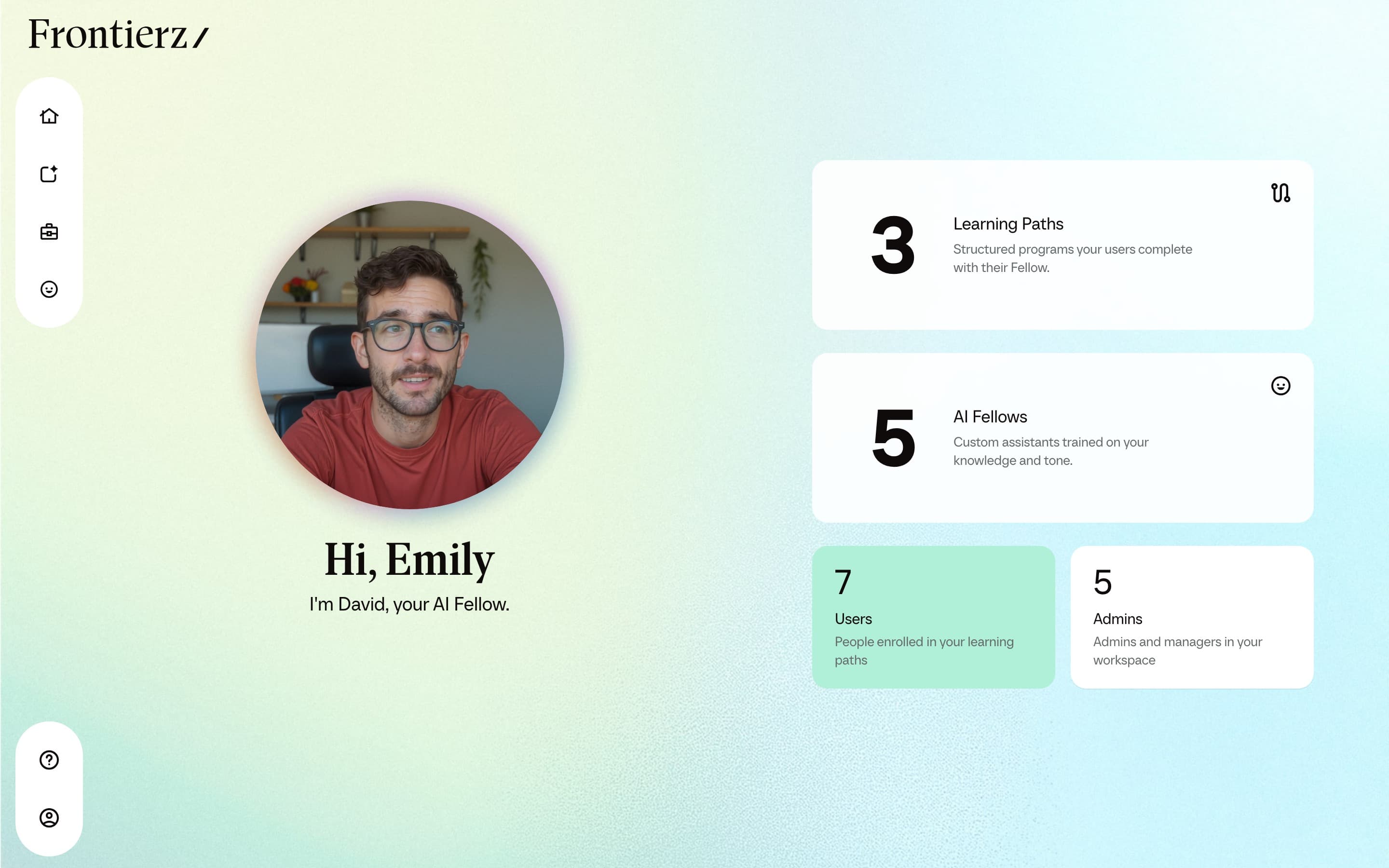
Full Admins and Owners see every item. Creators see Learning Paths, AI Fellows, and the Connectors Library, but not Company Settings. Managers see a smaller Studio menu: only the Learning Paths and AI Fellows assigned to them, and no Connectors Library entry. Users see Home, Your Journey, Your Fellow, Help, and the user menu.
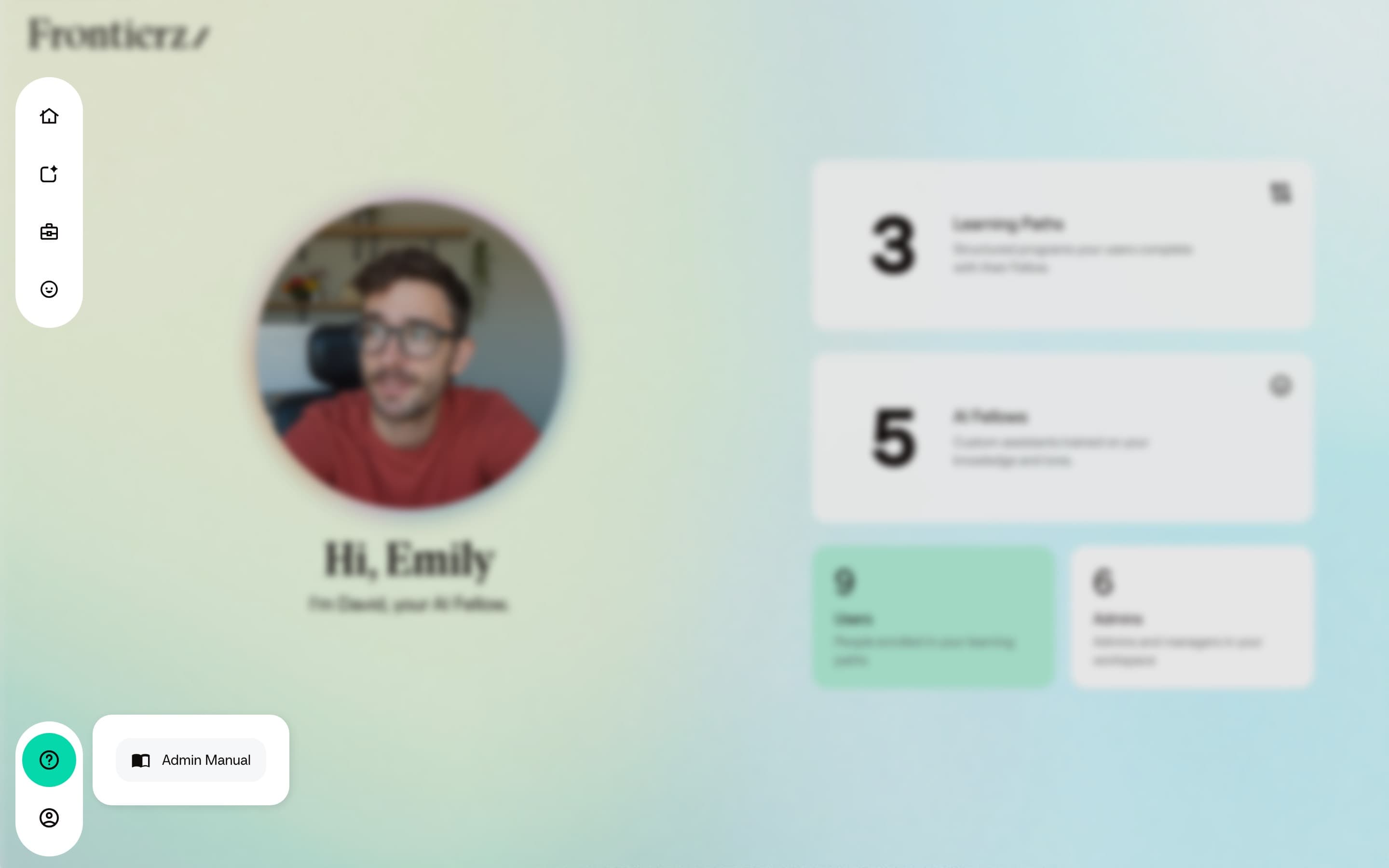
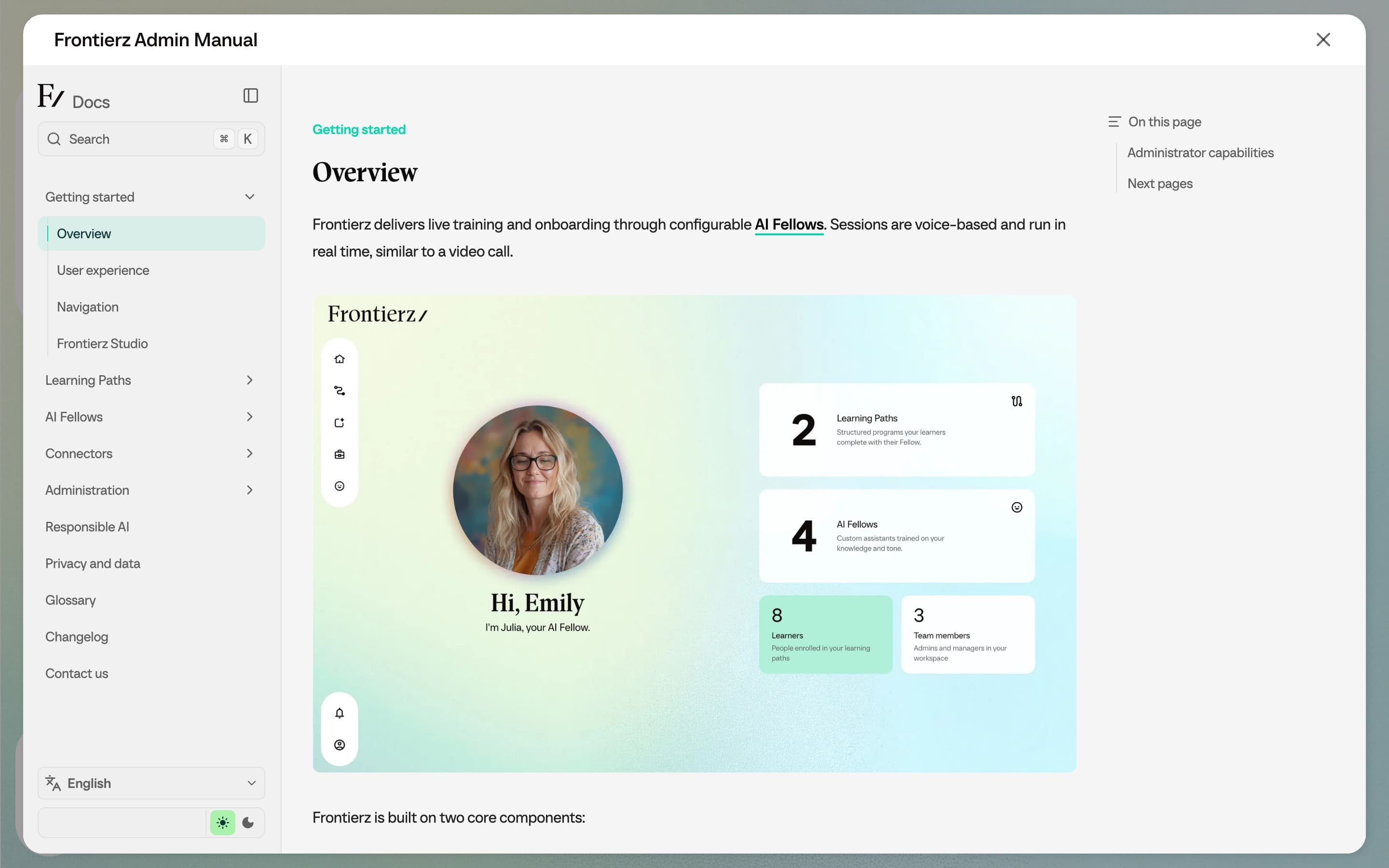
In Help (and on the public manuals), Ask a question answers from the pages of the open manual. Search does the same: a query in the User Manual does not return Admin Manual pages. Each page shows when it was last updated.
Top menu
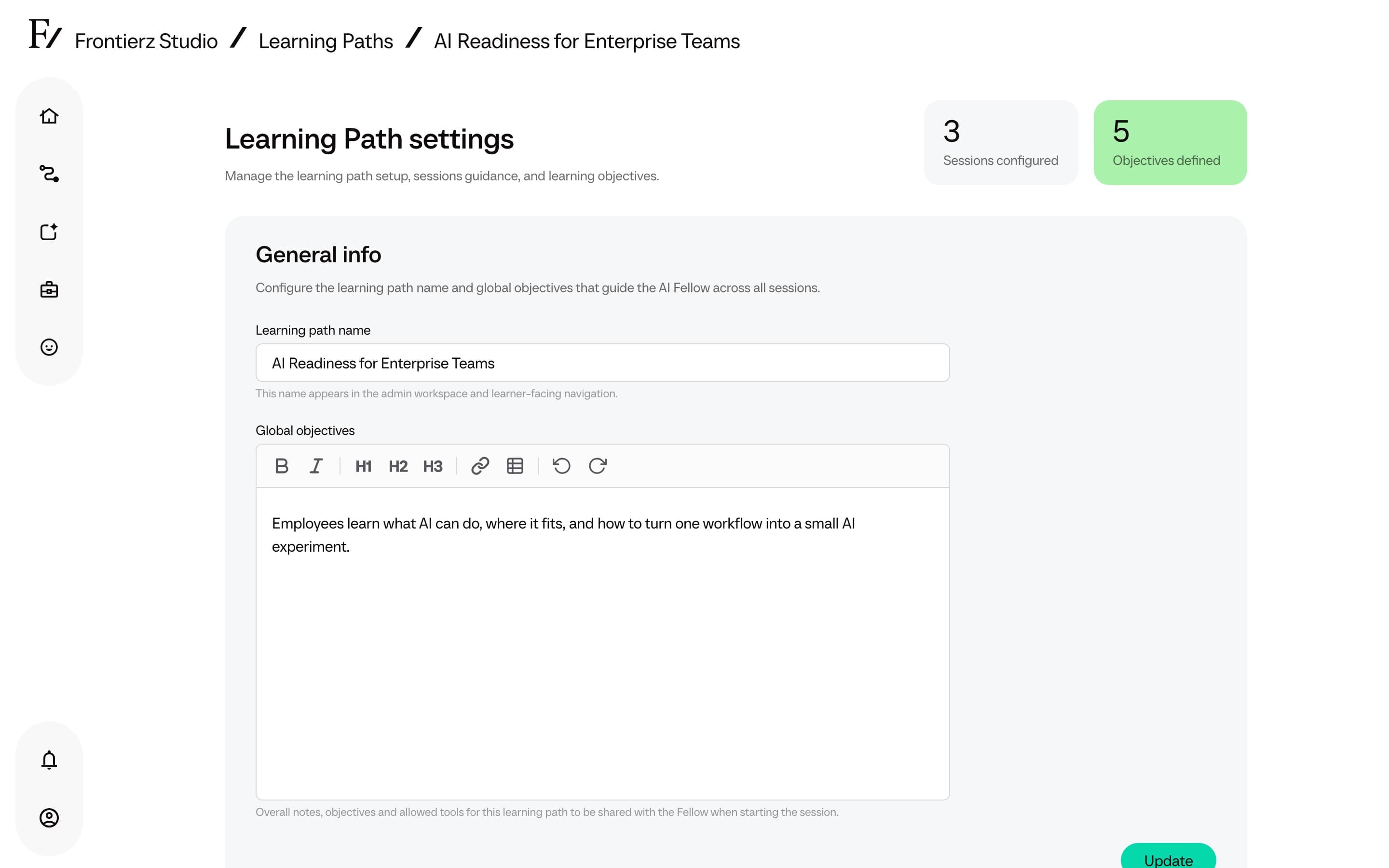
Some pages display a top menu in the page header. From there, administrators can open Frontierz Studio, switch to Learning Path Admin when a Learning Path is in scope, or open the user profile and log out.
Switch workspace
Owners and Full Admins who administer more than one workspace see Switch Tenant in the user menu, with the name of the current workspace. Select it to list the other workspaces you administer and choose one. With more than five workspaces, a search box filters the list.
Frontierz signs you in to the other workspace without asking again when that workspace accepts the way you signed in, such as a password, an email sign-in link, a passkey, or Google or Microsoft. Otherwise you land on its sign-in page. Sign-in through a company's own single sign-on provider, such as SAML or Keycloak, does not carry over. The other workspace still applies its own two-factor authentication and IP allowlist.
User management locations
The sidebar does not include a dedicated Users item. Users belonging to the company are managed in two locations, depending on the scope of the action:
- Per Learning Path. Open the Learning Path and switch to its Manage Users view. This view is used to enroll or remove users for that specific Learning Path.
- Across the company. Open Company Settings → Access Management, then switch to the Users tab. This view lists every user in the company, allows changes to Learning Path or AI Fellow access, and supports CSV imports. LMS integration is the third tab on the same page.
Owners, Full Admins, Creators, and Managers are listed in the Admins tab of the same Access Management page. Creators and Managers cannot open Access Management; a Full Admin or Owner manages those assignments on their behalf.