Last updated on
Access management
Use Access Management to invite administrators, assign training to employees, and connect your learning management system (LMS). The role you assign determines whether someone can manage the organisation, create content, supervise specific programmes, or take part in training.
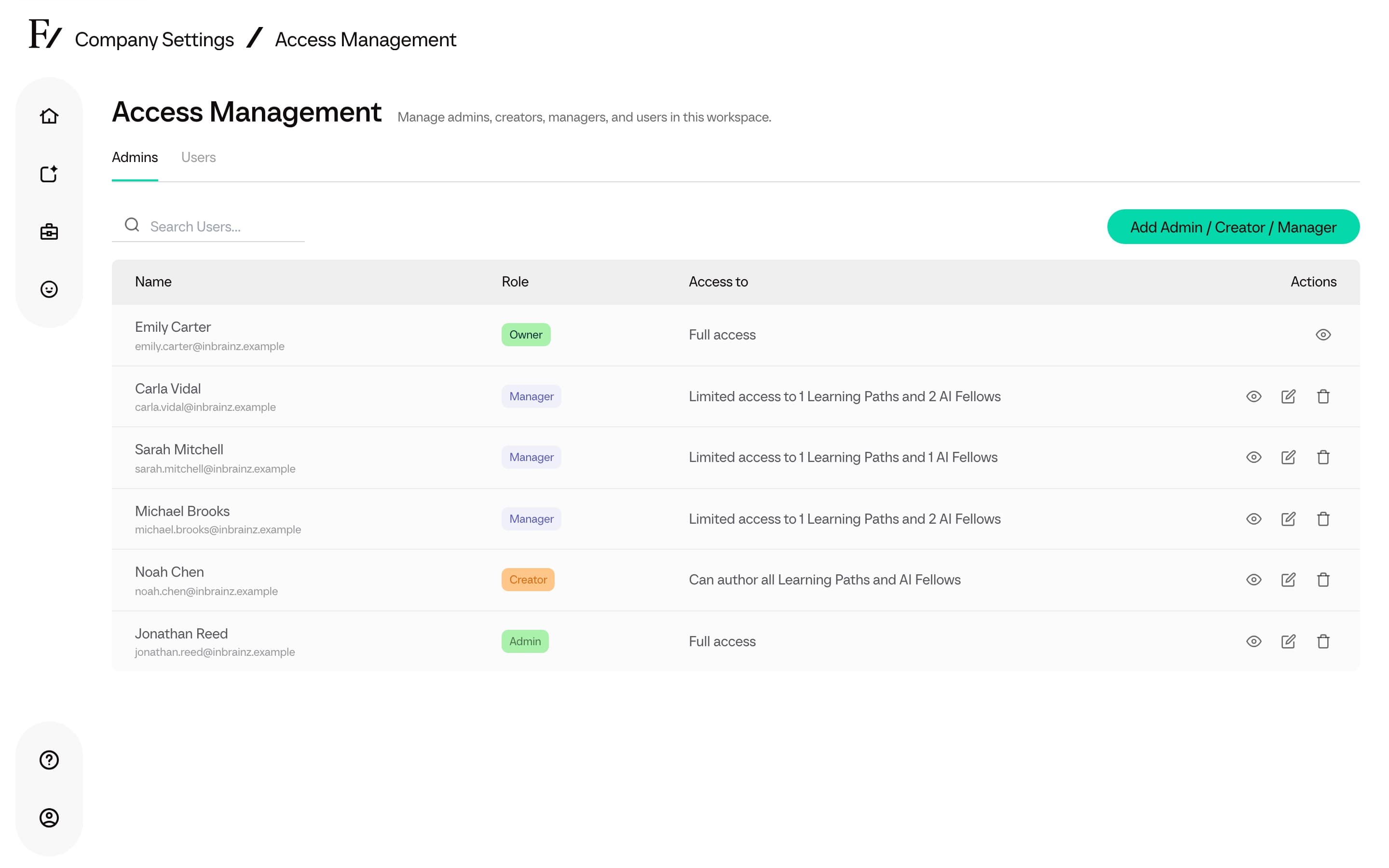
Access Management has three tabs:
- Admins. Owners, Full Admins, Creators, and Managers. Used to invite those roles, change permitted roles, set which Learning Paths and AI Fellows a Manager oversees, and remove admin access the current role is allowed to manage. Only Owners can change or remove Full Admins and Owners. Full Admins can invite, edit, and remove Creators and Managers. Click Name or Role to sort this list.
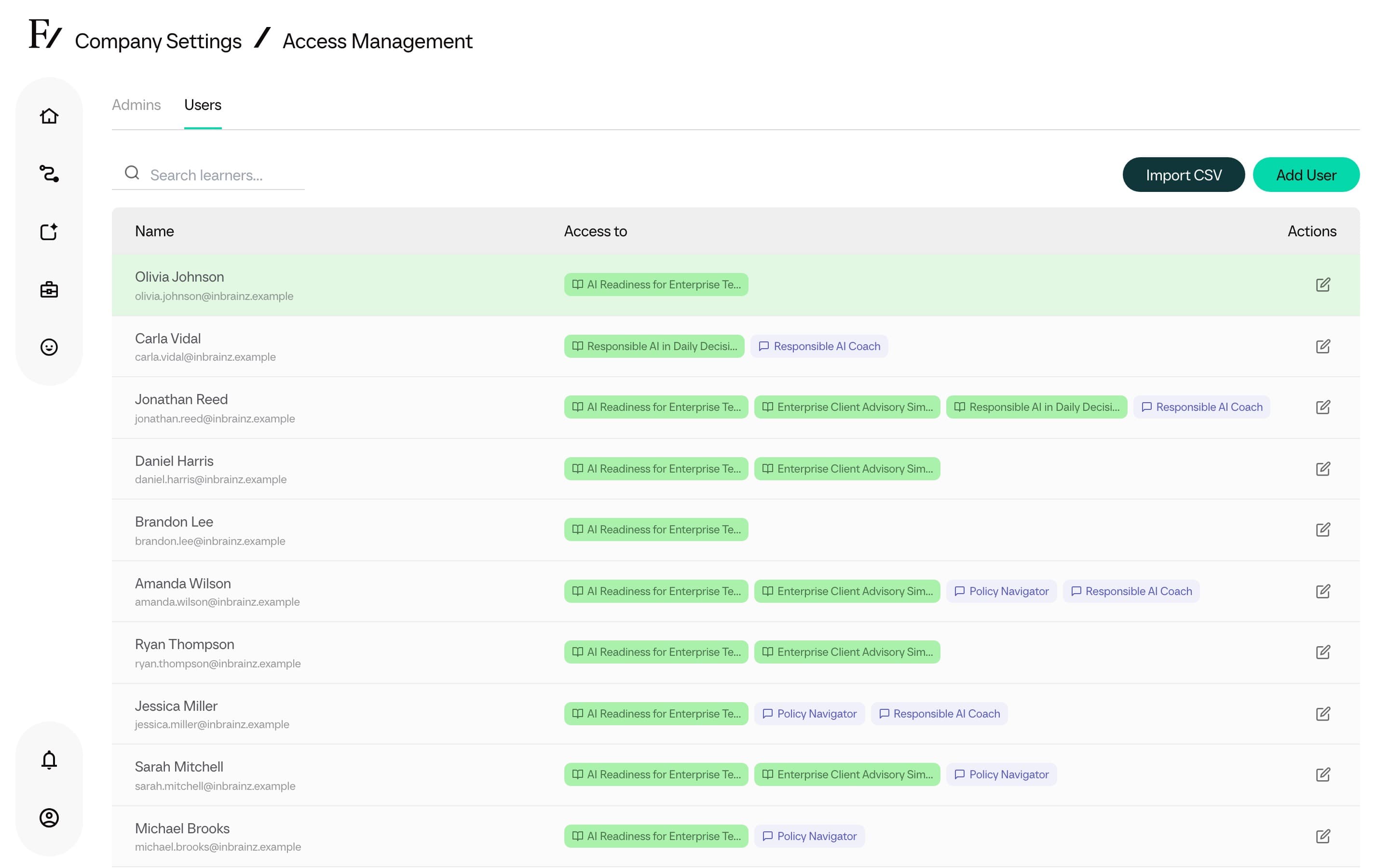
- Users. The people enrolled in Learning Paths and given access to specific AI Fellows. Used to add a single User, change their Learning Path or AI Fellow access, remove a user from this workspace, or import a whole CSV. The Global progress column is the share of completed Fellow sessions across the Learning Paths shown on that page. Click Name to sort. Access to chips and Global progress do not sort.
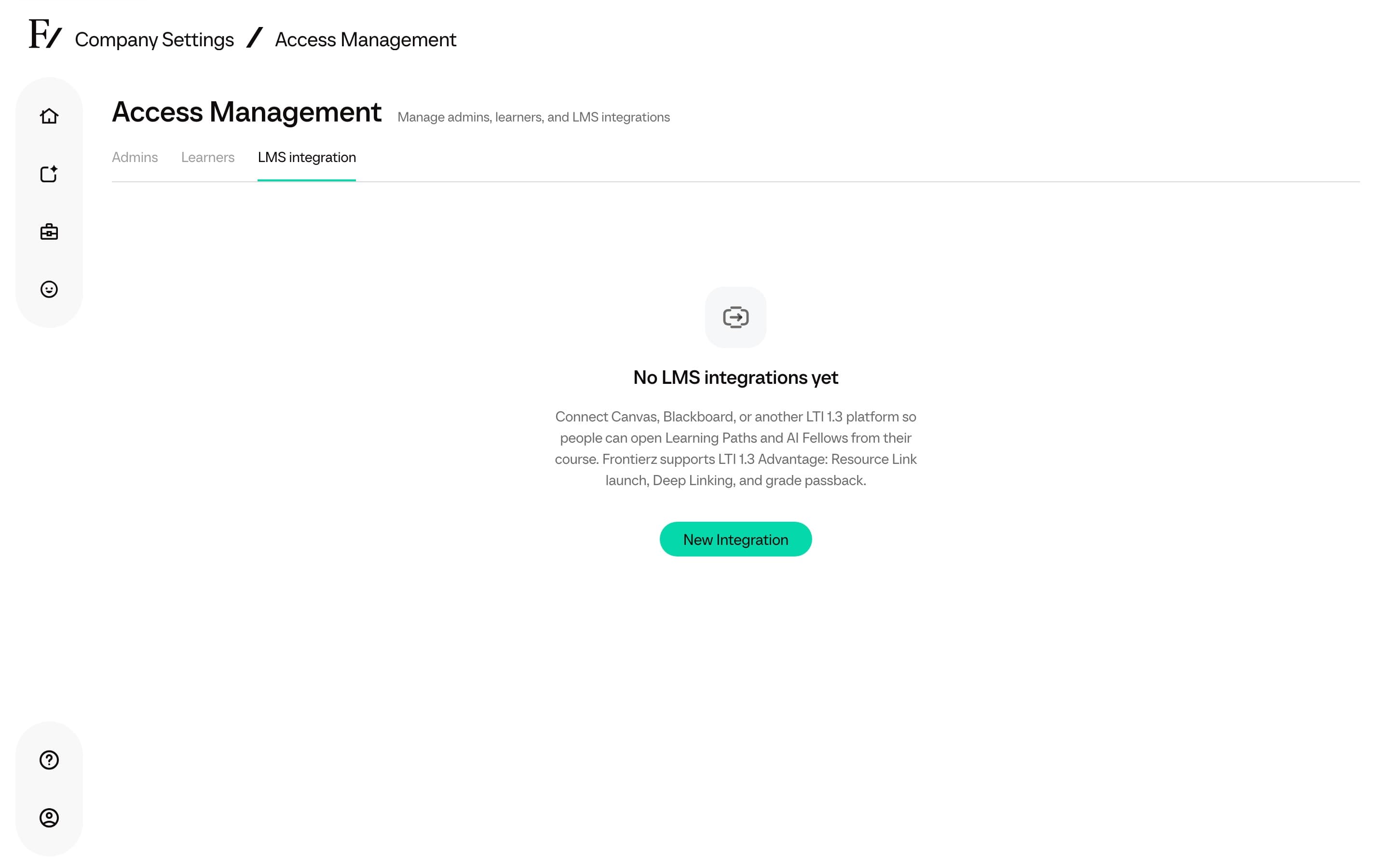
- LMS integration. Register Canvas, Blackboard Learn, D2L Brightspace, Moodle, or Cornerstone Learning. See LMS.
Anyone with the link can access a Public AI Fellow. You can also assign users in advance if you plan to make the Fellow Private, so those users retain access after the change.
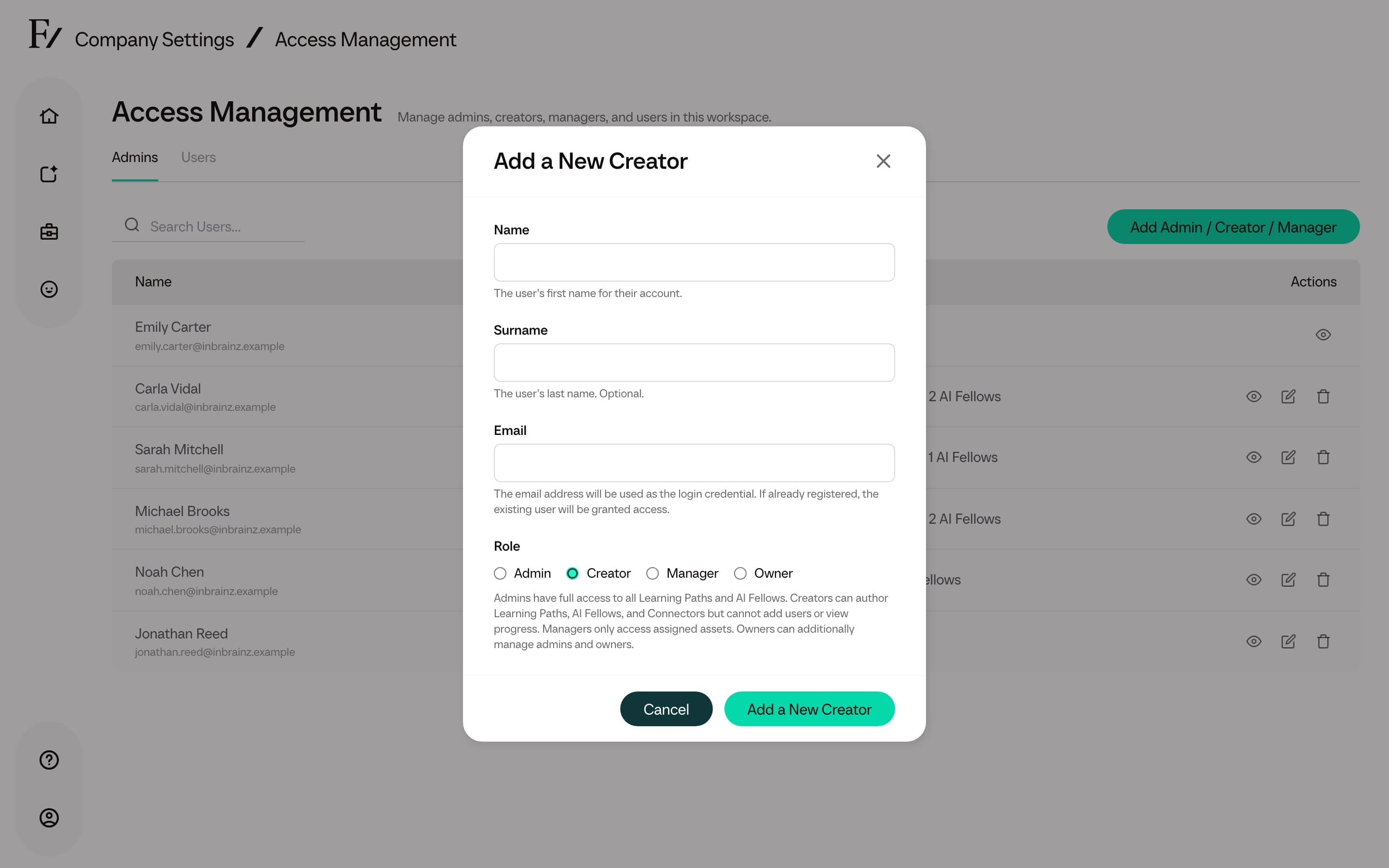
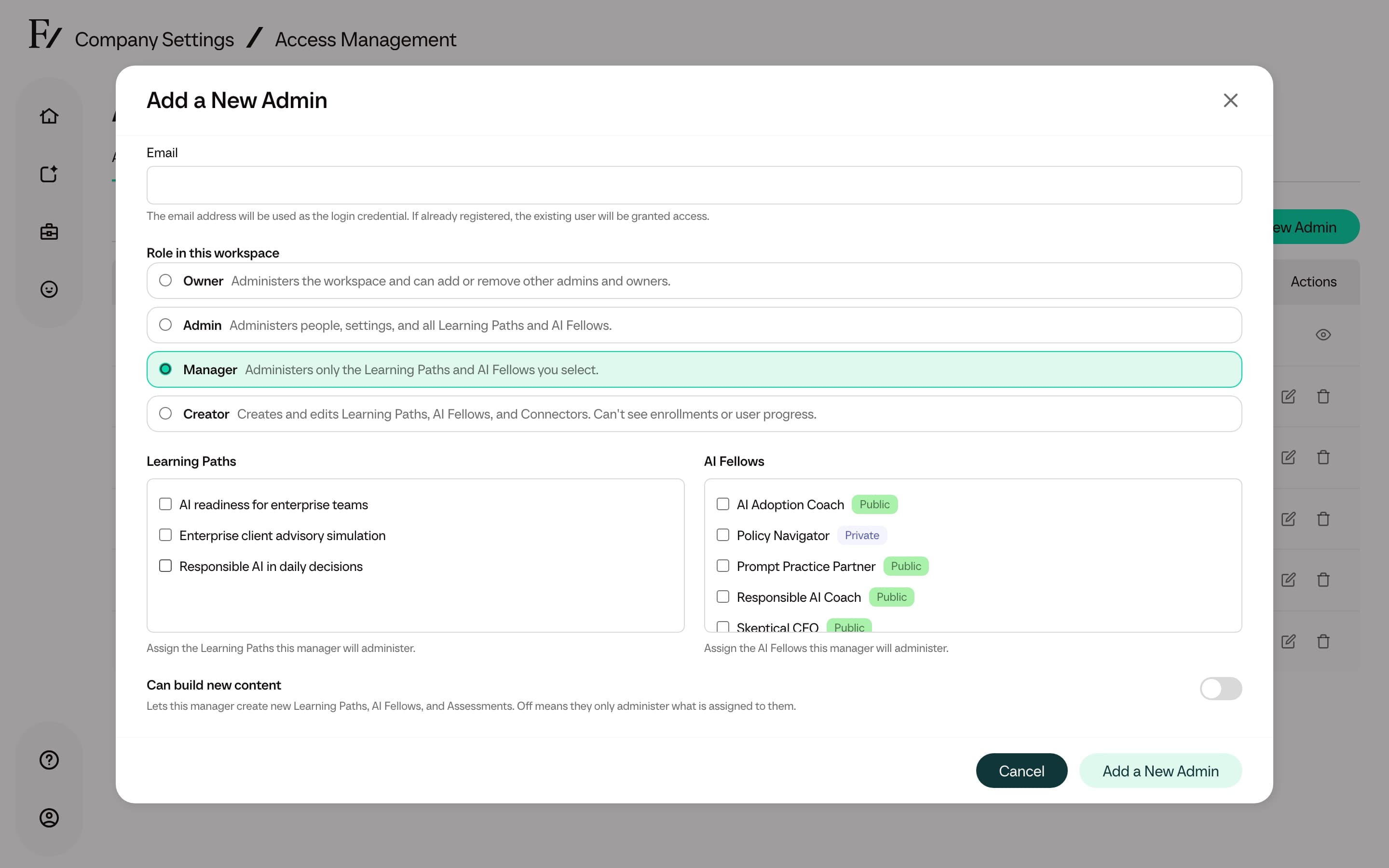
Invite an Admin user
To add an administrator from Access Management:
For Managers, select the Learning Paths and AI Fellows they should be able to manage, and set Can build new content. A new Manager starts with it off. Full Admins and Creators do not see this switch.
For the full breakdown of what each role can do, see Roles and permissions.
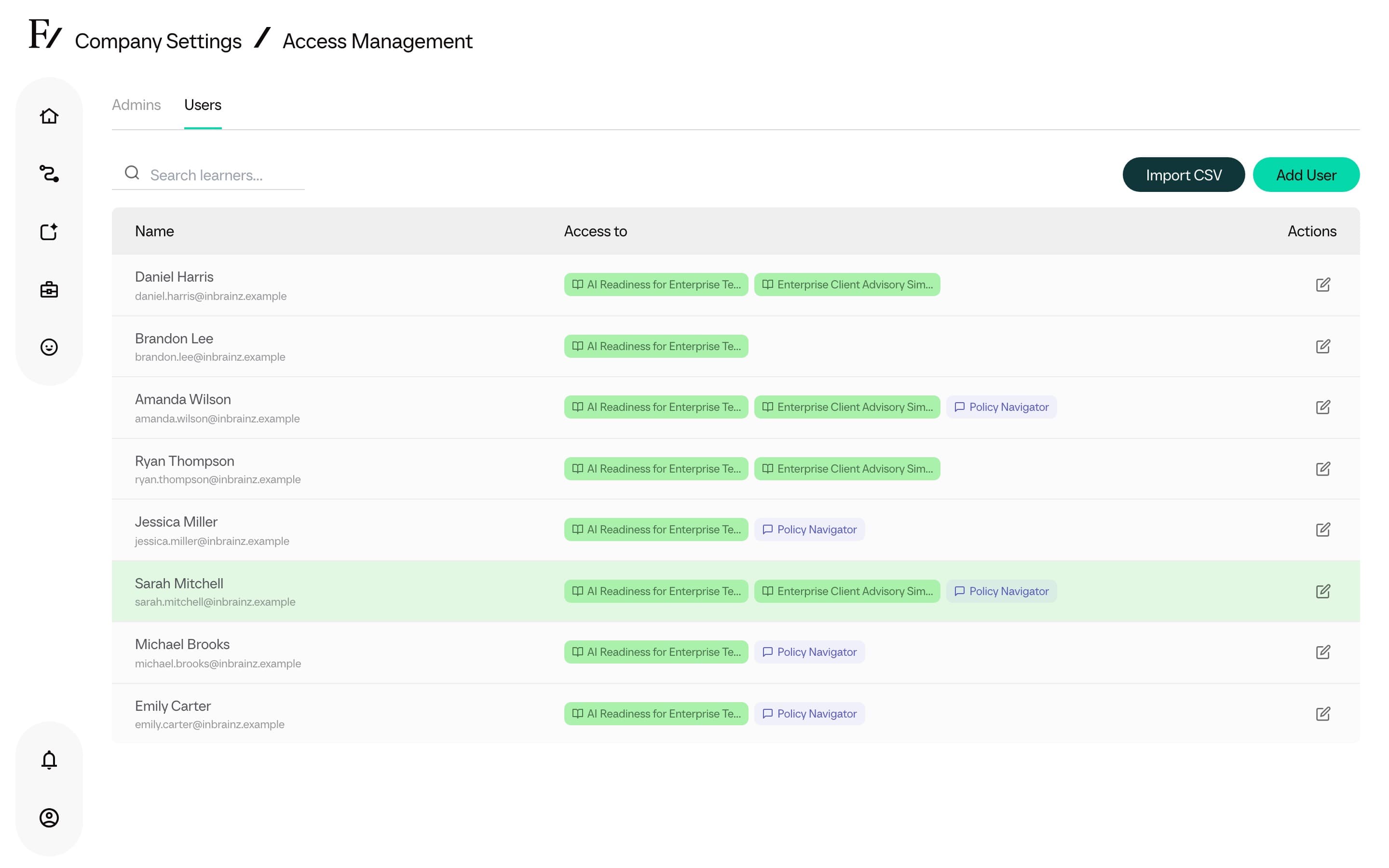
Rows in both tabs open the same User detail page. Use it to review one person's role, access, activity, and account details before making a change.
Manage Users
Users are the people enrolled in Learning Paths. Manage them from the Users tab, or directly from inside a Learning Path. Bulk imports are performed via CSV.
Add one user
Use the Users tab to add someone to the workspace and give them access to selected Learning Paths or AI Fellows. Frontierz creates an account if the person does not already have one.
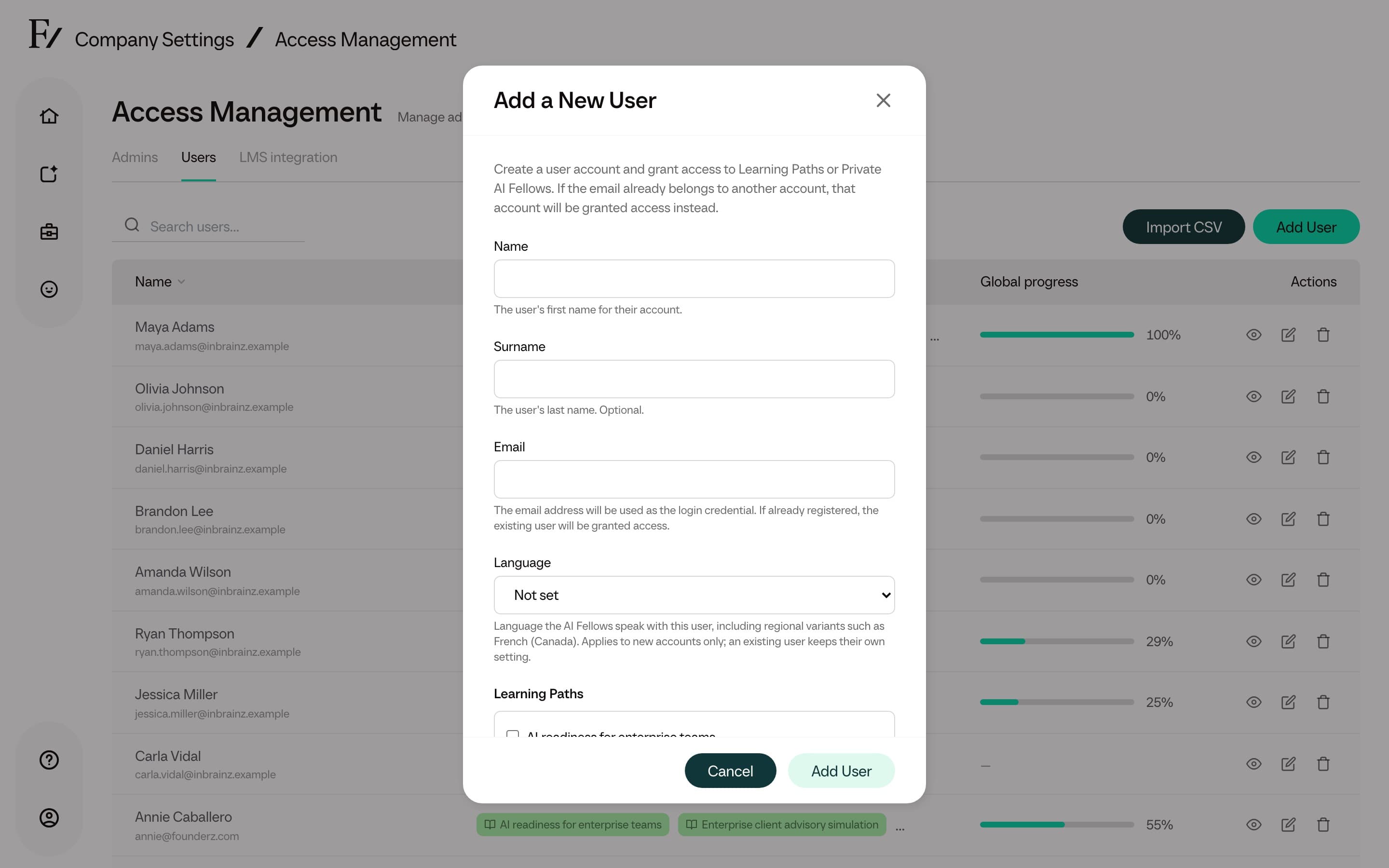
If the email already belongs to a user, Frontierz adds that user to the workspace and grants the selected access. Otherwise, Frontierz creates a new user account.
Remove a user from this workspace
Remove User takes the person out of this company. It is available from Actions on User detail, and as Remove on a Users tab row.
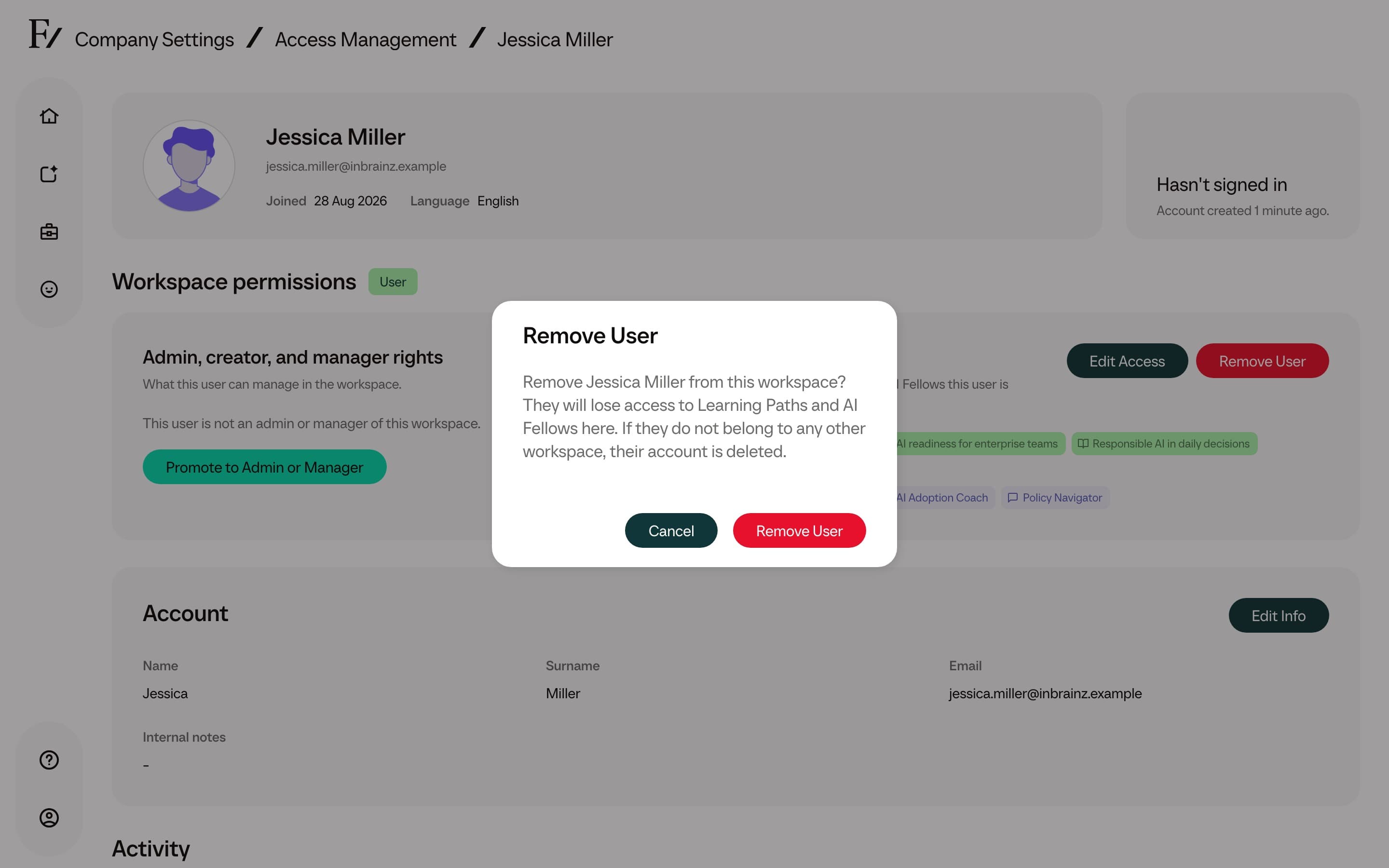
The person loses access to Learning Paths, AI Fellows, and administration in this workspace. Their account remains available if they belong to another workspace. If this was their only workspace, Frontierz deletes the account.
You cannot remove yourself. Removing a Full Admin or Owner still requires the Owner role.
Removal takes effect immediately. Conversation history already stored for this company remains available to authorized administrators.
Enroll one user
Add a single user to a specific Learning Path.
Import users from CSV
Create up to several thousand users in a single upload.