

Send files during a session
You can send a file to an AI Fellow during an active session by dragging it onto the conversation screen. The AI Fellow reads the file and uses it as context from that point in the conversation.
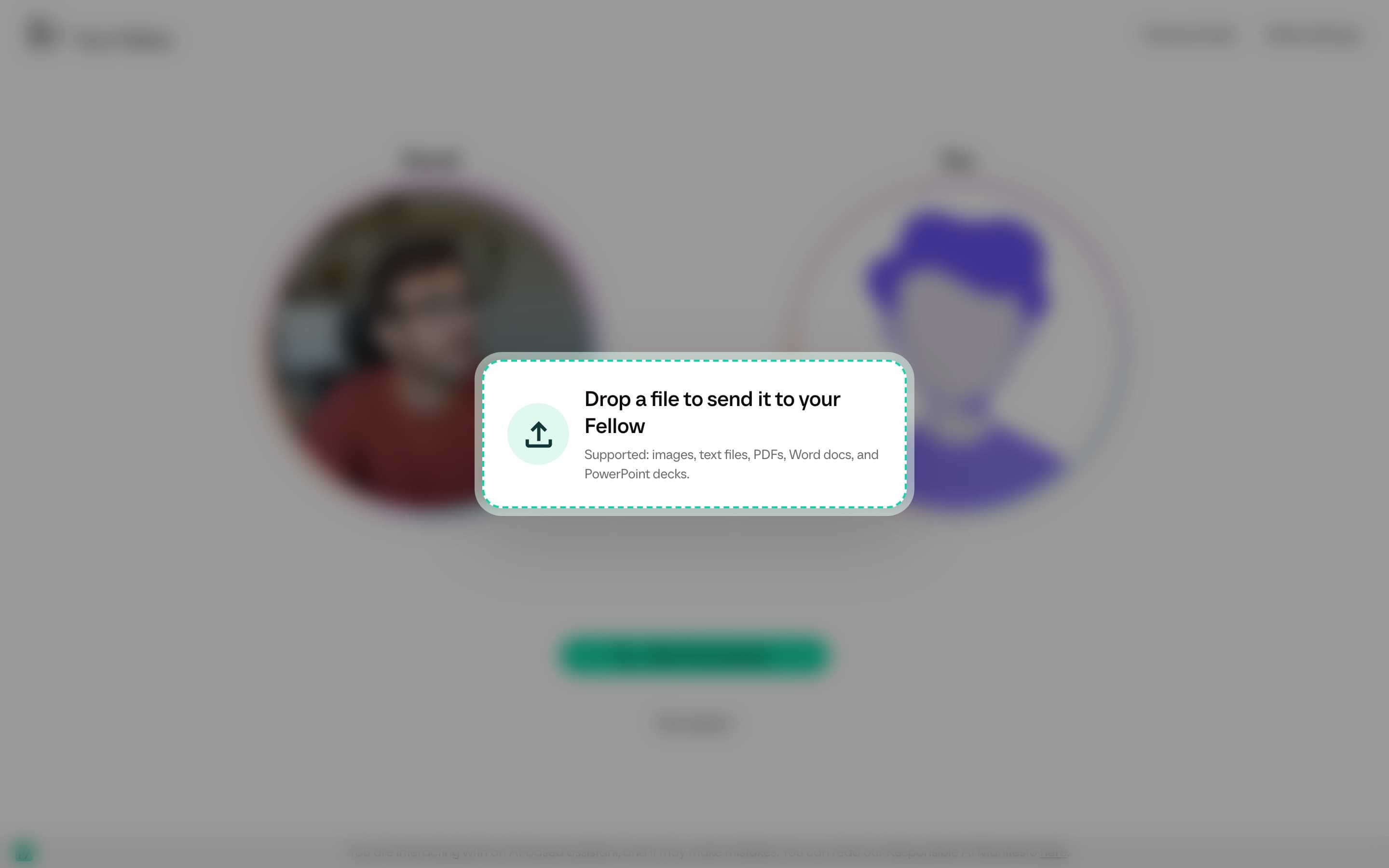
When to use it
Use file sending when the AI Fellow needs to look at something specific:
- A policy, brief, or proposal you want to discuss.
- A slide deck or document you want the AI Fellow to review.
- A short text file, notes file, or exported data file.
- An image you want to talk through during the session.
Files are useful when explaining the content out loud would take too long. Send the file, then ask the AI Fellow what you want it to do with it.
Supported files
You can send one file at a time. Supported formats include:
- Word documents (
.docx,.doc) - PowerPoint decks (
.pptx,.ppt) - Excel workbooks (
.xlsx) - Plain text and text-like files (
.txt,.md,.csv,.json,.yaml,.log) - Raster images, such as JPG and PNG. SVG files are not supported.
If a file is too large or uses an unsupported format, Frontierz shows a message and does not send it.
Send a file
Wait for the AI Fellow to process it. Documents may take a little longer than images or short text files.
Ask the AI Fellow to review, summarize, compare, or use the file in the conversation.
The file becomes part of the current conversation context. It is not added to the AI Fellow's permanent reference material. If you start a new conversation later, send the file again if the AI Fellow still needs it.
What appears in the transcript
The transcript records that you sent a file, using the file name. It does not turn the page into a file library. If your organization needs a file to be available to the AI Fellow across all future sessions, an administrator must add it to the AI Fellow's reference material.
Send only files you are allowed to share with the AI Fellow. If the file contains confidential or personal information, follow your organization's policy before sending it.