

Camera and screen sharing
Camera and screen sharing are optional during a live session. Both are off by default. You decide whether to turn them on, and you can turn them off again at any time.
These options only appear when the AI Fellow has been configured to support them. If you do not see the buttons, the session is voice-only and that is intentional.
Camera sharing
When you turn the camera on, the AI Fellow receives a snapshot of what your camera shows at that moment. The AI Fellow may request a fresh snapshot later if it becomes relevant to the conversation. Camera images are not stored beyond the active session.
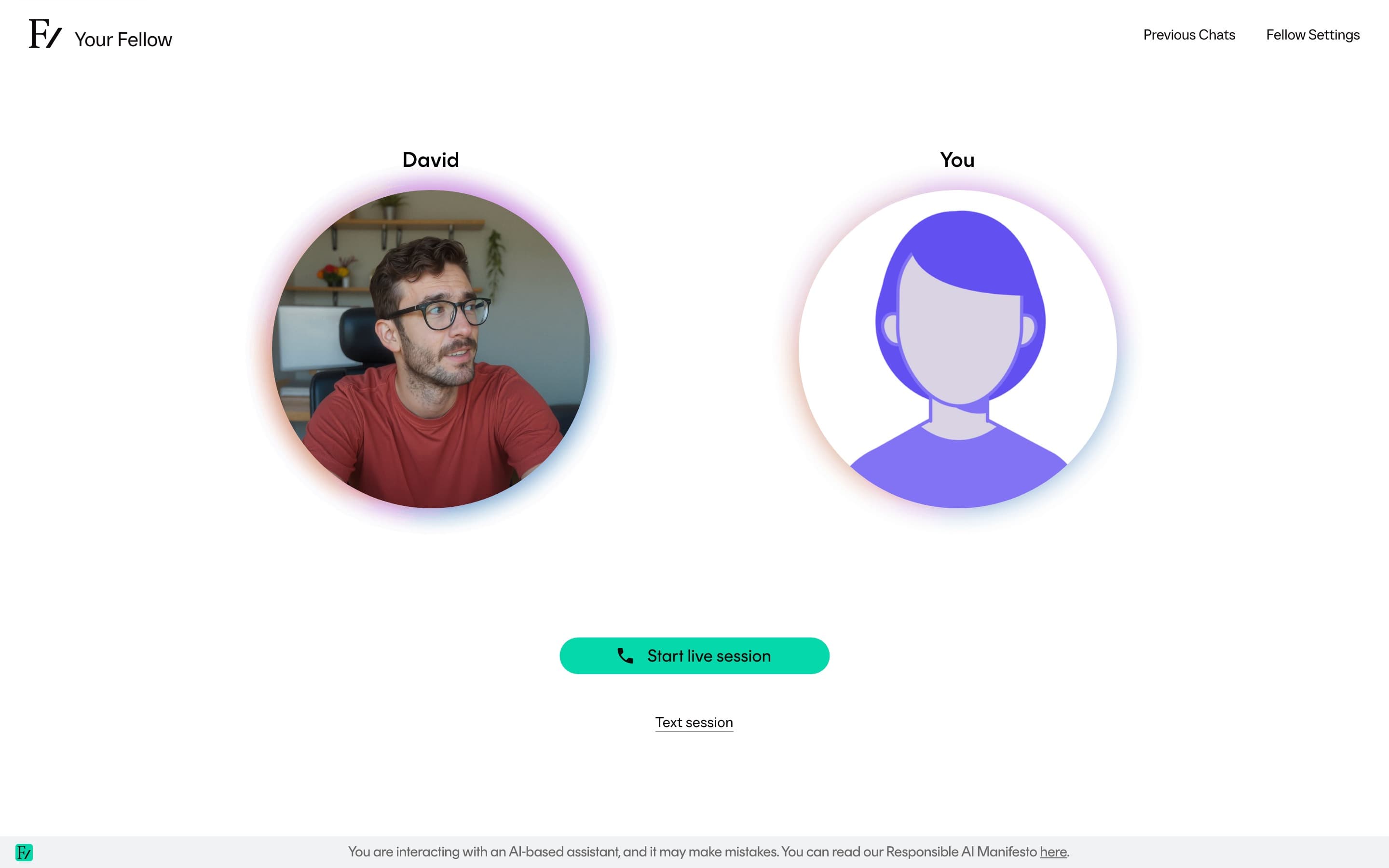
The AI Fellow does not comment on what your camera shows unless you ask, or unless the camera content is directly relevant to the session.
Screen sharing
Screen sharing lets the AI Fellow see what is on your screen. The AI Fellow can comment on what is visible, walk you through it, or help you work through a task while you share. Screens are not recorded or stored beyond the active session. Only the most recent frames remain in working memory while the session is live.
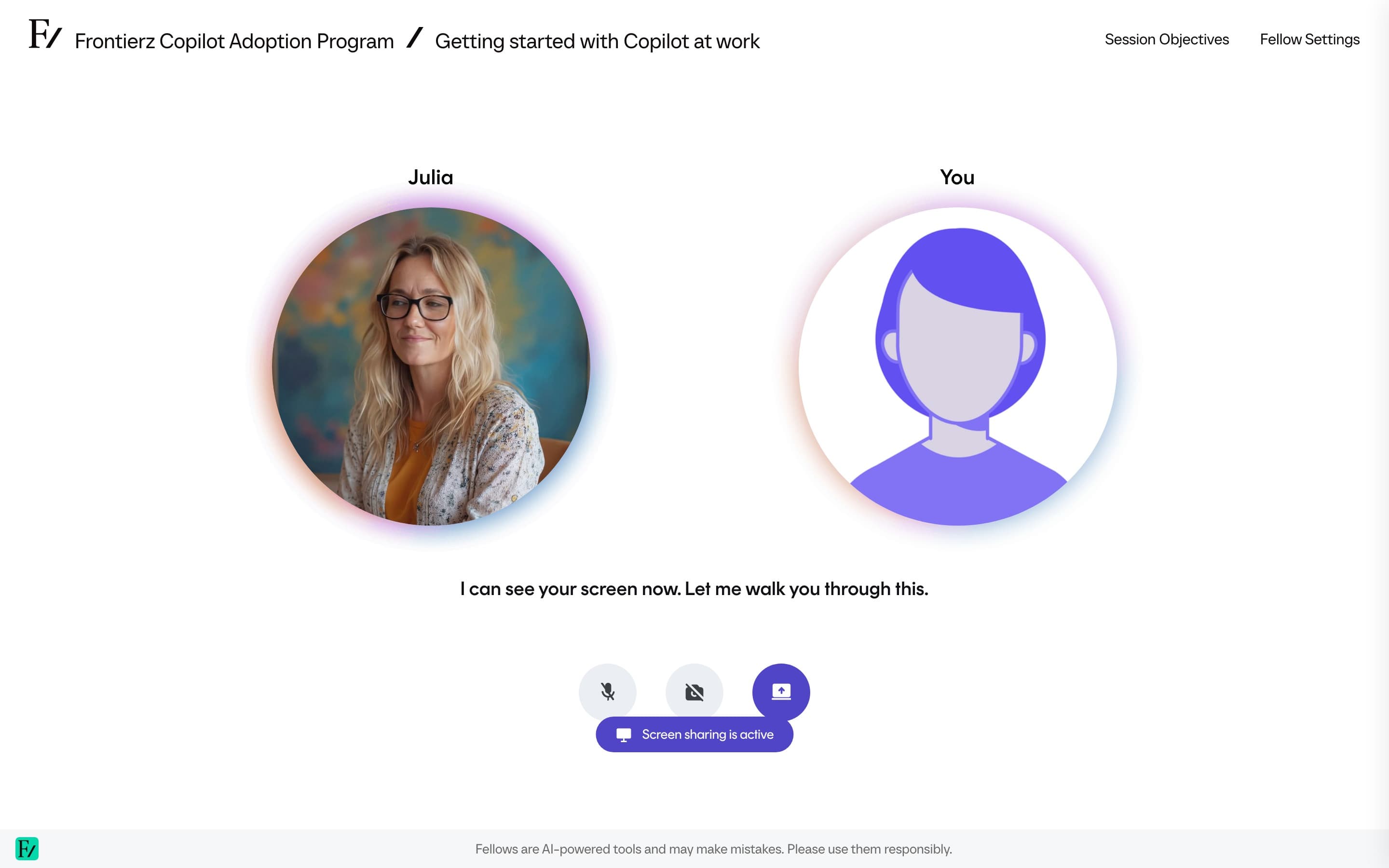
Sharing stops the moment you stop it. Frontierz also stops a long screen share automatically after it reaches its frame limit. Start sharing again if the AI Fellow still needs to see the screen. If the session has a configured time limit on screen sharing, sharing stops automatically when the limit is reached.
You decide what to share. The AI Fellow only sees what your browser sends. Choose a specific window or tab when you do not want to share your full screen, including notifications and other applications.