

Last updated on
Create a Learning Path
Start a Learning Path by choosing its name and language. You can then add sessions, objectives, participants, and Connectors in the editor, and return later to make changes.
Clicking New Learning Path opens a choice:
| Option | Use it for |
|---|---|
| Start from scratch | An empty Learning Path. Add sessions and objectives in the editor. |
| Build with AI | A draft generated from a briefing. See Build with AI. |
| Import | A SCORM package or a Frontierz Learning Path file. |
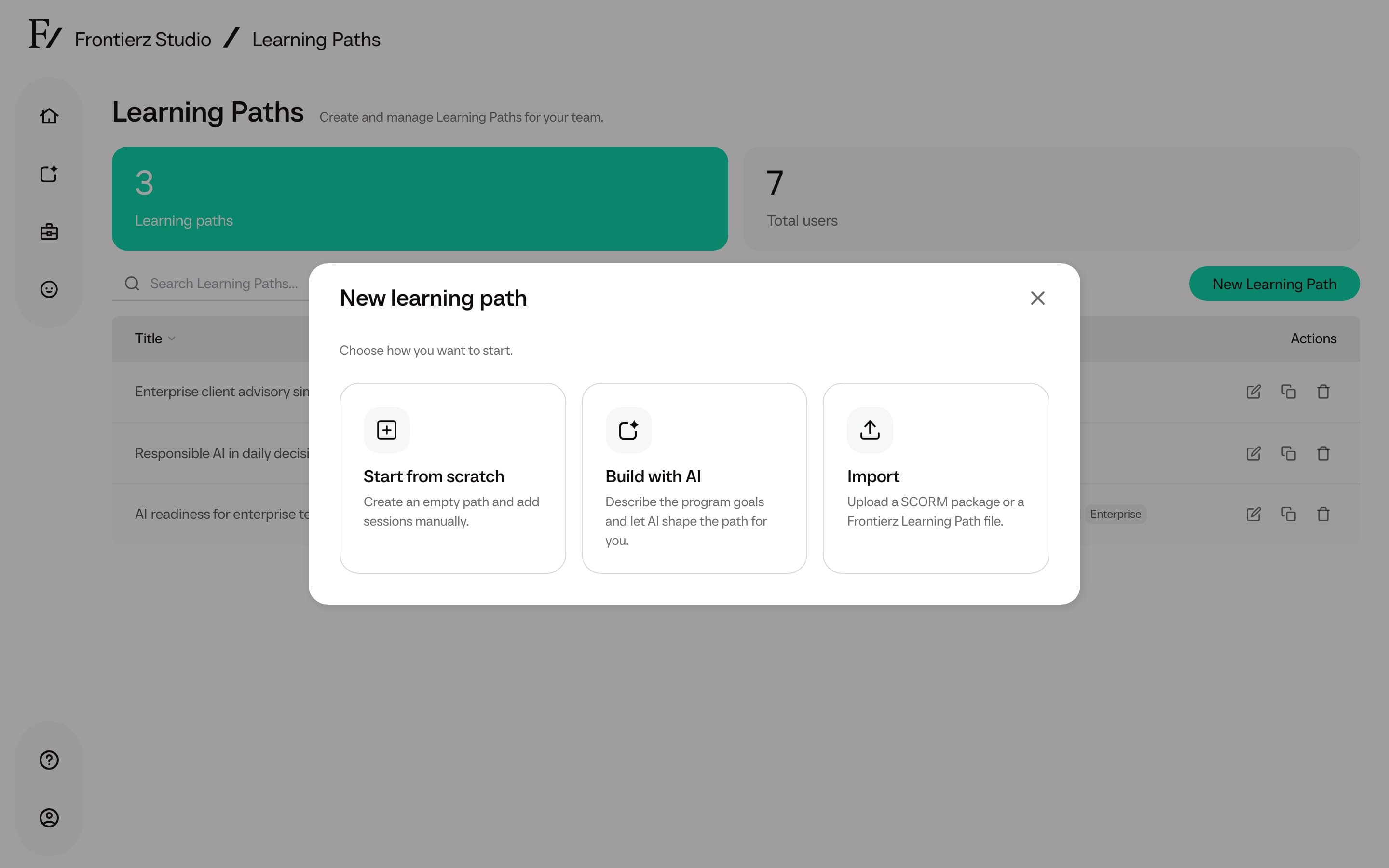
The steps below apply to Start from scratch.
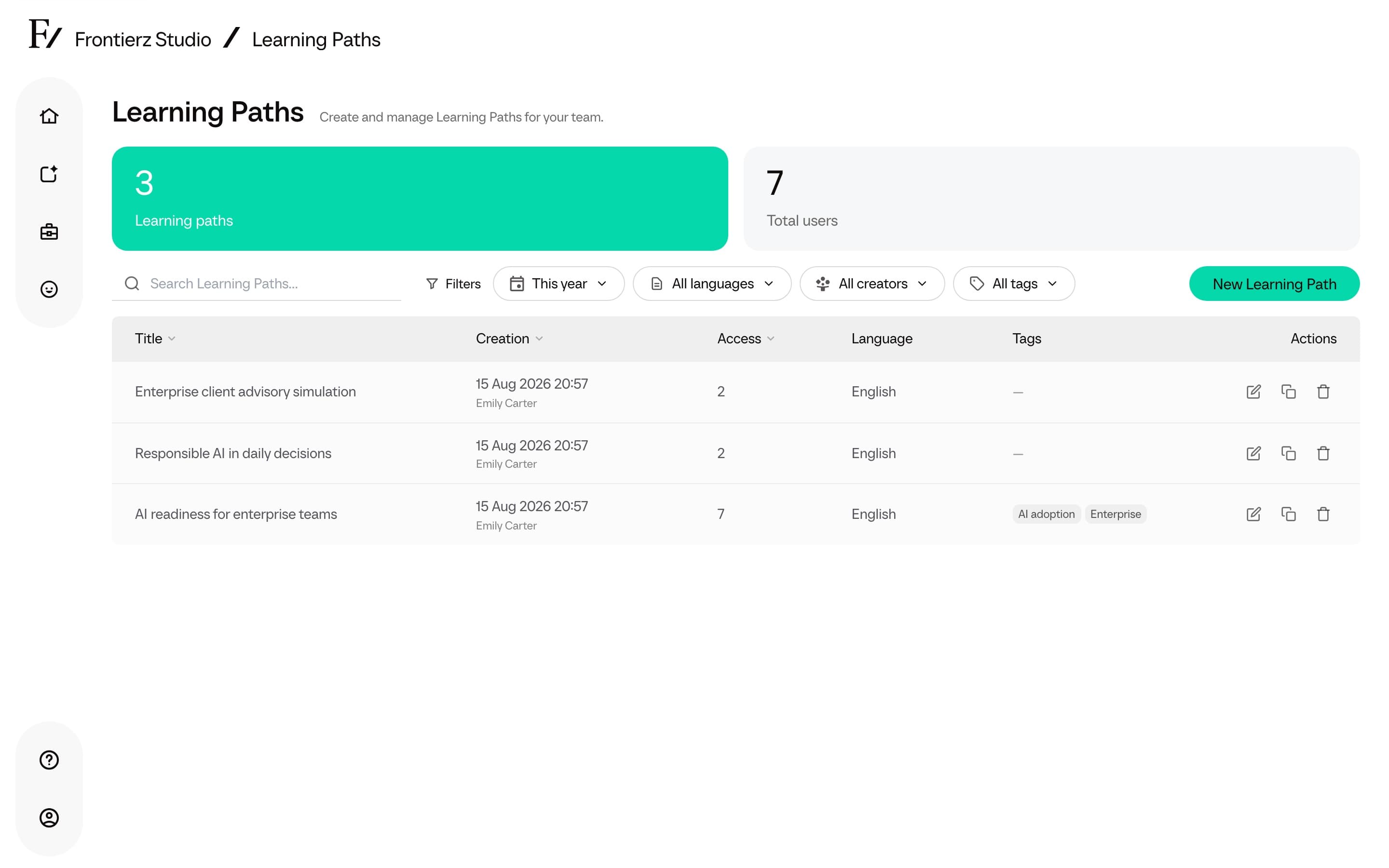
Open Frontierz Studio → Learning Paths.
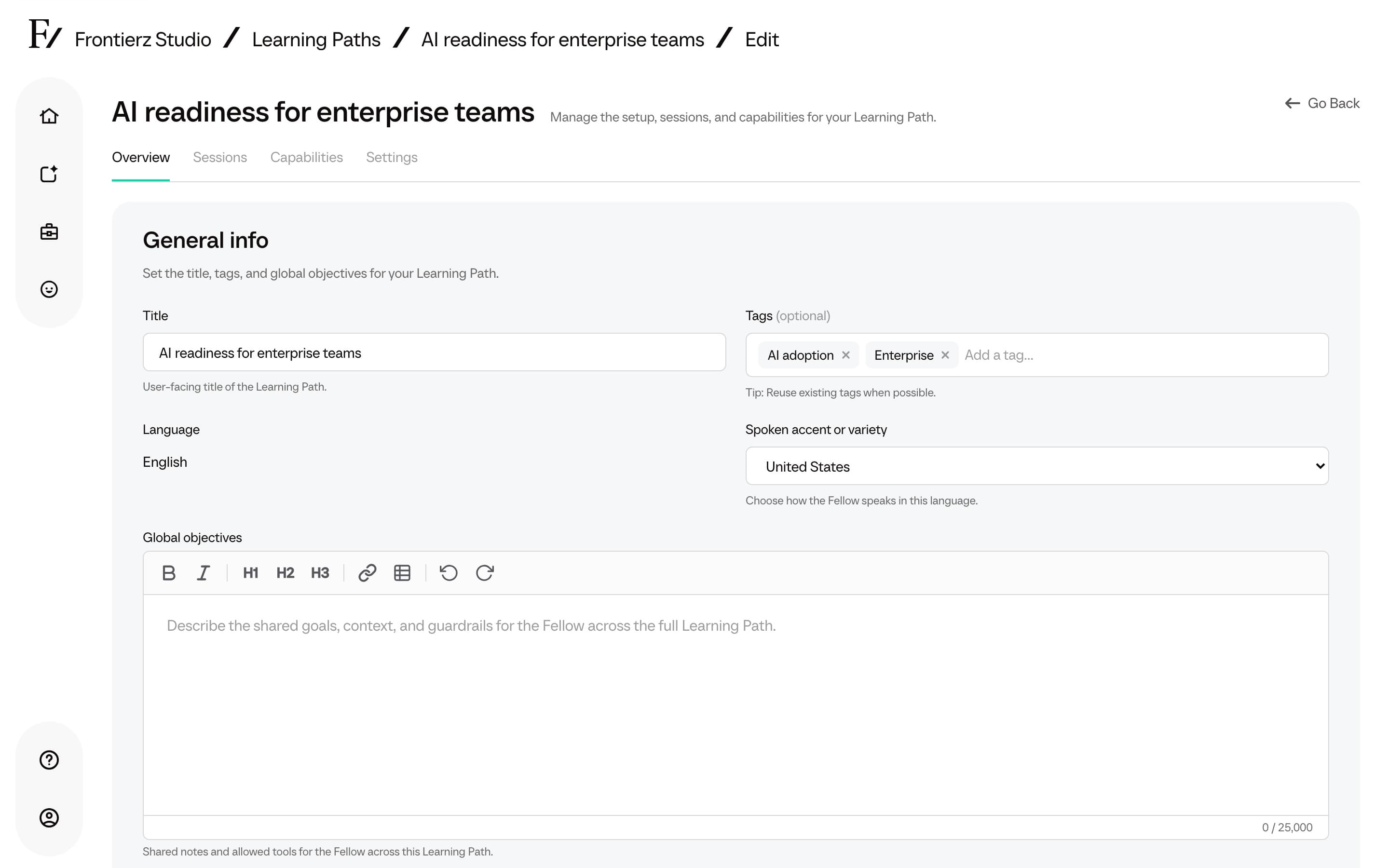
Enter the Name and Language. When that language has a spoken accent or variety, Spoken accent or variety appears beside it. English starts on United States, Spanish on Spain, and the other supported languages on their first listed option. There is no separate description field at creation. The name is what the team and learners see. Build with AI asks for the language only; you can set the accent later on Overview.
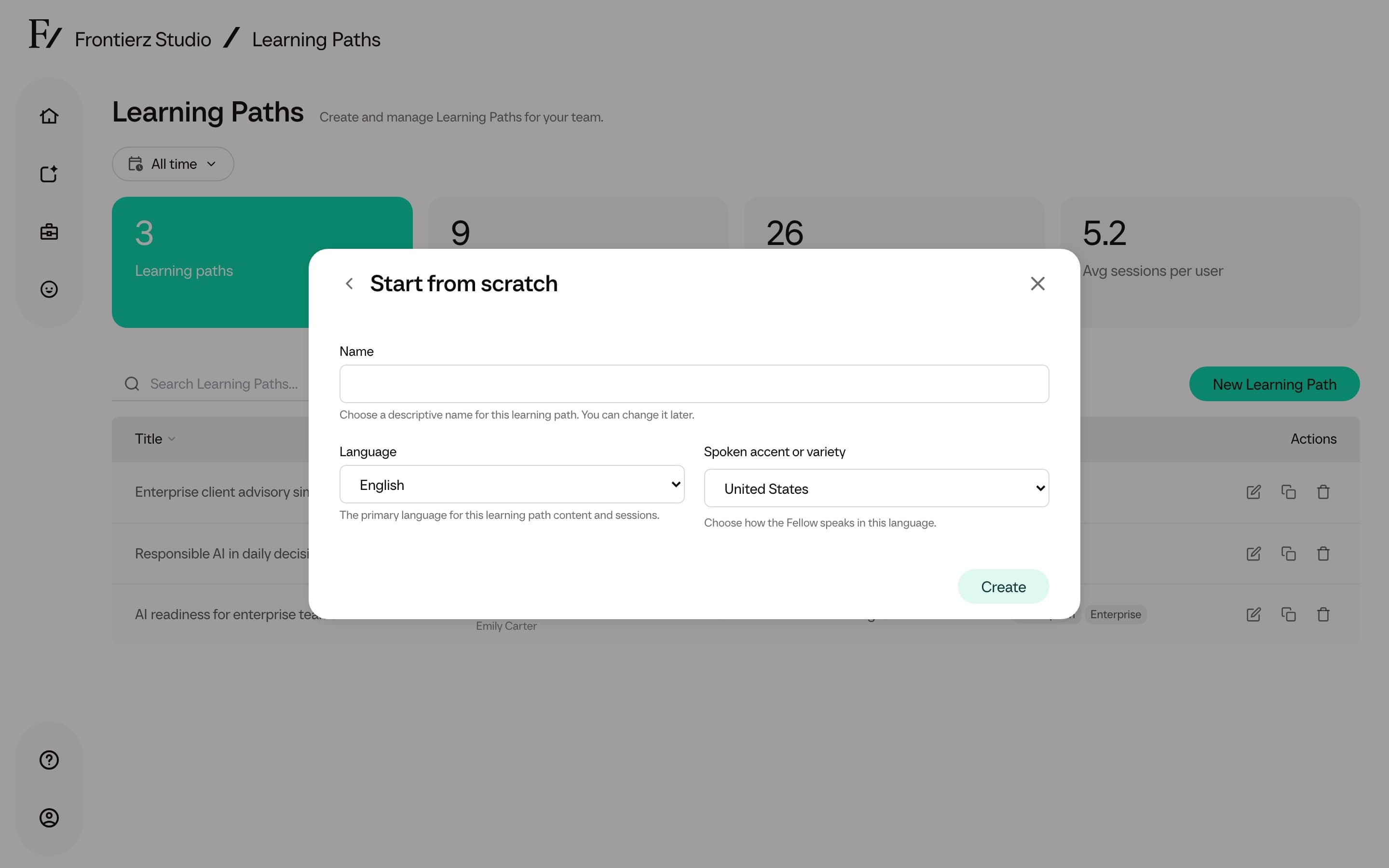
Use a descriptive name (for example, Q2 2026 sales onboarding) so that the Learning Path can be identified later when several Learning Paths exist in the same workspace.
Generate a draft with AI
To start from a goal rather than a blank session list, choose Build with AI in the same New Learning Path window. See Build with AI for the walkthrough.