

Last updated on
Frontierz Studio
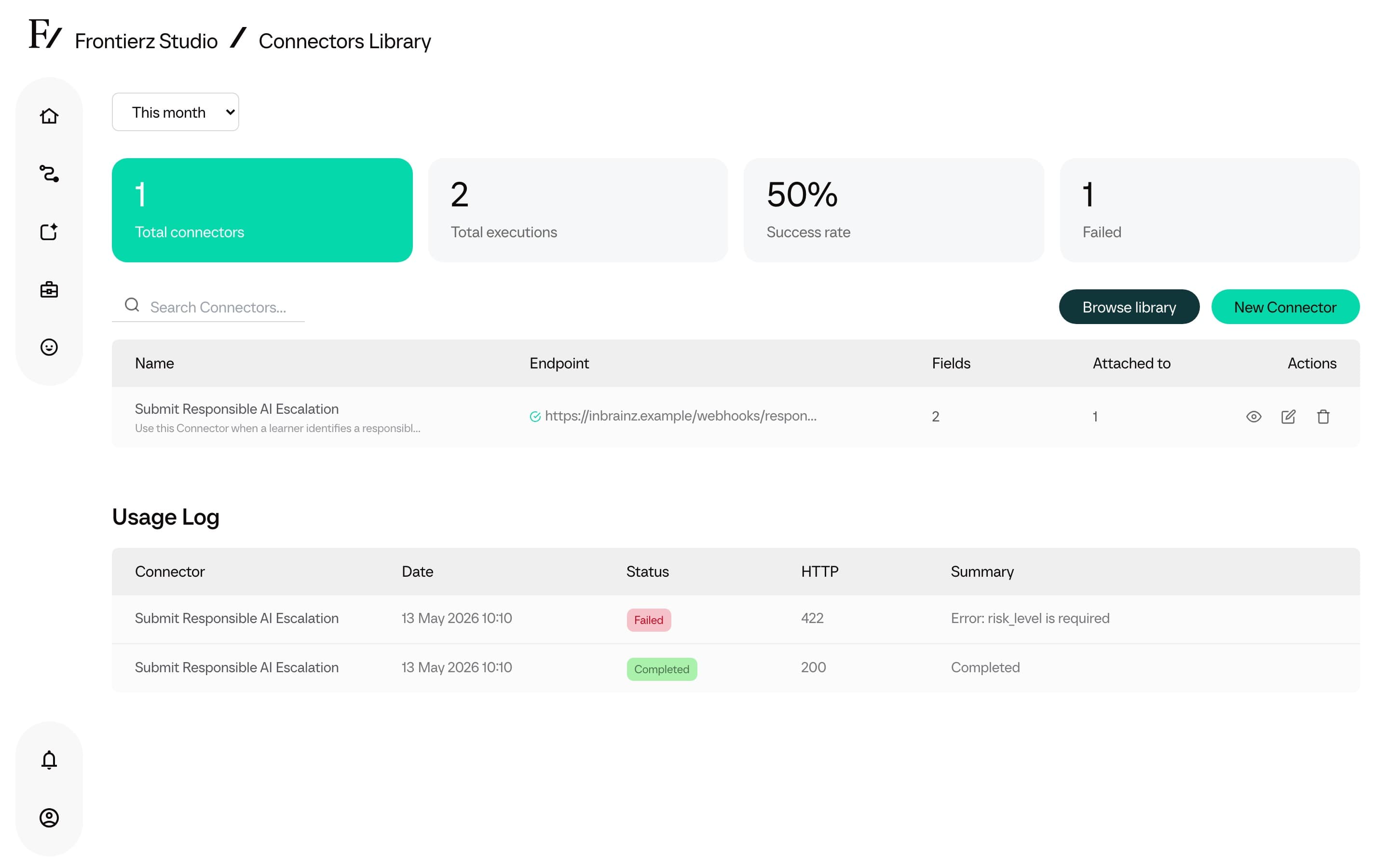
Frontierz Studio is where you prepare and manage Learning Paths, configure AI Fellows, and set up Connectors. Choose the area that matches the task you want to complete.
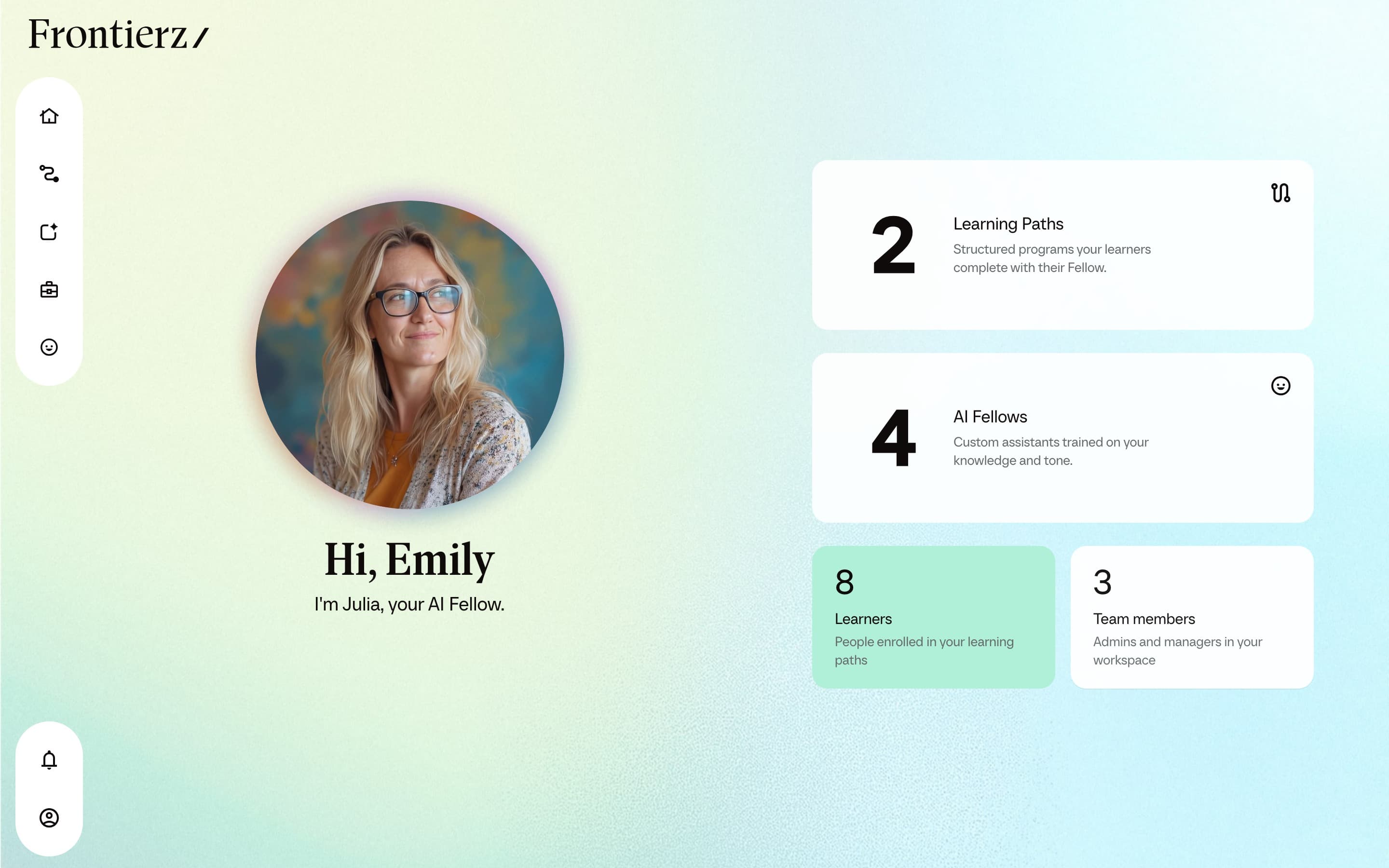
Open Studio
In the left sidebar, open the Frontierz Studio dropdown.
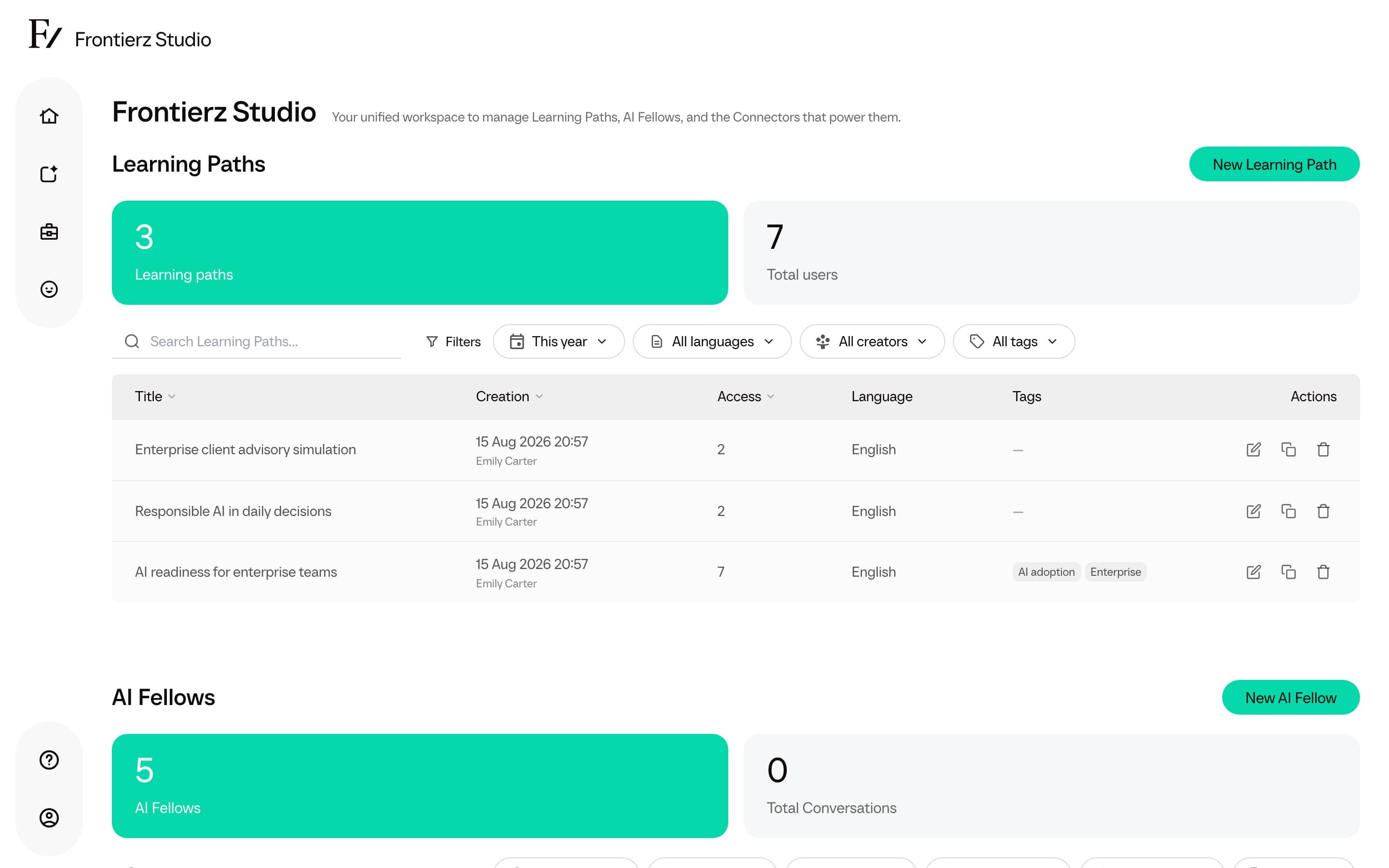
Select the area to work in: Learning Paths, AI Fellows, or (Full Admins, Owners, and Creators) Connectors Library. When identities are enabled, AI Fellows also has a Custom Appearances tab.
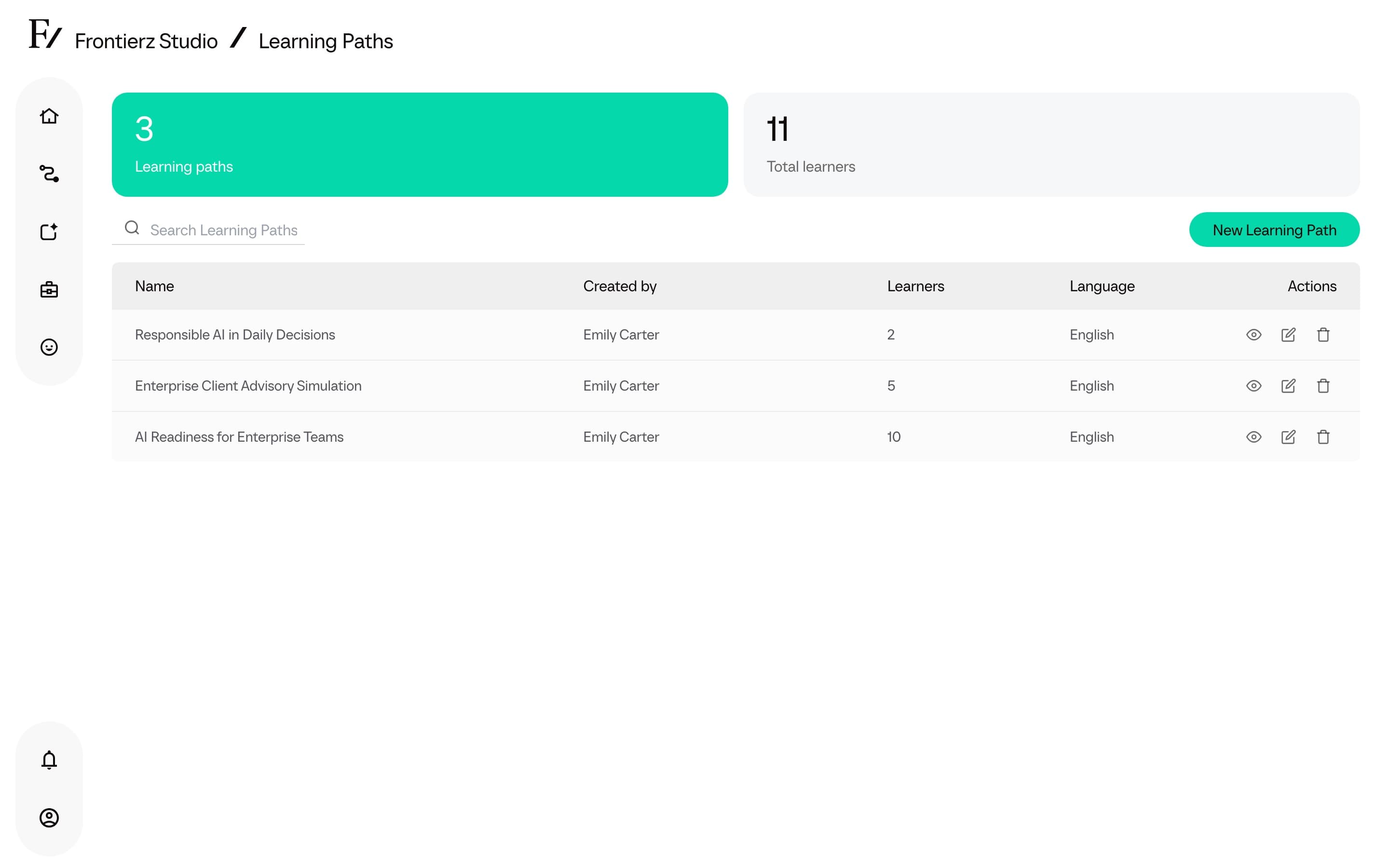
The Studio hub page is also reachable directly from the Frontierz Studio entry. It provides an overview of all three areas.
Studio structure
Studio is organized into three configuration areas. Each area has its own workflow.
Learning Paths
Programs of sequential sessions with objectives. Used for guided onboarding, AI adoption, or any topic that benefits from individual coaching.
AI Fellows
Voice-first conversational AI. Each AI Fellow has its own persona, knowledge, and Connectors. Custom Appearances (when enabled) live on a tab of this area.
Connectors
Integrations that grant AI Fellows additional capabilities. Examples include screen sharing, scheduling a follow-up, or connecting to existing systems over HTTP or MCP.
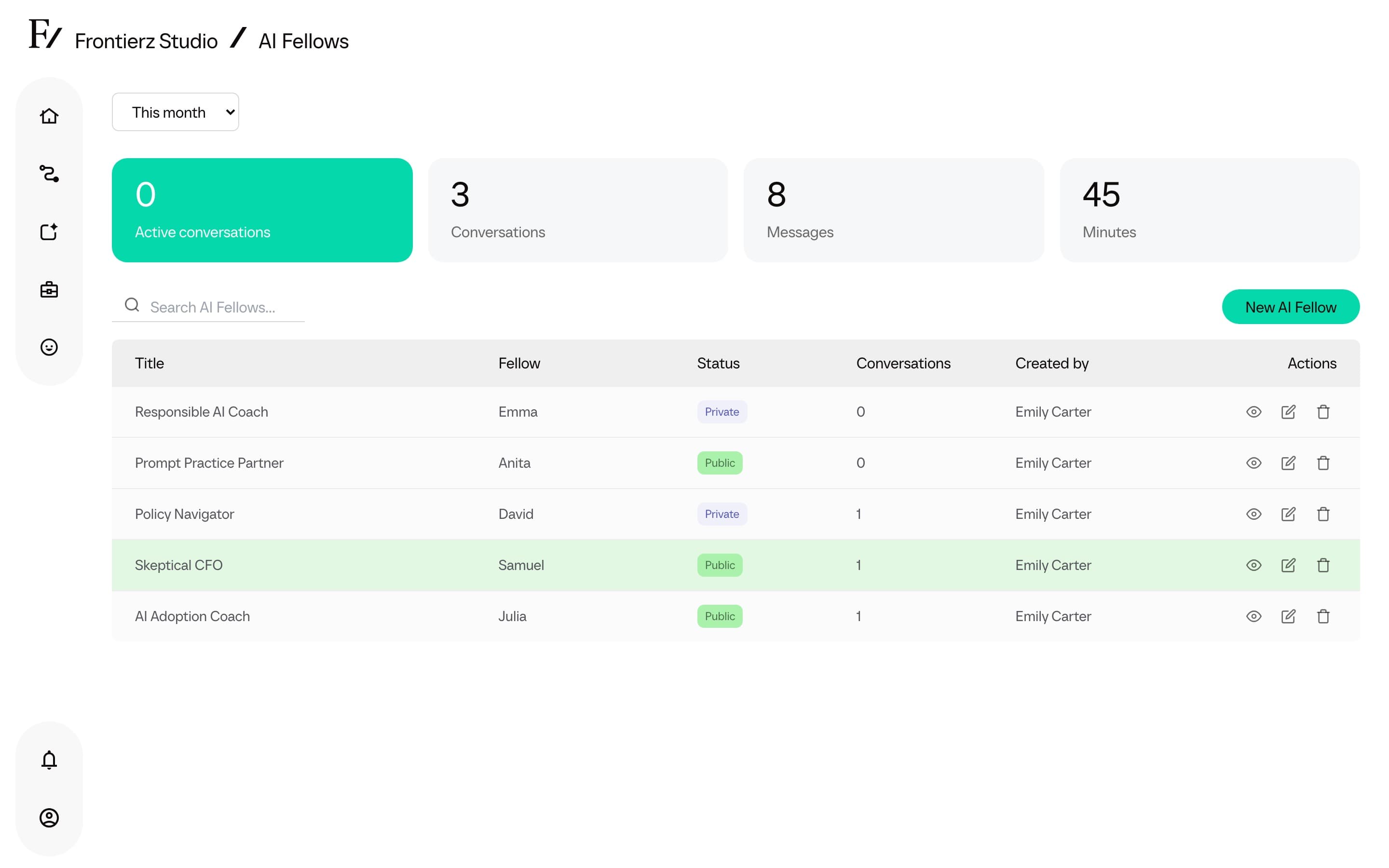
Learning Paths and AI Fellows are visible to Full Admins, Owners, Creators, and assigned Managers. The Connectors Library is available to Full Admins, Owners, and Creators. See Roles and permissions for the full role boundaries. Users do not see the Frontierz Studio dropdown at all. They only access their own Learning Paths and AI Fellows.
Ask your AI Fellow for help
On the screens where you create or edit an AI Fellow, an AI Simulation, or a Learning Path, including the New Learning Path dialog, a floating bubble offers help from your own AI Fellow with the message Need a hand with this screen?. Select Call followed by the AI Fellow's name to talk by voice. It is available to people who can create or edit the item on that screen.
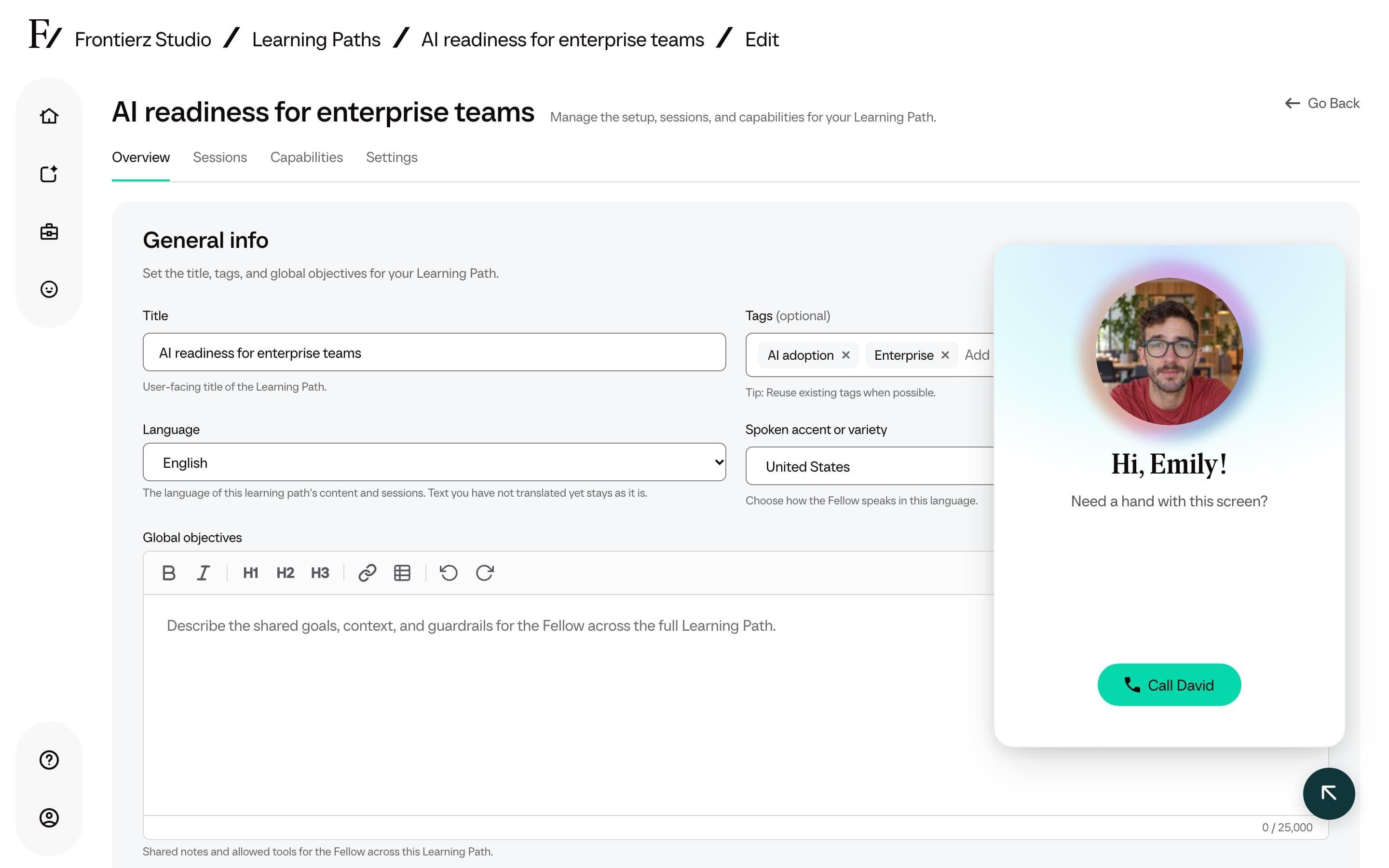
- Your AI Fellow knows which screen you are on and which step or tab is open, and can move you between them.
- It reads what you have typed on the screen and can write a draft into the fields, such as a description or objectives. It never selects a button, so review the text and save the screen yourself.
- The call is voice only. There is no text chat, camera, screen sharing, or whiteboard, and the conversation is not saved or listed in your AI Fellow's history.
- The bubble uses your own AI Fellow, the one on Your Fellow, with its voice and personality. Close it with Close chat.