

Last updated on
LMS
Connect your learning management system (LMS) so employees can open Frontierz training from their existing courses. Instructors can add links to Learning Paths, individual sessions, or AI Fellows. Frontierz supports Canvas, Blackboard Learn, D2L Brightspace, Moodle, and Cornerstone Learning through LTI 1.3, a standard for connecting learning platforms.
An Owner or Full Admin sets up the connection in Company Settings → Access Management → LMS integration, working with the LMS administrator. Managers cannot open this tab. You continue to create and edit the training in Studio; the LMS provides access to it.
Setup guides
Start with the guide for your LMS, which explains the registration screens and the values to copy. The Frontierz form is the same for all five systems. In these guides, a launch means opening Frontierz from an LMS activity, and Deep Linking is the content selector instructors use to choose a specific Learning Path, session, or Fellow. Cornerstone uses a course import instead of this selector.
Canvas
Create an LTI Developer Key, install it by Client ID, and add a course activity.
Blackboard Learn
Deploy the Client ID Frontierz supplies, then add a Deep Linking placement.
D2L Brightspace
Register the tool, deploy it to courses, and add a Deep Linking Quicklink.
Moodle
Configure an external tool manually, then add it from the activity chooser.
Cornerstone Learning
Finish provider onboarding, then import courses with the LTI CSV template.
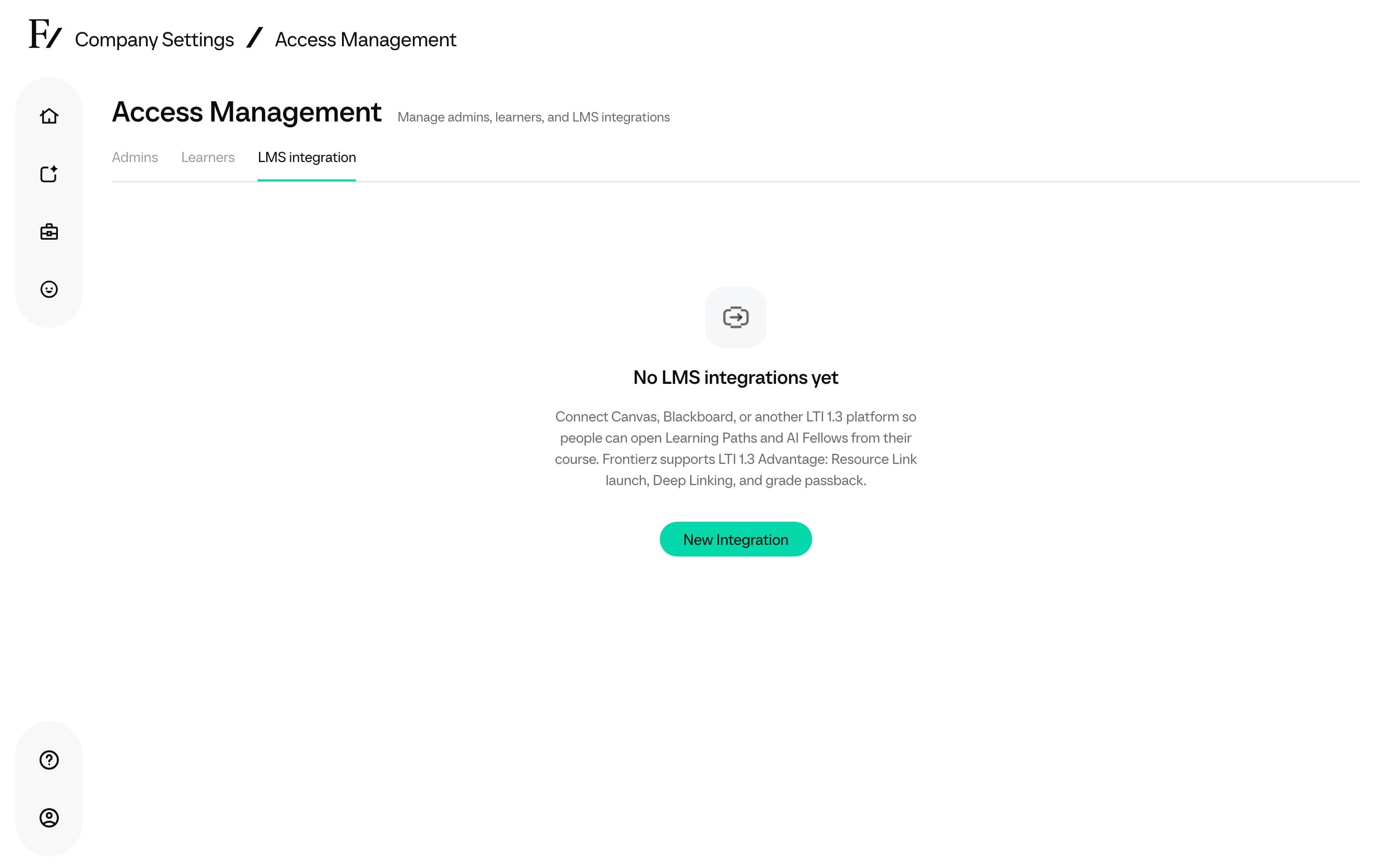
When no platform is registered yet, the tab shows No LMS integrations yet and New Integration.
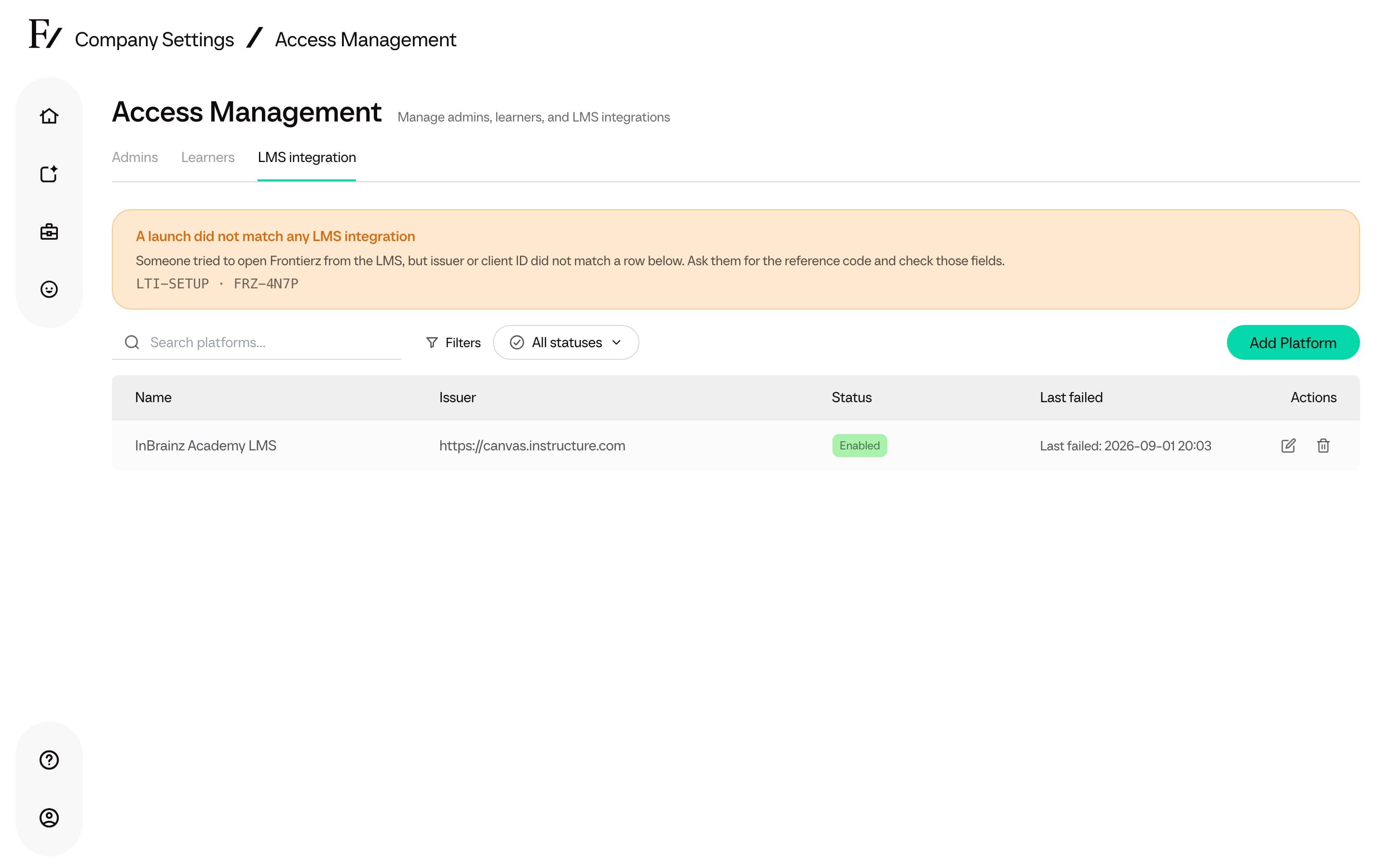
When a platform exists, the list shows Name, Issuer, Status (Enabled or Disabled), and Last failed (or Last ok / No launches yet). Use Add Platform to register another one.
What you register
The form has three numbered steps.
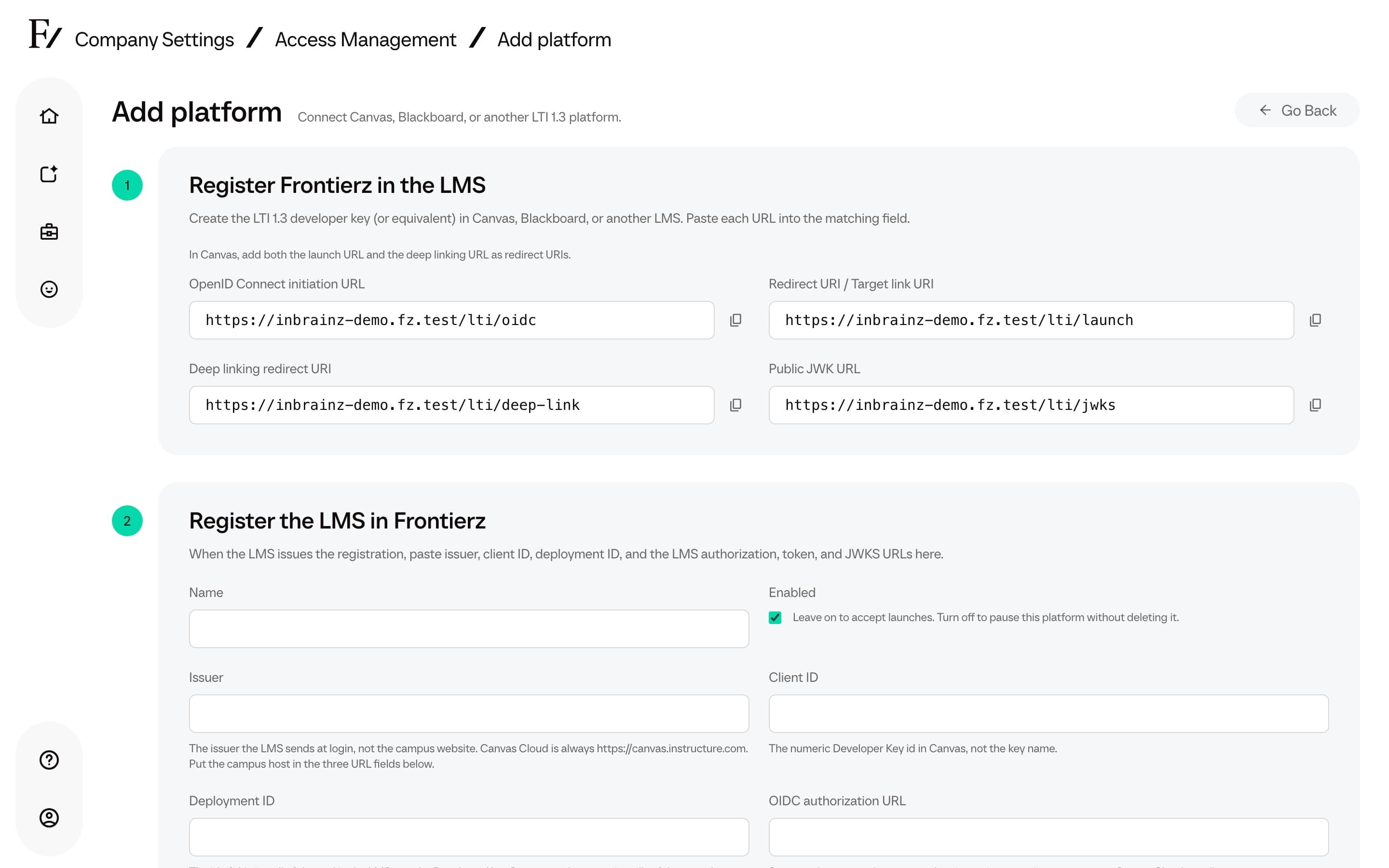
Register Frontierz in the LMS
Create the LTI 1.3 developer key (or the equivalent in your LMS). Paste each Frontierz URL into the matching field:
| Frontierz field | What it is |
|---|---|
| OpenID Connect initiation URL | Where the LMS starts the LTI login |
| Redirect URI / Target link URI | Opens the training activity selected in the LMS |
| Deep linking redirect URI | Opens the instructor’s content selector |
| Public JWK URL | Public keys the LMS uses to verify messages from Frontierz |
In Canvas, add both the launch URL and the deep linking URL as redirect URIs.
Register the LMS in Frontierz
When the LMS issues the registration, paste Name, Issuer, Client ID, Deployment ID, OIDC authorization URL, Access token URL, and JSON Web Key Set URL.
Copy Issuer and the three service URLs from the guide for your LMS. The issuer identifies the platform in its sign-in messages (the iss value), so it may differ from the address employees use to visit the LMS. The values can also differ between production and test environments.
Client ID identifies the registered Frontierz tool. Deployment ID identifies a particular installation of that tool. For example, in Canvas the Client ID is the numeric Developer Key ID, and each installation of that key has its own Deployment ID. Register each installation separately in Frontierz.
Leave Enabled on when the connection should accept launches.
Configure how launches work
| Setting | Choices |
|---|---|
| Unknown users | Reject — require an existing Frontierz account: only people who already have a Frontierz account can launch. Create — provision a learner on first launch: the first launch can create a learner, uses a seat, and does not send a welcome password email. Create needs the LMS to send an email (Canvas privacy: Public or Email only) unless Allow learners without an email is on. Each LMS connection has its own setting. Microsoft, Google, and single sign-on use New accounts from single sign-on instead. |
| Grade passback | Completed: pass 100% when the Learning Path is finished. Percentage: share of completed Fellow Sessions. |
| Launch presentation | Iframe: stay inside the LMS. New window: open Frontierz in a separate tab. Voice sessions often need a new window. |
Allow learners without an email sits under Unknown users. It is off by default, and Frontierz uses it only when Unknown users is Create — provision a learner on first launch. If the LMS does not send an email, Frontierz creates the learner with a placeholder address it never writes to (lti-…@lti.invalid). That person can sign in only from the LMS: password reset, the email sign-in link, and notification emails do not reach them. Users, reports, and exports show the placeholder. Someone who already has a Frontierz account gets a second one. If a later launch includes their email, it replaces the placeholder unless another account already uses that email.
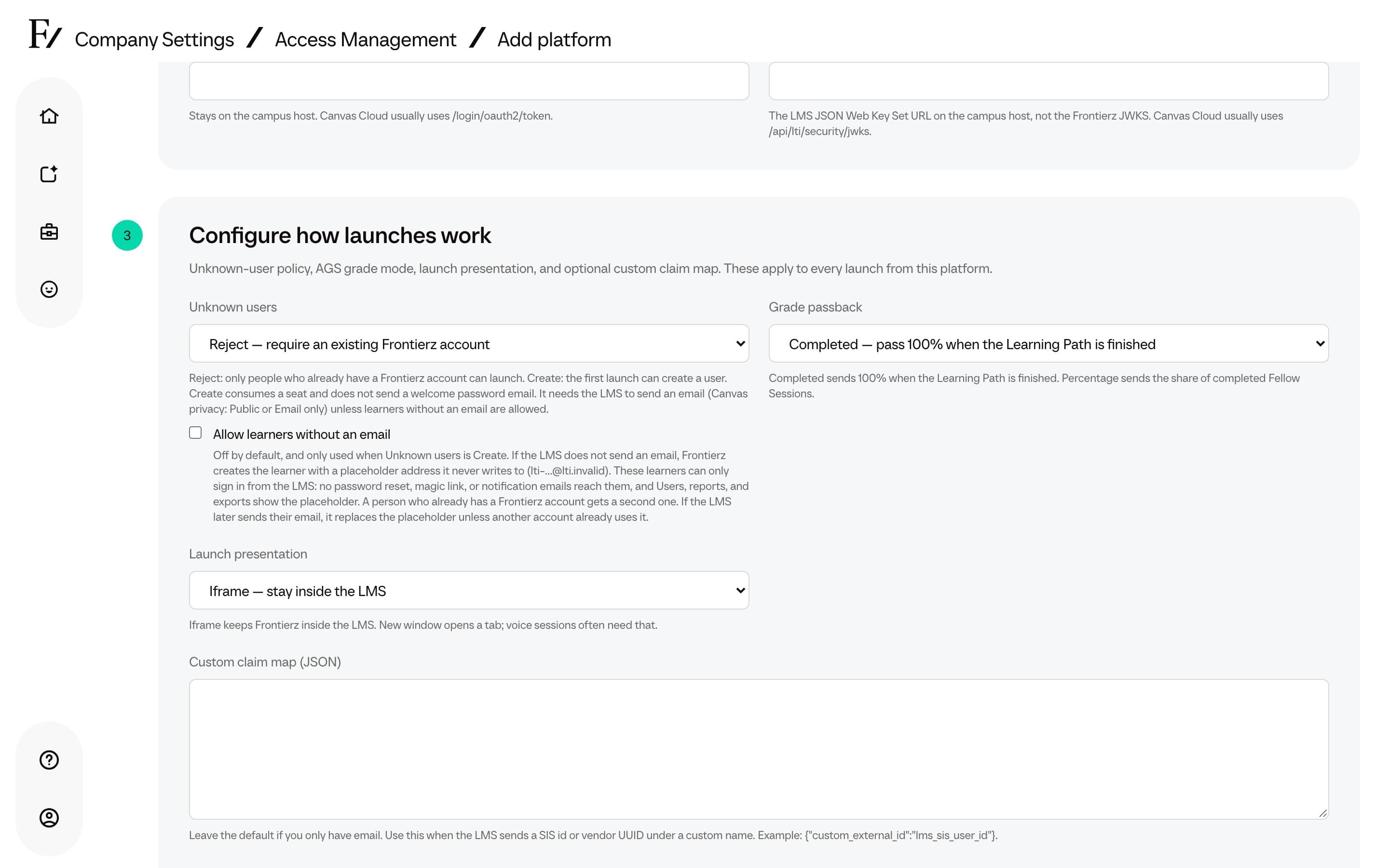
Custom claim map is an optional technical setting for organisations that send user identifiers under custom field names. Most connections can use the standard email field. If your LMS sends a student information system (SIS) ID or vendor UUID, ask your LMS administrator or Frontierz support to confirm the mapping. This JSON setting maps Frontierz fields to custom keys in the LMS sign-in message (JWT); the default example maps custom_external_id to lms_sis_user_id.
Add a platform
Copy the Frontierz URLs into the LMS developer key, then enter the LMS issuer, client, deployment, and endpoint URLs.
After saving, follow the LMS-specific guide to add a Learning Path, session, or AI Fellow to a course. Employees open the saved activity to reach that content in Frontierz. If Unknown users is set to Reject, add each person in Access Management before they open the activity.
Removing a platform stops existing launches. Confirm with the LMS owner before you click Remove platform.
When a launch fails
A failed launch opens a Frontierz page with a short title, a next step,
a category (LTI-OPEN, LTI-SETUP, LTI-ACCESS, or
LTI-TEMP), and a reference such as FRZ-8K2Q. The line under the
message is Share this reference if you ask for help. The page never
shows email, the LMS user id, issuer, client, or deployment.
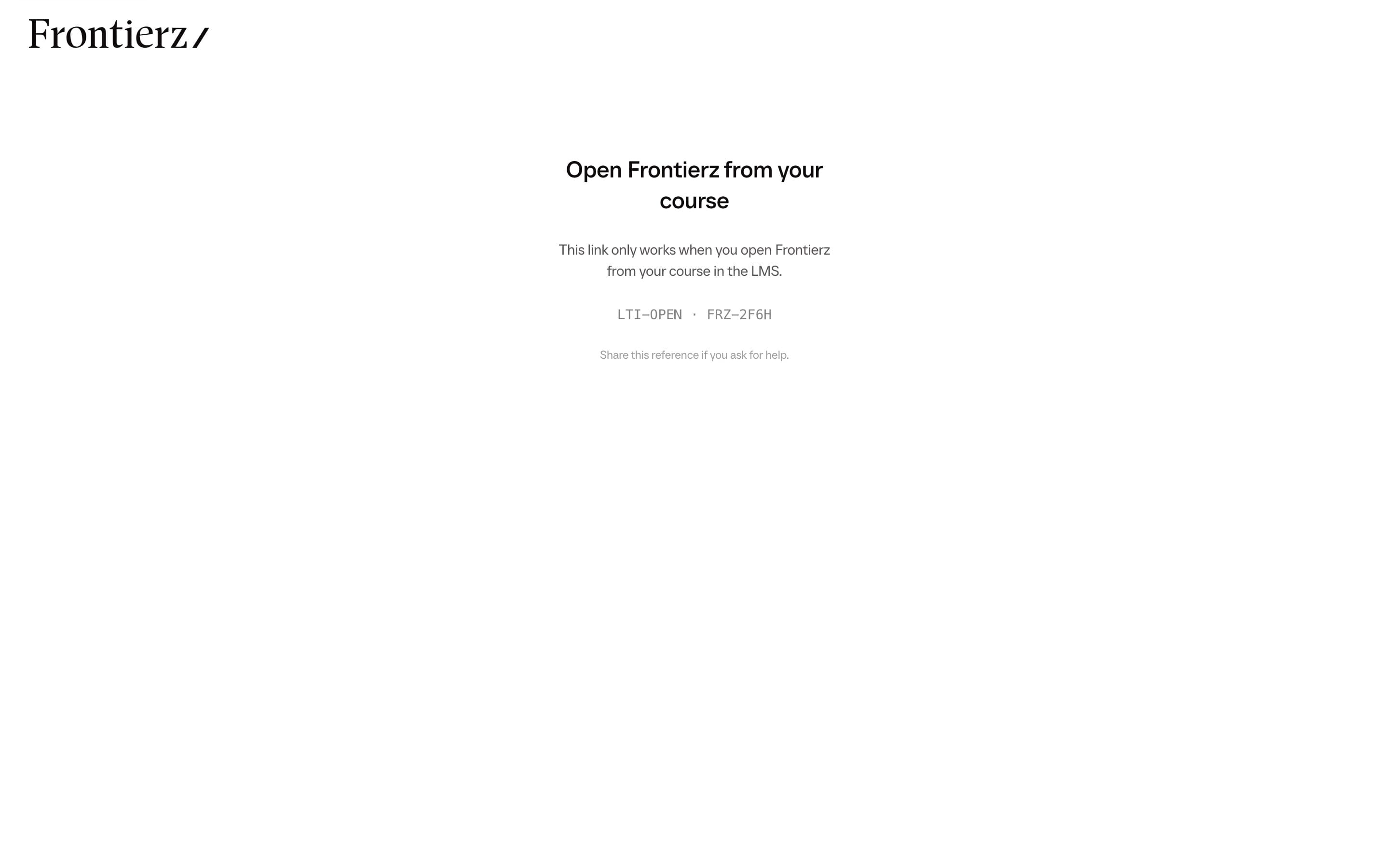
Ask the person for the error reference and open LMS integration to locate the failed attempt. If you need support, provide the reference, time, and the action that failed: selecting content as an instructor, opening training as a learner, or sending a grade. Do not send launch tokens, private keys, or a full JSON Web Token (JWT).
- A row that matched shows Last failed and a time. Open Edit platform to read Last launch problem, the same category and reference, and the Studio reason (for example Unknown user and policy is reject). If the launch used a different deployment, the banner names the seen value and the value stored on the row.
- A launch that matched no row shows A launch did not match any LMS integration at the top of the list, with the category and reference. Check Issuer and Client ID.
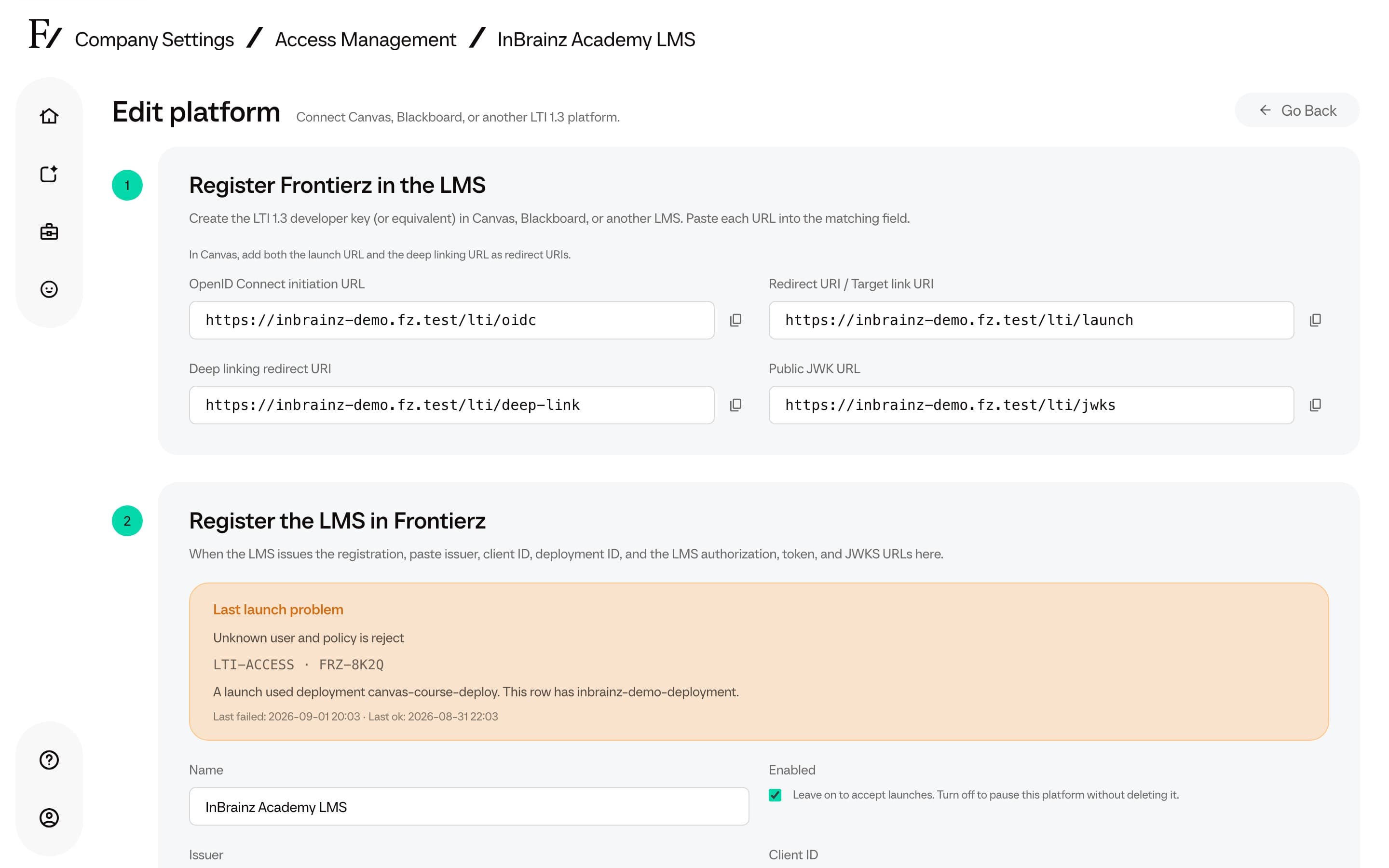
LTI-OPEN means the link was opened outside an LMS launch. LTI-SETUP is a registration mismatch or a disabled platform. LTI-ACCESS is an unknown user, a missing email, a missing user id, or no remaining seats. LTI-TEMP means try the launch again.
If Unknown users is Reject, add the person in Access Management. If it is Create and Last launch problem says LMS did not send an email address, either set the LMS privacy option so the launch includes email, or turn on Allow learners without an email when a placeholder account is acceptable.
When the LMS rejects a grade
With grade passback on, Frontierz sends each learner's grade to the LMS gradebook. If the LMS is briefly unavailable, Frontierz tries again automatically. If the LMS refuses the grade, for example because the gradebook item was deleted from the course or the learner is no longer enrolled in it, Frontierz stops retrying and records the rejection.
The platform's row in the LMS integration list then shows how many grades were rejected, such as 2 grades rejected. Open Edit platform to read Grades the LMS rejected, with the time and activity of the latest rejection and the reason the LMS gave.
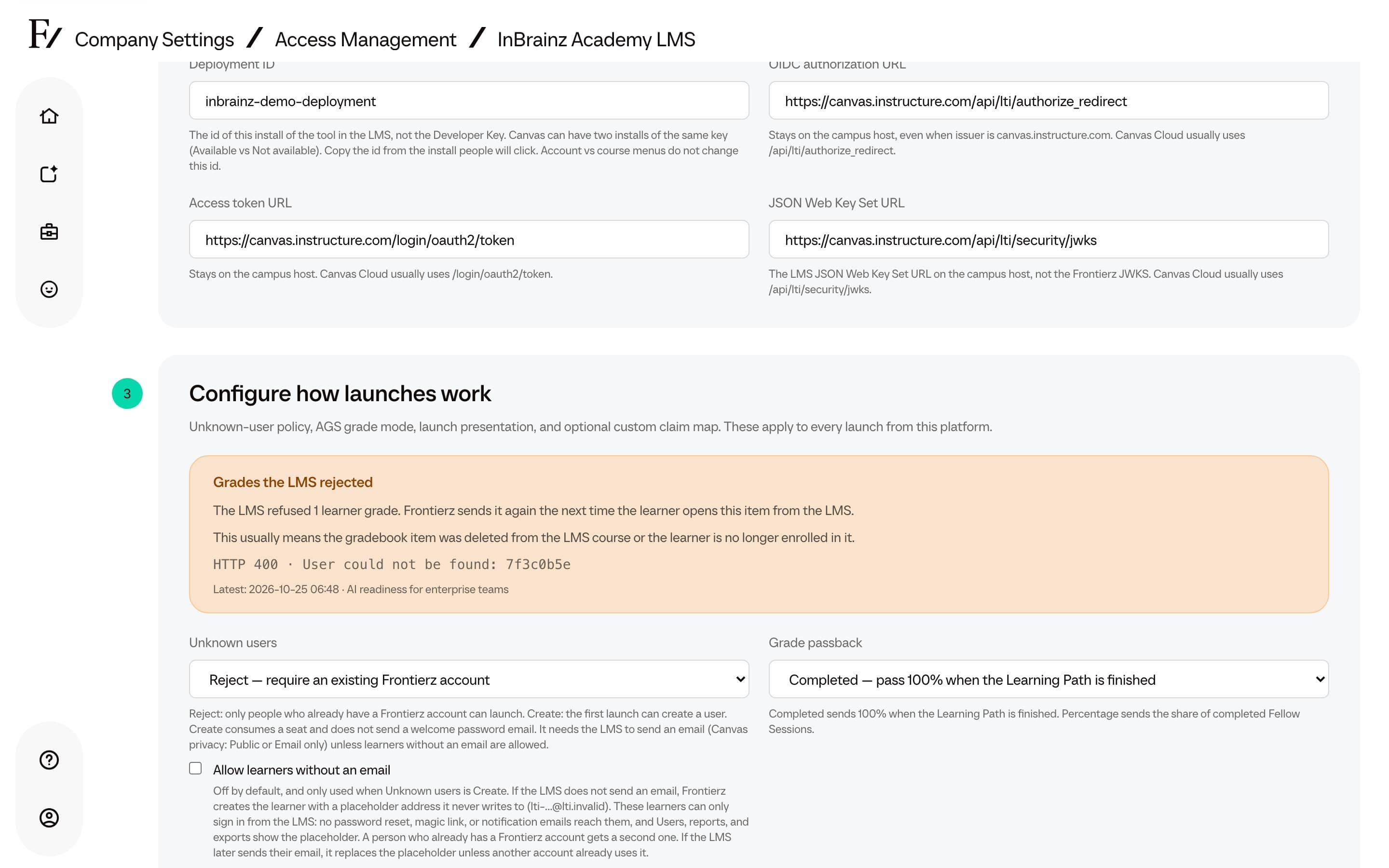
To resolve it, restore the gradebook item or re-enroll the learner in the LMS course. Frontierz sends the grade again the next time the learner opens the activity from the LMS; there is no retry button in Studio. The notice clears once a grade for that activity is accepted.