

Last updated on
Moodle
Use this guide to connect one Frontierz workspace to Moodle, add an activity, and test learner access and Learning Path completion grades. The screen names follow Moodle LMS 4.5 LTS and 5.2. A custom theme or language pack may label them differently. Use the External tool activity with LTI 1.3.
You need a Moodle site administrator and a Frontierz Owner or Full Admin. Both sites need public HTTPS addresses so each can reach the other's keys and service endpoints. Have a pilot course, a teacher, and a separate enrolled student, both with email addresses.
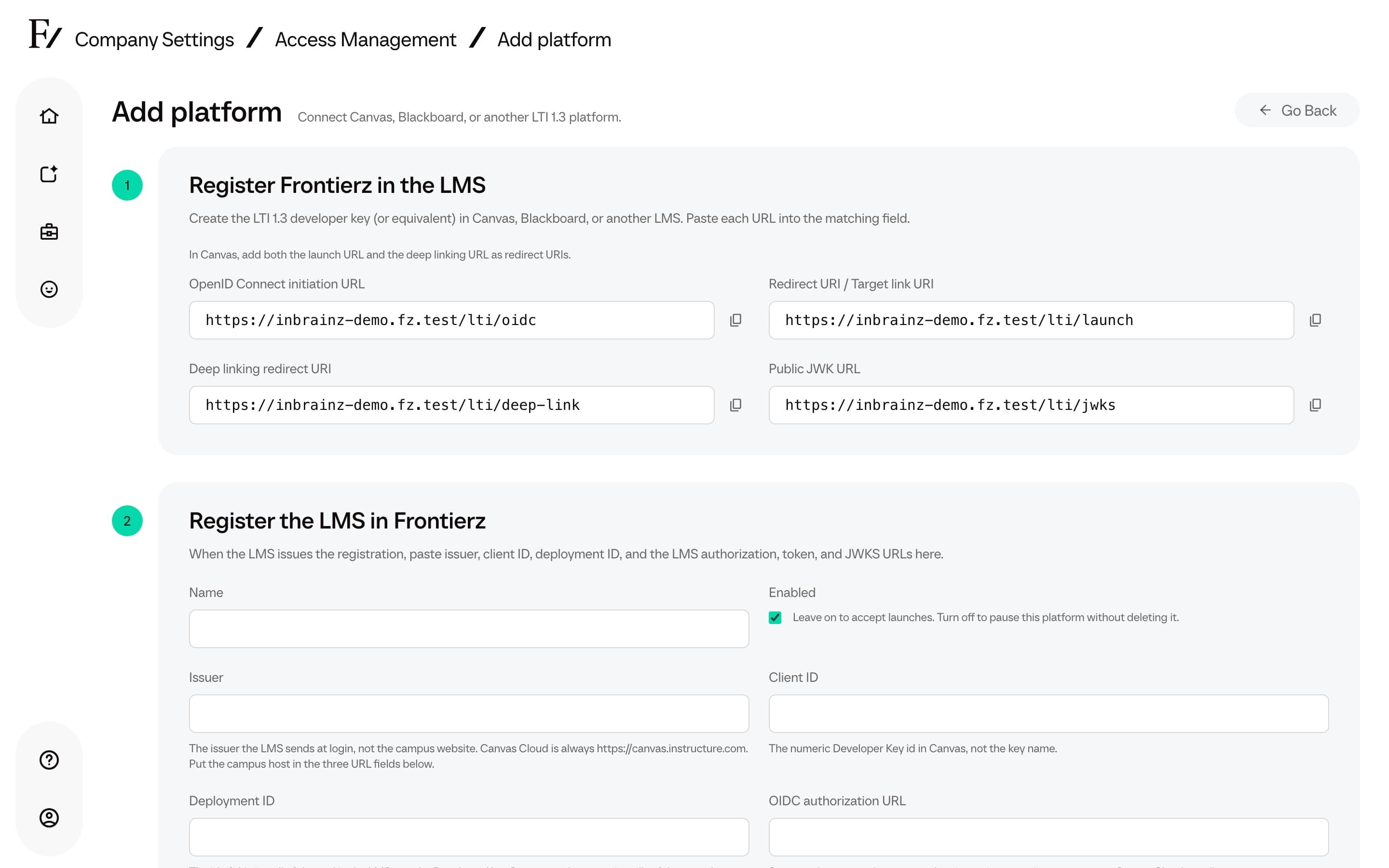
Frontierz has no dynamic registration URL. In Moodle, use Configure a tool manually. Do not put the Frontierz launch URL in the Add LTI Advantage registration field.
Copy the Frontierz URLs, save the Moodle tool, then copy Moodle's Client ID, Deployment ID, and platform URLs into Frontierz. Finish both sides before anyone opens Select content.
Configure the tool
| Moodle field | Value |
|---|---|
| Tool name | Frontierz, or a name that identifies the workspace |
| Tool URL | The copied launch URL |
| Tool description | Open Frontierz Learning Paths and AI Fellows from Moodle |
| LTI version | LTI 1.3 |
| Public key type | Keyset URL |
| Public keyset | The copied Public JWK URL |
| Initiate login URL | The copied OpenID Connect initiation URL |
| Redirection URI(s) | The launch URL and the deep linking URL, one per line |
| Custom parameters | Blank |
Open the Frontierz public key URL in a browser. It should return JSON
with a keys array. Paste the URL into Public keyset, not the JSON
response. Do not enter a consumer key, shared secret, or private key.
Services, privacy, and where it appears
Set Tool configuration usage to Show in activity chooser and as a preconfigured tool. Set Default launch container to New window. Enable Supports Deep Linking (Content-Item Message) and enter the Frontierz deep linking URL as the Content Selection URL.
Use Restrict to category when only some course categories should use this workspace. Confirm the pilot course is included.
Under Services, set IMS LTI Assignment and Grade Services to Use this service for grade sync and column management when you want completion grades. Under Privacy, set Accept grades from the tool to As specified in Deep Linking definition or Delegate to teacher. Teachers then turn grading on for the activity after they pick the content. This setting does not create the grade item by itself.
Leave IMS LTI Names and Role Provisioning and Tool Settings off.
For a connection with no grades, set IMS LTI Assignment and Grade Services to Do not use this service and Accept grades from the tool to Never. Use a separate registration if you need both a graded and an ungraded connection. Leaving grading unchecked on one activity does not turn off the registration's grade service. If that service stays on, Frontierz may create a separate gradebook column when a Learning Path is completed.
| Moodle privacy setting | Value |
|---|---|
| Share launcher's email with tool | Always |
| Share launcher's name with tool | Always when your policy allows the name, otherwise Never |
Frontierz uses the email address to identify an existing account or create a new one. The same setting applies when a teacher opens the content selector.
Click Save changes. On the tool card, click View configuration details and keep that window open.
Register Moodle in Frontierz
Enter a name, such as Moodle staff training, and leave Enabled on. Copy each value from Tool configuration details:
| Frontierz field | Moodle value |
|---|---|
| Issuer | Platform ID |
| Client ID | Client ID |
| Deployment ID | Deployment ID |
| OIDC authorization URL | Authentication request URL |
| Access token URL | Access token URL |
| JSON Web Key Set URL | Public keyset URL |
The key URL you entered in Moodle belongs to Frontierz. The key URL you enter here belongs to Moodle. Copy the full URLs Moodle shows. A site may live in a subdirectory, or its public address may differ from an internal server name. Frontierz needs publicly reachable HTTPS key and service URLs.
Use a separate Frontierz integration for each Moodle tool and each Moodle environment. After a clone or restore, check the values again.
Then set Unknown users, Grade passback, and Launch presentation as described on LMS. Keep Moodle's Default launch container on New window for voice. Moodle controls the first window. Frontierz can open its own window only after sign-in succeeds. Leave Custom claim map blank unless Frontierz support gave you a mapping. Click Save platform and confirm the row is Enabled.
Add an activity
If Frontierz is missing from LTI External tools, ask the site administrator to check configuration usage, category restrictions, and course permissions. Reuse the saved tool. Do not create another registration.
Replacing the selection with a generic launch URL can open Frontierz Home.
Grade on the activity
After you select the Learning Path, expand Grade and select Allow Frontierz to add grades in the gradebook. The checkbox uses the tool name. Set the grade type to Point and Maximum grade to 100 for the pilot.
The picker does not preconfigure a grade. Check these settings after you return, even if you enabled grading earlier. If Grade is missing, check Accept grades from the tool. If the administrator chose Always, the checkbox may be absent because the tool configuration forces grading.
Set availability and access restrictions, then Save and return to course. Make the course, section, and activity visible to the pilot student when you are ready.
Test access and grades
A Frontierz grade and Moodle activity completion are separate. If the activity should be complete only after the path is finished, turn on completion tracking and use a grade-based requirement (Receive a grade or Require grade). For a passing-grade requirement, also set Grade to pass. View the activity records that the student opened the link. It does not record that they finished the Learning Path.
If the result appears in another column, confirm the activity had grading enabled and a numeric grade before the student launched it. Frontierz can request a separate column when Moodle offers grade services without a single activity grade item. Check that the result lands where the course completion rules expect it. Also check whether a grade is locked, overridden, or hidden.
If something fails
| What you see | What to check |
|---|---|
| Frontierz is missing from the activity chooser | More → LTI External tools and Show in activity chooser. Then configuration usage, category restrictions, and course permissions. |
| Select content is missing | Supports Deep Linking and the Content Selection URL. Add the activity through the saved Frontierz tool. |
| The picker fails or expires | Reopen Select content as the teacher. Check both redirect URIs, the Content Selection URL, email sharing, and Unknown users. |
| Sign-in repeats in a frame | The registered tool's launch container is New window. Changing only the Frontierz window setting does not fix a sign-in that fails earlier. |
| No grade, or an unexpected column | The grade service, Accept grades from the tool, the activity checkbox, Point, and maximum. The student launched this activity and finished the whole path. |
| Moodle marks the activity complete too early | Completion conditions. Opening the link is different from receiving the path-completion grade. |
Launch error categories are on LMS. A successful launch confirms access, not grade delivery.
Before you open the course
- Moodle and Frontierz have matching URLs, Client ID, and Deployment ID.
- The tool is available to this course, with the email and account policy you agreed.
- A teacher can select the content, and a separate student can open it.
- Voice works in the window you chose.
- If you need grades, the result is on the intended activity, and Moodle completion follows the rule you set.
A course backup does not register the tool on the destination site. Check that site's platform IDs and reselect content if the copied activity is not tied to the expected tool.
To pause new launches, turn Enabled off in Frontierz. Deleting an integration is a different action. Check existing activities before you delete or recreate the Moodle tool.