

Last updated on
Blackboard Learn
Use this guide to connect one Frontierz workspace to Blackboard Learn, add an activity, and test learner access. The course steps cover Ultra and Original Course View.
Frontierz registers the application and gives you a Client ID (also called an Application ID). A Learn system administrator deploys that ID. You do not create a separate Developer Portal application. If you do not have a Client ID yet, ask Frontierz, and confirm the registered URLs use this workspace's HTTPS domain.
You need a Learn administrator who can manage LTI tool providers, plus a Frontierz Owner or Full Admin. Have a pilot course and separate instructor and learner accounts with email addresses.
Copy the Frontierz URLs
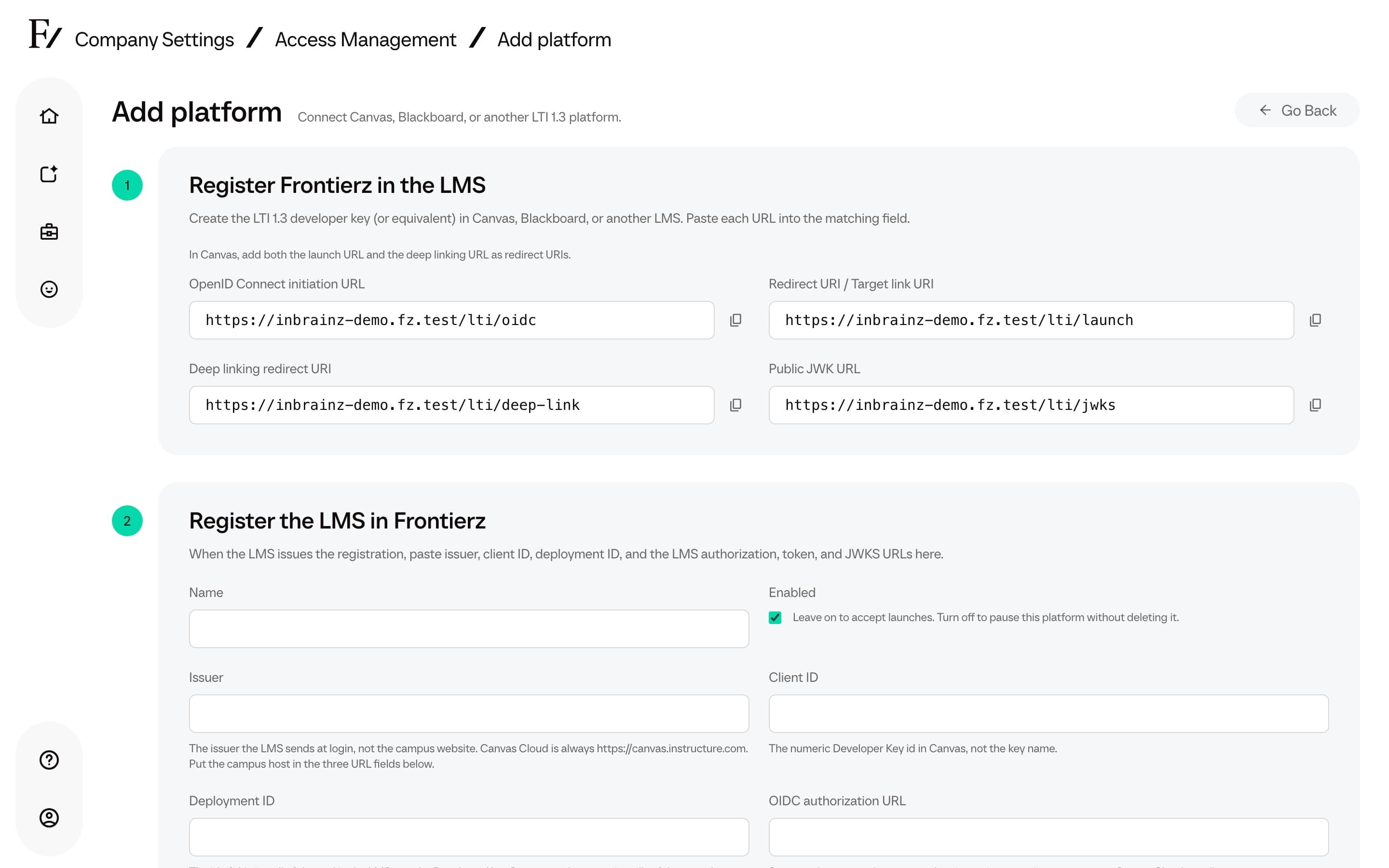
Send those URLs to the Frontierz team handling the Blackboard registration, or compare them with the details you already received. Both the launch URL and the deep linking URL must be allowed redirects. REST application key and secret are not part of this LTI 1.3 setup.
Frontierz also provides the issuer, OIDC auth request endpoint, auth token endpoint, and public keyset URL. You enter those in Frontierz after Learn gives you a Deployment ID.
Deploy the Client ID
If the campus uses several deployments, open Manage Deployments and copy the ID for the node that serves the pilot course. Each deployment needs its own Frontierz row.
Institution policies
Enable Role in Course and Email Address. Enable Name when you want Frontierz to receive the person's name. The role lets an instructor open the picker. Email supports the first match and account creation.
Set Allow grade service access to Yes when you need completion results, or No for launch only. Set Allow Membership Service Access to No. Frontierz does not read the roster through that service.
Deep Linking placement
Open the tool menu and choose Manage Placements. If a placement already exists, check it. Otherwise click Create Placement:
| Placement field | Value |
|---|---|
| Label | Frontierz |
| Handle | frontierz-deep-link, or another unique handle |
| Availability | Yes |
| Type | Deep Linking content tool |
| Allow student access | Off. Instructors pick content. Students open the saved activity. |
| Launch in new window | On when the workflow needs it. Confirm the picker returns the selection to Learn. |
| Tool Provider URL or Target Link URI | The copied deep linking URL |
| Custom parameters | Empty for the standard picker |
| Icon | Optional. Use the Frontierz icon supplied for Blackboard, typically a 50 × 50 PNG. |
Click Submit. Instructors then see Frontierz in Content Market or Build Content.
Under Administrator Panel → Tools and Utilities → Tools, confirm Frontierz is available to the Ultra courses you intend to use. Original courses may also have an instructor availability setting.
A Course content or Course tool placement that points only at the launch URL opens Frontierz Home. Use the Deep Linking activity when the test needs a specific Learning Path.
Register Blackboard in Frontierz
| Frontierz field | What to enter |
|---|---|
| Name | A name for this environment, such as Blackboard production |
| Enabled | On |
| Issuer | https://blackboard.com, unless Frontierz gave you a different issuer |
| Client ID | The Application ID you deployed in Learn |
| Deployment ID | The Learn deployment for these courses |
| OIDC authorization URL | The registration's OIDC auth request endpoint |
| Access token URL | The registration's auth token endpoint |
| JSON Web Key Set URL | The registration's public keyset URL |
Copy the values Frontierz supplied. Do not build them from the Learn
campus hostname. Typical hosts for a standard registration are
https://developer.blackboard.com/api/v1/gateway/oidcauth,
https://developer.blackboard.com/api/v1/gateway/oauth2/jwttoken, and a
keyset URL that includes your application ID. Do not paste a placeholder
application ID.
The Frontierz /lti/jwks URL is registered on Blackboard's side.
Blackboard's keyset URL goes into Frontierz. A test Learn environment
needs its own deployment and its own Frontierz row.
Then set Unknown users, Grade passback, and Launch presentation as described on LMS. For voice, choose New window. Leave Custom claim map blank unless Frontierz support gave you a mapping. Click Save platform and confirm the row is Enabled.
Add an activity
Ultra
Original Course View
Open a content area and choose Build Content → Frontierz. Select the activity and save it. Confirm the link is available to the pilot learner.
Completion grades
Use a Learning Path for the grading pilot. If the saved item has grading controls, enable grading and use 100 points. Frontierz needs grading information on that course item. A column you create by hand in the gradebook is not enough.
If the item has no grading controls, or no result appears, ask Frontierz support to confirm a supported grading setup before you use it for required course grades. Keep the Learning Path link.
A Fellow Session link reports its parent Learning Path. A standalone AI Fellow sends no path-completion grade. The instructor picker does not produce a learner score.
If something fails
| What you see | What to check |
|---|---|
| Learn cannot find the Client ID | The Application ID from Frontierz, enabled for LTI 1.3 and this workspace. |
| Frontierz is missing from Content Market | The tool is Approved, the Deep Linking placement is available, and availability includes the course. |
| The picker fails or expires | Reopen it from Learn as the instructor. The placement must target the deep linking URL. |
| No grade column | Allow grade service access is Yes, the learner launched this path link, and the whole path is complete. |
| Existing links fail after a removal | Deleting an LTI domain or managed placement invalidates those course links. Recreating the registration does not restore them. |
Launch error categories are on LMS. A successful launch does not confirm that a grade was delivered.
Before you open the course
- Frontierz has confirmed the Client ID and workspace URLs. The Deployment ID matches these courses.
- The tool is Approved, identity sharing is set, and the Deep Linking placement is available.
- The instructor selects the intended content, and the pilot learner opens that same item.
- Voice works in the browser and window you chose.
- If you need grades, the finished path shows the intended gradebook result.
To pause new launches, turn Enabled off in Frontierz. Edit Blackboard settings when a policy changes. Deleting an LTI domain or managed placement breaks existing links. A placement type cannot be changed after you create it.