

Last updated on
Connectors
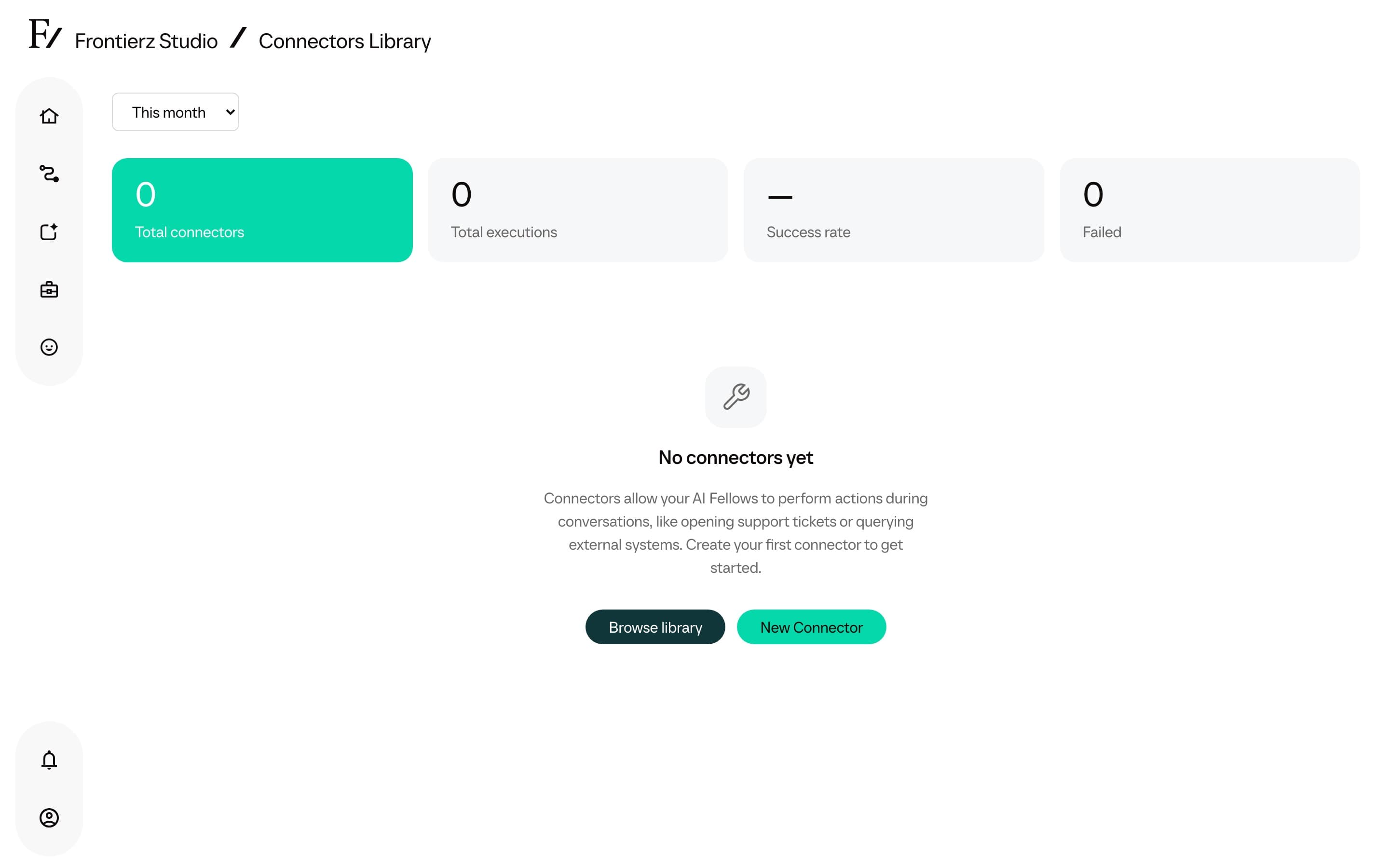
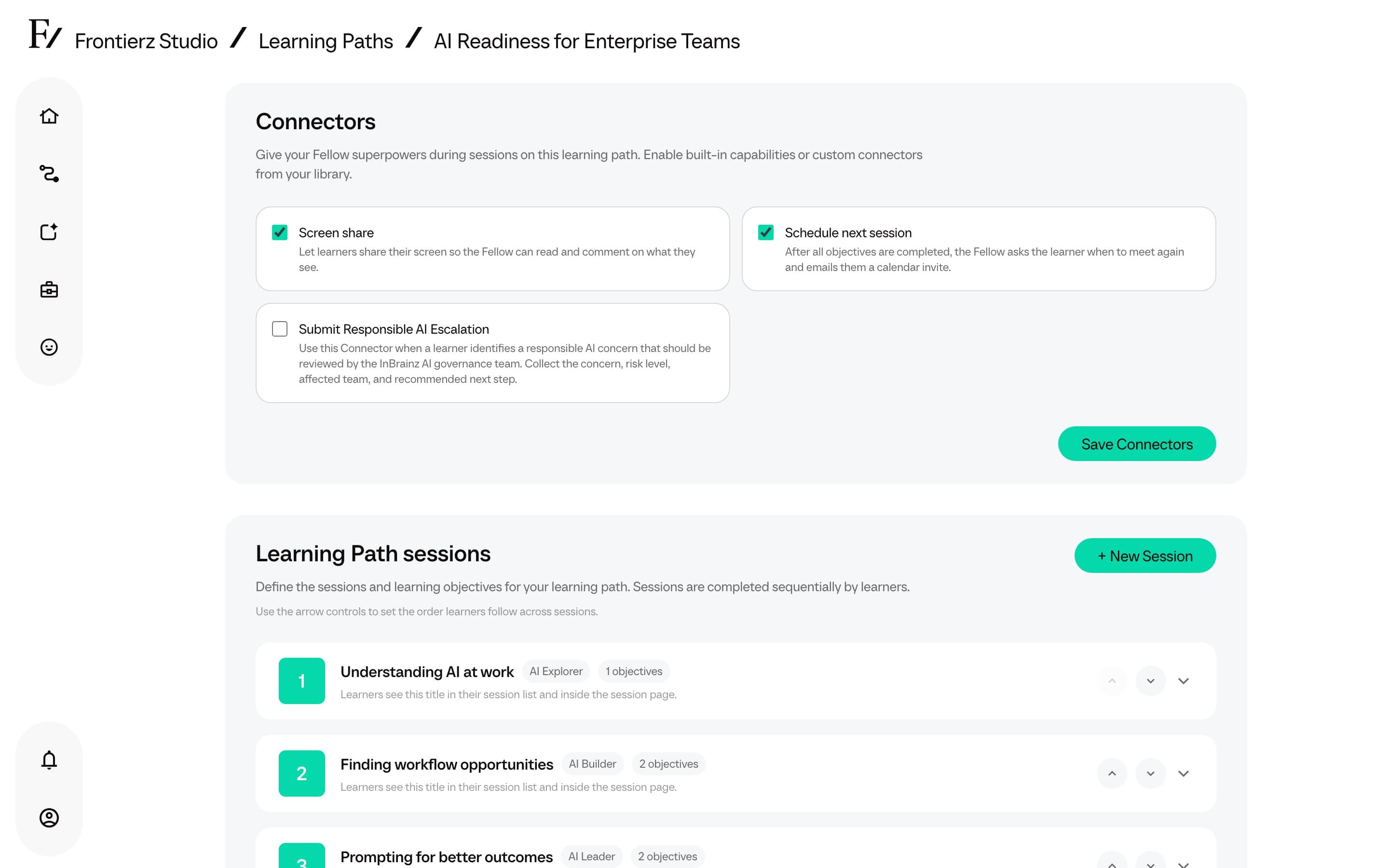
Connectors let an AI Fellow use information or carry out tasks beyond the conversation. Built-in capabilities include screen sharing. Custom Connectors link the Fellow to your organisation’s systems, for example to look up a support ticket or submit a leave request. Use the Connectors Library to create and manage these custom integrations.
The Connectors Library is available to Full Admins, Owners, and Creators. Managers can use built-in capabilities on their assigned Learning Paths and AI Fellows, and can see custom Connectors a Full Admin has already attached, but they cannot open the library or change custom Connector attachments. Creators can create and edit custom Connectors. They cannot open Connector usage stats or execution dashboards.
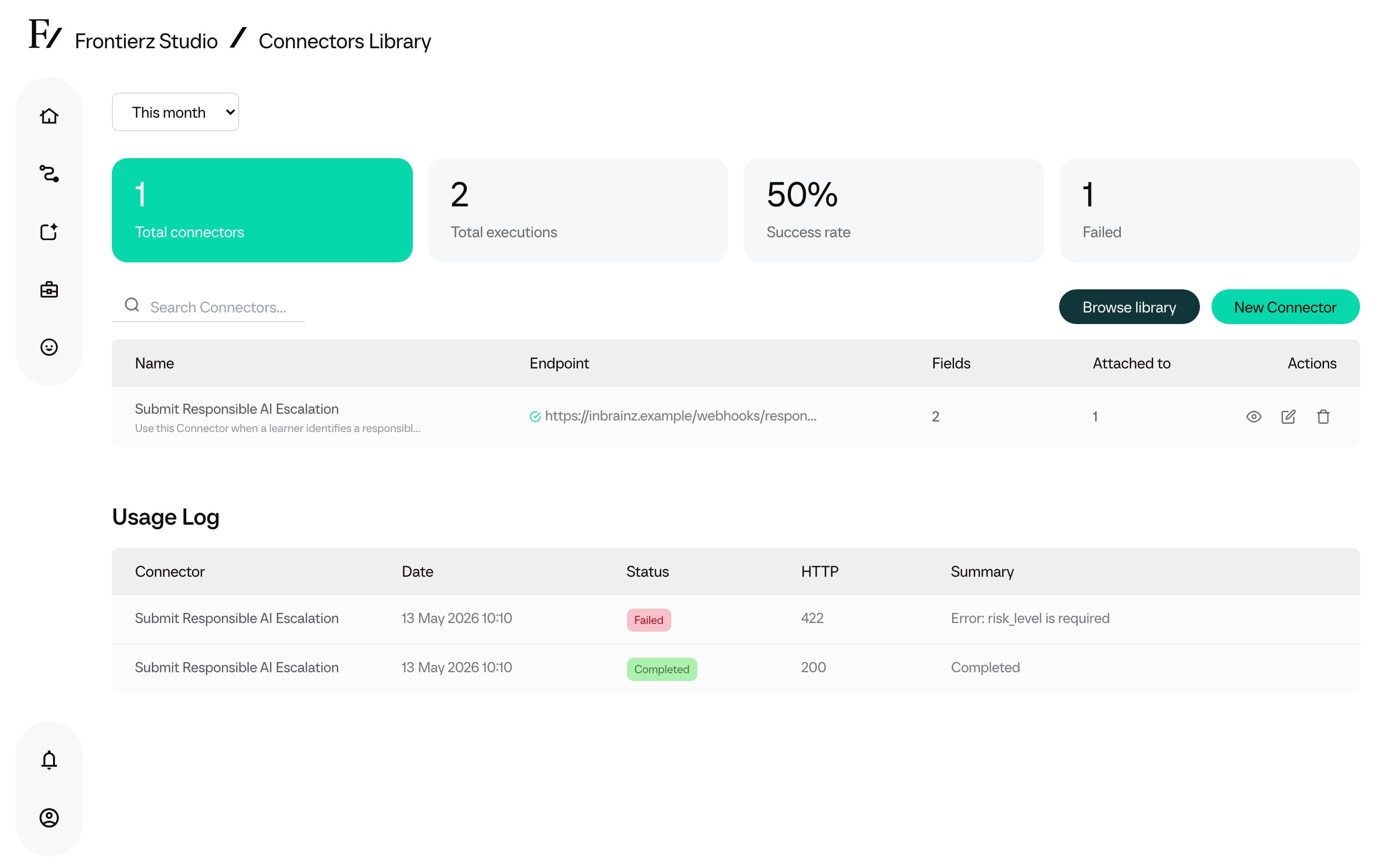
There are two kinds:
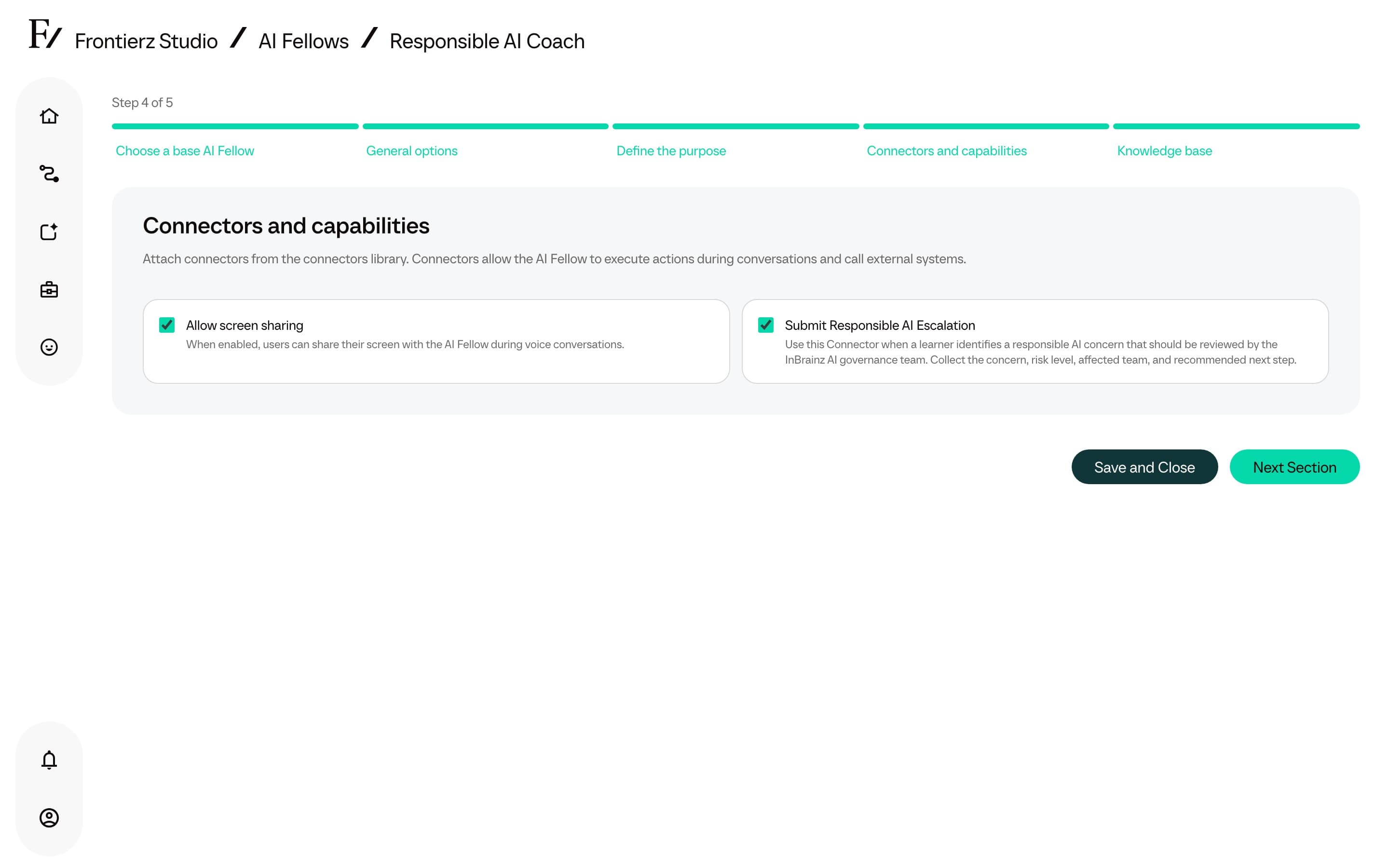
- Built-in capabilities. Session options configured on each AI Fellow or Learning Path under Capabilities (Presence, On screen, Session flow). Managers can toggle them on assigned resources.
- Custom Connectors. Integrations built by the customer, either as a direct HTTP call to one of the customer's systems or as an MCP (Model Context Protocol) connection to an AI-aware data source.
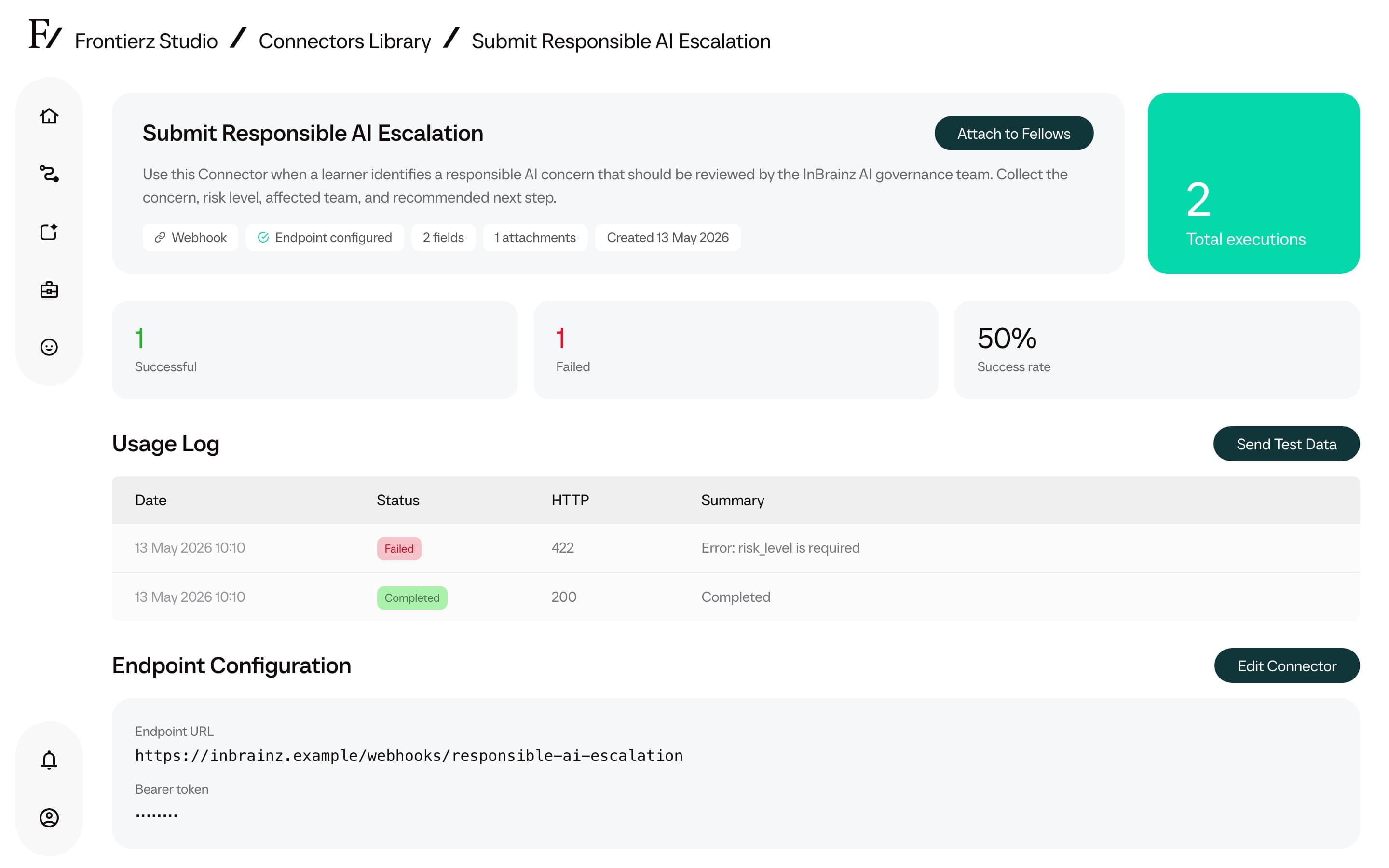
Once a Connector is in the library, it can be attached to as many AI Fellows or Learning Paths as required. Every time an AI Fellow uses a Connector during a conversation, the call is logged.
Connector guides
Create a Connector
Set up a new HTTP or MCP integration.
Usage Log
Inspect when a Connector ran, what it sent, and what came back.
HTTP and MCP
Your IT team can choose between two connection methods, depending on the systems your organisation uses:
- HTTP. Connects to a system through its API, the interface it provides for exchanging data. This is suitable for CRM, LMS, HR, and other systems that offer a REST endpoint.
- MCP. Connects to a data source that supports Model Context Protocol, a standard for giving AI tools access to external information and actions.
With either method, the user continues the conversation while the Fellow uses the connection. The choice of protocol is a configuration decision for your IT team. Either method can sign in with a fixed token or with OAuth 2.0, and a webhook can send its data in the JSON format the receiving system expects. See Create a Connector.
Custom Connector capabilities
A Custom Connector handles actions that would otherwise force the user to leave the conversation. Example use cases:
- "I need next Friday off." The AI Fellow gathers the dates and submits the request to the HR system.
- "Pull up the open tickets for account 4827." The AI Fellow queries the CRM and reads back the result.
- "Submit my training assessment with these notes." The AI Fellow wraps up the session and writes the assessment to the LMS, with the AI's reasoning included.
Connector limitations
A Connector does not replace human review for high-stakes operations. Connectors that write to HR systems, CRMs, or other systems of record must be treated as any business-critical automation: validate field mappings, audit the execution log, and document the AI Fellow authorized actions.