

Last updated on
Company Profile
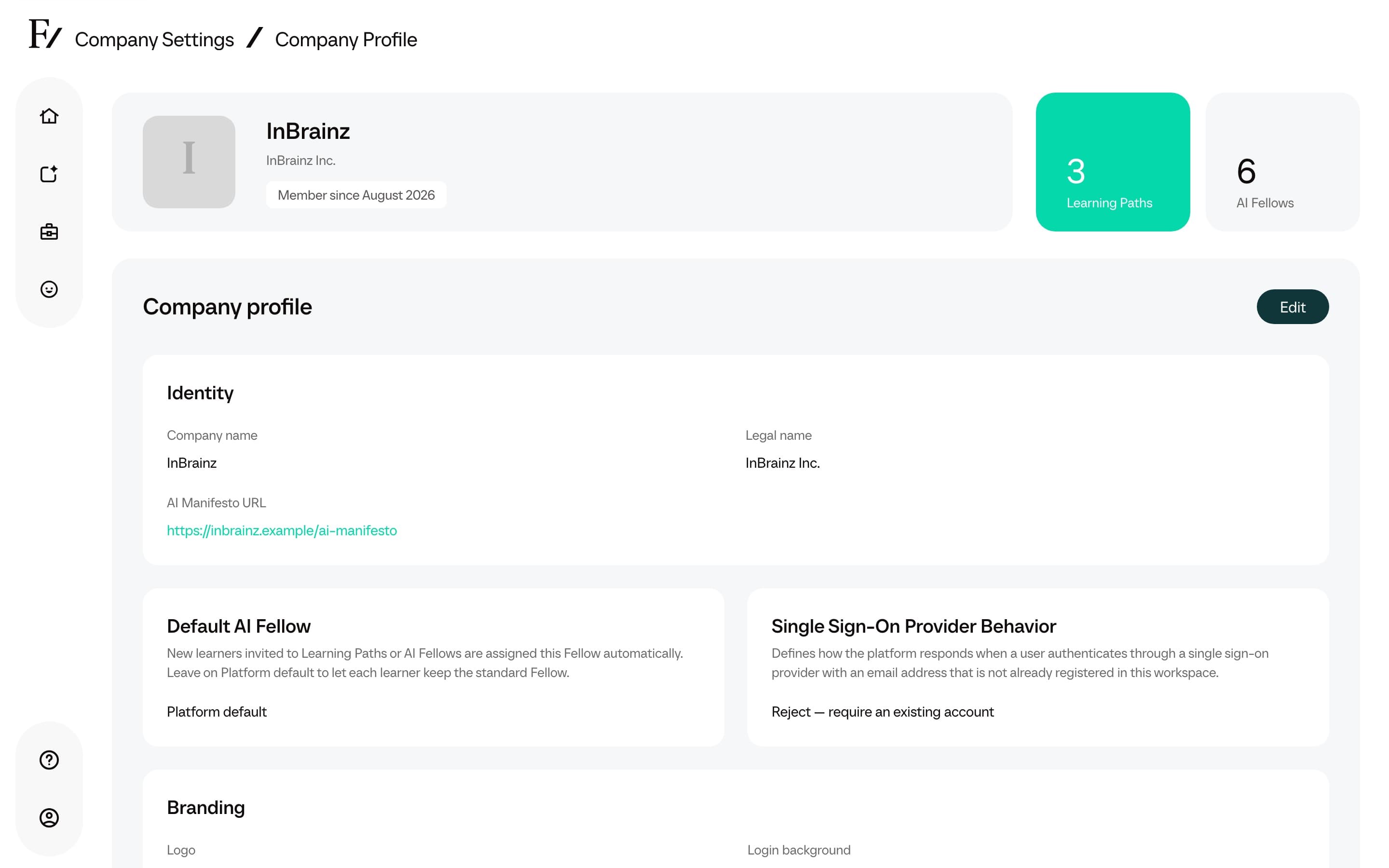
Use Company Profile to set your company identity, branding, and the background information that AI Fellows use in conversations. These settings apply across the workspace. The page is reserved for Full Admins; Managers cannot access it.
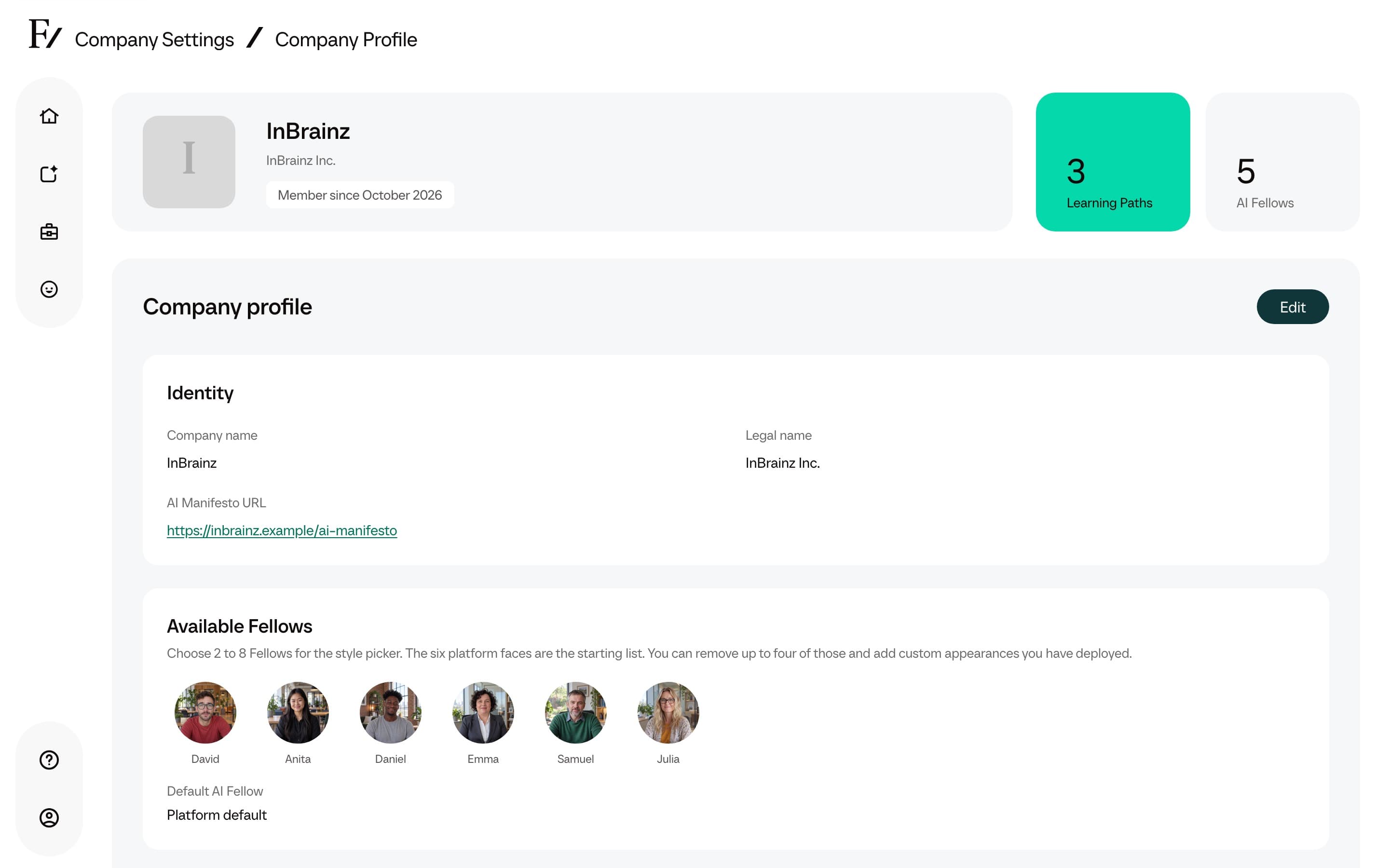
What you can edit
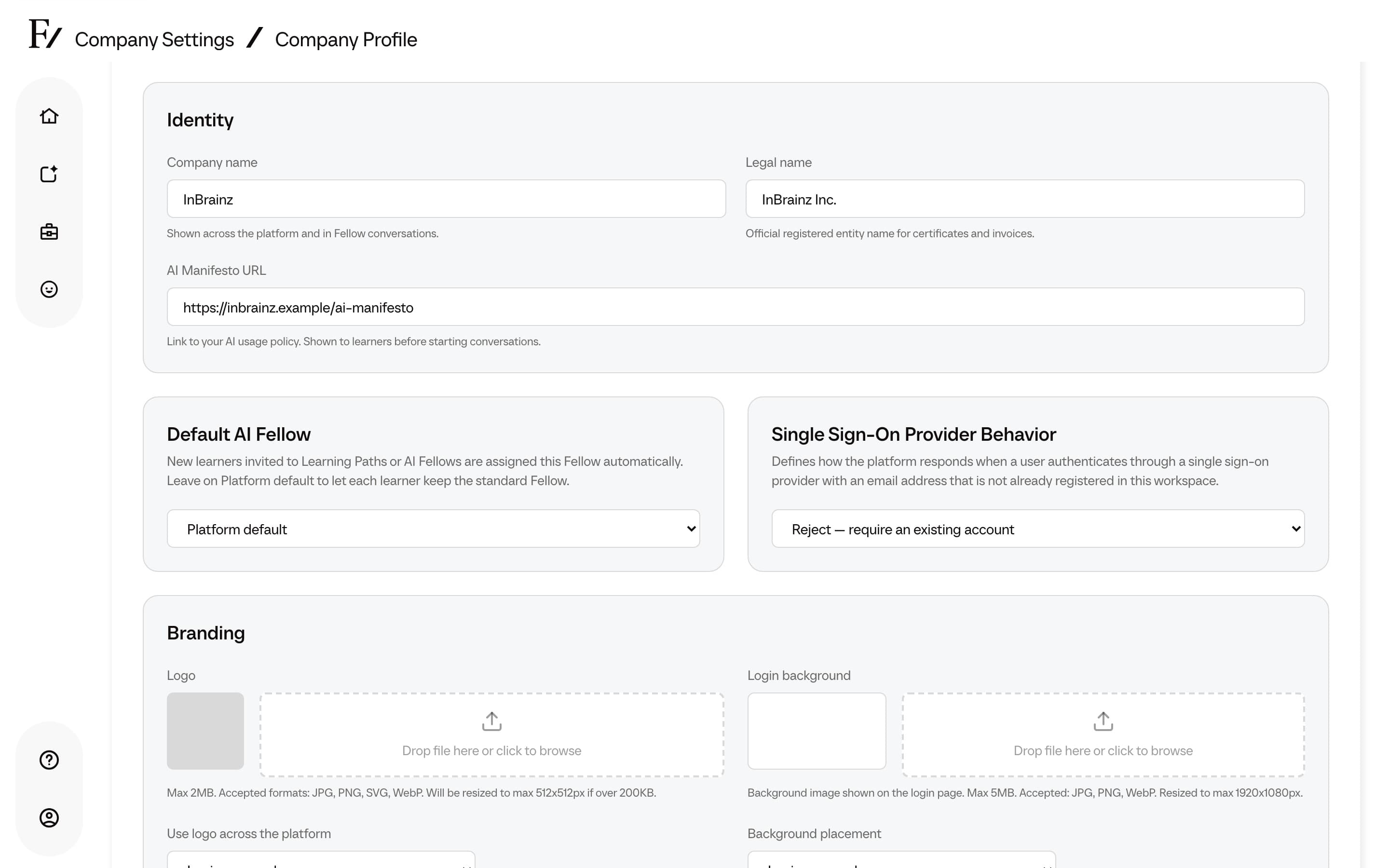
- Company name and legal name.
- Light logo and Dark logo. Upload a JPG, PNG, SVG, or WebP up to 2MB for each. JPG, PNG, and WebP files open a crop tool so the logo sits right; SVG files upload without cropping. Light logo is used on light surfaces such as the Studio top bar. Dark logo is used on dark surfaces.
- Logo on the login page. After both logos are uploaded, pick Light logo or Dark logo. The previews use your login background so you can compare readability.
- Default profile image. Shown as the You picture on AI Fellow sessions. JPG, PNG, or WebP up to 2MB.
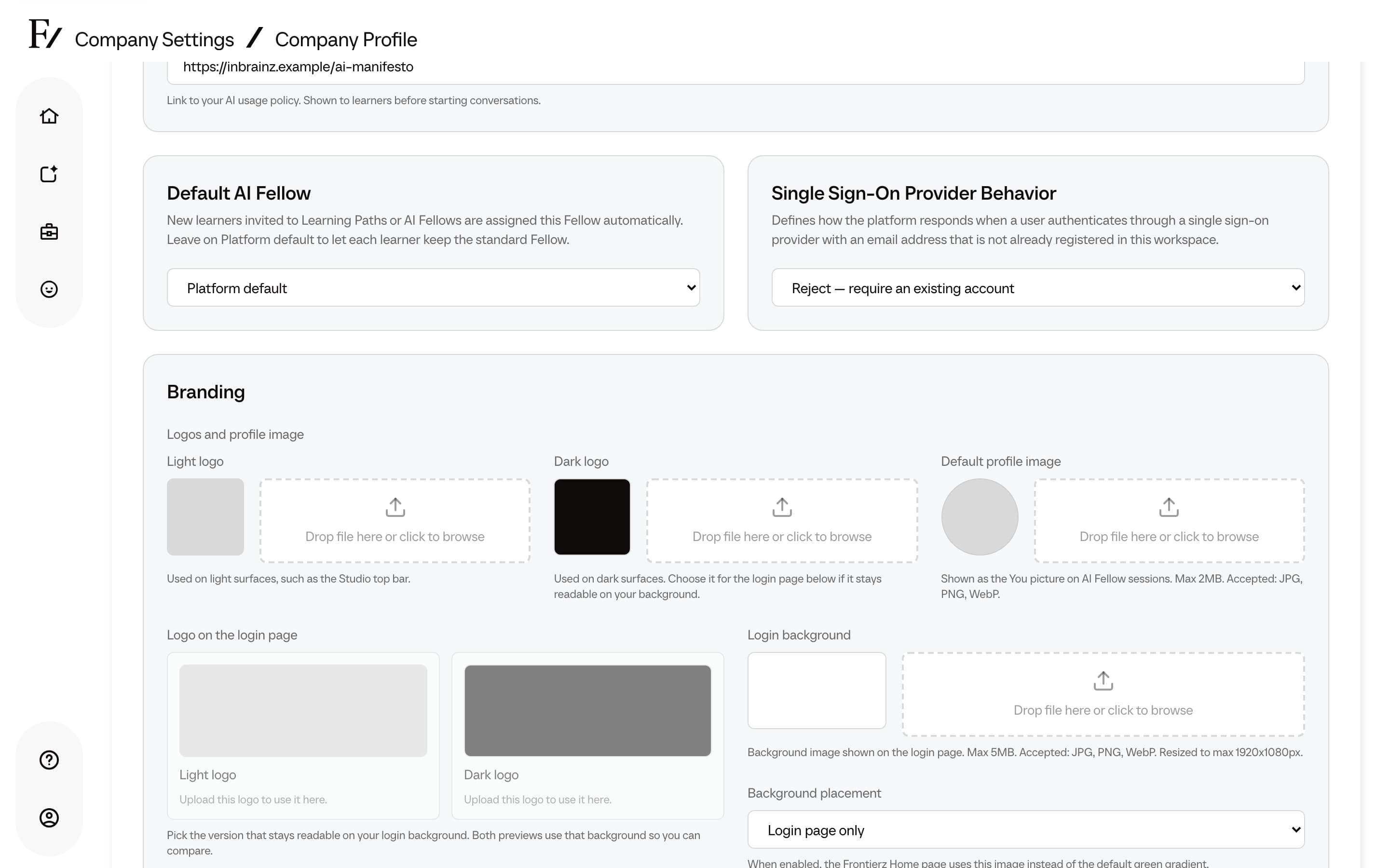
- Use logo across the platform. When on, your logo replaces the Frontierz logo in the top bar throughout the platform. When off, it only appears on the login page.
- Login background shown on the login page, plus a placement option: Login page only or Login and Home pages. When set to Login and Home, the Frontierz Home page uses this image instead of the default green gradient.
- AI Manifesto URL, used when the organization wants users to see a policy or usage guide before starting conversations.
- Default AI Fellow, used as the personal Fellow assigned to brand-new learners.
- Company context shared with AI Fellows so that their answers can reflect the organization, industry, tone, and internal terminology.
Branding colors
Two color settings let the workspace match a company palette. Each one can be reset to the Frontierz default at any time.
- Accent colors. A primary and a secondary accent drive buttons, links, and highlights across the platform. Pick colors with enough contrast against white so text and links stay legible.
- Gradient colors. A start and end color used for the session cards on the Home and Journey pages. Pick colors that keep black text readable.
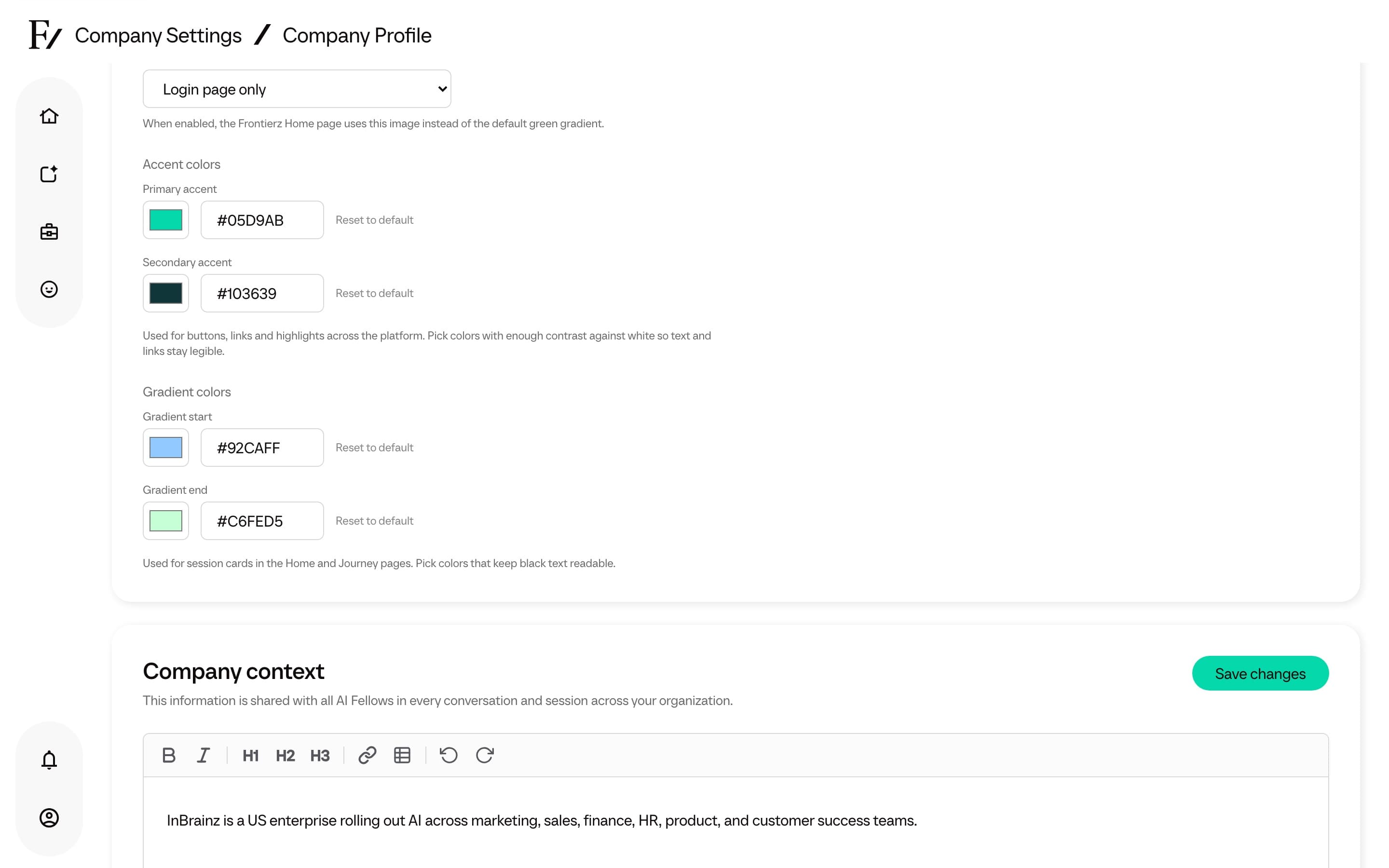
Color choices apply to the whole workspace. Test them against white backgrounds and the session cards before saving, and use Reset to default to return to the standard Frontierz look.
Certificate branding
The Certificate Branding section, below the profile settings, controls the right-hand panel of every Learning Path completion certificate. By default the panel shows the Frontierz image and mark. Here you can replace the mark with up to three logos, such as your training provider and partners, and set a background image for the panel.
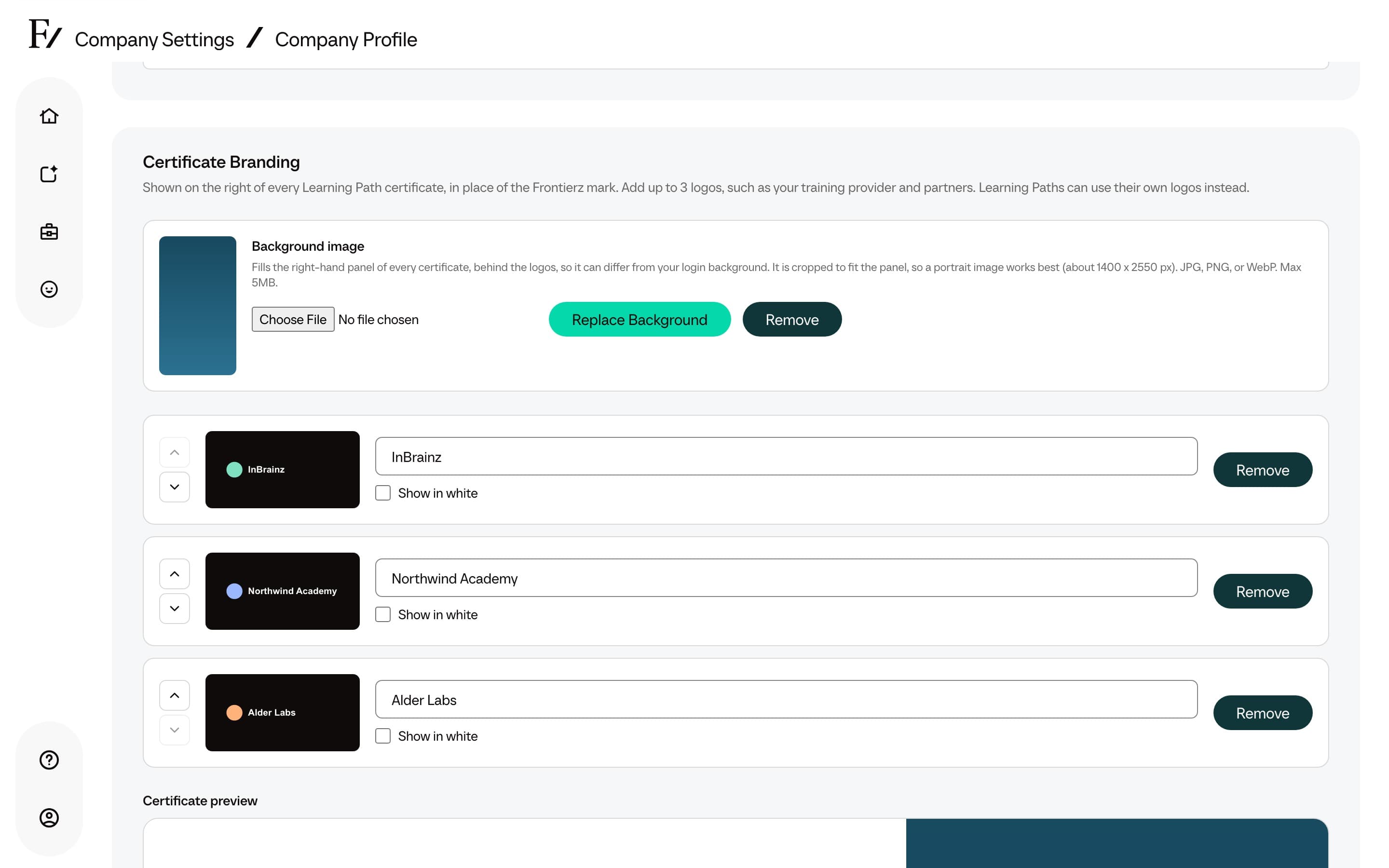
- Logos. Choose a Logo file, enter a Name that screen readers read aloud, and select Add Logo. Upload a JPG, PNG, WebP, or SVG up to 2MB; a transparent PNG, SVG, or WebP works best. Use Move up and Move down to set the order and Remove to delete a logo. Certificate preview shows the result.
- Show in white. Recolors a logo white so that it stands out on the dark panel. It works only when the logo has a transparent background. A JPG, or a logo with a solid background, is shown as uploaded.
- Background image. Select Upload Background, or Replace Background, to fill the panel behind the logos. The image is cropped to fit, so a portrait image of about 1400 × 2550 px works best. Use a JPG, PNG, or WebP up to 5MB. Without one, the panel uses your login background, or the Frontierz image if you have none. The certificate background does not change the login or Home pages.
Logos sit over a darkened panel unless you upload a certificate background, which is shown exactly as uploaded. Choose an image that keeps your logos legible.
Only Owners and Full Admins can edit the company logos and the background. A Learning Path can show its own logos instead; see Certificate logos.
Default AI Fellow
The Default AI Fellow field controls the personal Fellow assigned to new learners created for this company. It applies when a brand-new learner is invited to a Learning Path, given AI Fellow access, imported from CSV, or enrolled from Studio.
Existing users keep their current personal Fellow. Changing this field only affects learners created after the change.
The selector includes the platform Fellow options and any Active custom Fellows available to the company. A disabled or deleted custom Fellow is not assigned to new learners.
With Platform default, Frontierz first uses the Fellow specified by the learner’s Learning Path. If none is specified, it chooses a standard platform Fellow. This setting does not select one fixed Fellow for everyone.
British voice for male Fellows
British voice for male Fellows lets Fellows with a male voice sound British in calls set to British English. It is off by default. Fellows with a female voice keep their own voice, because there is no British female voice yet. The setting applies to calls that use the GPT-Live voice engine; other calls keep each Fellow's own voice. Use Play sample to hear the voice before you turn it on.
The setting appears only when you use Frontierz in English.
Single Sign-On Provider Behavior
The Single Sign-On Provider Behavior setting controls what happens when a user signs in through a single sign-on provider with an email address that is not registered in the workspace.
| Option | Behavior |
|---|---|
| Reject: require an existing account | The sign-in is rejected. An administrator must add the user to the workspace first. |
| Create: allow sign-up with no access | Frontierz creates the account, but does not grant access to any Learning Path or AI Fellow. |
Reject is the default. The setting applies only to email addresses that do not already belong to an account in the workspace.
Update the profile
Open Company Settings → Company Profile.
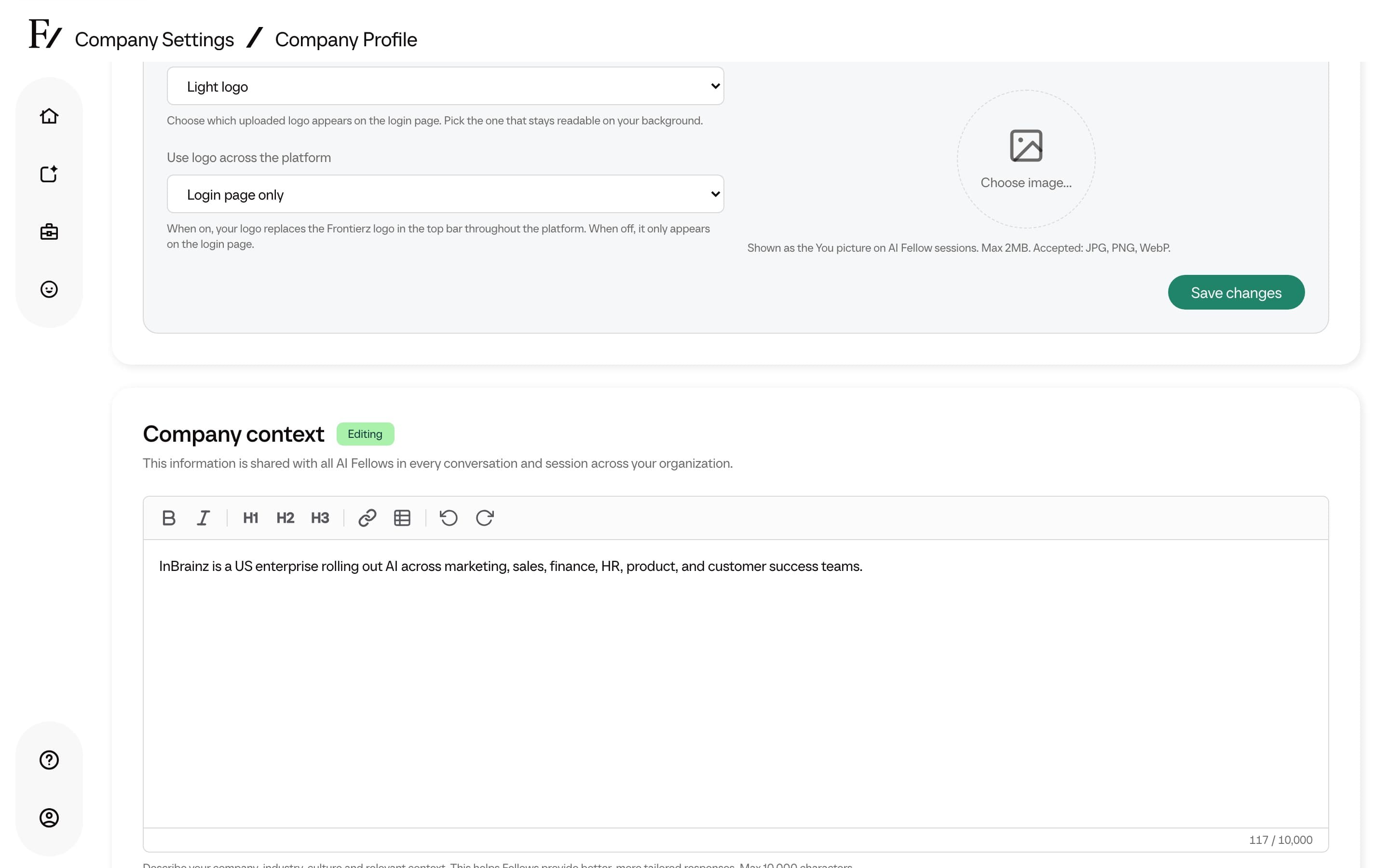
Click Save changes on the section you are editing. Each section has its own Save changes button, so you can save without scrolling to the bottom of the page.
Company context is shared with all AI Fellows in the organization. Ensure the content is accurate, concise, and does not include credentials or sensitive secrets.