

Last updated on
Import a SCORM package
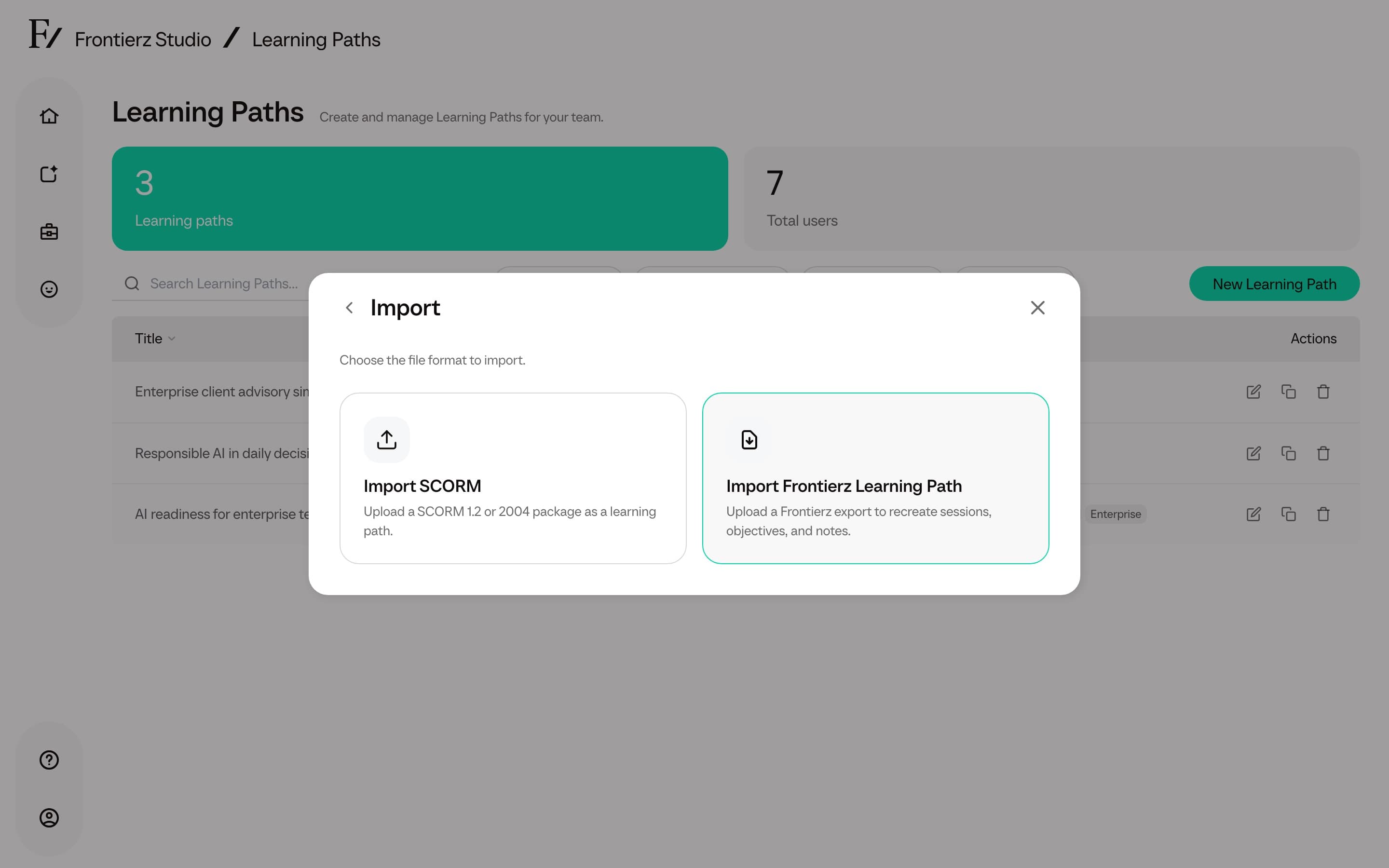
A SCORM package is a self-contained e-learning module exported from an authoring tool such as Articulate or iSpring. Frontierz can import one and turn it into a Learning Path step that users open from Your Journey. The original package is kept as-is and tracked for completion.
Supported packages
- SCORM 1.2 and SCORM 2004 (all editions).
- AICC, xAPI (Tin Can), and cmi5 are not supported.
- The maximum upload size is large enough for packages with embedded video. Very large files upload in the background.
Import as a new Learning Path
Choose Import, then Import SCORM.
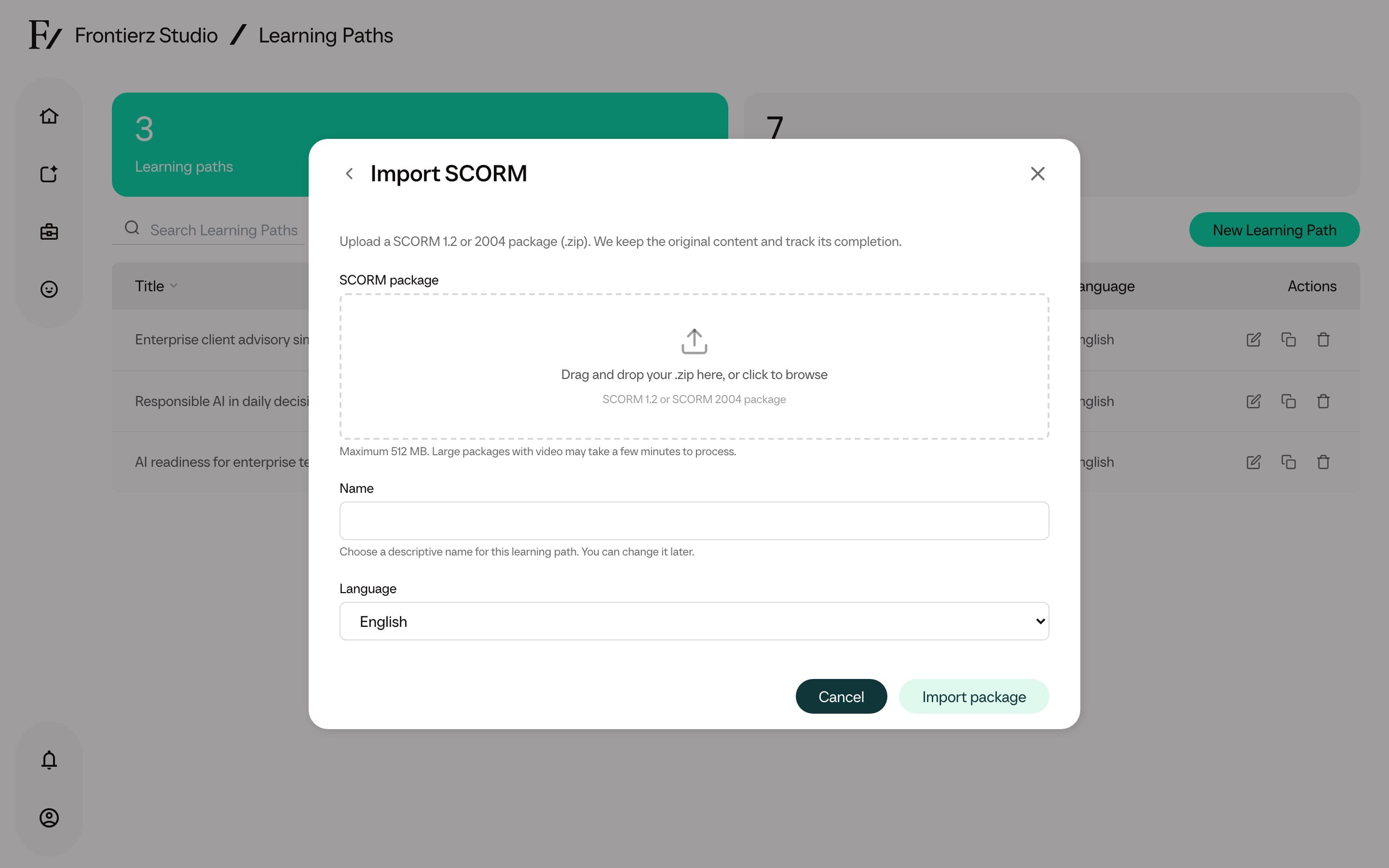
Select the SCORM .zip package. Large files are supported. Keep the page open while the upload is processed.
Optionally, choose an AI Fellow that learners can ask for help while they work through the course. The default is No AI Fellow. See Add an AI Fellow to the course.
When processing finishes, the new Learning Path opens in the editor with the SCORM content as its session.
Add SCORM to an existing Learning Path
Click Add content, then Import SCORM.
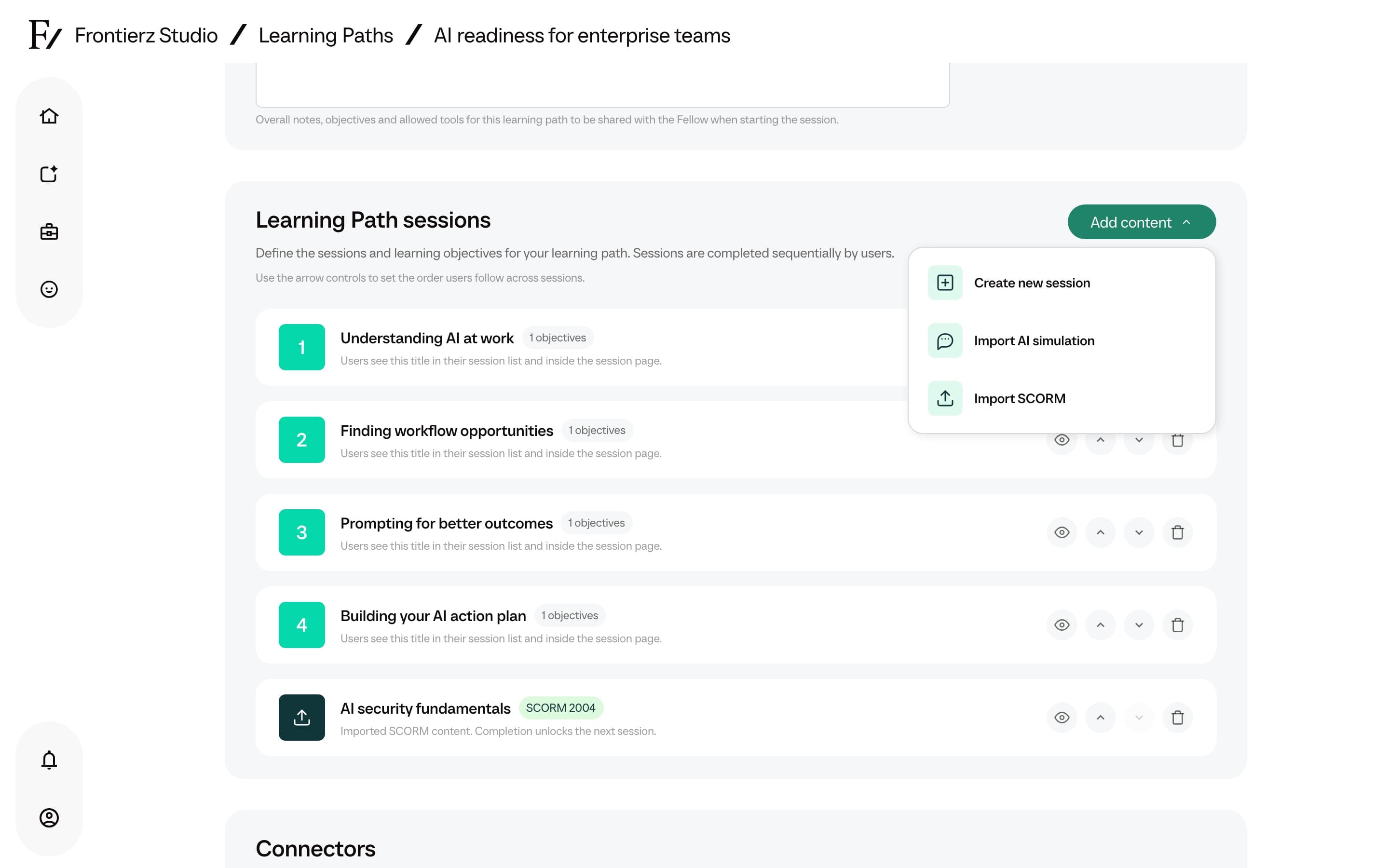
Select the package and, optionally, an AI Fellow. The package is added as a new session at the end of the sequence and can be reordered with the arrow controls. Click Save.
Adding a SCORM session to an existing Learning Path does not change the path's other sessions or its objectives.
Rename a SCORM session
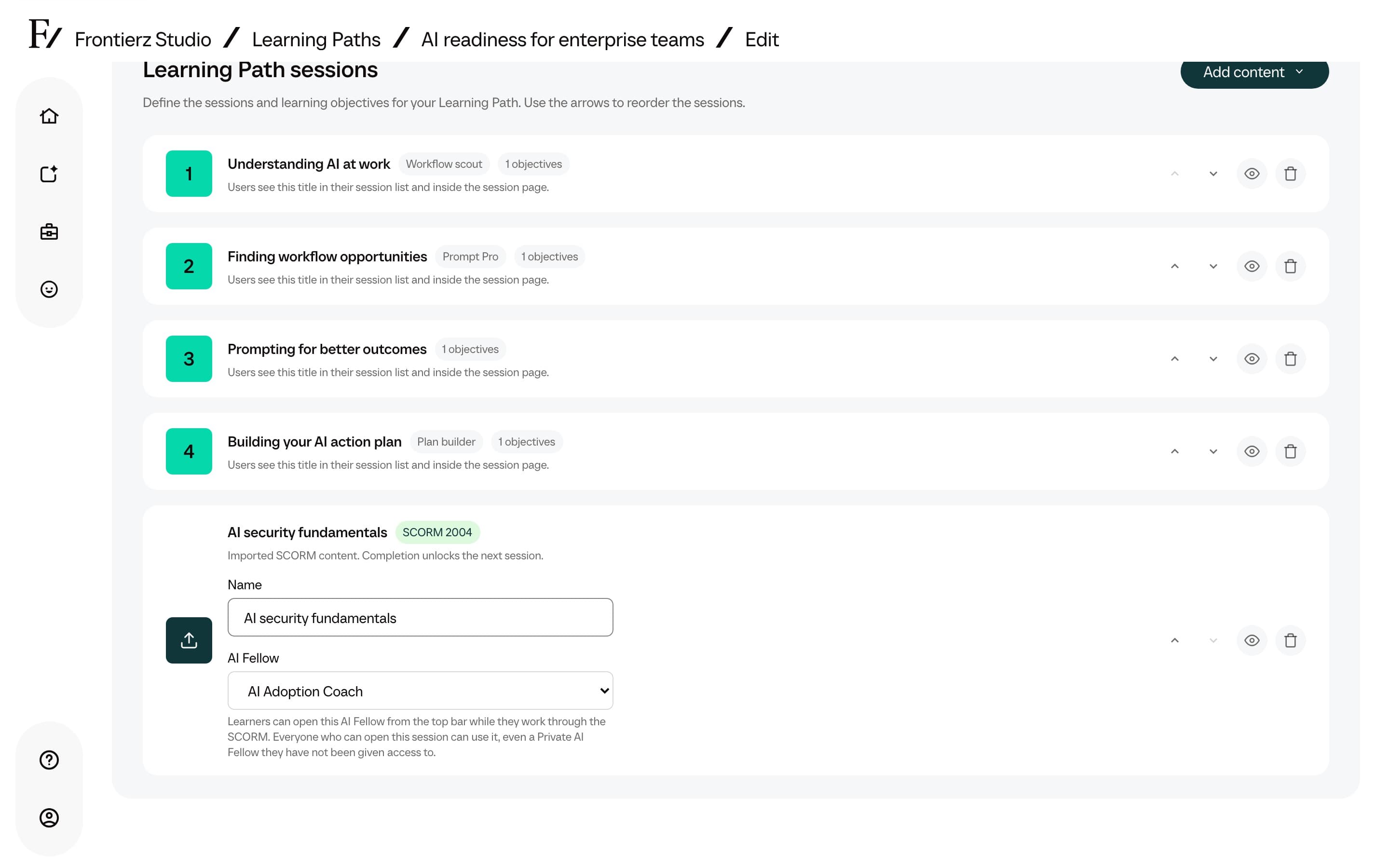
A SCORM session takes its name from the package until you change it. On the Sessions tab, edit the Name field on the SCORM session's card. The name saves as soon as you leave the field or press Enter, and SCORM name updated. confirms it. You do not need to click Save.
Learners see the new name on Your Journey and at the top of the session. The name cannot be empty.
Add an AI Fellow to the course
You can attach an AI Fellow to a SCORM session so learners can ask questions about the course without leaving it. Choose the Fellow when you import the package, or later with the AI Fellow selector on the SCORM session's card on the Sessions tab. A change on the card saves immediately and shows AI Fellow updated. Select No AI Fellow to remove it.
The list includes the workspace's Public and Private AI Fellows. AI Simulations and assessments are not listed. Managers see only the AI Fellows they created. Choose a Fellow whose purpose suits course support, because it brings its own instructions, voice, Connectors, and capabilities into the course.
While the learner works through the course, the AI Fellow knows:
- The session name and the learner's saved progress, such as completion, result, score, and time spent.
- The course text, for packages built with Articulate Rise. Frontierz reads it when the package is imported and leaves out quiz questions and answers.
- The text currently visible in the course, which it can read when the learner asks about what is on screen. It does not see images, video, or content that the package loads from another website, and it is instructed not to give quiz answers.
The AI Fellow cannot complete the course or change the learner's progress. Conversations use workspace credits in the same way as any other conversation with that AI Fellow.
Choosing an AI Fellow also gives every learner who can open this SCORM session access to it, even a Private AI Fellow that has not been assigned to them. While they can open the session, they can also use the Fellow from its own link. It is not added to their AI Fellows list or to the Fellow's access list on Manage Users. Choose a Fellow whose purpose and reference material are suitable for everyone taking this Learning Path.
How users experience it
A SCORM step joins the same ordered sequence as the other steps. It unlocks when the previous step is complete, and the next step stays locked until the package reports completion. The user opens the step, works through the content, and when the package marks itself complete, a Session completed banner appears with a Complete session button that returns them to Your Journey with the next step unlocked. On the last step of the Learning Path, the banner reads Learning Path completed. Congratulations! and offers View certificate, or Back to Journey when the certificate is off.
When the session has an AI Fellow, Ask followed by the Fellow's name appears in the top bar. It opens the Fellow in a panel beside the course, where the learner can talk or, if the Fellow allows text chat, type. On small screens the panel covers the course. Closing the panel does not end a call in progress.
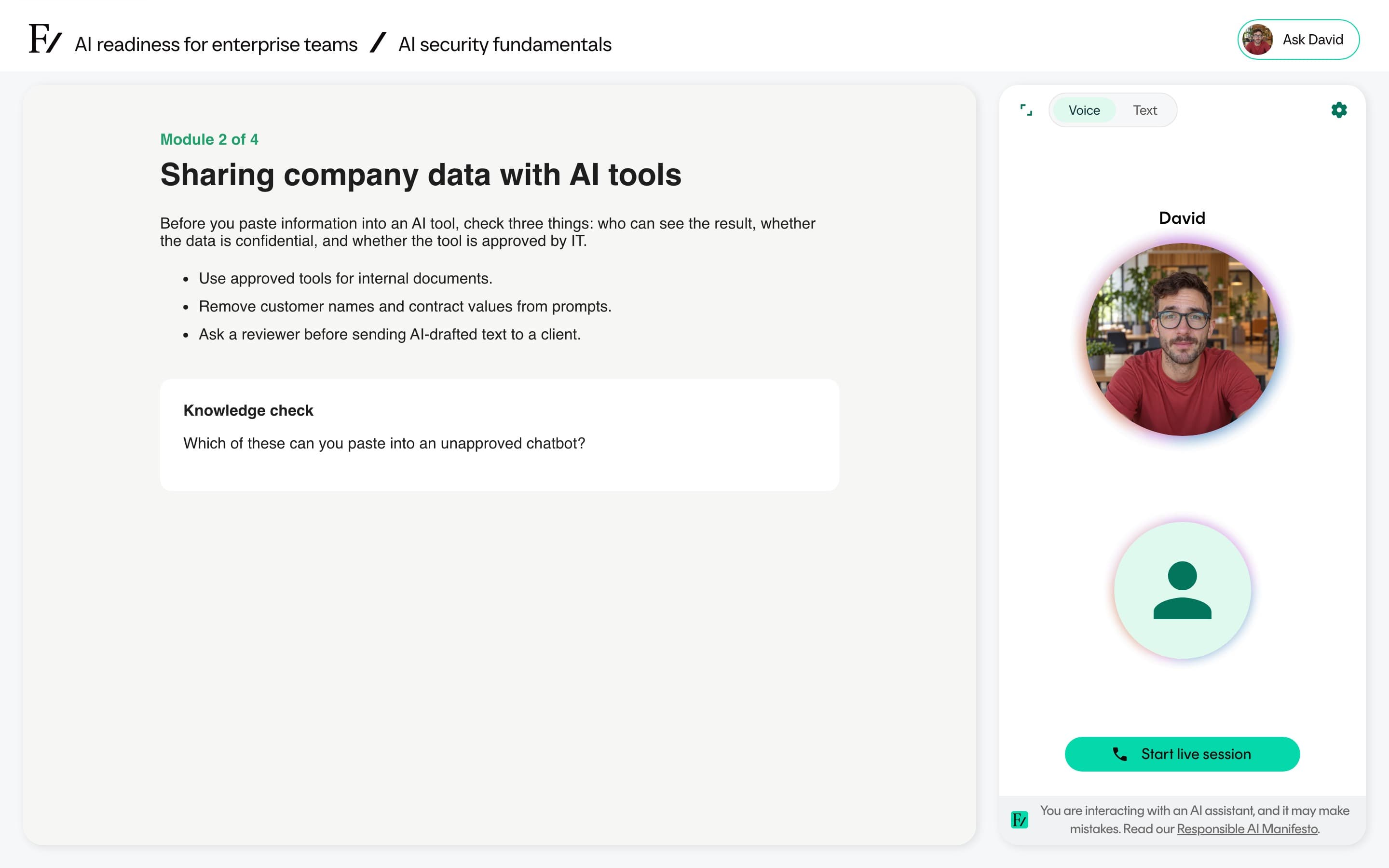
One package becomes one Learning Path session. The SCORM content runs unchanged inside Frontierz, so its own navigation, quizzes, and completion rules still apply. Progress and the resume point are saved per user.
To move an authored Frontierz path (Fellow Sessions, objectives, and notes) rather than a SCORM zip, use Import a Frontierz Learning Path.