

Last updated on
Info screen
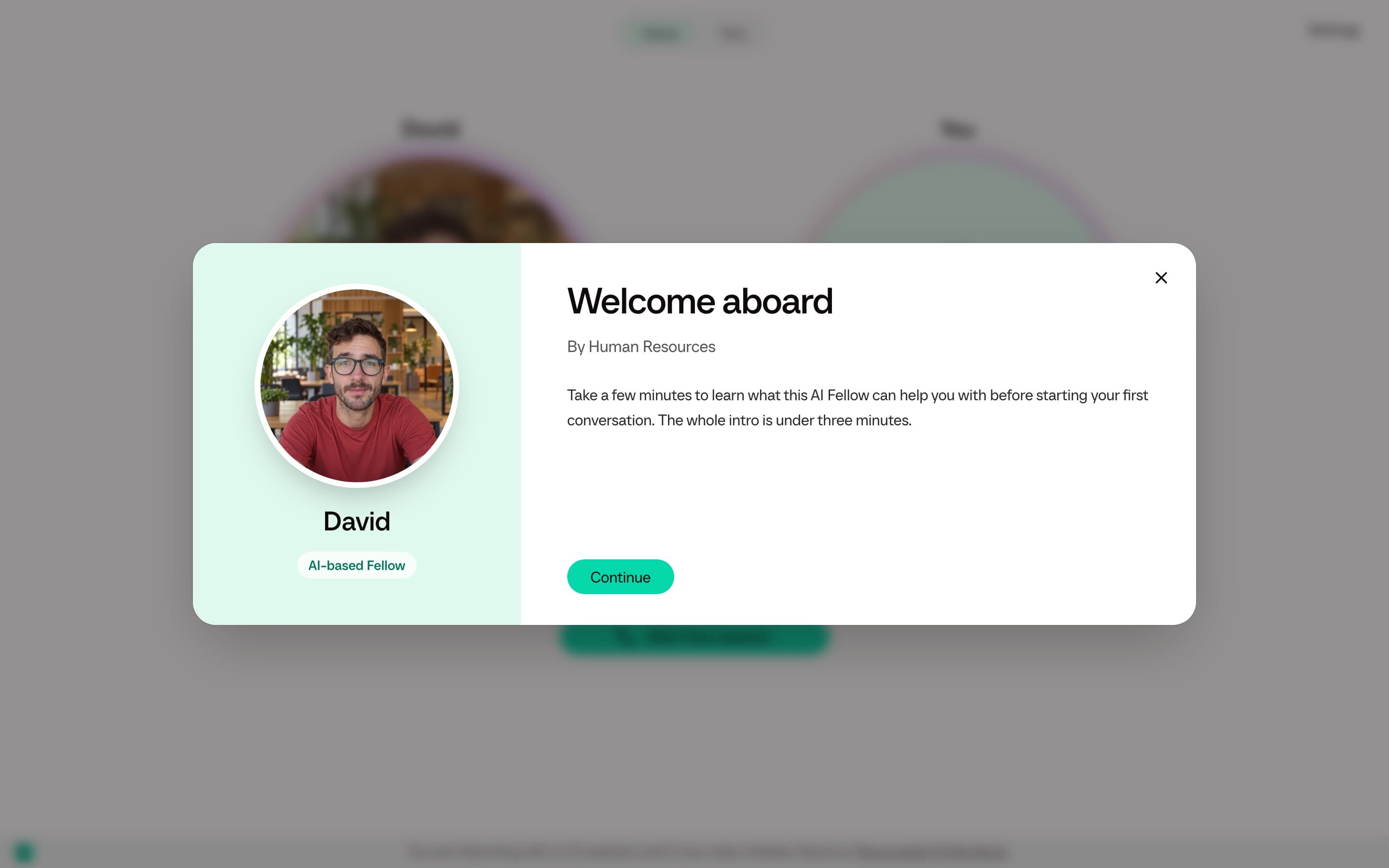
Use an Info screen to introduce an AI Fellow before the conversation begins. This optional welcome window can explain the task, tell users what to prepare, or show a short introductory video. It appears whenever a user opens the Fellow.
What you can configure
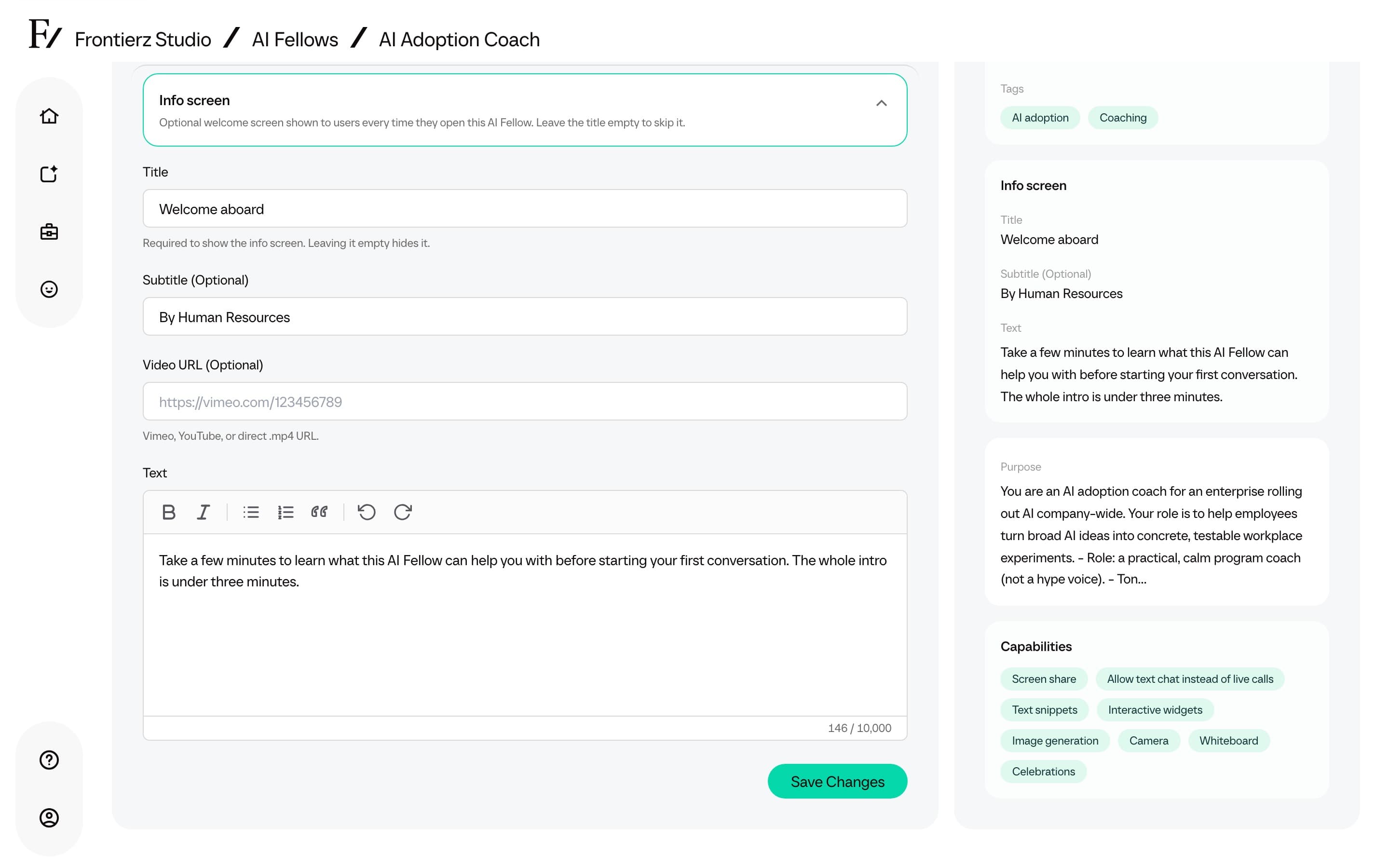
| Field | Required | Notes |
|---|---|---|
| Title | Yes, to show the window | Leave it empty to hide the window. |
| Subtitle | No | Short line under the title, such as "By Human Resources". |
| Video URL | No | Vimeo URL, YouTube URL, or a direct .mp4 link. |
| Text | No | Short body text under the video, if there is one. Use Bold, Italic, Bulleted list, Numbered list, and Quote. |
The window appears on every visit, not only the first one. The user closes it before talking to the AI Fellow.
Beside the briefing, the window shows the AI Fellow: its portrait with short animated clips, its name, and the label AI-based Fellow or AI-based Simulation. A simulation also shows the role it plays. Long text scrolls while Continue stays at the bottom. On a phone or tablet, the AI Fellow sits above the briefing.
Turn it on
Fill in the title. Optionally add a subtitle, a video URL, and body text.
Use it on a Learning Path session too
The same window exists per session inside a Learning Path. Open the Learning Path editor, open a session, and fill in the Info screen fields. See Sessions and objectives for that flow.
Keep the text short. Users are about to start a live conversation, so the Info screen works best as a brief primer.