Last updated on
Deployment options
You can share an AI Fellow through a direct link or add it to an existing website. Use Launch AI Fellow to review it and copy the link. Choose the method that suits your audience. The same Fellow can use more than one method.
| Method | Use it for |
|---|---|
| Standalone link | The unique URL of the AI Fellow. Anyone with the link opens it in a browser and starts talking: no login if the AI Fellow is Public, login required if it is Private. Useful for demos, pilots, and standalone coaching tools. |
| Embedded widget | Code added to your website or LMS so the AI Fellow appears within the page users already visit. |
The standalone link and the embedded widget both come from the same Integration Guide window on the AI Fellow monitor page. The window has two tabs:
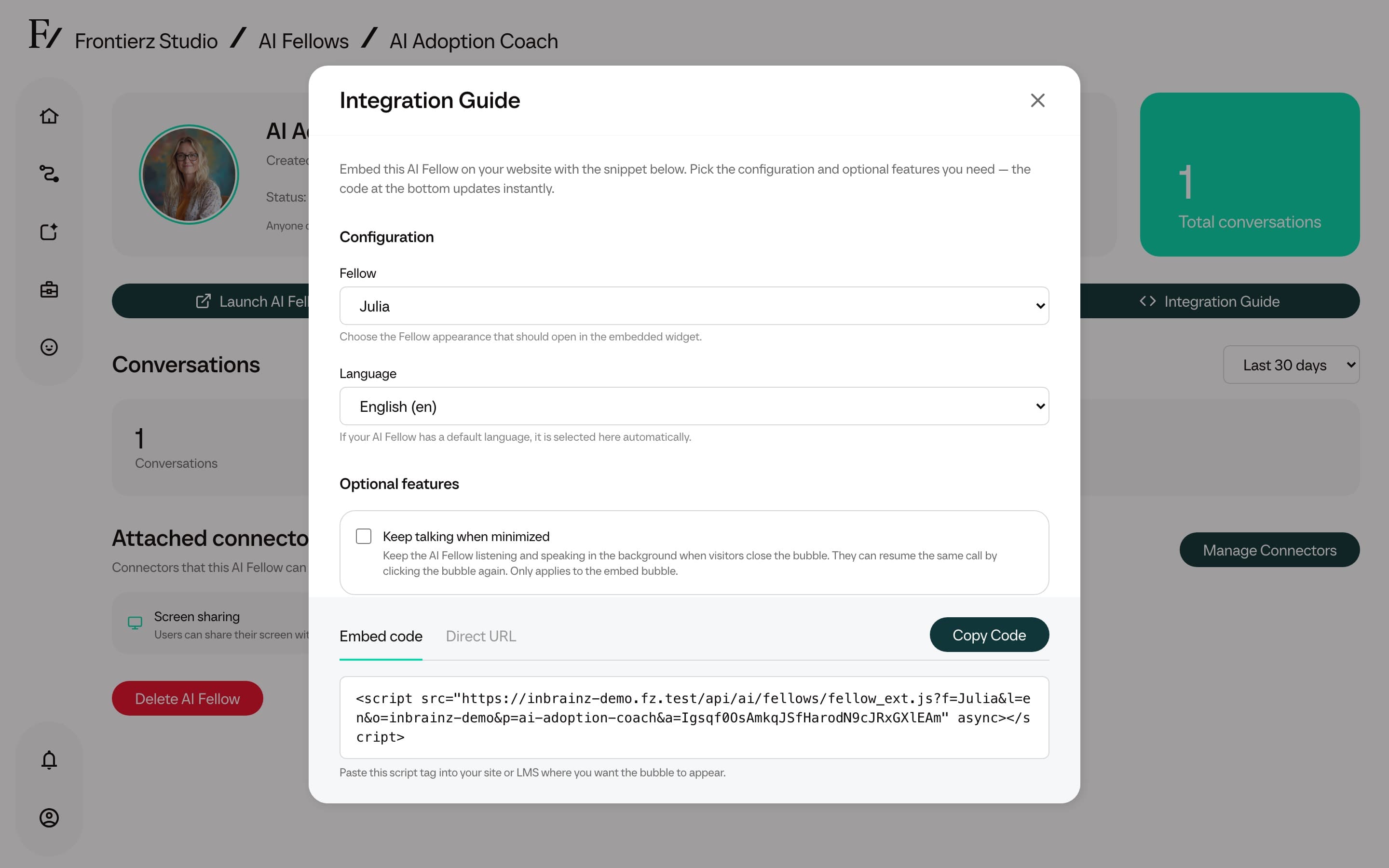
- Embed. A
<script>snippet to paste into a page on the customer's site. - Direct. The AI Fellow standalone URL, ready to share.
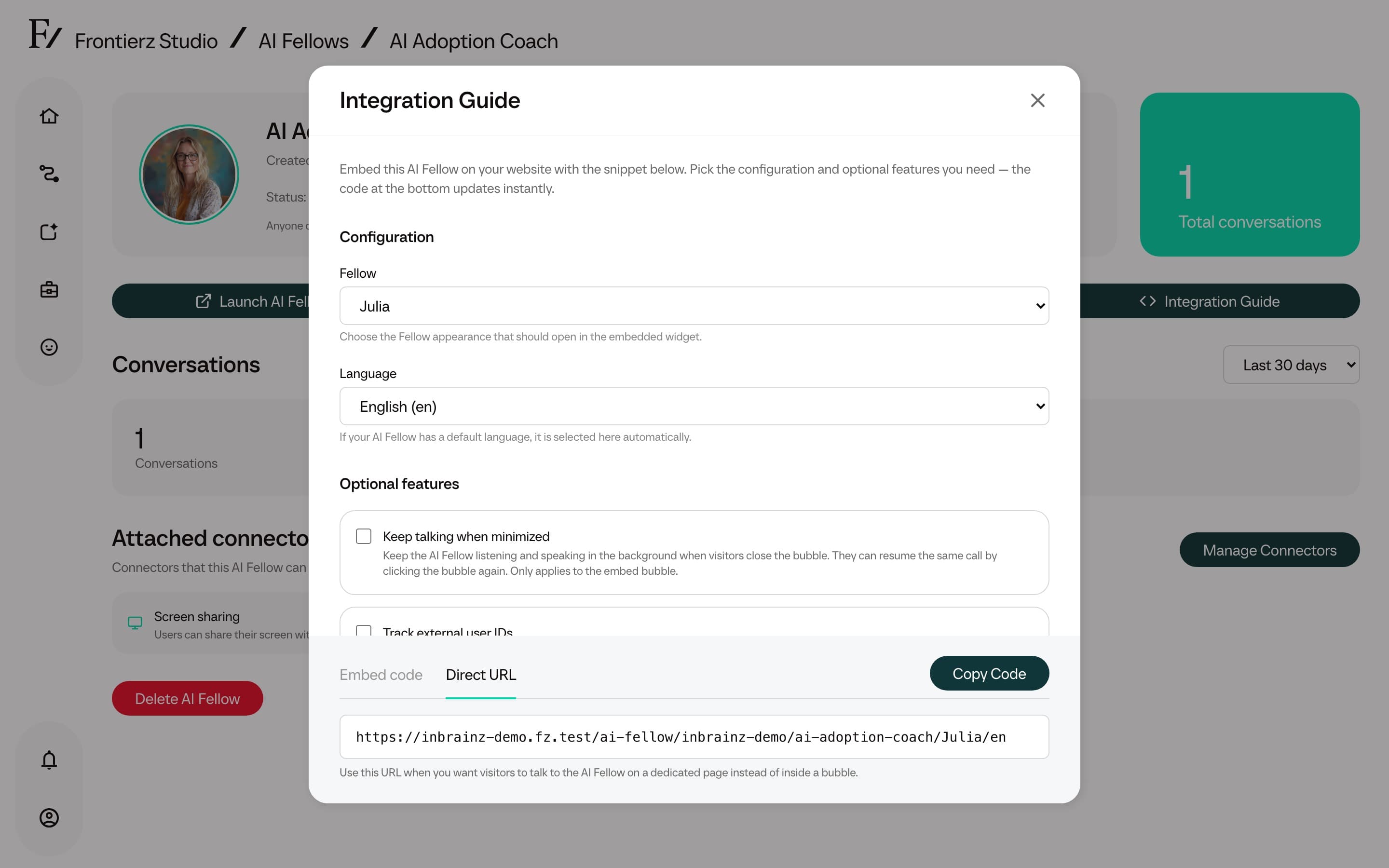
The embed can also be customized in the same window: language, whether the widget can stay minimized between pages, and whether to track an external user ID.
External user tracking is optional. When enabled, the customer's site or LMS passes an identifier such as an email, internal ID, or UUID. Frontierz shows that identifier as the external user on conversations and Connector executions. This helps reconcile activity with external systems.
For pilot deployments, the standalone link is the recommended starting point. If the AI Fellow is Public, the user does not need to set anything up or create an account. When attributed progress tracking is required, deploy the AI Fellow inside a Learning Path or set its visibility to Private. See Visibility for details.
Launch and copy the link
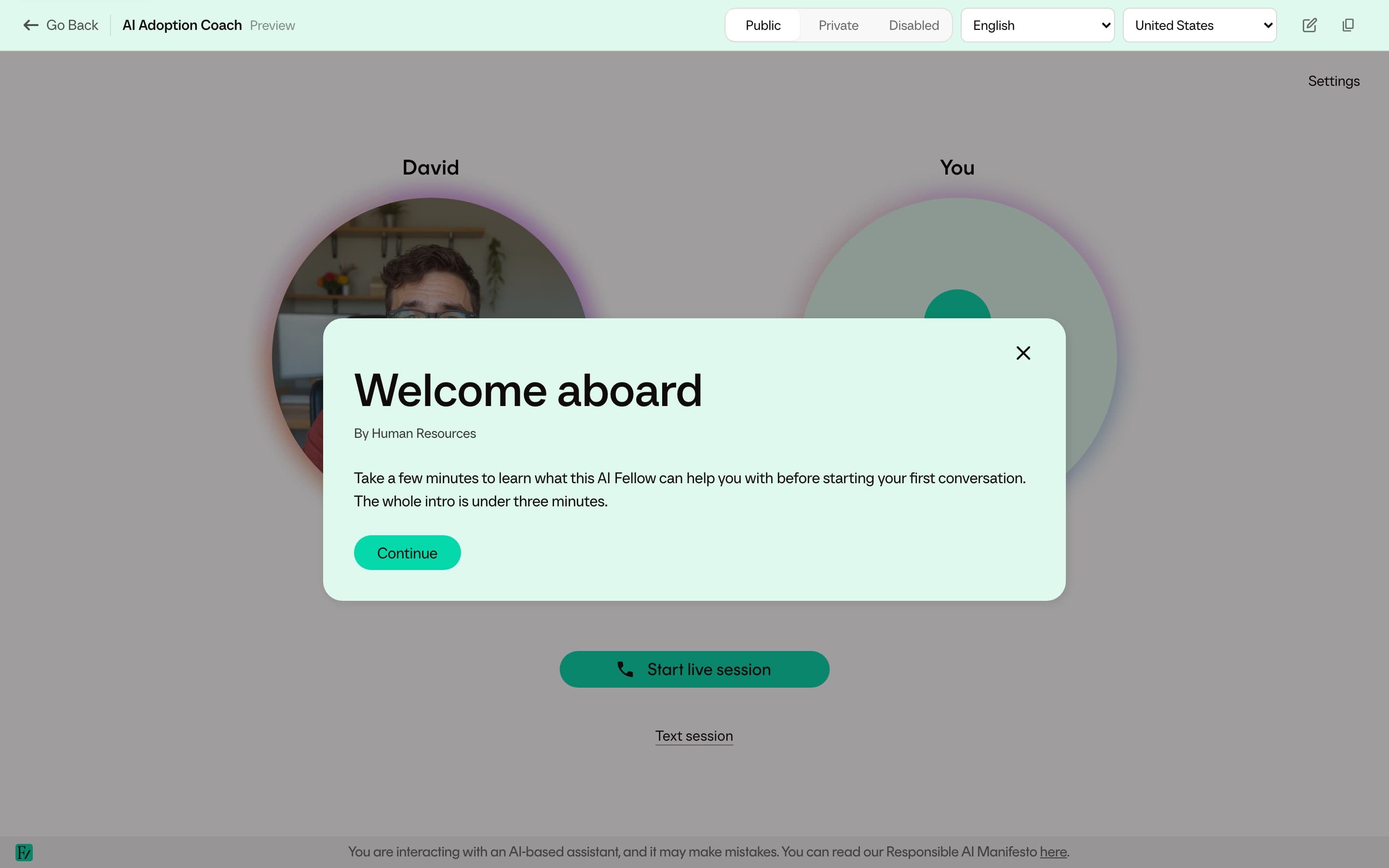
On the AI Fellow monitor, open Actions and choose Launch AI Fellow. An AI Simulation uses Launch AI Simulation. The same rules apply to both.
The address in the browser is the Launch page. Use it to review the Fellow before you share it. Copy Link copies a different address: the public page, with the language and region selected here.
The preview header has Public, Private, and Disabled. Choosing one saves that visibility immediately. Public means anyone with the link can open the Fellow. Private means only signed-in people with access can open it. Disabled keeps it unavailable to learners, while you can still use this preview. When visibility is managed in the examination editor, the header explains that and does not let you change it here.
Language reloads the preview in that language. When the language has a spoken accent or variety, Region or variety appears beside it. Both apply to this preview and to the copied link. They do not change the language or accent saved on the AI Fellow.
Copy Link copies the public link for the language and region shown above.
- When the AI Fellow is Public, the link is copied immediately.
- When it is Private, This AI Fellow is private explains that only signed-in users who have been granted access can open the link. Copy URL anyway copies it.
- When it is not active, This AI Fellow is not active explains that nobody can use the link until the status is Public or Private. Copy URL anyway copies it.
If someone who is not signed in opens the Launch address, and the Fellow is Public or Private, Frontierz opens the same public page as Copy Link, with the language and region selected on the Launch page. A Public Fellow opens with no account. A Private Fellow still asks them to sign in, and only people who have been granted access can continue. Otherwise they see the sign-in page, and the public address stays hidden. Someone who is already signed in, but cannot edit this Fellow, is not sent to the public page.