

Last updated on
User detail
Open a user's detail page to review their account, permissions, and activity in one place. Full Admins and Owners can use it for anyone in the company, including people with User, Manager, Creator, Full Admin, or Owner roles, or a combination of those roles.
Open it from Company Settings → Access Management by clicking a row or the view icon in either tab.
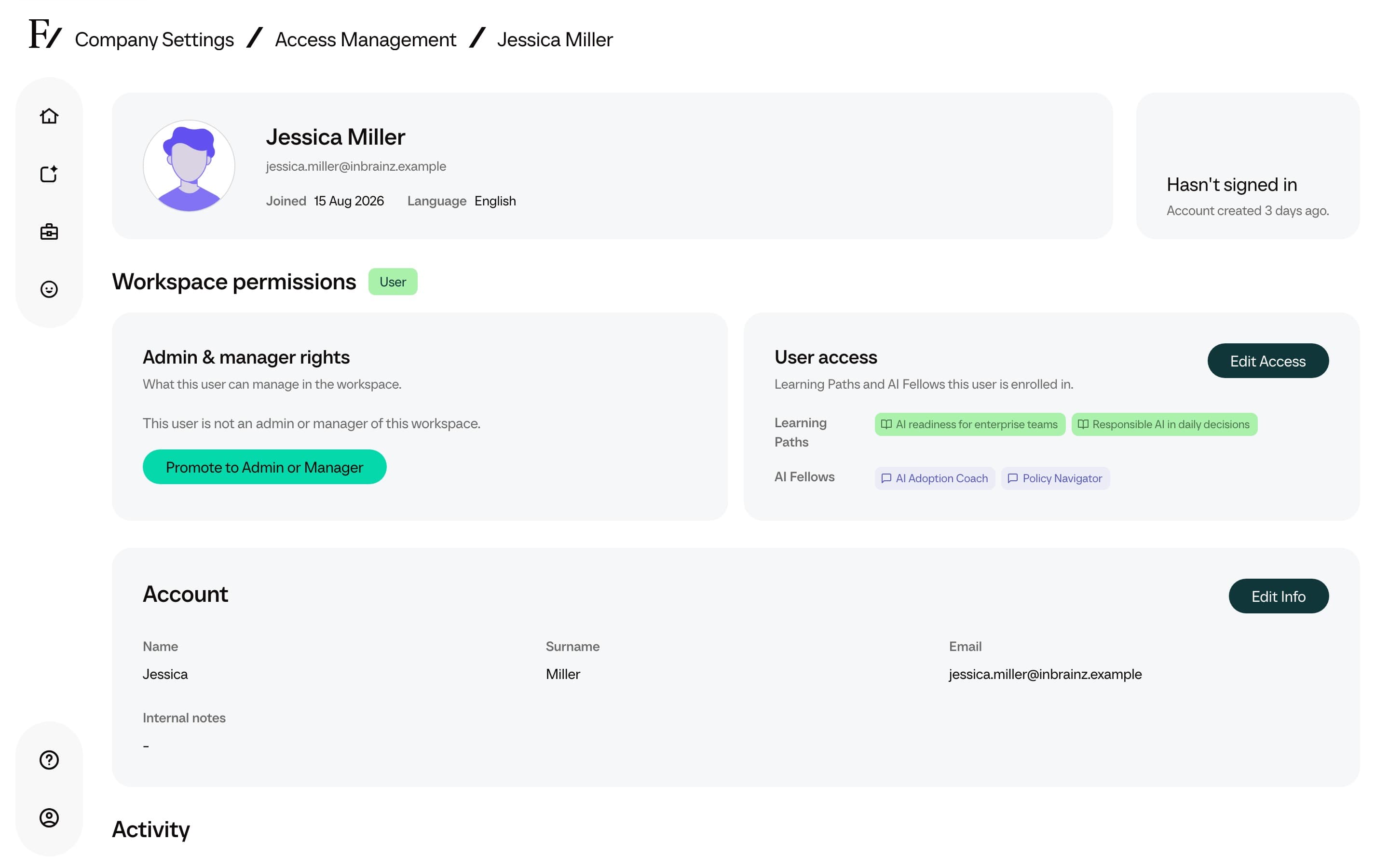
What the page shows
The page is organized around three questions:
| Section | What it answers |
|---|---|
| Identity | Who is this person, what email do they use, and when were they last active? |
| Workspace permissions | What can this person do in this company: admin or manager rights, user access, or both? |
| Activity | Which Learning Paths and AI Fellows have they used, with progress and usage numbers where available? |
Use Actions to generate a report (Generate Report), update account details (Edit Info), or change permissions (Edit Access). Edit Access opens Assign role and access, where you can choose Admin, Manager, Creator, User, or Owner if you have permission to grant it. When assigning User or Manager access, select at least one Learning Path or AI Fellow. You can also restart the introductory tour for the person’s next visit to Home with Show Onboarding Again, or remove them from the workspace with Remove User.
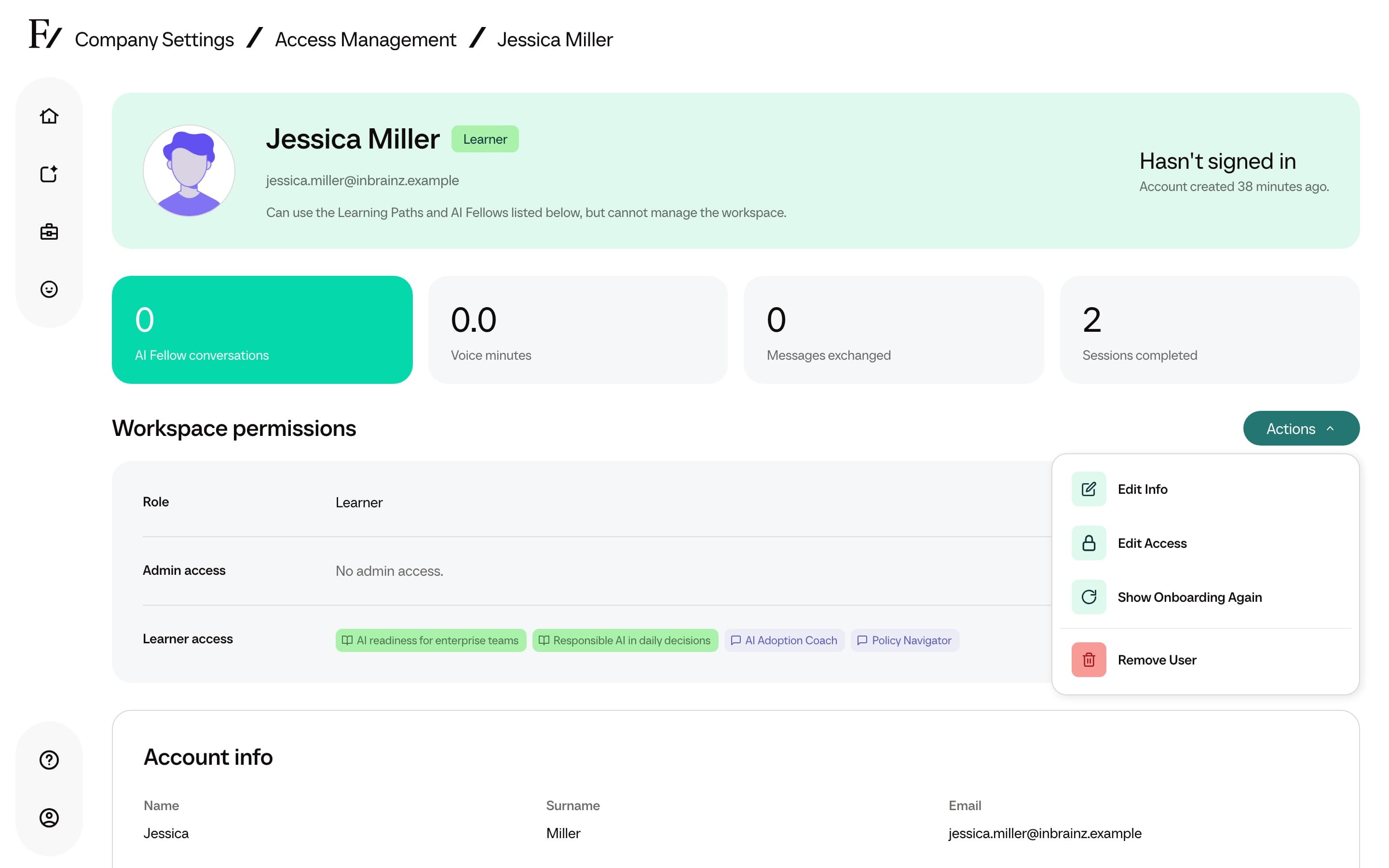
A person can be both an admin or manager and a User. When that happens, the page shows both sides together instead of splitting them across separate screens.
Workspace permissions
Workspace permissions are split into two cards.
Admin, creator, and manager rights shows whether the person is an Owner, Full Admin, Creator, Manager, or has no admin rights. Owners and Full Admins see all Learning Paths and AI Fellows. Creators can author those resources without enrollment rights. Managers show only the resources assigned to them. For a Manager, Build content shows either Can create new Learning Paths, AI Fellows, and Assessments. or Administers assigned content only; cannot create new content. Change it in Actions → Edit Access with Can build new content.
User access shows the Learning Paths and AI Fellows the person can use as an end user.
From these cards, an authorized Full Admin or Owner can:
- Open Actions → Edit Access to assign a role and Learning Path or AI Fellow access in one window.
- Grant user access to an admin-only person from the same window.
- Choose Actions → Show Onboarding Again so the first-time tour runs on their next Home visit.
- Remove a User from this workspace with Actions → Remove User. See Remove a user from this workspace.
Owners can also grant the Owner role and change another Full Admin or Owner. Full Admins cannot change or remove another Full Admin or Owner. Full Admins can invite, edit, and remove Creators. Nobody can change their own admin rights from this page.
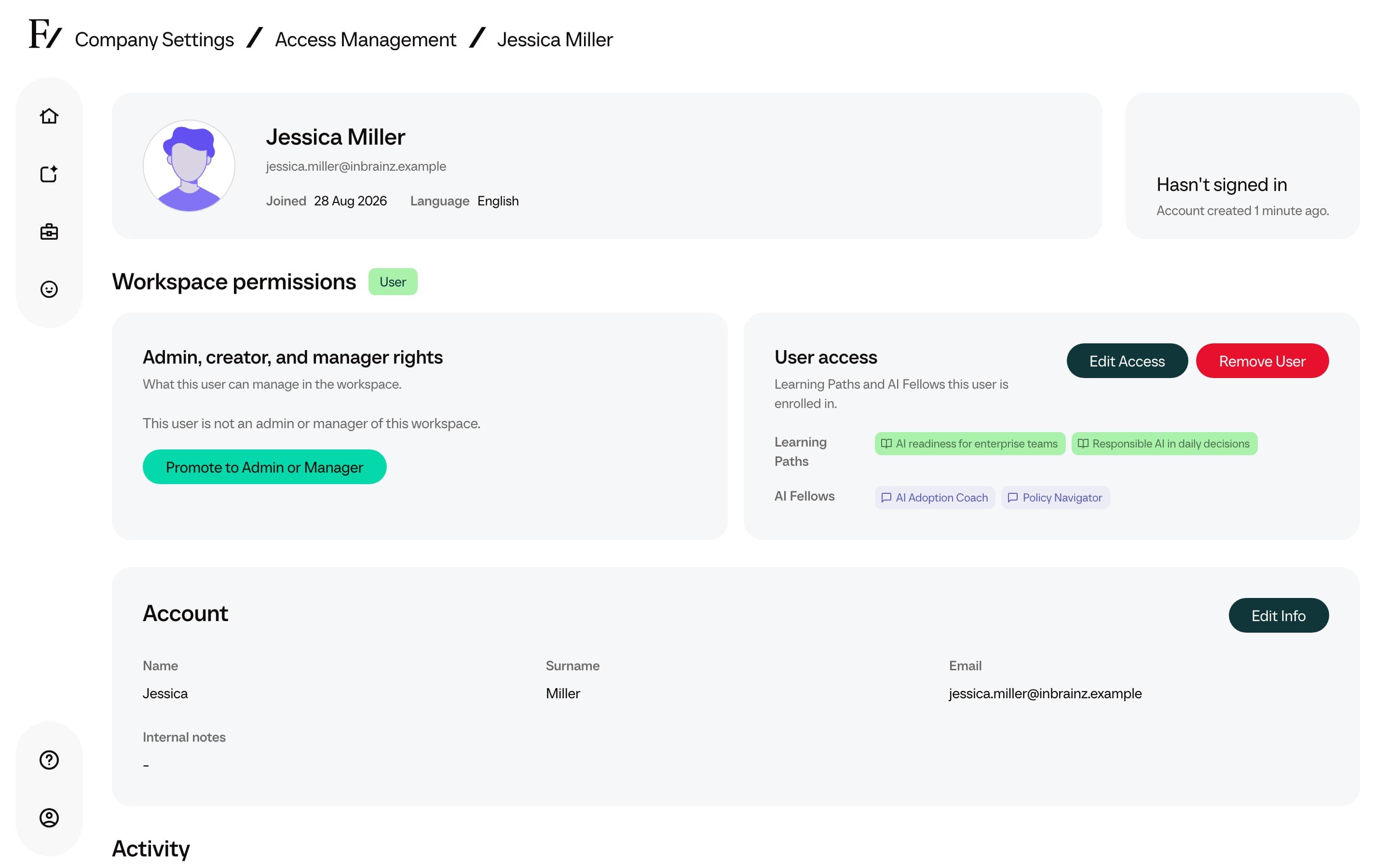
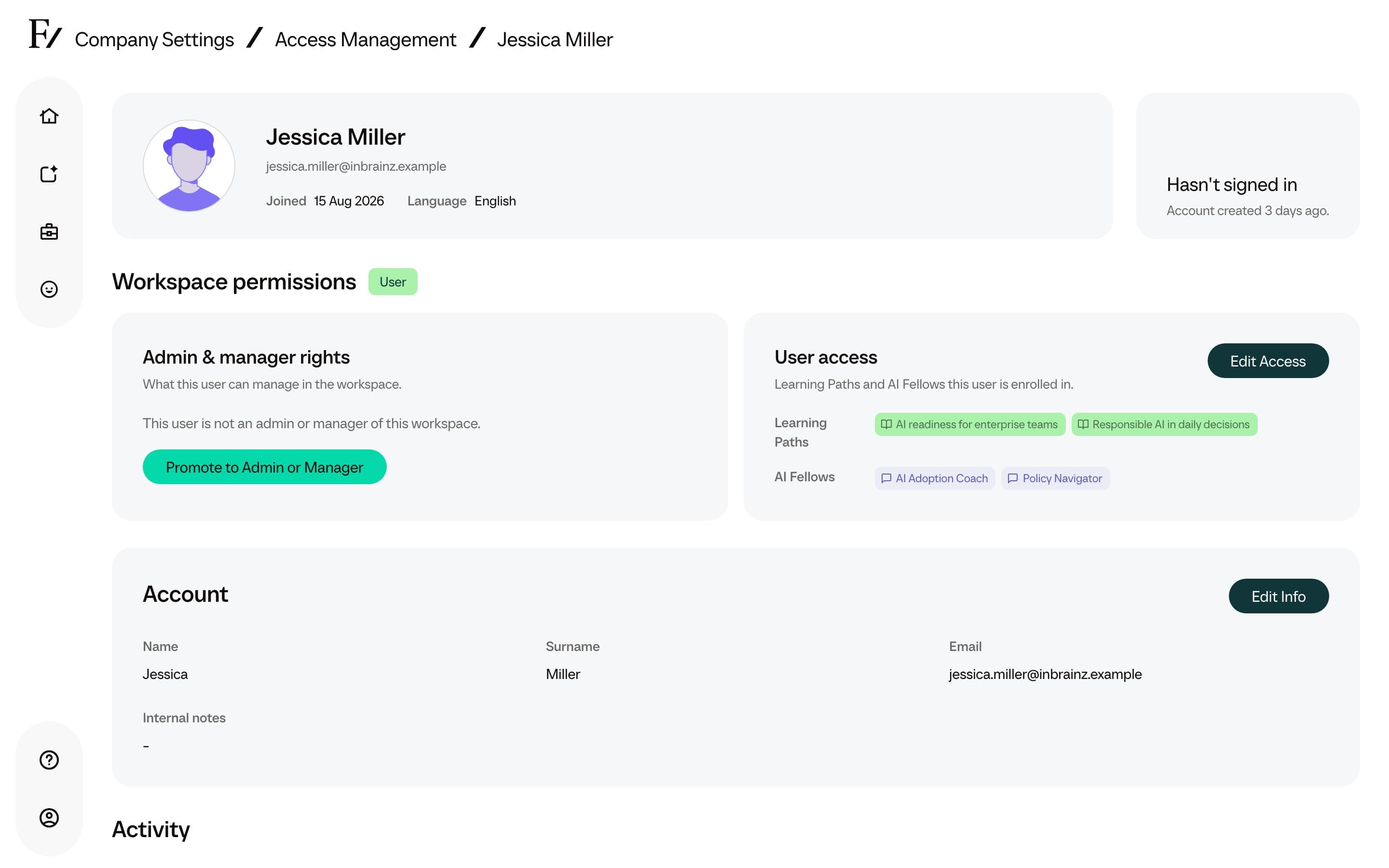
Account details
The account section allows a Full Admin to update the person's name, surname, email address, and Language. Language is the language AI Fellows speak with this person, including regional variants such as French (Canada). Leave it unset to use the Learning Path language. Changing the email changes the address that receives future sign-in links. Enrollment date is the earliest grant of a Learning Path or AI Fellow in this workspace. Use Actions → Edit Info to change the name, surname, email, Language, and internal notes.
Internal notes
Authorized administrators can add Internal notes to a user profile. The field is not shown to the user.
The notes are shared as context with the user's AI Fellows, My Fellow, and Learning Paths so they can tailor guidance. Do not include passwords, credentials, or other secrets.
Generate Report
Actions → Generate Report writes an AI summary of that person's Learning Path progress and AI Fellow activity in this company.
Generate Report stays disabled when the person has no completed Fellow sessions, conversations, or messages. Hovering the control shows This user has no progress to report yet.
Use Contents to navigate to Key themes, Recommended actions, and other report sections on a wide screen. The arrows open the previous or next completed report, and Go Back returns to the user’s detail page. Open Actions to choose Print Report, Save as PDF, or Delete.
Activity and usage
When there is activity to show, the page lists Learning Path progress and AI Fellow usage for that person inside the current company.
Learning Path rows show assignment date, progress, completed sessions, and last activity. AI Fellow rows show visibility, assignment date, conversations, voice minutes, messages, and last activity.
This page shows access and activity for the company currently open in Frontierz. It does not include the person’s activity in other workspaces.