

Last updated on
Cornerstone Learning
Use this guide to prepare a Cornerstone Learning connection, import Frontierz activities, and test learner access. It also covers Learning Path completion reporting.
Frontierz and Cornerstone agree learner identity, course-to-content mapping, and completion reporting during provider onboarding. Finish the pilot before you make courses available more widely. Keep production and test connections separate.
You need a Cornerstone administrator who can import and assign content, a Frontierz Owner or Full Admin, and the teams handling onboarding. Have one Learning Path and a separate learner account with an email address. If you need completion reporting, use an unfinished path for that test. You also need Cornerstone's current LTI CSV template and import procedure for your portal.
This workflow imports courses. It does not use a Deep Linking picker or the Frontierz deep linking URL.
Give Cornerstone the Frontierz addresses
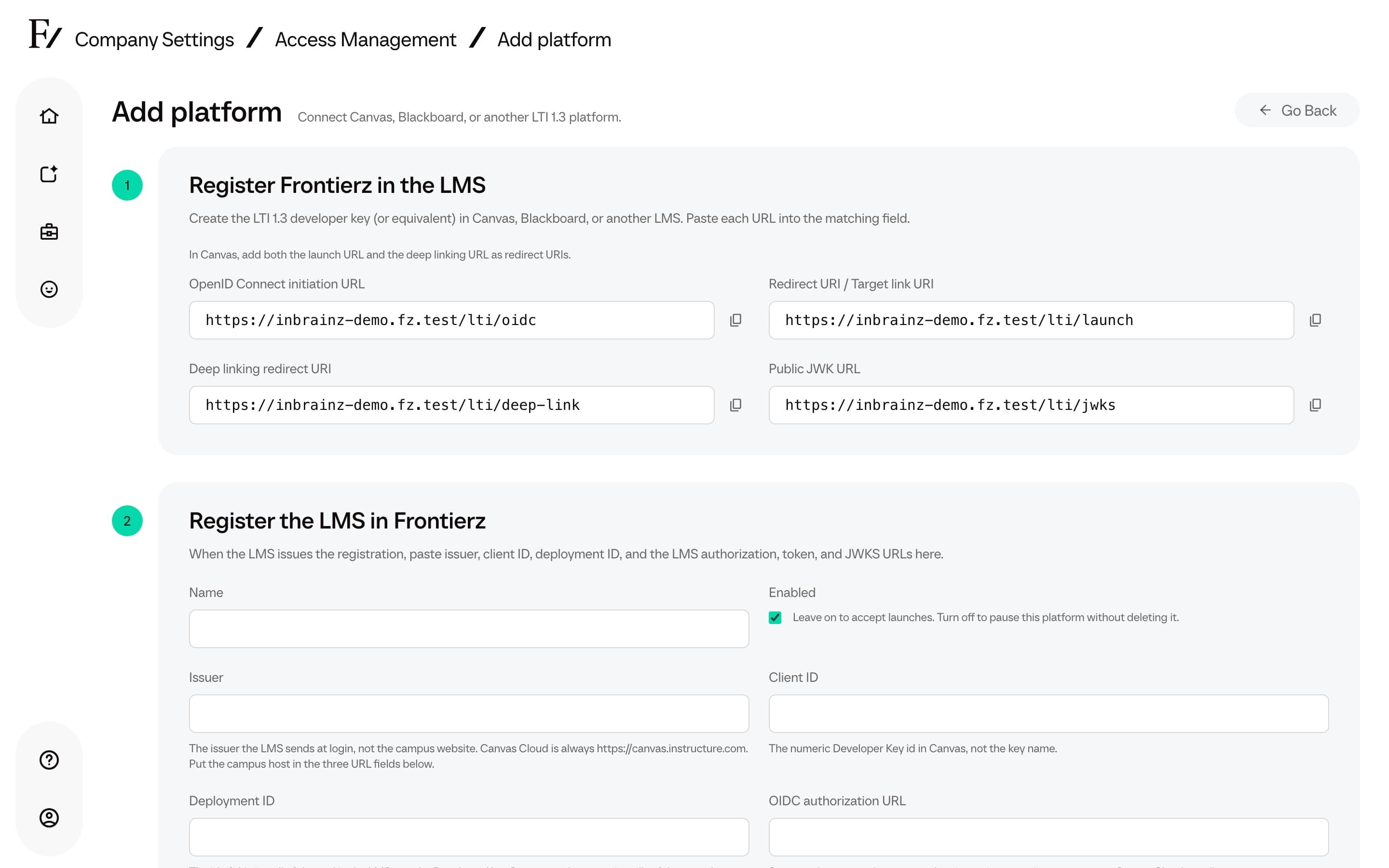
| Cornerstone onboarding value | Frontierz value |
|---|---|
| LTI Login URL | OpenID Connect initiation URL |
| Launch URL | Redirect URI / Target link URI |
| JWKS URL | Public JWK URL |
| Allowed redirect URI, if requested | The same launch URL |
Use the public HTTPS hostname shown in Frontierz, including a custom
domain. A Learning Path's ordinary browser address is not the LTI launch
URL. Open the Public JWK URL in a browser and confirm it returns
JSON with a keys array. Share that URL, not a private key. An LTI 1.1
shared secret does not replace this registration.
Ask the teams to confirm a learner-specific email field and signed content parameters for each imported course. For completion reporting, Frontierz also has to verify the signed grade-service information and the course-specific endpoint. Sign-in alone does not confirm reporting.
Register Cornerstone in Frontierz
Ask Cornerstone for the registration values for this workspace. Do not substitute the Cornerstone sign-in address for the issuer or the service endpoints.
| Frontierz field | Value |
|---|---|
| Name | A name for this Cornerstone environment |
| Issuer | Cornerstone's Issuer URL |
| Client ID | The Client ID for this registration |
| Deployment ID | The Deployment ID supplied for this connection |
| OIDC authorization URL | Cornerstone's Authentication Endpoint |
| Access token URL | Cornerstone's Token Endpoint |
| JSON Web Key Set URL | Cornerstone's JWKS Endpoint |
| Enabled | On for the pilot |
Copy the full values, including any path. Cornerstone's public reference
describes deployment ID 1. Use the value confirmed during onboarding,
not a course ID.
The Frontierz /lti/jwks address goes into Cornerstone. Cornerstone's
JWKS Endpoint goes into Frontierz. Do not replace either host with your
portal's login address.
Leave Grade passback on Completed. That chooses the score calculation. It does not turn reporting off. For launch-only use, agree the reporting configuration and the Cornerstone completion policy with the onboarding teams. Choose New window for voice.
Unknown users, seats, and Custom claim map are described on LMS. Click Save platform and confirm the row is Enabled.
Learner identity
The first successful launch connects Cornerstone's learner identifier to the Frontierz account. An email match can make that connection. Later launches use the saved identity.
Create needs an email address in the signed launch. Reject requires an account that already exists. Ask Frontierz to verify the email received in a pilot launch. Cornerstone's documented learner GUID is not an email address. If the launch does not send email, pause and have the teams establish a supported identity method.
Leave Custom claim map blank when standard email and name fields are present. If Cornerstone sends email under a different confirmed claim name, Frontierz can map that field. Do not put one learner's email into shared course metadata.
A learner's first grant of access may use a seat. Relaunching the same content does not use another seat. Use ordinary learner accounts for the test. A workspace owner, or a person with administrative authority in another workspace, may be blocked from a new identity link. Blocked or deleted accounts cannot launch. Cornerstone roles do not grant Frontierz Studio permissions.
Map courses to Frontierz content
Ask Frontierz for the UUID of each resource you will import.
| Content | frontierz_type | uuid |
|---|---|---|
| Learning Path | program | UUID for that path |
| Fellow Session | lesson | UUID for that session |
| AI Fellow | ai_fellow | UUID for that Fellow |
Use one Learning Path and one Cornerstone course for the pilot.
The onboarding teams arrange for those two values to reach Frontierz in the signed LTI custom parameters, using the CSV representation agreed during onboarding. All custom values must be strings. Custom claim map maps identity fields. It does not set these content parameters.
Do not add frontierz_type or uuid to the launch URL as query
parameters. Matching course titles, or reusing a Cornerstone course ID
as the UUID, does not create the mapping.
If a launch opens Frontierz Home, or the wrong resource, the pilot has not passed. Have Frontierz check the signed content parameters before you add more courses.
A Fellow Session link grants access to its parent Learning Path and reports that path's completion. A standalone AI Fellow has no Learning Path completion result. Do not make an AI Fellow course depend on a path-completion message it will not send.
Import and assign the pilot course
Use the LTI CSV template from onboarding. Keep its headers. Do not substitute field names from the connector API's JSON schema.
frontierz_type and uuid.Keep course identifiers stable when you update metadata. Do not reuse an identifier for a different Learning Path without an agreed migration.
The integration does not import Frontierz content files into Cornerstone. Learners launch the selected content in Frontierz and return to Cornerstone for the course transcript.
Test launch and completion
Run the completion checks only after Frontierz confirms reporting for this connection. For launch-only courses, follow the completion policy you agreed during onboarding.
Sign out of administrator accounts. Use a separate browser profile for the pilot learner.
Frontierz reports completion of the whole Learning Path, even when the link opens a specific Fellow Session. With Completed, it sends a score of 100 when the path is finished. With Percentage, it sends the share of Fellow Sessions completed at that point. The result is reported at path completion and does not update after each conversation.
Relaunching a completed path can send a missing result. An unchanged result that was already delivered is not sent again. Use a new learner or an unfinished path to check that completion is not reported too early.
If you need reporting, do not open general access until the pilot has updated the correct transcript entry. If reporting is unavailable, agree a launch-only course and its completion policy with both teams first.
If something fails
| What you see | What to check |
|---|---|
| The imported course is missing | The import result, required metadata, availability, and the assignment. |
| Frontierz opens Home or the wrong resource | Signed frontierz_type and uuid, the resource's workspace, and the course mapping. |
| The learner cannot open voice | The new tab and the microphone. If cookies block login inside the LMS, use the supported new-window launch. |
| Completion never appears | The whole path is complete, it was launched through this course, and Frontierz has verified the token request and the course-specific grade endpoint. |
| Completion appears immediately | The learner may already have finished that path. Repeat with a learner and a path that have no prior completion. |
Launch error categories are on LMS. Last ok confirms a successful launch. It does not confirm completion delivery. Send the FRZ reference. Do not send launch tokens, private keys, or a full JWT.
Before you open the course
- Registration values belong to this environment and workspace.
- A first-time learner resolves to the intended account.
- Every imported course has a verified content mapping.
- The pilot opens the correct resource, and voice works where you need it.
- If reporting is on, whole-path completion reaches the correct transcript entry.
- Availability, assignment, support ownership, and the catalog update process are agreed.
After the pilot, repeat the same mapping and import for the remaining resources. Test at least one new import and one learner from each audience before you release the full catalog. Keep the verified course-to-resource list.
Run another pilot after you change the workspace hostname, registration values, identity mapping, imported content parameters, or completion configuration.
To pause new launches, turn Enabled off in Frontierz. Deleting the registration stops existing launches. Retire courses through the usual Cornerstone content process.