

Last updated on
Canvas
Use this guide to connect one Frontierz workspace to Canvas, add an activity to a course, and test learner access. Completion grades are optional.
You need a Canvas root account administrator who can manage Developer Keys and install LTI tools. A subaccount administrator cannot create the key. In Frontierz you need an Owner or Full Admin. Have a pilot course and separate instructor and student accounts with email addresses.
Copy the Frontierz URLs, create and enable the Canvas key, then install it. The installation produces a Deployment ID. Save that ID in Frontierz before an instructor opens the picker. The Client ID is the Developer Key. The Deployment ID is one install of that key. Each install needs its own row in Frontierz.
Copy the Frontierz URLs
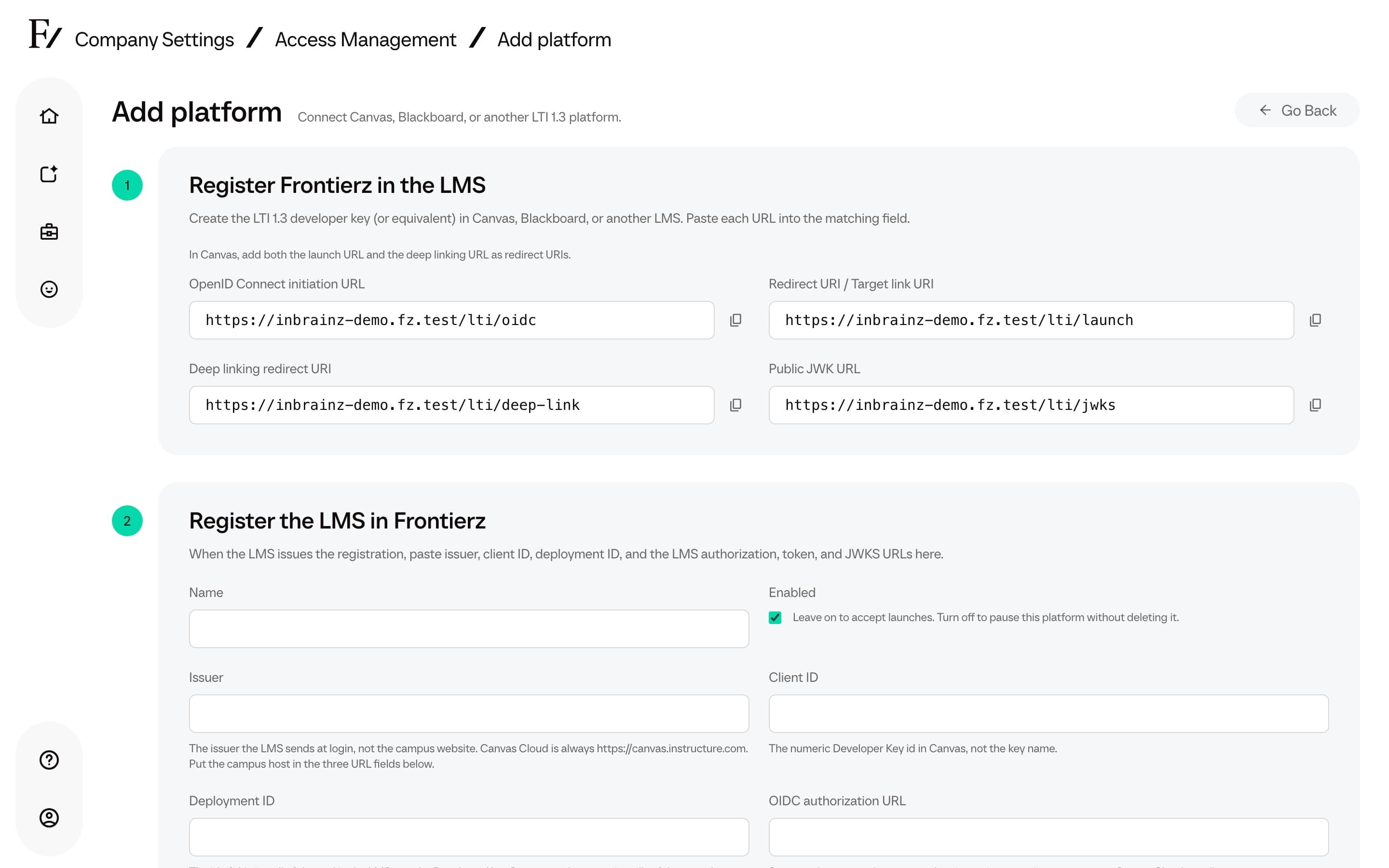
Open the Public JWK URL in a browser. It should return JSON with a
keys array. If it returns an error, ask Frontierz support to check
the workspace before you continue.
Create the LTI key
In Canvas, open Admin → your root account → Developer Keys. Click + Developer Key → + LTI Key, then Manual Entry. Frontierz does not provide a Canvas JSON configuration URL.
Paste the copied Frontierz URLs. Use the hostname shown in Frontierz.
| Canvas field | Value |
|---|---|
| Key Name | Frontierz, or a name your administrators will recognize |
| Owner Email | The administrator responsible for this connection |
| Redirect URIs | The launch URL and the deep linking URL, one per line |
| Title | Frontierz |
| Description | Open Frontierz Learning Paths and AI Fellows from Canvas |
| Target Link URI | The copied Redirect URI / Target link URI |
| OpenID Connect Initiation Url | The copied OpenID Connect initiation URL |
| JWK Method | Public JWK URL |
| Public JWK URL | The copied Public JWK URL, as plain text |
Choose Public JWK URL and paste the URL only. The separate Public JWK field expects a JSON key. Do not paste a URL into that JSON field.
Both redirect URIs are required. Learners use the launch URI. Instructors use the deep linking URI when they pick content.
Privacy, grades, and placements
Under Additional Settings, set Domain to the Frontierz hostname,
without https:// or a path. Set Privacy Level to Public (name
and email) or Email only. Frontierz needs an email to match or
create an account on the first launch.
Under LTI Advantage Services, turn on these two permissions when you want grades back:
- Can create and view assignment data in the gradebook associated with the tool.
- Can create and update submission results for assignments associated with the tool.
Leave the read-only assignment permission off. The first permission already includes it. Frontierz does not need roster access. Leave the other services off. If you do not want grades, leave both grade services off.
| Placement | Message type | Target |
|---|---|---|
| Link Selection | LtiDeepLinkingRequest | Deep linking URL |
| Assignment Selection | LtiDeepLinkingRequest | Deep linking URL |
| Course Navigation (optional) | LtiResourceLinkRequest | Launch URL |
Keep Link Selection for module items and Assignment Selection for assignments. Remove placements you will not use. A Course Navigation link opens Frontierz Home.
Click Save. On the Developer Keys list, switch the key ON. Copy the number under Details. That number is the Client ID.
Accounts on the newer Canvas Apps screen (Admin → Apps → Manage) use the same LTI values. Privacy there is User's email only or All user data. Do not create a second registration to switch screens.
Install the key
An account install is shared by the courses under that account. A course install is limited to that course. An app inherited from the account is the same deployment. Installing it again in a course can create a different one.
Register Canvas in Frontierz
Return to Register the LMS in Frontierz. Enter a name, leave Enabled on, and paste the Client ID and Deployment ID.
For production Canvas Cloud:
| Frontierz field | Value |
|---|---|
| Issuer | https://canvas.instructure.com |
| OIDC authorization URL | https://sso.canvaslms.com/api/lti/authorize_redirect |
| Access token URL | https://sso.canvaslms.com/login/oauth2/token |
| JSON Web Key Set URL | https://sso.canvaslms.com/api/lti/security/jwks |
These Canvas endpoints go into Frontierz. The Frontierz Public JWK URL goes into Canvas.
| Environment | Issuer | Endpoint host |
|---|---|---|
| Test | https://canvas.test.instructure.com | sso.test.canvaslms.com |
| Beta | https://canvas.beta.instructure.com | sso.beta.canvaslms.com |
For test or beta, keep the same paths and change the host. Store each environment as its own Frontierz integration. After a refresh, check the Client ID, Deployment ID, key state, and install again.
For self-hosted Canvas, ask the Canvas administrator for the issuer and endpoints. Do not guess them from the campus homepage.
Then set Unknown users, Grade passback, and Launch presentation as described on LMS. For voice, choose New window. Leave Custom claim map blank unless Frontierz support gave you a mapping. Click Save platform and confirm the row is Enabled.
Add an activity
Assignment, when you need a grade
Module link
Open Modules, click + on the module, and choose External Tool. Use the search icon beside Frontierz to open the picker. Select a Learning Path, Fellow Session, or AI Fellow. Choose the new-tab option and click Add Item. Publish the item and the module when you are ready.
A module link does not create a graded assignment by itself. For the grading test, use the assignment steps above.
Pilot
Canvas Student View and its Test Student account do not exercise external apps. Use a real enrolled student.
Completed sends 100 when the Learning Path is finished. Percentage is the share of completed Fellow Sessions at path completion. A Fellow Session link reports its parent path. A standalone AI Fellow sends no path-completion grade. The result does not update after each conversation.
If something fails
Open LMS integration and read Last failed or Last launch problem. Categories are explained on LMS.
| What you see | What to check |
|---|---|
| The Developer Key will not save | Title, Description, both redirect URIs, the target link, the OIDC URL, and each placement target. JWK Method must be Public JWK URL. |
| Frontierz is missing from a course | The key is ON, the app is installed, the placement is enabled, and availability includes this course. |
| The picker fails or expires | Reopen it from Canvas as the instructor. Check both redirect URIs and the Deep Linking target. |
| Sign-in repeats inside the frame | Use Canvas's new-tab option. Allow pop-ups. Frontierz can open its own window only after sign-in succeeds. |
| Voice does not connect | Open in a new tab and allow the microphone for the Frontierz site. |
| No completion grade | Both grade services, the assignment settings, and that the student launched this assignment and finished the whole path. |
Before you open the course
- The Client ID and Deployment ID match the install learners will use.
- Privacy and Unknown users match your account policy. Both pilot accounts work.
- The picker returns the intended content, and a student can open it.
- Voice works in the browser and window you chose.
- If you need grades, the finished path shows the expected result on that assignment.
To pause new launches, turn Enabled off in Frontierz. Turning off or deleting the Canvas Developer Key removes its installs. Check existing course activities before you change the key.