

Last updated on
D2L Brightspace
Use this guide to connect one Frontierz workspace to Brightspace, add an activity, and test learner access. The steps use Manage Extensibility → LTI Advantage and External Learning Tools. If the registration shows an App tag, use Brightspace Apps, described at the end of this page.
You need a Brightspace administrator with Manage LTI Tools at the organization level, plus a Frontierz Owner or Full Admin. Have a pilot course, an instructor, and a separate enrolled learner. Both accounts need email addresses.
Ask Frontierz support to confirm Brightspace grade return before you rely on it. Leave Assignments and Grade Services off until that confirmation. Launch and content selection can be set up first.
Register and deploy Frontierz in Brightspace, then save Brightspace's connection values in Frontierz. Each deployment needs its own Frontierz integration.
Register the tool
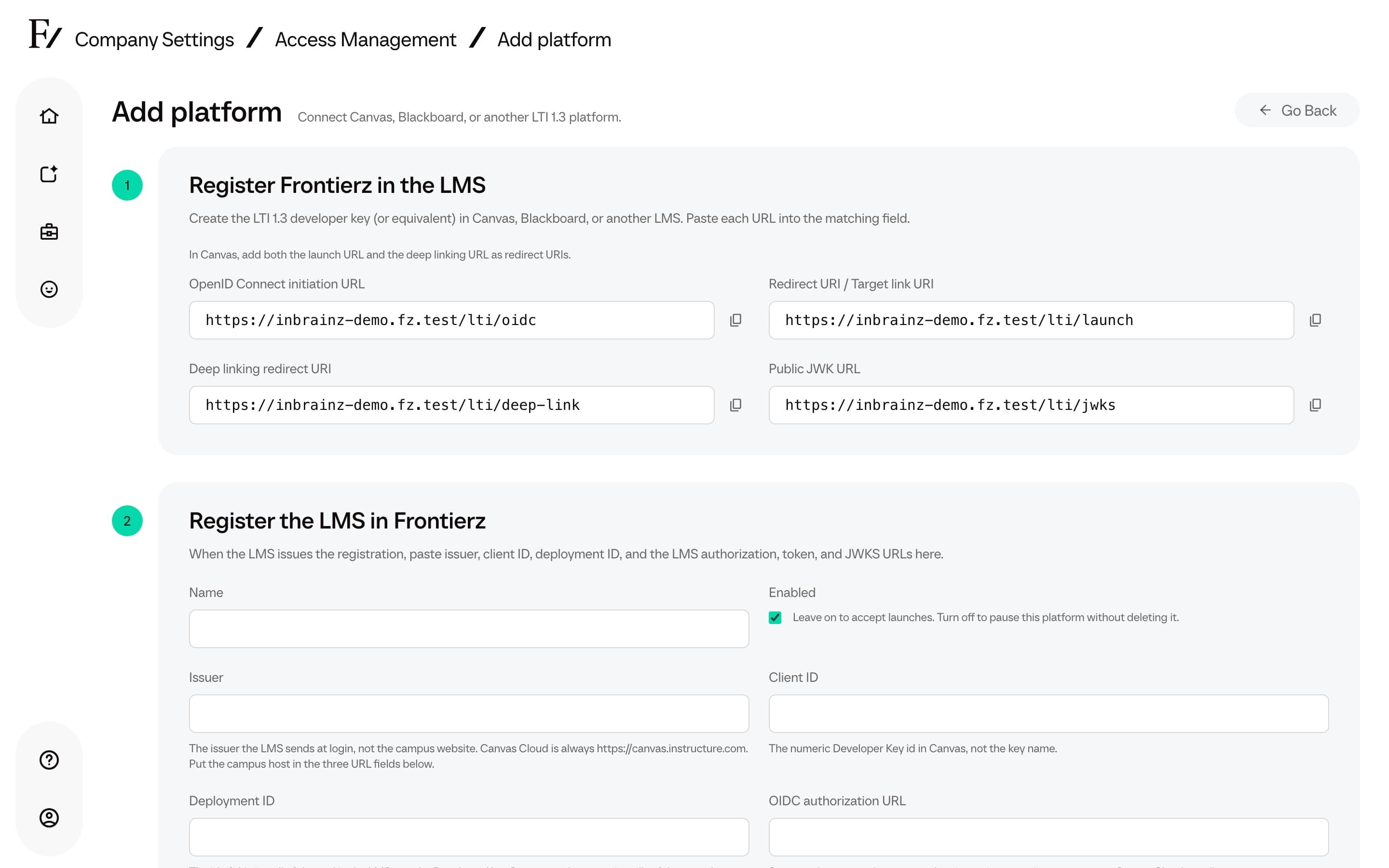
A separate Brightspace OAuth 2.0 API application is not required. Paste the copied URLs. Use exact addresses, without wildcards.
| Brightspace field | Value |
|---|---|
| Name | Frontierz |
| Description | Open Frontierz Learning Paths and AI Fellows from this course |
| Domain | The Frontierz workspace URL, including https:// |
| Redirect URLs | The launch URL and the deep linking URL, each as its own URL |
| OpenID Connect Login URL | The copied OpenID Connect initiation URL |
| Target Link URL | The copied launch URL |
| Keyset URL | The copied Public JWK URL |
Open the Frontierz keyset URL in a browser. It should return JSON with
a keys array.
Deep Linking is on by default in current registrations. If you see a Deep Linking checkbox, enable it. Enable Assignments and Grade Services only after Frontierz confirms grade return. Frontierz does not need roster access, Platform Notification Service, Activity Item Profile, Submission Review, or Asset Processor.
Leave custom and substitution parameters empty. Keep context roles available. Send Institution Role is not required when the instructor's course role is mapped.
Click Register and save the details Brightspace shows. Confirm the registration is enabled before the pilot.
If Brightspace says the domain is already registered, review that registration. Do not disable a working connection to create a duplicate. Use another deployment of the existing registration when that fits.
Deploy it to courses
The Client ID identifies the registration. The Deployment ID identifies its use in courses. Instructors need permission to edit content and create links. Learners need Launch External Learning Tool Links.
If an instructor is denied the content selector, open Admin Tools → IMS Configuration → Roles and check the mapping for that course role. It needs an IMS role such as Instructor. Leave mappings that other integrations use. An LMS instructor role does not grant Frontierz Studio administration.
Open as External Resource applies to links you create after the change. If you change it later, check each existing activity too.
Register Brightspace in Frontierz
| Frontierz field | Copy from Brightspace |
|---|---|
| Issuer | Issuer |
| Client ID | Client Id on the registration |
| Deployment ID | Deployment Id on the deployment this course uses |
| OIDC authorization URL | OpenId Connect Authentication Endpoint |
| Access token URL | Brightspace OAuth2 Access Token URL |
| JSON Web Key Set URL | Brightspace Keyset URL |
Use the values Brightspace generated. Do not build them from the login page, and do not reuse another environment's IDs. Keep production and test as separate Frontierz integrations.
The Brightspace keyset URL goes into Frontierz. The Frontierz keyset URL goes into Brightspace.
Brightspace also shows Brightspace OAuth 2 Audience. Keep it with
the registration notes for support. It is neither the issuer nor the
access token URL. The standard token endpoint is
https://auth.brightspace.com/core/connect/token. Its audience is
https://api.brightspace.com/auth/token. Do not swap them. Frontierz
support confirms grade handling before you turn grades on.
Then set Unknown users and Launch presentation as described on LMS. For voice, choose New window. For a launch-only setup, leave Grade passback at Completed and keep Assignments and Grade Services off in Brightspace. Leave Custom claim map blank unless Frontierz support gave you a mapping. Click Save platform and confirm the row is Enabled.
The instructor selector opens in an iframe. A learner activity that opens in a new tab does not prove the selector will work in a browser that blocks those cookies.
Create the content selector
The selector lets the instructor choose which Frontierz content to add to the course. Learners then open the activity created from that selection.
Use Deep Linking Quicklink. A Basic Launch link at the launch URL does not open the picker or keep a selected Learning Path. Insert Stuff and Quiz Builder are not part of this setup.
If the selector cannot sign in, close it and start again from Brightspace. Send Frontierz the error reference if it still fails.
Add an activity
Sign in as the instructor and open the pilot course.
| Content interface | How to open the selector |
|---|---|
| Classic Content | Content, then a module, then Existing Activities → External Learning Tools → Choose Frontierz content |
| New Content Experience | Content, then a module, then Add Existing → Choose Frontierz content |
Role Switch changes the course view and can launch the tool as the instructor. Use a separate learner account to test provisioning and grades.
Completion grades
Do this only after Frontierz support has confirmed Brightspace grade return. A successful content launch does not confirm that grades can be sent. The standard Frontierz form has no field for Brightspace's separate OAuth2 audience.
Enable Assignments and Grade Services on both the registration and the deployment. Leave Auto Create Grade Items off. In Brightspace Apps that setting is Legacy LTI Grades Management. Frontierz does not need it.
Decide whether the generated item counts toward the final grade. Set Grades created by LTI will be included in the Final Grade to match, and review the weighting in Grades after the test.
On the learner role, open Admin Tools → Roles and Permissions, then Edit Settings, and enable Can be graded in Grades under Tool Behavior Options.
In Frontierz, choose Grade passback (Completed sends 100 when the path is finished; Percentage is the share of completed Fellow Sessions at path completion) and click Save platform.
Adding content does not create a grade item immediately. Frontierz finds or creates the item when it sends the completion result, unless Brightspace already supplied one. An empty gradebook before that first result is not a launch failure. If the result does not arrive, keep the activity out of required grades and contact support. Do not turn on the legacy auto-create option, and do not add a duplicate link as a workaround.
If something fails
| What you see | What to check |
|---|---|
| Domain already in use | The existing enabled registration. Use its deployment instead of a second registration for the same domain. |
| The selector is missing | Registration, deployment, and selector are enabled. The deployment is shared with this course. The instructor can create links. |
| Brightspace shows Not authorized | Launch External Learning Tool Links, plus access to the course and the content. |
| The selector expires or repeats sign-in | Reopen it from Brightspace. The selector uses an iframe. |
| An activity opens Frontierz Home | Add it with Choose Frontierz content. A Basic Launch link does not keep a selected path. |
| Learners cannot open the activity | Deployment sharing, course activation, visibility, dates, release conditions, and enrollment. |
| No completion grade | Support has confirmed the audience, grade services are on at both levels, the learner role can be graded, and the learner launched this activity and finished the path. |
Launch error categories are on LMS. For a grading issue, include the Client ID, Deployment ID, token endpoint, and OAuth2 audience in the support note. Do not send private keys or a full launch token.
Before you open the course
- The registration, deployment, Frontierz integration, and selector are enabled.
- The deployment is shared with the right courses.
- Both pilot accounts open the intended content, including voice where you need it.
- Required grades have passed the learner test, with the visibility and weighting you intend.
To pause new launches, turn Enabled off in Frontierz. Check existing activities before you delete or replace a registration or deployment.
Brightspace Apps
Open Admin Tools → Manage Extensibility → Apps. For an existing app, click Manage. Deployment settings control availability. Manage Links opens the selector links. Those registrations also appear in the older LTI Advantage lists with an App tag.
Use the same Frontierz URLs and the same Brightspace details. Do not create a second registration to move between screens. This setup does not require a Frontierz listing in Find Apps.