

Last updated on
Manage Users
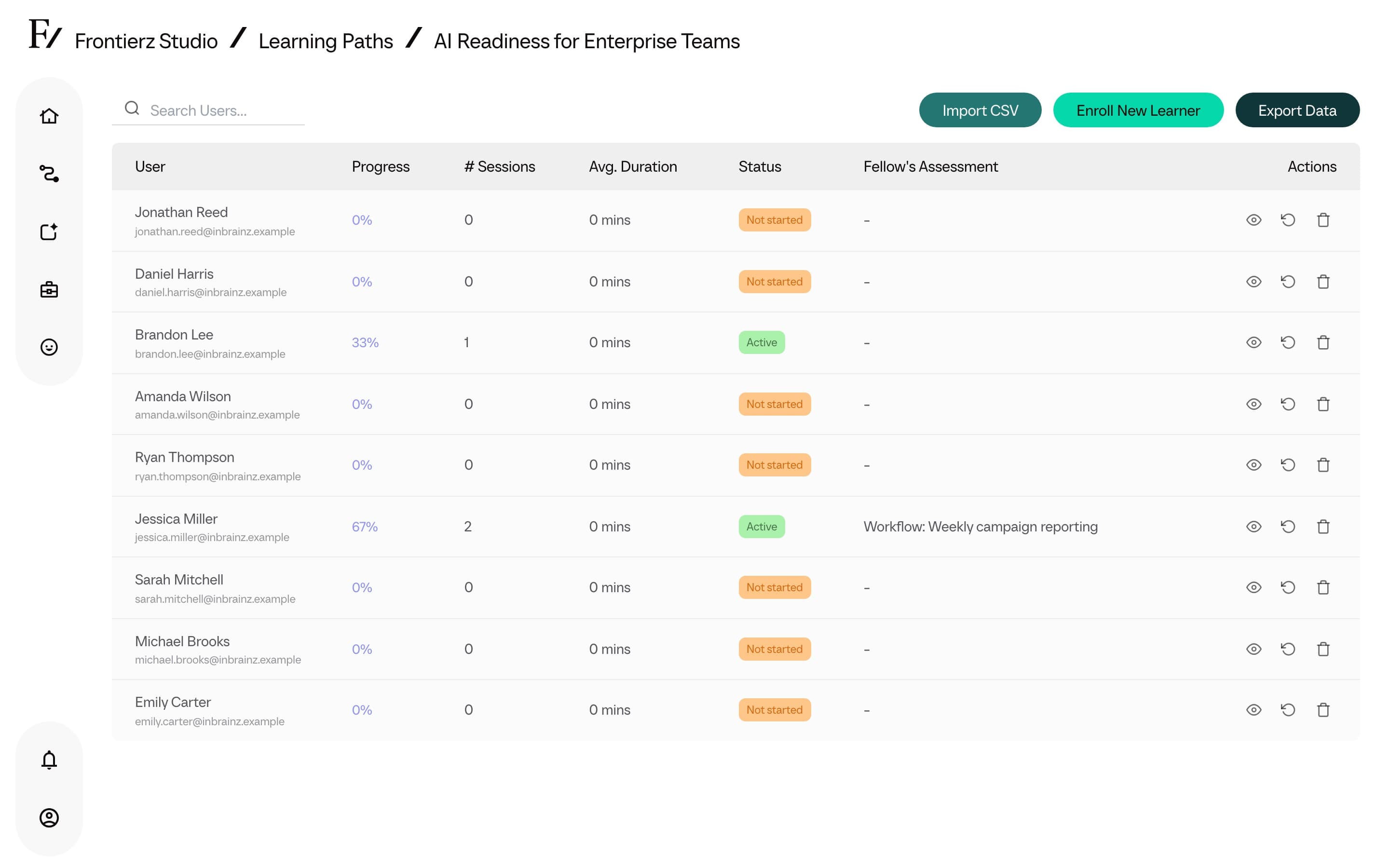
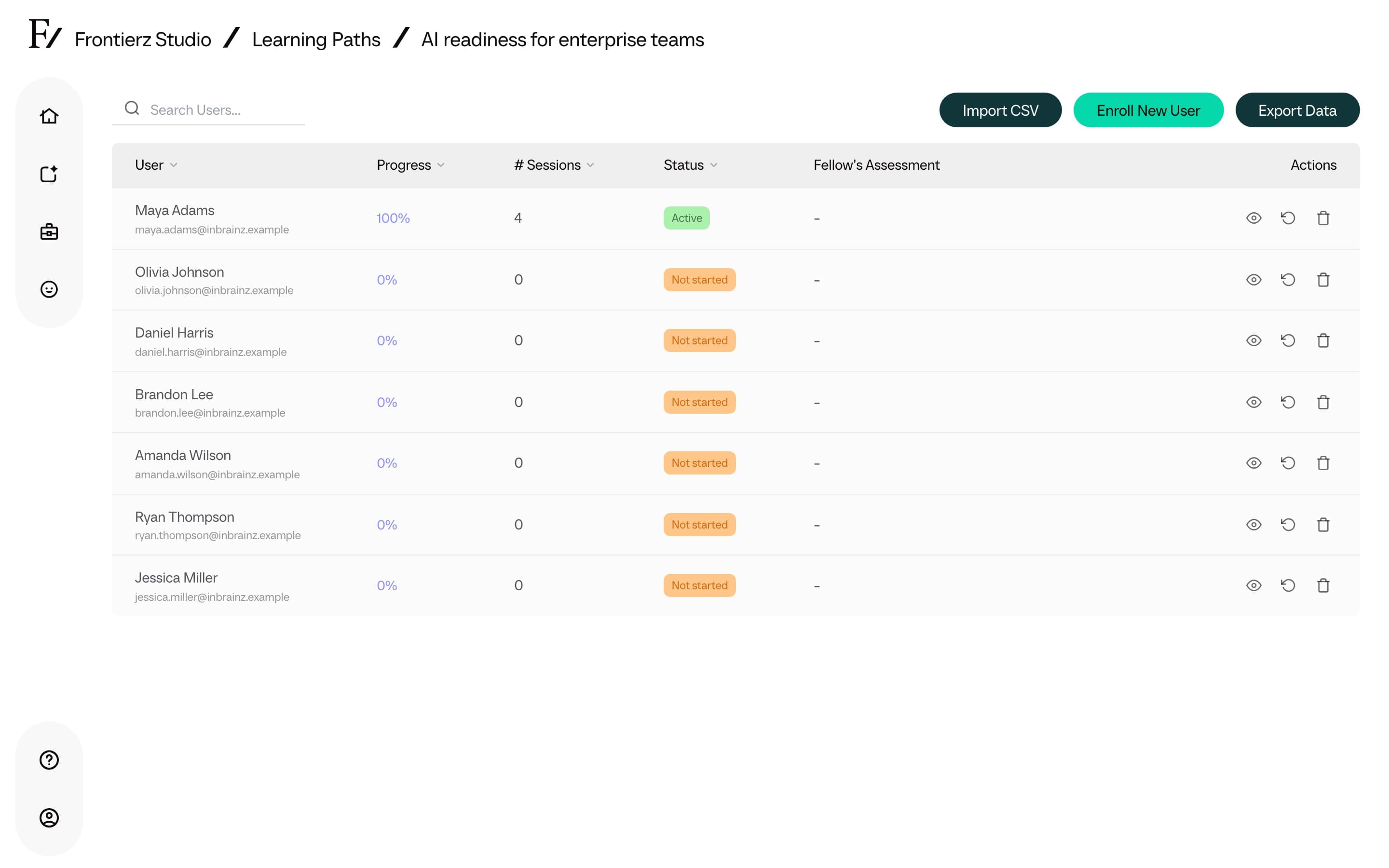
Use Manage Users to enrol people in a Learning Path, review their progress, export their data, or remove their access to that path. The page applies to the selected Learning Path.
What you can do
- Search users by name or email.
- Enroll New User to add one person.
- Import CSV to add a group of users at once.
- Export Data to download progress and assessment data.
- View user detail to open one user's session and objective progress. See Learner detail.
- Clear Progress when a user's progress in this Learning Path must be reset.
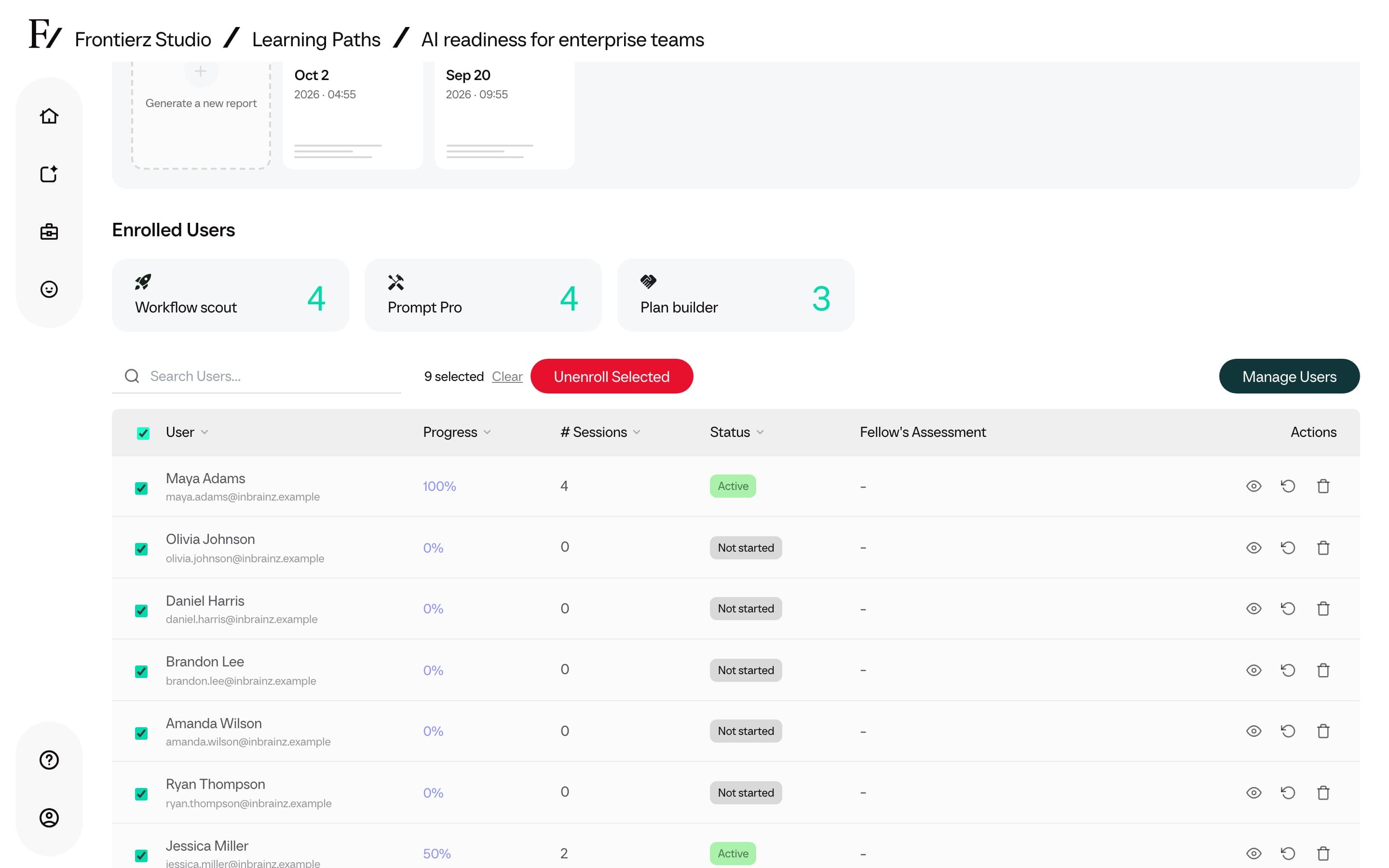
- Unenroll from learning path when a user should no longer take the Learning Path. Select several rows and use Unenroll Selected to remove them together.
Export data
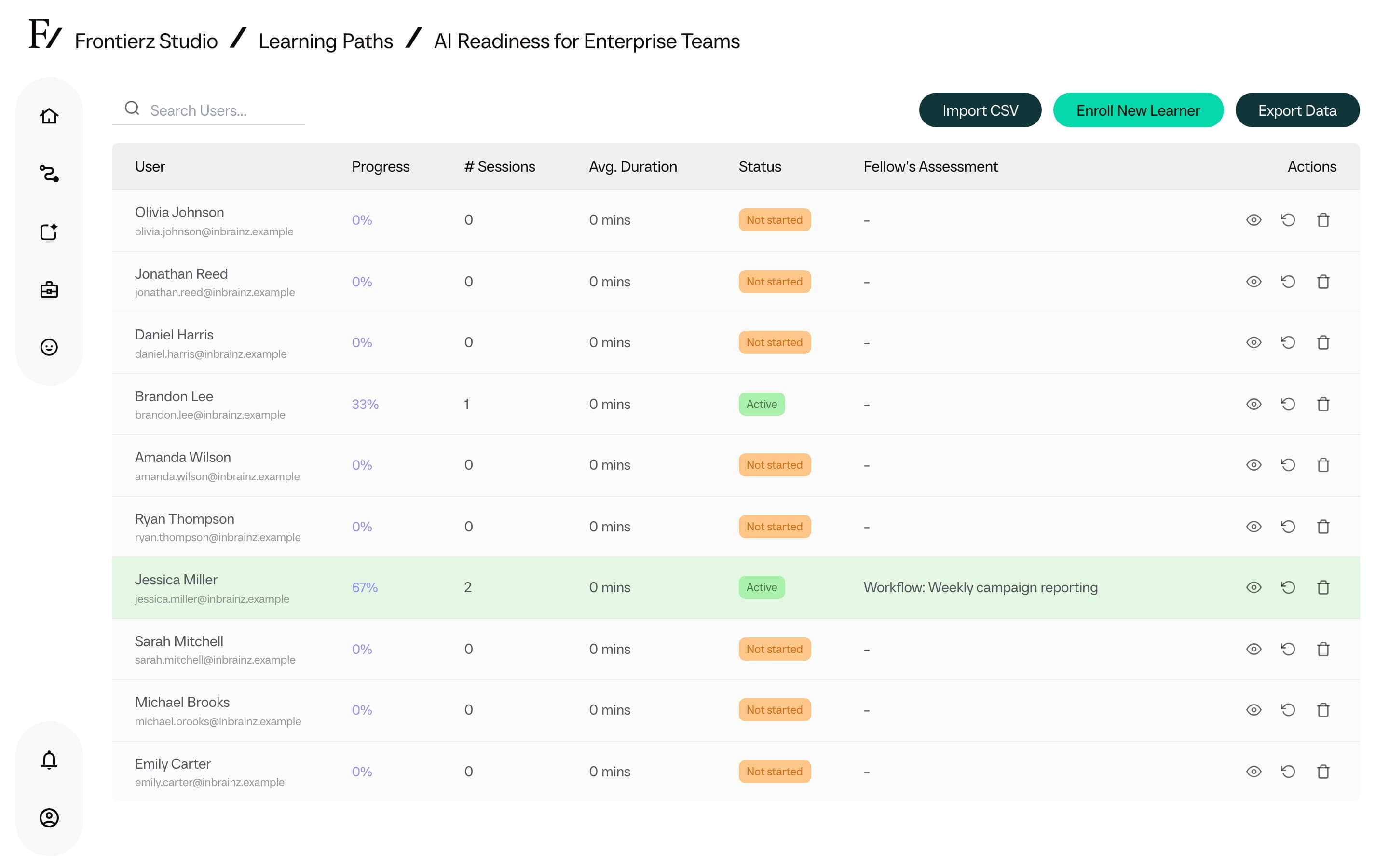
Use Export Data above the Manage Users table to download the Learning Path's progress and analytics data.
The export is available from Manage Users, not from the top of the analytics dashboard.
Learner detail
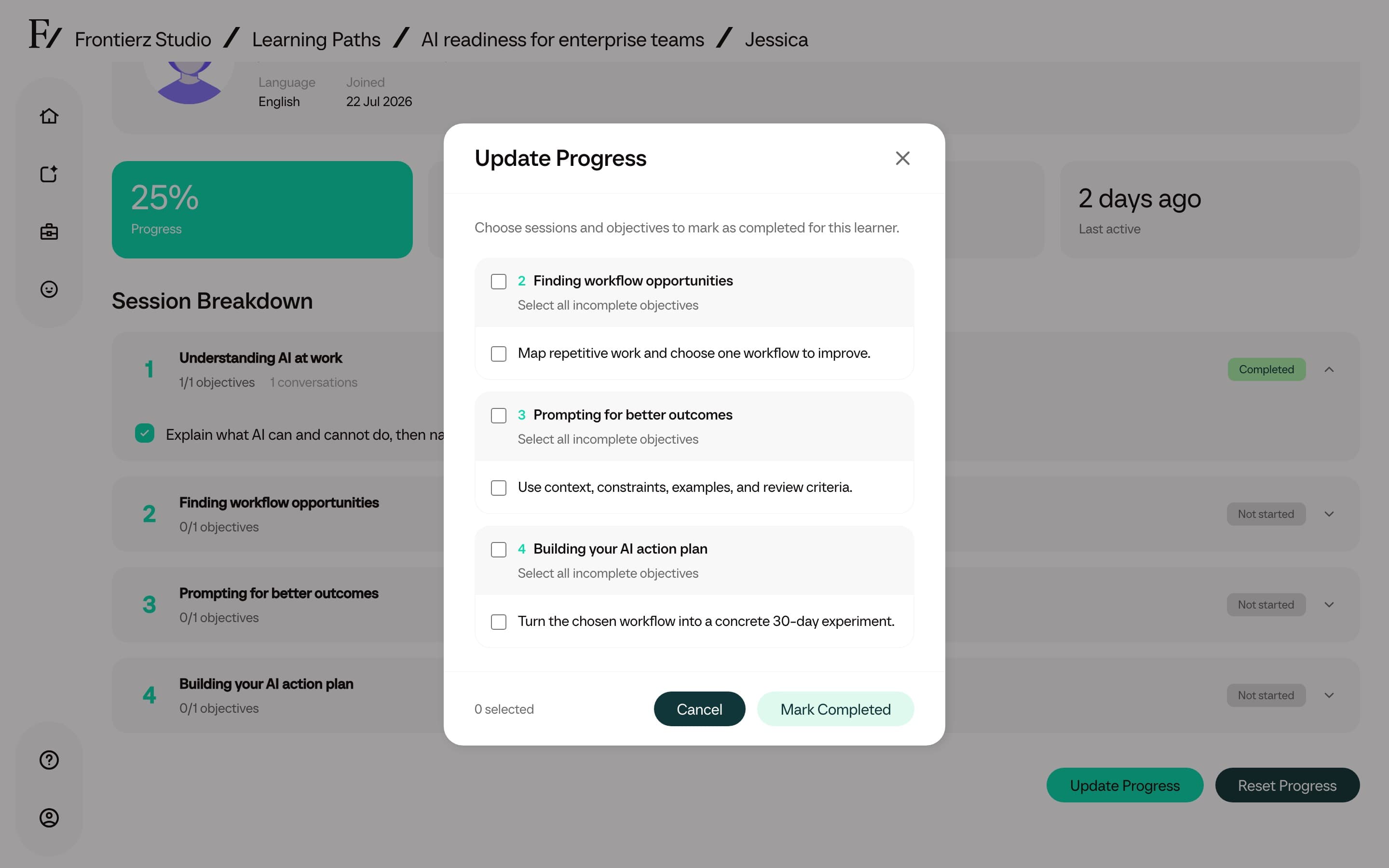
Open View user detail from a user row to review that person's progress on this Learning Path: overall percentage, sessions completed, conversation count, last active date, and a session-by-session objective breakdown. When the learner has practice feedback from AI Simulations on this path, a Practice feedback list appears under the sessions. Open a row to read the report.
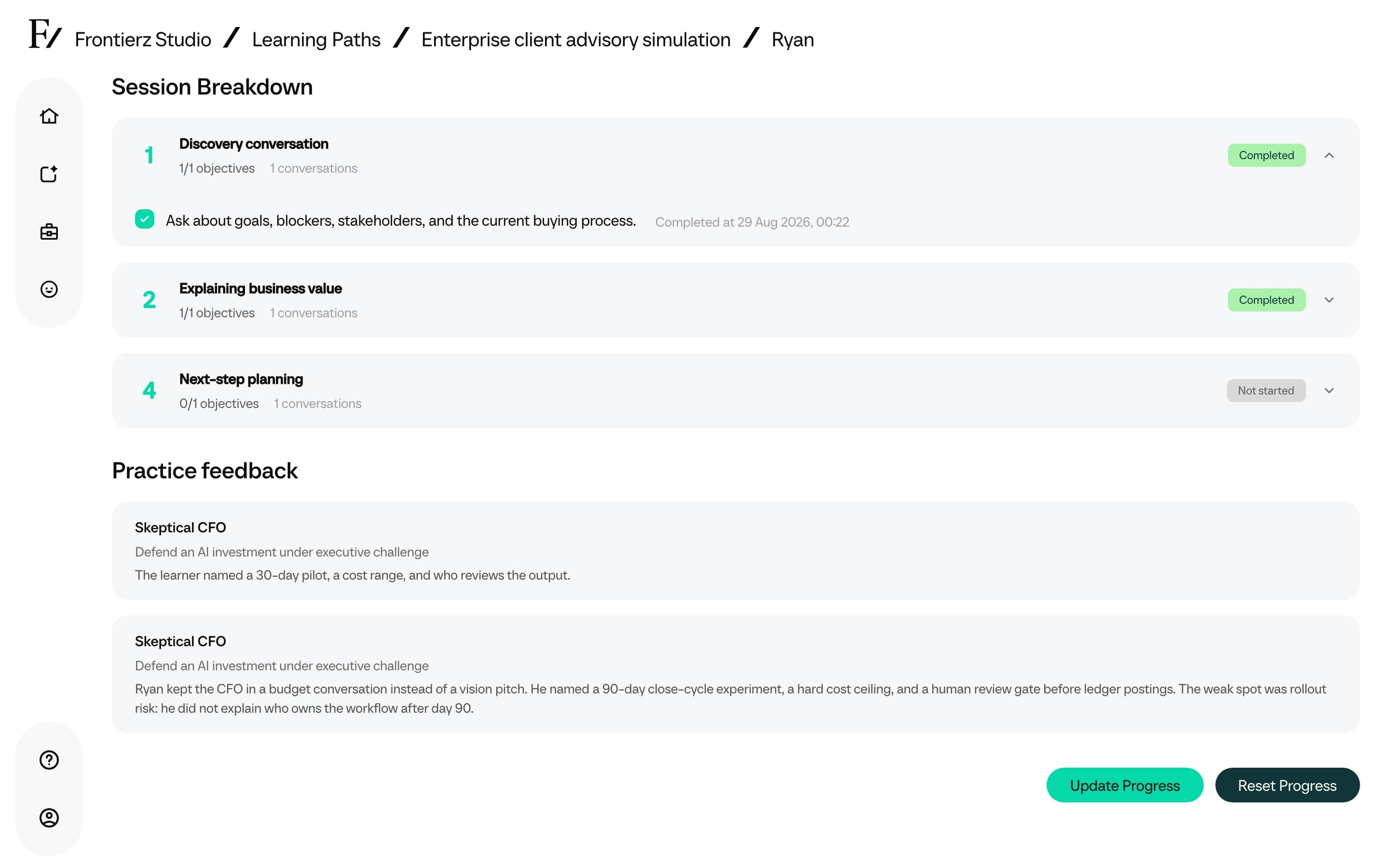
From the learner detail page you can:
- Update Progress. Mark incomplete sessions or individual objectives as completed. Use this when a session was finished outside the conversation flow, or when a user needs credit for work already done. Select the sessions and objectives, then click Mark Completed. Objectives marked this way record an administrator assessment note.
- Reset Progress. Clear all session completions for this Learning Path. The confirmation and effect match Clear Progress on the Manage Users table. This cannot be undone.
Update Progress is disabled when every session and objective is already complete.
Add users
Click Enroll New User for one user, or Import CSV for a group.
Unenroll vs clear progress
Unenroll from learning path on a row removes that person from this Learning Path. Confirm with Unenroll. Their account stays in the company and existing progress data is preserved.
To remove several people, select the checkbox on each row, or Select all users on this page. When the list continues on another page, Select all followed by the number of users includes everyone who matches the current search. Unenroll Selected asks you to confirm Unenroll Users. Clear drops the selection. Accounts and progress stay; those people lose access to this path. Anyone who could not be unenrolled stays selected.
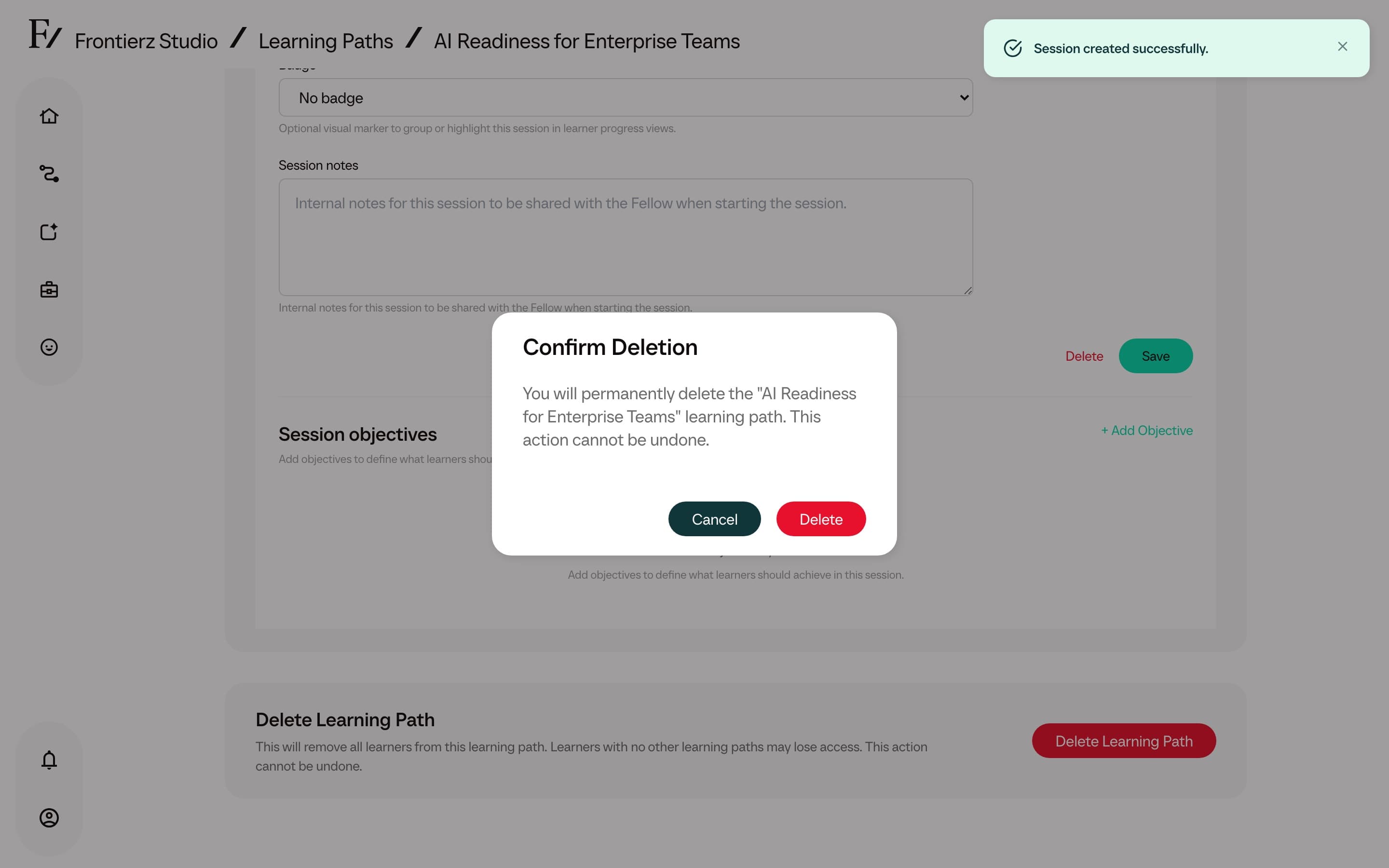
Clearing progress deletes the user's session completion data for that Learning Path. Use it only when the user must start the Learning Path again. The same action is available as Reset Progress on the learner detail page.
Clear Progress cannot be undone. Export the Learning Path data first if a record may be needed later.