

Last updated on
Integration Guide
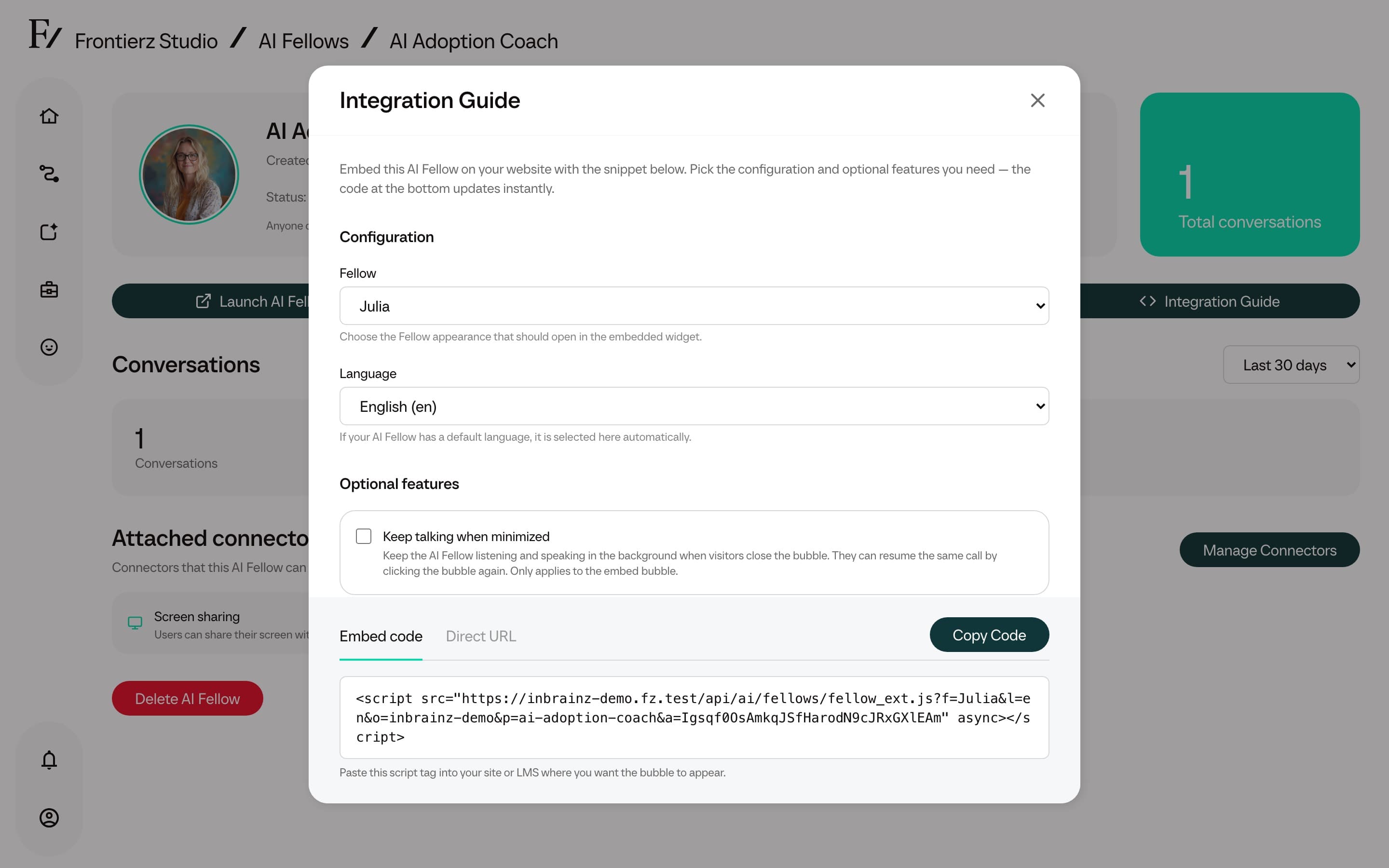
Open Integration Guide to copy a direct link to an AI Fellow or get the code to add it to your website, LMS, or intranet. You can share the direct link yourself. For the website code and external user identification, work with the person who manages that site or integration.
Open the guide
Open Actions and select Embed Externally. The Integration Guide window opens.
Embed tab
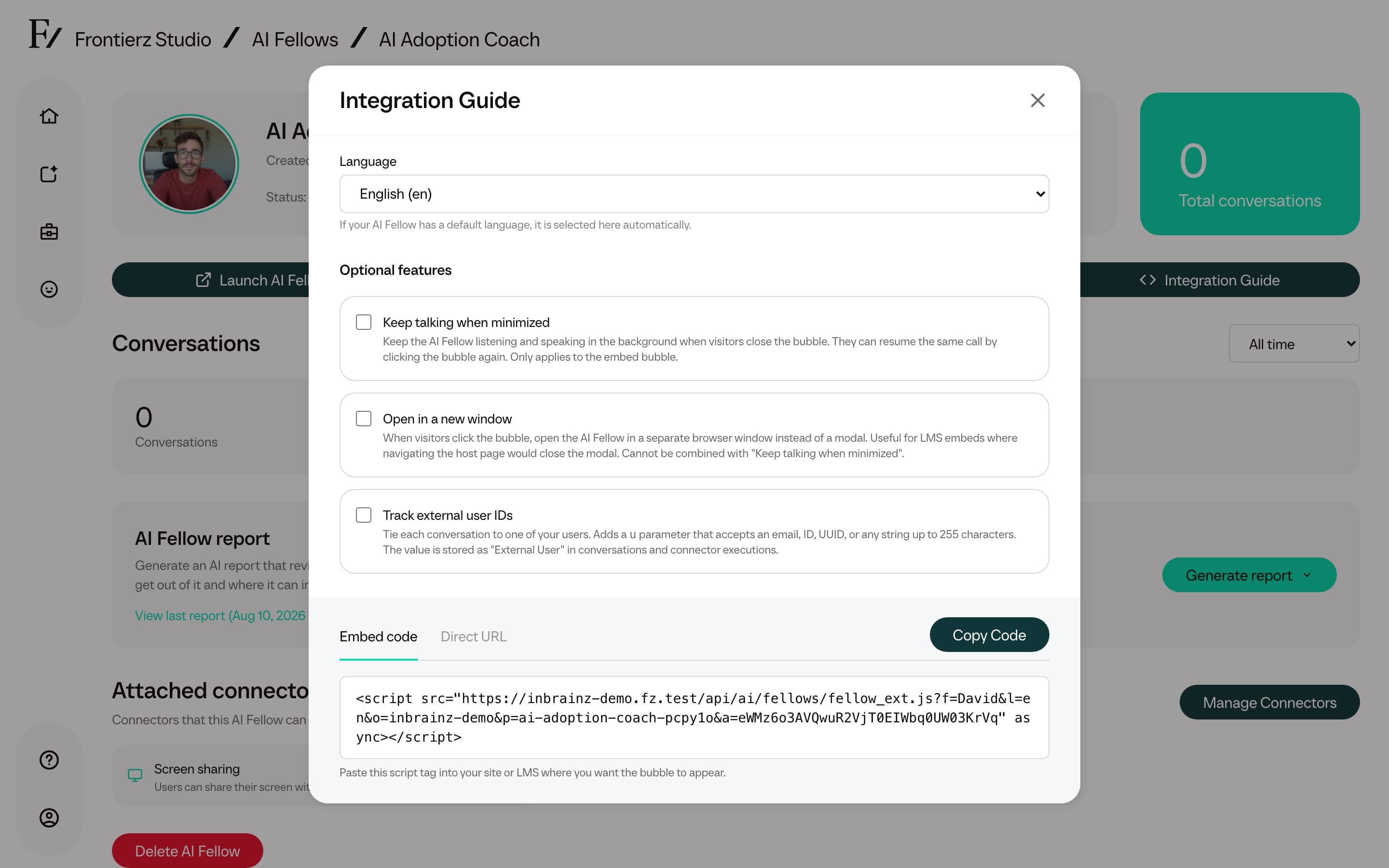
The Embed tab provides a script snippet for the customer's website, LMS, or intranet. The following options are configurable:
- The AI Fellow appearance.
- The language the AI Fellow opens with.
- Whether the widget keeps the call active when minimized through Keep talking when minimized.
- Whether the widget opens the AI Fellow in a separate browser window through Open in a new window.
- Whether the page passes an external user ID.
Keep talking when minimized and Open in a new window are mutually exclusive. Turn one option off before enabling the other.
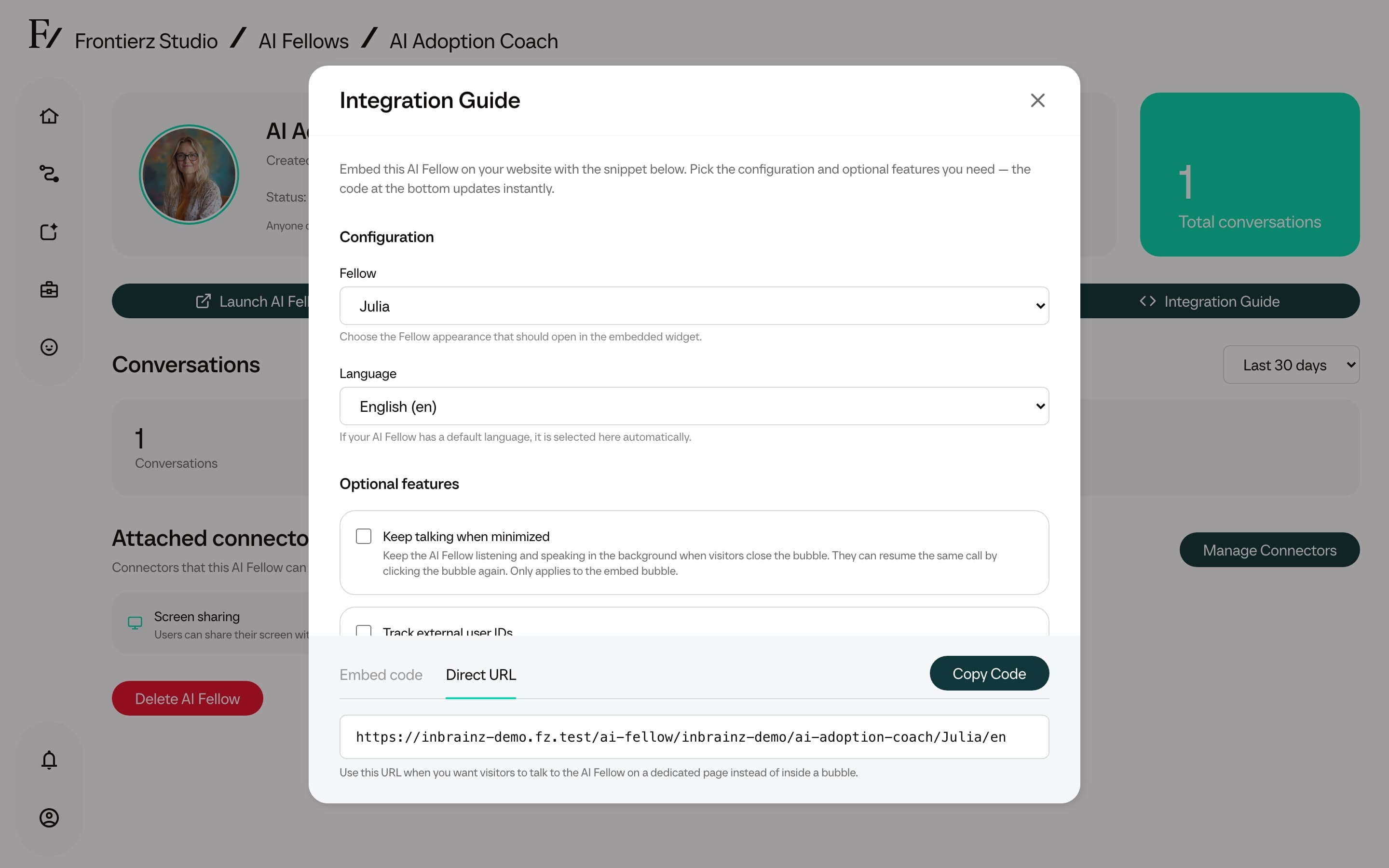
Direct tab
The Direct tab provides the standalone AI Fellow URL. Use it when users should open the AI Fellow in its own browser page rather than inside a widget.
External user IDs
External user IDs let your website or LMS associate a conversation with a user in your own system.
Copy the Embed code or Direct URL. The generated code includes the u parameter with the placeholder YOUR_USER_ID.
YOUR_USER_ID with the identifier from your system.The u value can be an email address, ID, UUID, or another string up to 255 characters. Frontierz shows the value as External User on the Conversations page and on Connector executions.
Private AI Fellows still require a signed-in user with access, even when embedded. Public AI Fellows can be opened without an account.
When a visitor opens a Private AI Fellow in an embedded widget, it shows Sign in to use this Fellow and a Sign in button. If the workspace signs in through only one single sign-on provider and offers no password, email link or code, or passkey, Sign in opens that provider in a separate pop-up window. The visitor stays on your page, and the widget continues on its own once they finish. If the browser blocks the pop-up, the widget asks the visitor to allow pop-ups for your site. In every other case, Sign in opens the usual sign-in page.
Allowed domains
By default, the embed code works on any site. In the Allowed domains section of the Integration Guide, enter the sites that may show this AI Fellow as an embedded widget in Sites allowed to embed this AI Fellow, one domain per line, and select Save Domains. For example, enter example.com, or *.example.com to include its subdomains.
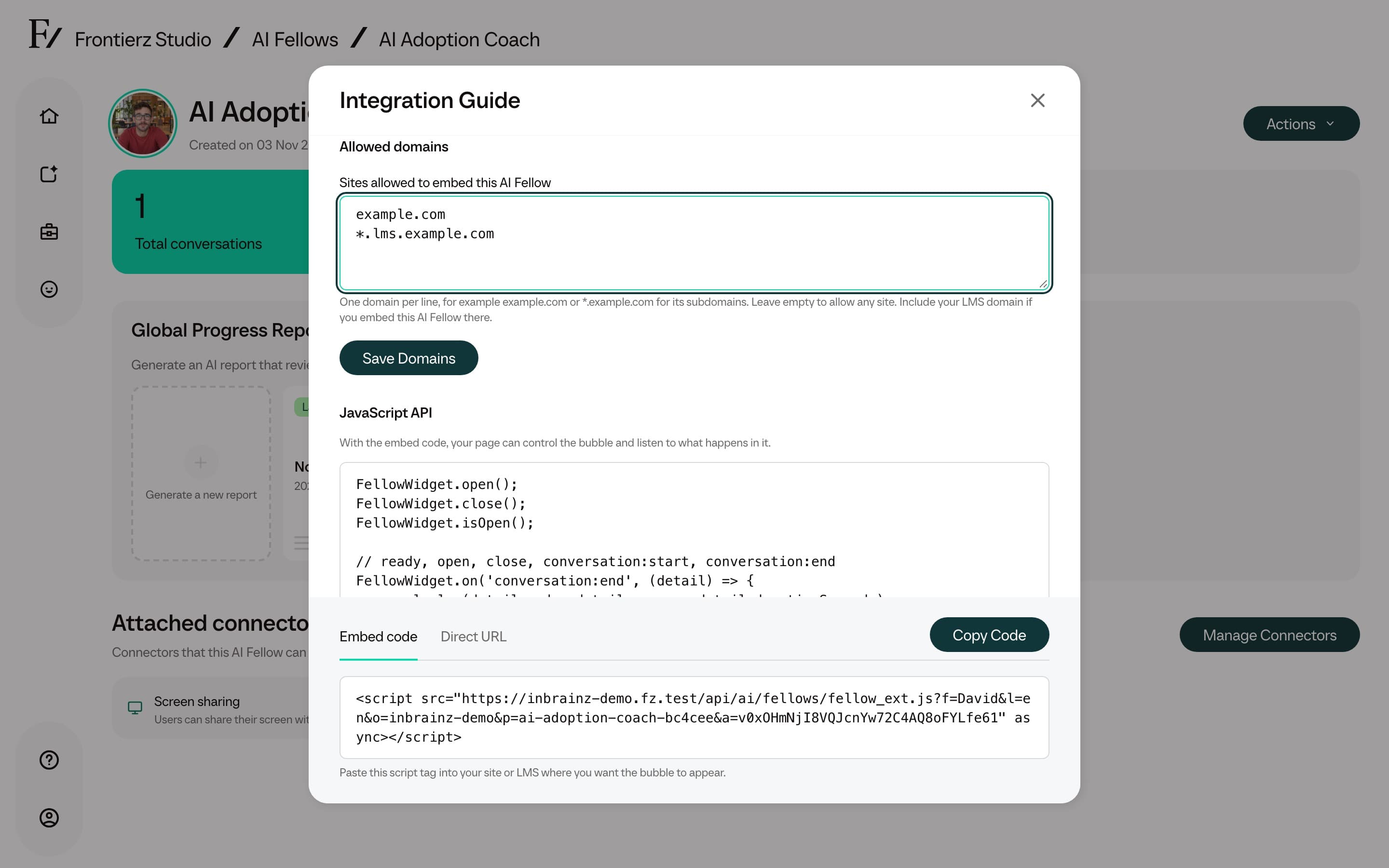
- Leave the field empty to allow any site.
- Include your LMS domain if you embed the AI Fellow there.
- A domain can include a port. If you paste a full web address, Frontierz keeps only its domain and port.
*.example.commatches subdomains but notexample.comitself. List both when you need both.- You can list up to 50 domains. Frontierz rejects an entry that is not a valid domain.
On a site that is not listed, the widget does not appear. The list limits embedding only: the Direct URL, the public page, and the new-window option still open the AI Fellow, so use Private visibility when only some people should reach it. People who can edit the AI Fellow can change the list, and the change appears in the AI Fellow's edit history as Allowed embed domains.
Control the widget from your page
With the embed code, your page can open or close the widget and react to what happens in it. The JavaScript API section of the Integration Guide shows the calls:
FellowWidget.open();
FellowWidget.close();
FellowWidget.isOpen();

// ready, open, close, conversation:start, conversation:end
FellowWidget.on('conversation:end', (detail) => {
  console.log(detail.mode, detail.reason, detail.durationSeconds);
});
window.addEventListener('fellowwidget:ready', () => { /* FellowWidget is available */ });
Each event also fires on window as fellowwidget: followed by its name, such as fellowwidget:ready.
Tell the AI Fellow about the page
A page can also tell the AI Fellow what the visitor is looking at, such as the product or plan. This is off by default. To use it, edit the AI Fellow, open Capabilities, and turn on Use context from the embedding website under Website embed. It is available for AI Fellows, not for AI Simulations. Browsers cache the widget script for up to an hour, so a change can take that long to reach your page.
Once it is on, the JavaScript API section adds these calls:
FellowWidget.setContext({ page: 'pricing', plan: 'team' });
FellowWidget.clearContext();- Pass a flat object of up to 20 keys. Each key starts with a letter and uses letters, numbers,
_,., or-, up to 64 characters. - Values can be text of up to 500 characters, numbers, or true or false. Keys and text together cannot exceed 2,000 characters.
- The AI Fellow treats the context as information about the page, never as instructions. Frontierz sends it with the conversation and does not store it.
- Do not put secrets or personal data in the context.