Last updated on
AI Fellow Identities
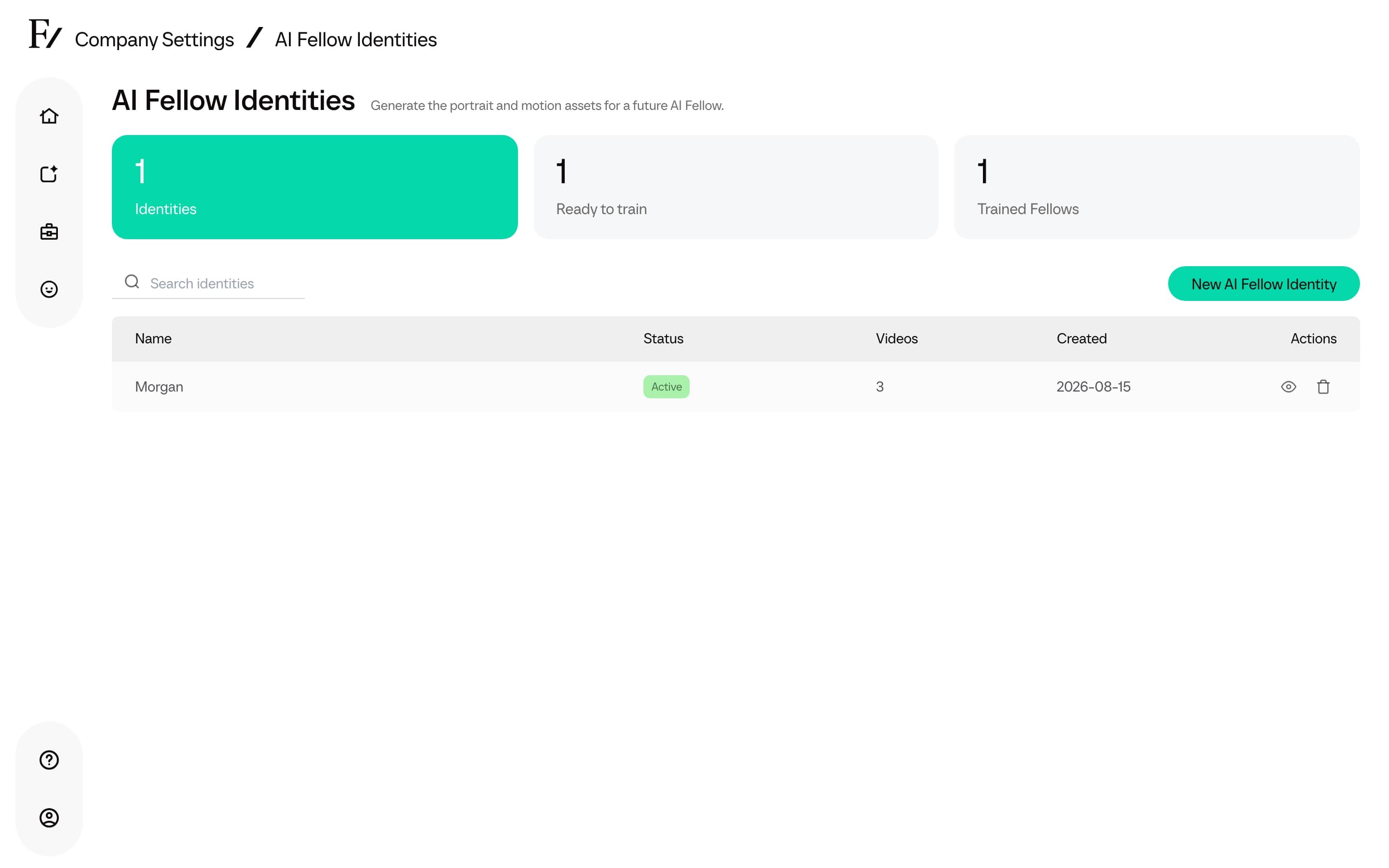
Use AI Fellow Identities to create a custom animated appearance for your company. Choose a generated portrait, prepare its movement clips, and enable the completed identity so your team can use it in AI Fellows, AI Simulations, and learning experiences.
A custom identity moves through its prepared Initialization, Listening, and Talking clips. When its portrait shows a human face, Frontierz also prepares a live face a few minutes after you deploy the identity. In a voice call, the lips and expressions then follow the voice, as they do for the standard Frontierz Fellows such as Julia or David. Until the live face is ready, and for a portrait without a human face, such as a mascot or an animal, the clips play instead.
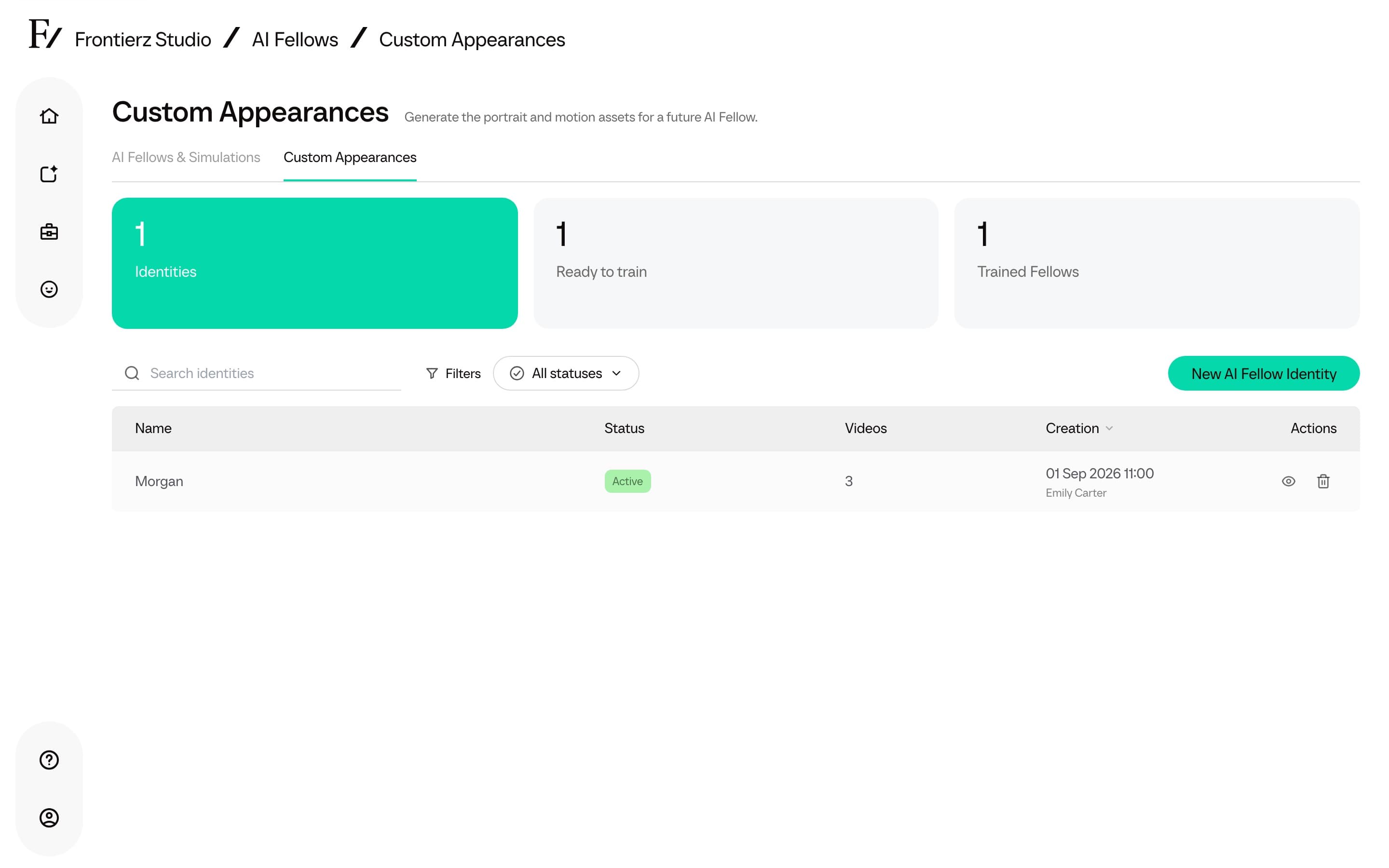
This page is available to Full Admins when the feature is enabled for the workspace. Open it from Studio AI Fellows → Custom Appearances. Managers cannot open it.
Create and deploy an identity
Click Turn on for your company. The identity becomes available to the company. Its status changes from Building to Active.
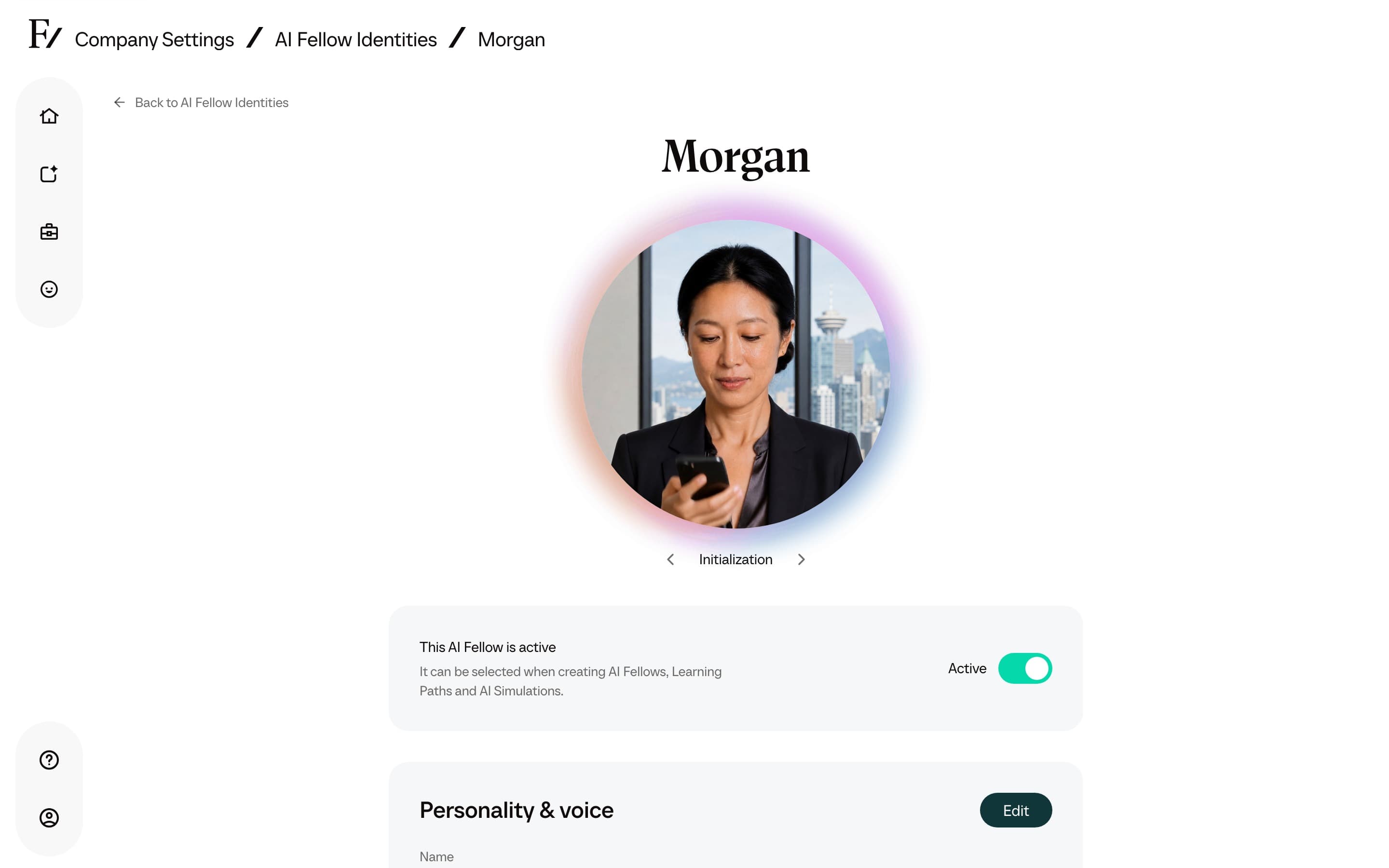
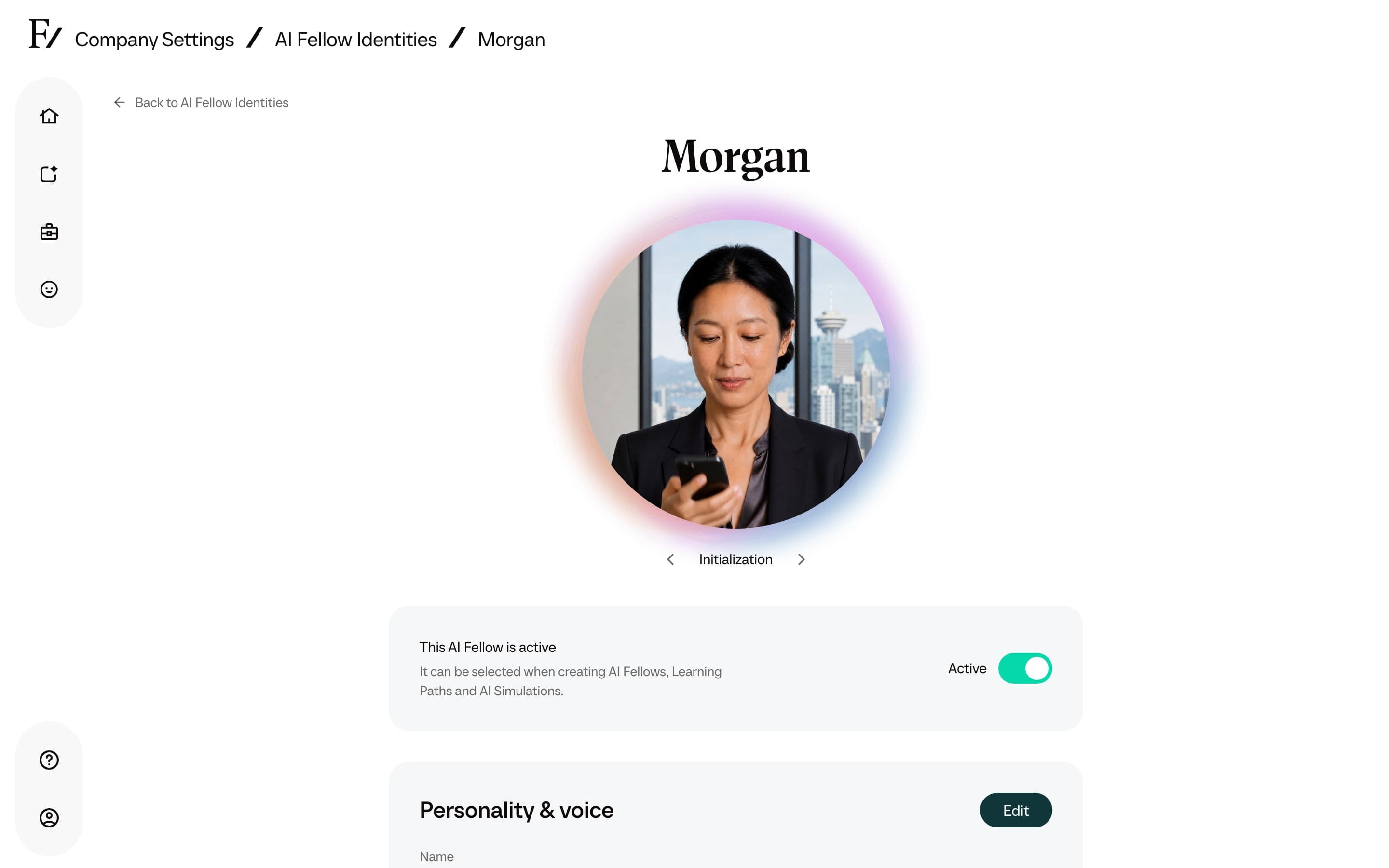
After you enable the identity, use the status control to disable or re-enable it. An Inactive identity stays in Custom Appearances but is unavailable when choosing a Fellow’s appearance.
Name, personality, and voice
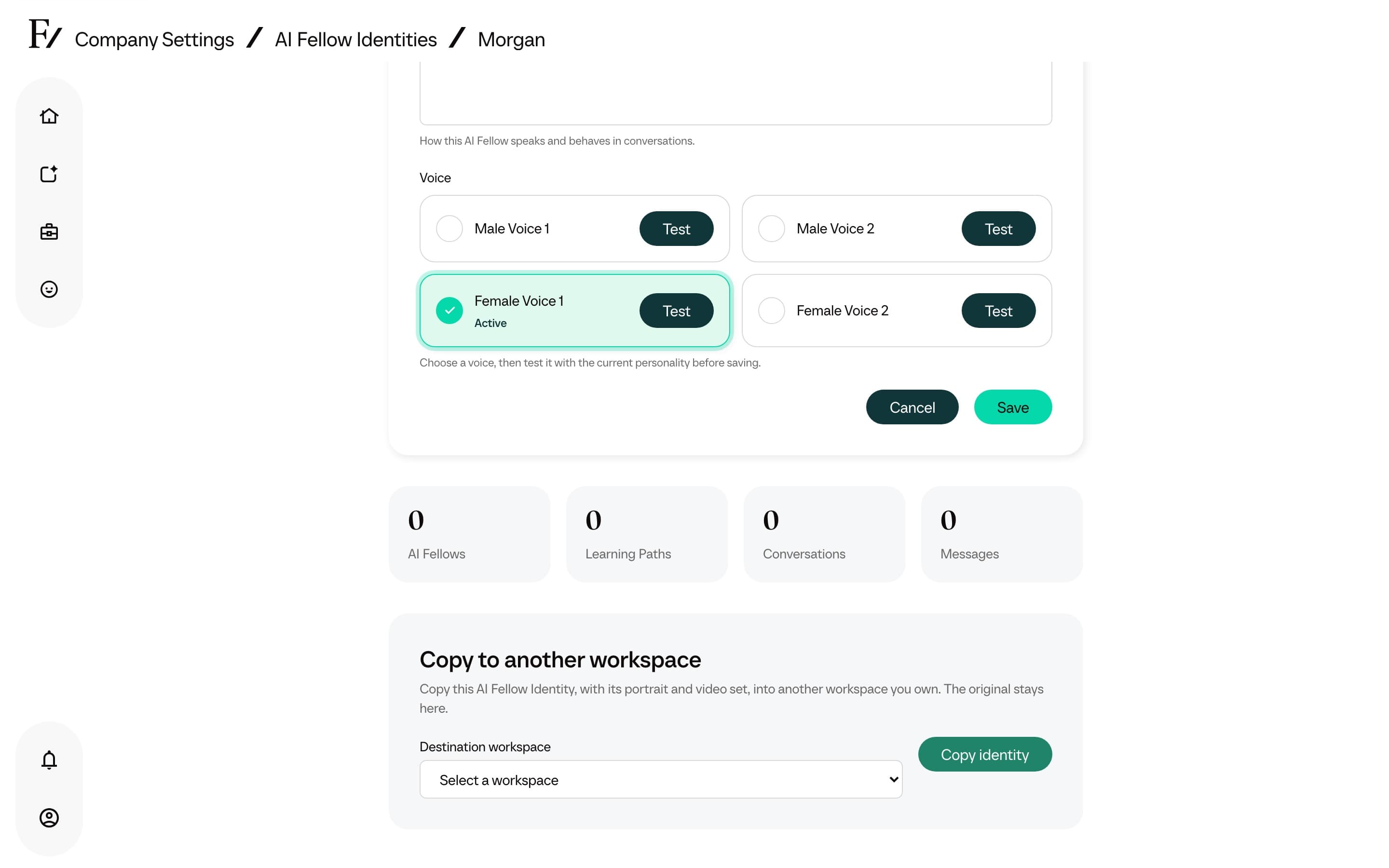
Open a finished identity and select Edit in the Personality & voice section. The Name is the display name shown wherever that AI Fellow appears. Personality controls how it speaks and behaves. Voice cards show the active voice and let you test another voice before saving.
Copy to another workspace
Owners with more than one workspace see Copy to another workspace on a fully generated identity. Choose the Destination workspace and click Copy identity. The original stays in the current workspace.
The copied identity includes the portrait and completed video set. It arrives in the destination ready for review and deployment, but it is not deployed automatically.